Managing BYOK Instances
Download
Focus Mode
Font Size
This document describes how to manage a BYOK instance, including basic information, Key management, model management, and usage details viewing.
Basic Information
1. Log in to the CMR console. In the left sidebar, choose BYOK > BYOK Management. On the list page, you can view the created BYOK instances.
2. Click a specific BYOK instance to go to the Basic Information page. On this page, you can configure or modify the following parameters.
Parameter | Description |
BYOK ID | Displays the ID information of the created BYOK instance and can be copied. |
BYOK Name | Displays the name information of the created BYOK instance. Click the edit icon to modify the name. |
Endpoint Protocol & BaseURL | Involved when Output Modality is Text Generation, specifically the OpenAI-compatible Base URL or the Anthropic Base URL. When multiple protocols are supported, it can be edited, added, or deleted. |
BaseURL & EndpointPath | Configuration is required when Output Modality is Vector Embedding. The final request URL = BaseURL + EndpointPath. It supports copying and editing. |
Tags |
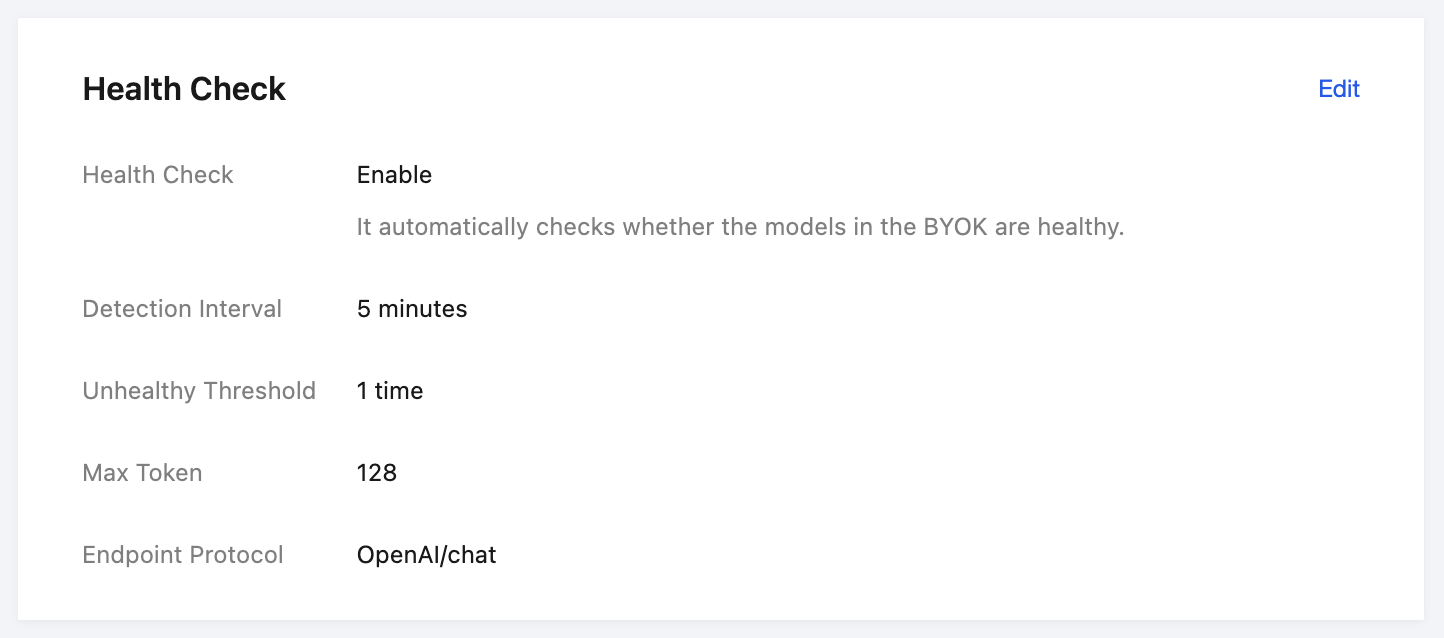
Health Check
1. Log in to the CMR console. In the left sidebar, choose BYOK > BYOK Management. On the list page, you can view the created BYOK instances.
2. Click a specific BYOK instance to go to the Basic Information page. On this page, you can edit the health check configuration.
Key Management
1. Log in to the CMR console. In the left sidebar, choose BYOK > BYOK Management. On the list page, you can view the created BYOK instances.
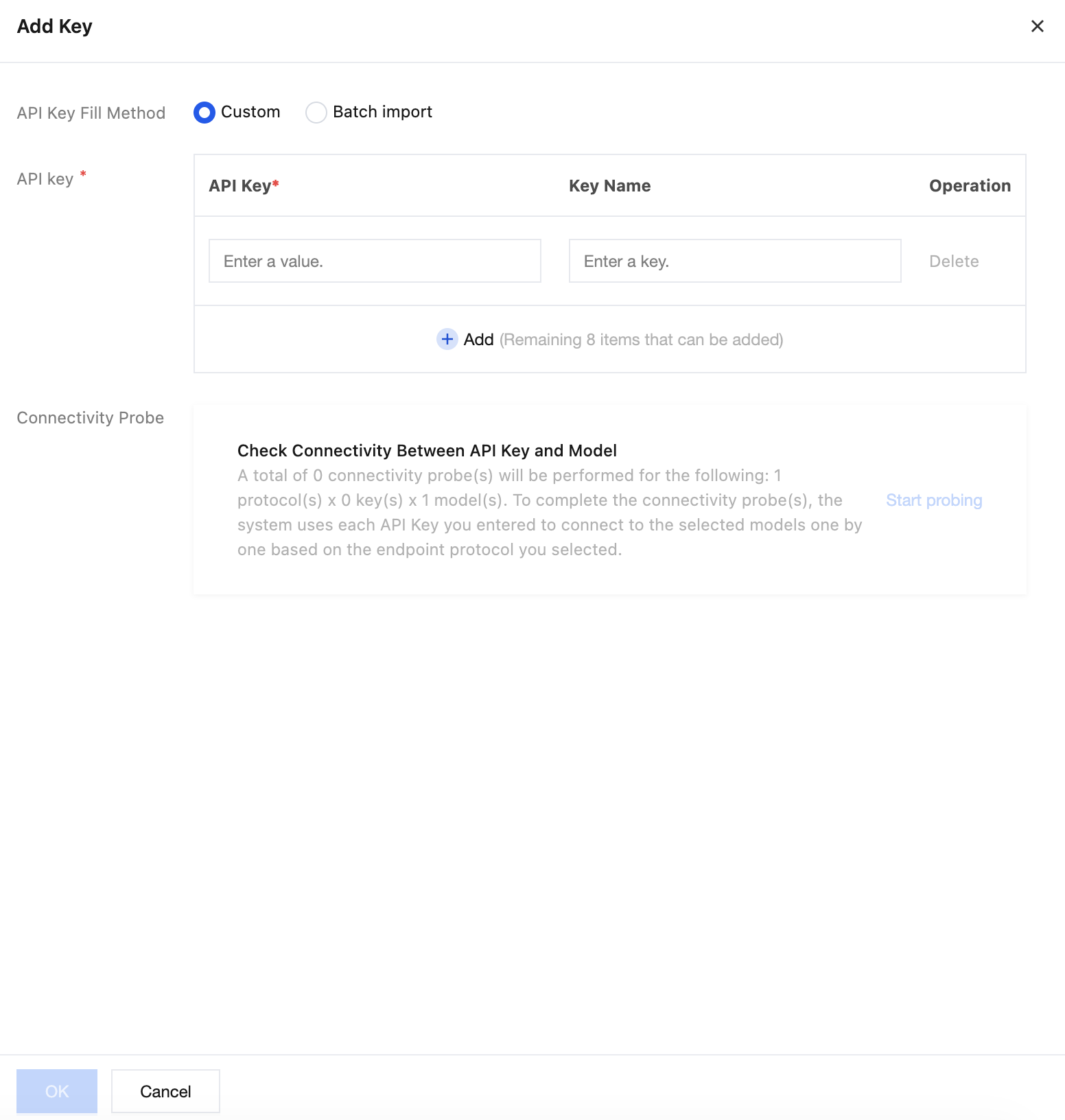
2. Click a specific BYOK instance or click Manage Key in the operation column on the list page to go directly to the Basic Information page, where you can add or delete Keys. When adding a Key, you can enter it manually or import Keys in batches. The parameters to configure are described as follows.
Parameter | Description |
API input method | Both manual entry and batch import are supported. Manual entry: Manually paste the API key and secret key into the corresponding input fields in order. Batch import: Download the template, fill in the API key and secret key, and then import the file to quickly import keys in batches. |
Connectivity probing | The system automatically performs connectivity probing based on the Endpoint protocol you have selected, using each API Key you have entered to connect to the selected models one by one. It probes the health status of the API Keys, allowing you to promptly remove unhealthy API Keys. |
Note:
A BYOK model must retain at least one Key. If a model has only one Key, you are not allowed to delete that Key.
Model Management
1. Log in to the CMR console. In the left sidebar, choose BYOK > BYOK Management. On the list page, you can view the created BYOK instances.
2. Click a specific BYOK instance to go to the Basic Information page. On this page, you can add/delete models and batch test the multimodal feature. The multimodal feature is involved only when Output Modality is set to Text Generation. The parameters required for adding a model are described as follows.
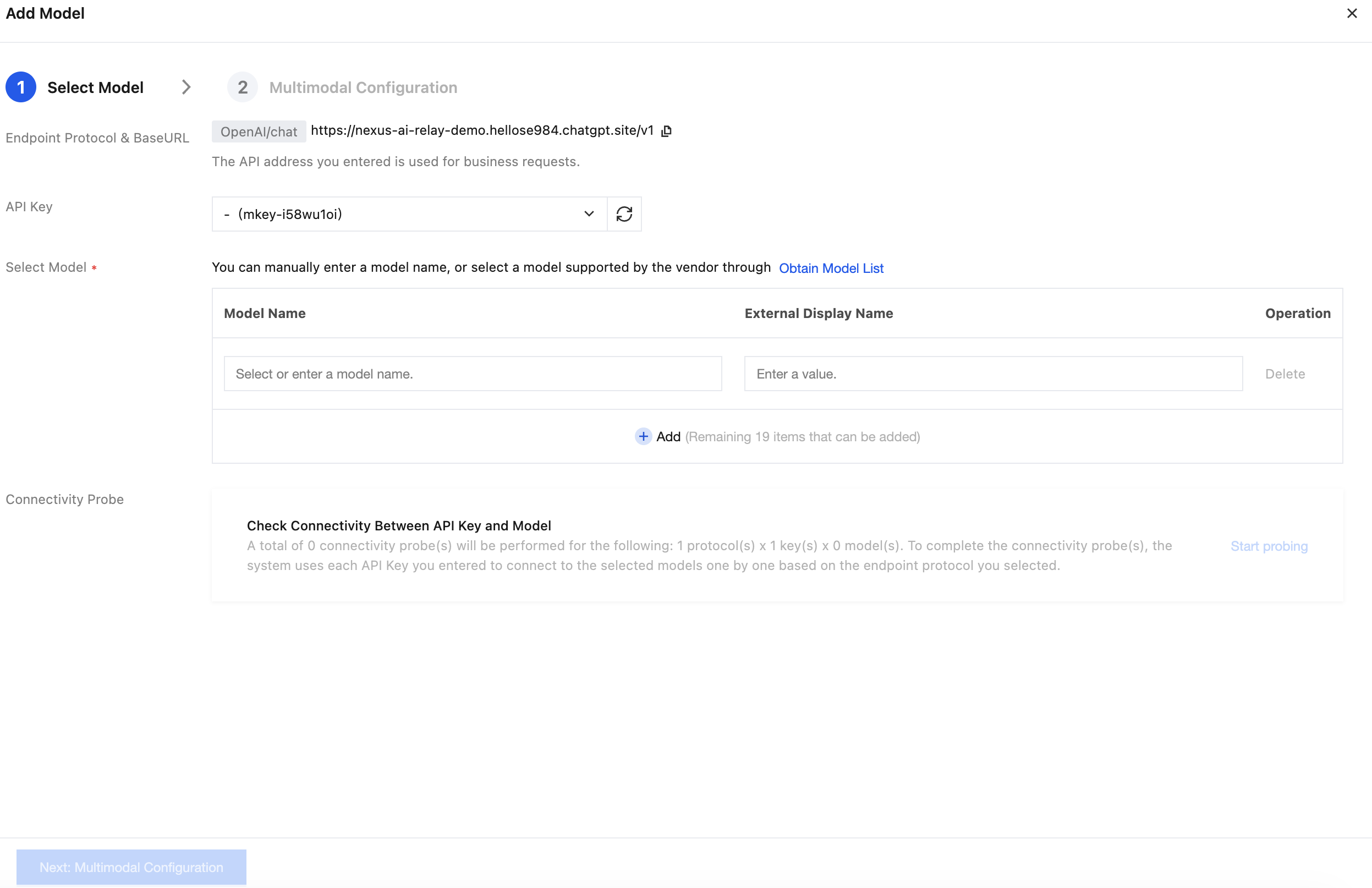
3. Select a model:
Parameter | Description |
Endpoint Protocol & BaseURL | Involved when Output Modality is Text Generation, specifically the OpenAI-compatible Base URL or the Anthropic Base URL. When multiple protocols are supported, it can be edited, added, or deleted. |
BaseURL & EndpointPath | Configuration is required when Output Modality is Vector Embedding. The final request URL = BaseURL + EndpointPath. It supports copying and editing. |
API Key | Select the API Key that you added in the current BYOK instance. |
Select a model: | Manual input of model names is supported, and supported models can also be pulled by clicking Obtain Model List. To change the external model name, enter a name that meets your standards in the External Display Name field. |
Connectivity probing | After adding an API Key and selecting the correct model, click Start Probing to probe the health status of the API Keys, allowing you to promptly remove unhealthy API Keys. |
After completing the fields, click Next: Multimodal Configuration.
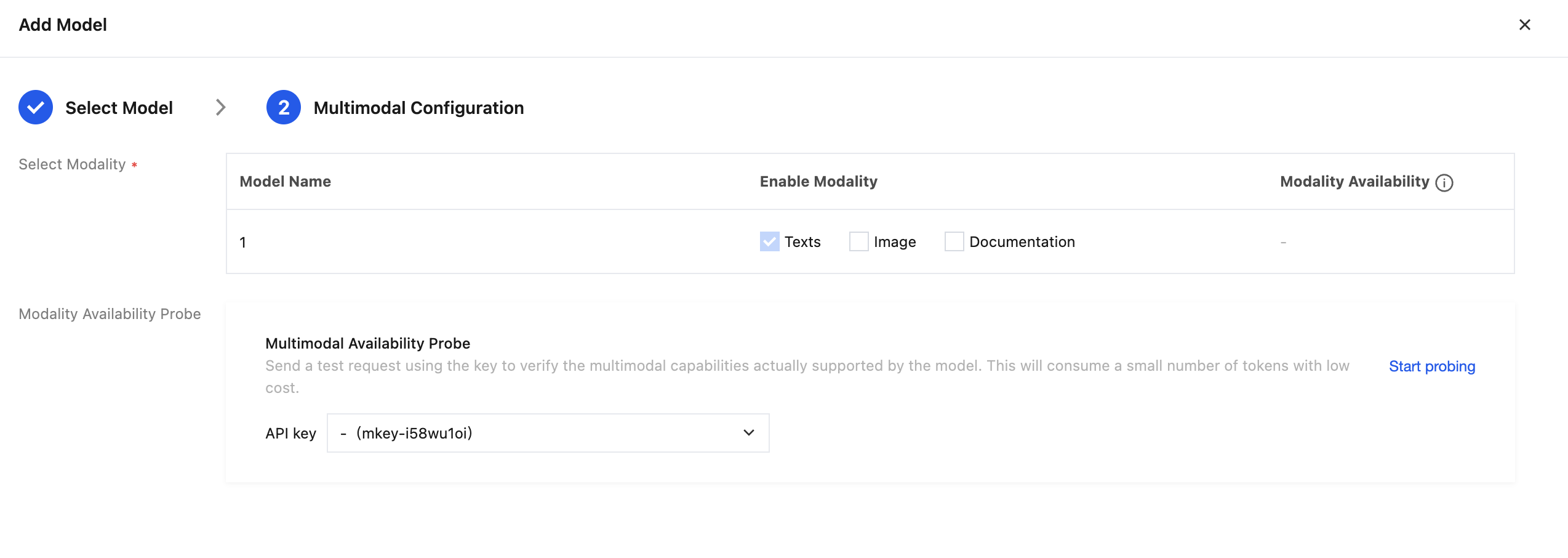
4. Multimodal configuration is involved only for BYOK instances whose output modality is text generation.
Parameter | Description |
Model Name | Displays the name of the selected model. Different models may support different modalities. Refer to the page display for the actual supported modalities. |
Enable Modality | Select the modalities to enable for the current model. After they are enabled, the model can be called in the corresponding modality scenarios. |
Modality Availability Detection | Used to probe the availability of each model modality under the current API Key. Click Start Probing. After the probing is completed, you can view the probe results in the modality availability section of the model list above. |
Modality Availability | Displays the availability status of each modality of the current model. You can adjust the enabled modalities or perform probing again based on the prompts. |
Enable Based on Probe Result | After clicking, the system automatically enables the available modalities based on the current probe result. |
Probe Again | After clicking, the system re-probes the availability of each model modality under the current API Key and refreshes the modality availability results. |
5. After confirming that the information is correct, click Done.
Note:
For a self-deployed model that has only completed network configuration but not model & Key configuration, you can click Configure Model in the operation column on the list page to continue the model & Key configuration.
Viewing Usage Details
Click a specific BYOK instance ID to go to the Basic Information page. Switch to the Usage Details tab to view usage details. For more information, see Usage Details.
References
Help and Support
Was this page helpful?
You can also Contact sales or Submit a Ticket for help.
Help us improve! Rate your documentation experience in 5 mins.
Feedback