Unified Access to Buddy Private Models
Download
Focus Mode
Font Size
Overview
Intelligent assistants such as WorkBuddy and CodeBuddy IDE have become essential productivity tools in development and office scenarios. These assistants typically connect directly to cloud-based large models and can be put into use quickly. However, in industries with strict data security and compliance requirements, such as finance, government, and large-scale manufacturing, code repositories, internal documents, and business data are sent to third-party models over the public network, which may introduce risks such as data leaving the controlled domain, trade secret leakage, and compliance audit issues. For enterprises that have already deployed large models in a VPC, the key is to enable Buddy to securely and stably call enterprise private models without significantly changing how Buddy is used.
CMR can serve as a unified access layer between Buddy and private models: it provides an OpenAI-compatible access address externally, and internally handles authentication, protocol conversion, model routing, rate limiting, and usage statistics, then forwards requests to private models deployed by enterprises. This best practice focuses on the following pure private network access scenario within the same VPC:
Private models are deployed within the customer's VPC.
The servers running CodeBuddy IDE or WorkBuddy are deployed in the same VPC.
CMR is created in the same VPC and accesses private models over the private network.
Buddy calls private models through the CMR private network access address.
Solution Value
CMR provides unified access and governance capabilities between Buddy and private models, delivering the following key values. The role of CMR is not merely to forward requests, but to centralize model access, credential management, and call governance into a unified gateway. Buddy does not need to directly perceive the real addresses and credentials of private models, and enterprises can adjust underlying models without significantly changing how users primarily interact with them.
Dimension | Customer Benefits | Implementation Mechanism |
Data sovereignty and compliance | The client Buddy tool, CMR model routing gateway, and private models can form a fully private network link. Code and private documents are transmitted entirely within the VPC private network, and model requests do not pass through public network third parties, meeting compliance and audit requirements. | The client connects through the private network, the gateway directly connects to private models over the private network, and traffic does not leave the domain. |
Zero-touch integration | To switch to a private model, you only need to replace the access address and Key without modifying business code. | OpenAI-compatible protocol and protocol conversion |
Key security | The business side only holds the API Key. Real model credentials are managed by the gateway, and personnel turnover does not pose a leakage risk. | Physical separation of API Key and model Key |
Smooth evolution | Subsequent additions or removals of private models and adjustments to routing policies are completed on the gateway side, with no impact perceived by the business side. | Model selection is centralized in gateway-side orchestration. |
Architecture Description
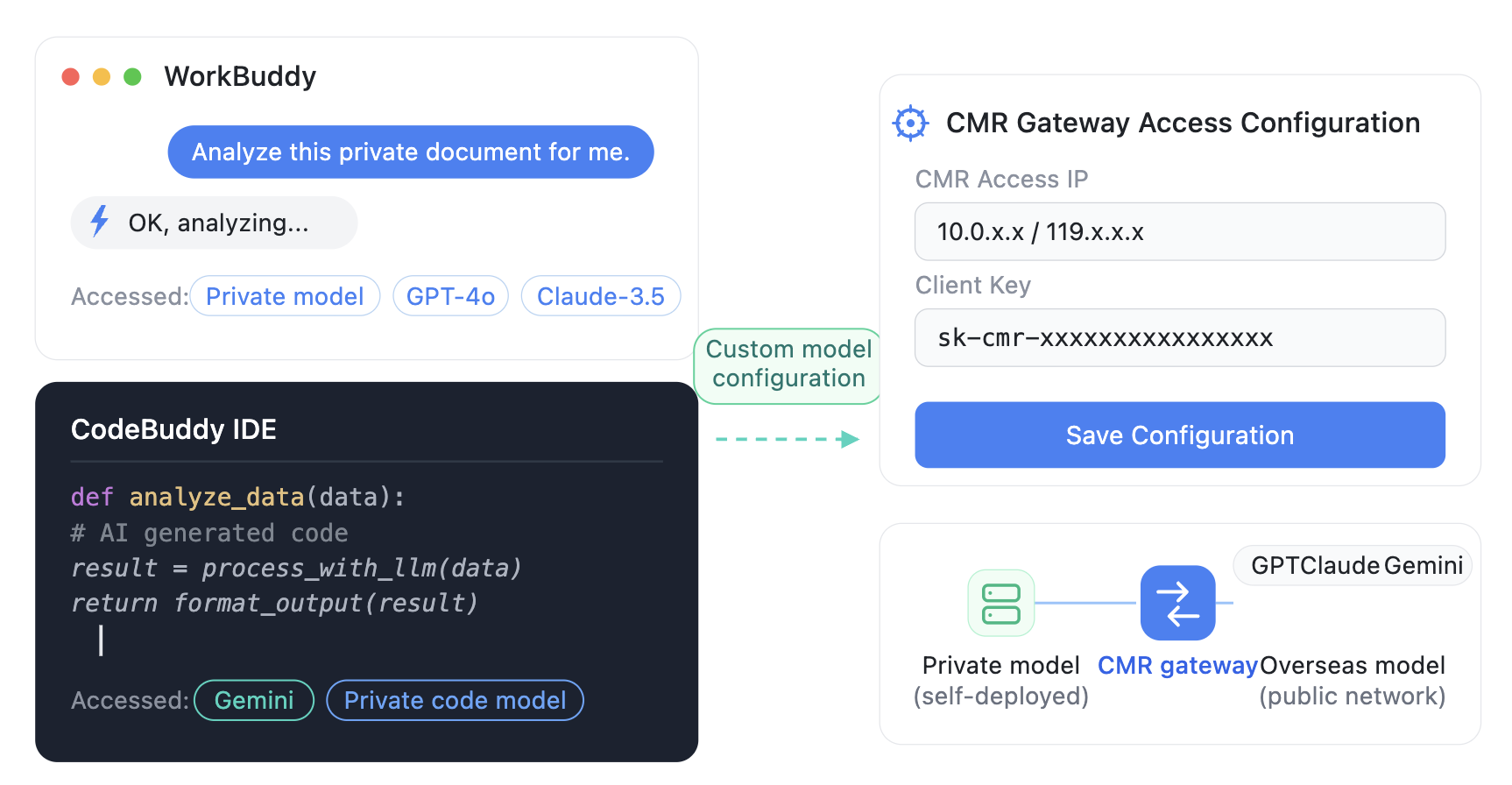
The overall chain consists of three segments:
Clients include CodeBuddy IDE and WorkBuddy, which uniformly use the Client Key issued by the CMR gateway to initiate requests. A CMR instance supports both public and private network access. In this scenario, clients access CMR over the private network, keeping the client-to-gateway link within the private network as well. This, together with the direct private network connection from the gateway to private models, forms an end-to-end pure private network solution.
The CMR gateway serves as the trust boundary and control center of the architecture, with the following responsibilities: verifying API keys for authentication, converting OpenAI requests to target model protocols, routing requests to corresponding private models, and enforcing rate limiting and usage statistics. All cross-domain security and governance actions are consolidated at this layer, keeping the structures on both sides simple.
Private models within the VPC can include private code models, private chat models, and industry fine-tuned models, all of which are self-deployed by customers. The gateway accesses these models through direct private network connections, and the real model keys are stored only on the gateway side. CMR is the only external entry point, and models are visible only to the gateway, not to business systems.
In terms of data flow, a request enters the gateway with an API Key, is forwarded to the corresponding private model with a model Key after authentication and routing, and the response returns along the original path. The key design here is the physical separation of the Client Key and the model Key: the former is business-facing and supports batch issuance and revocation, while the latter is model-facing, centrally managed, and never issued to clients. This separation serves as both a security control mechanism and the technical prerequisite for replacing models without impacting business operations.
Prerequisites
1. Private model deployment has been completed within the VPC. The model exposes OpenAI-compatible APIs externally and provides the capabilities required for Buddy usage scenarios, such as multi-turn sessions, code understanding, and tool calling.
2. Self-deployed model configuration has been completed. For detailed operations, see Creating a BYOK Instance.
3. An enterprise private network CMR instance has been created in the same VPC. For detailed operations, see Creating a Model Routing Instance.
4. The above private models have been associated in CMR. For detailed operations, see Configure Model Scheduling Management.
5. Prepare a server in the same VPC for running Buddy, and install CodeBuddy IDE or WorkBuddy on it.
6. The required ports have been opened in the security groups and network access control policies between the Buddy server, CMR, and private models.
Operation Steps
Step 1: Creating a CMR API Key
To distinguish call sources and manage access policies independently, this practice creates separate API Keys for WorkBuddy and CodeBuddy IDE.
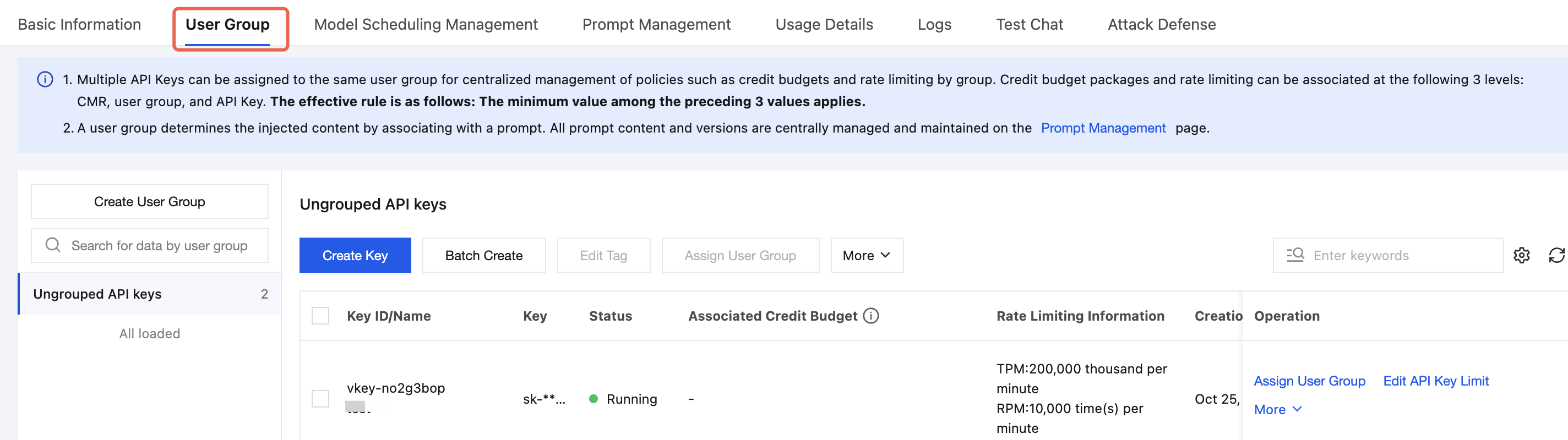
1. Go to the details page of the created CMR instance, switch to the User Group tab, and select the target user group. If grouping by business or personnel is not required, you can select Ungrouped. Click Create Key.
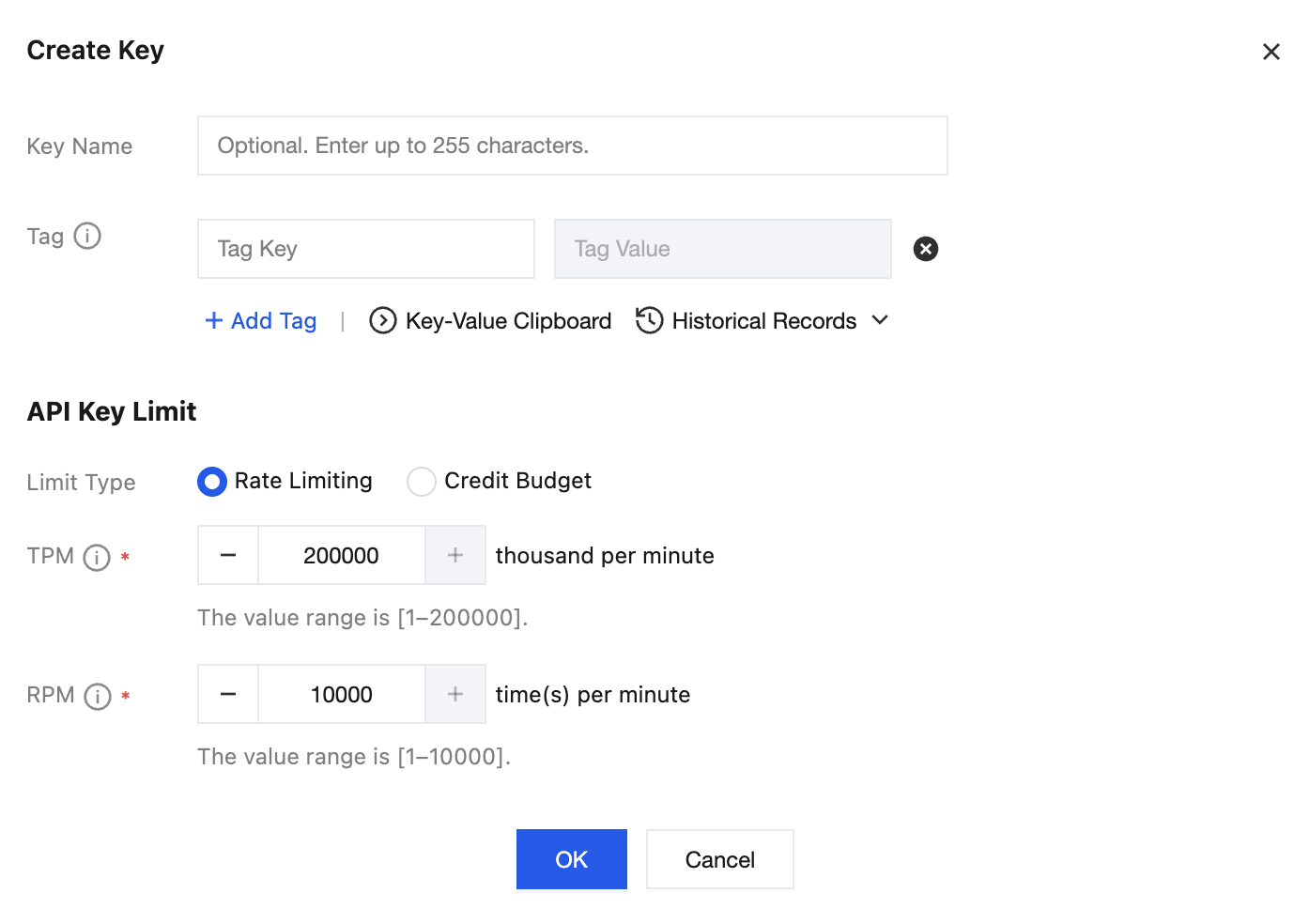
2. On the Create Key page, configure the Key name, tag, and limit type. After creation, copy and securely store the complete API Key.
Step 2: Configuring Buddy
WorkBuddy
1. Log in to the server used for this practice in the same VPC, and start WorkBuddy.
2. In the lower-left corner of the WorkBuddy page, click the account entry and select Settings.
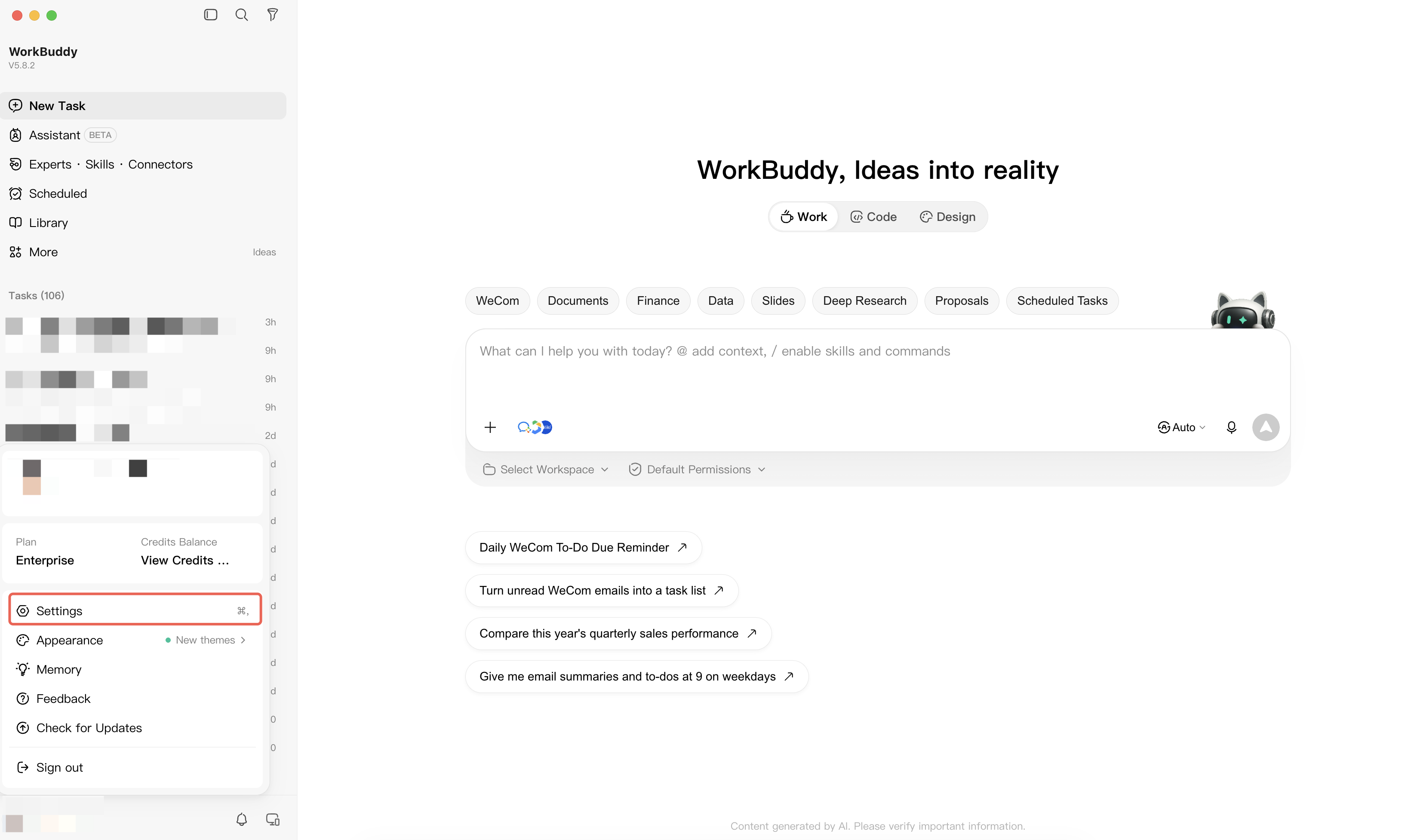
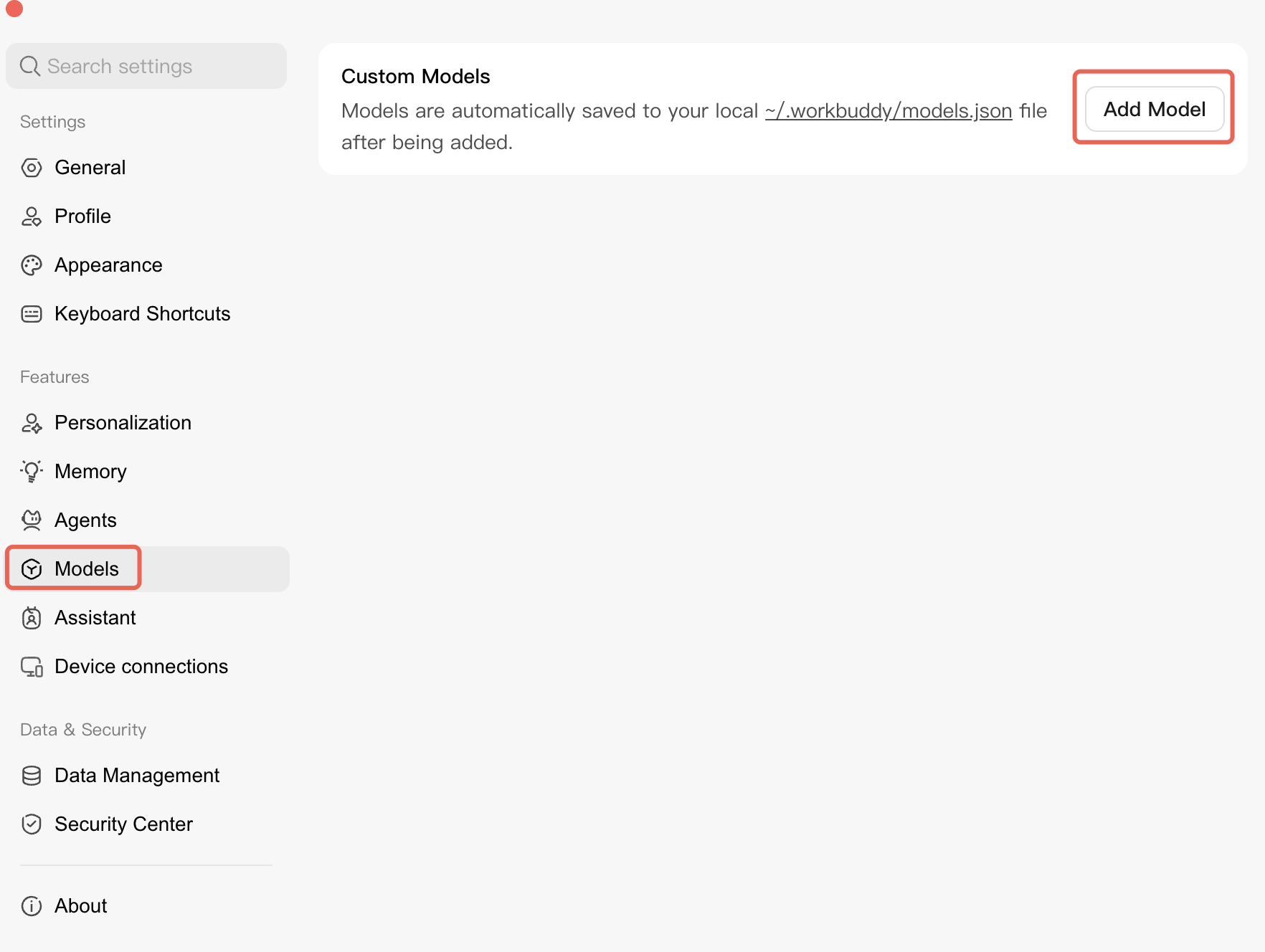
3. In the left sidebar of the Settings page, select Models. In the Custom Models section, click Add Model.
4. Select Custom / Custom as the provider and configure the following information:
API endpoint: http://<user domain>/v1/chat/completions.
API Key: Enter the CMR API Key created for WorkBuddy.
Model Name: Enter the external model name configured in CMR. In this example, the default model ModelRouter/auto is used.
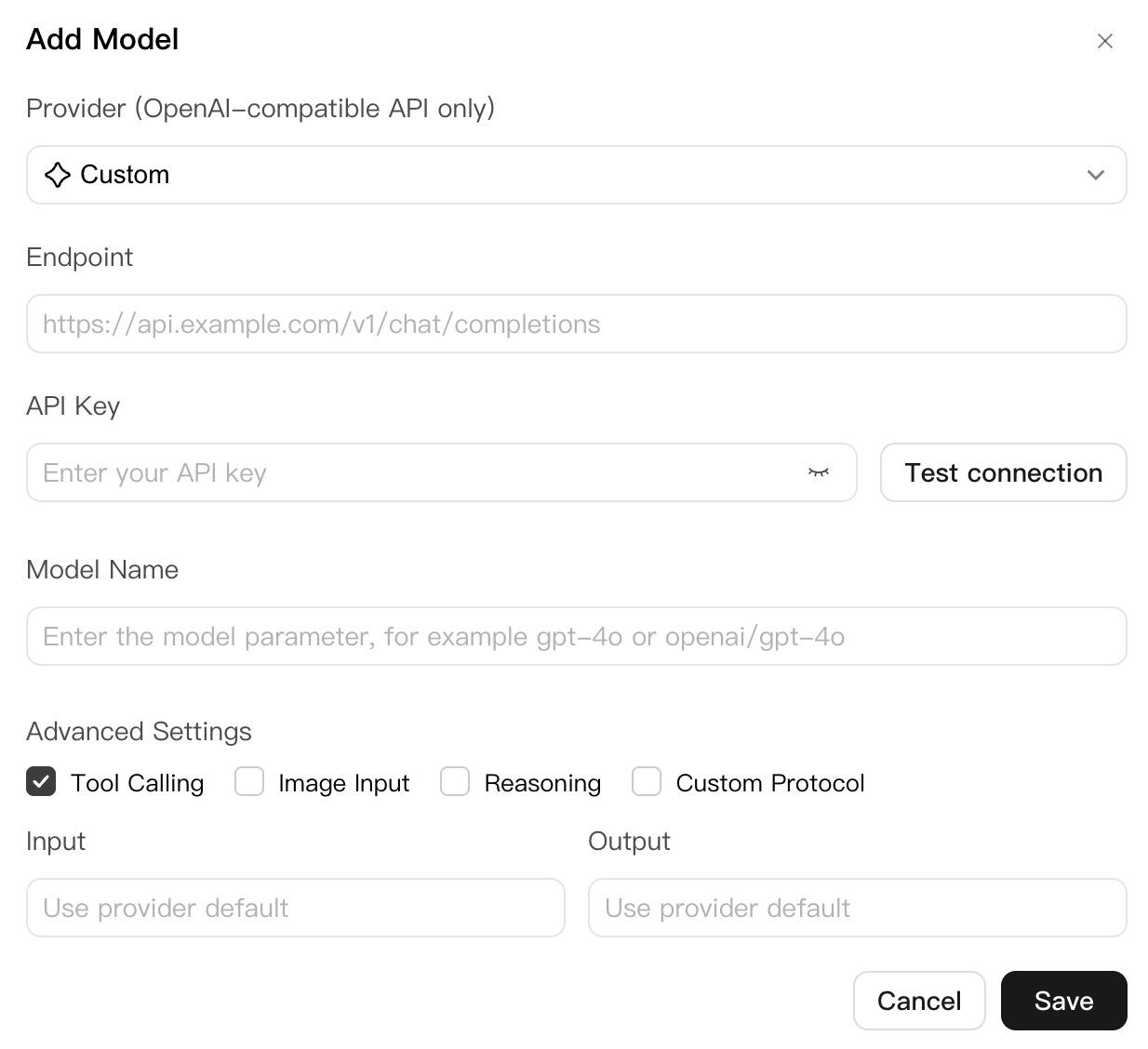
5. Configure options such as tool calling, image input, and reasoning mode based on the actual capabilities of the private model. Do not enable capabilities that the private model does not support, and click Save.
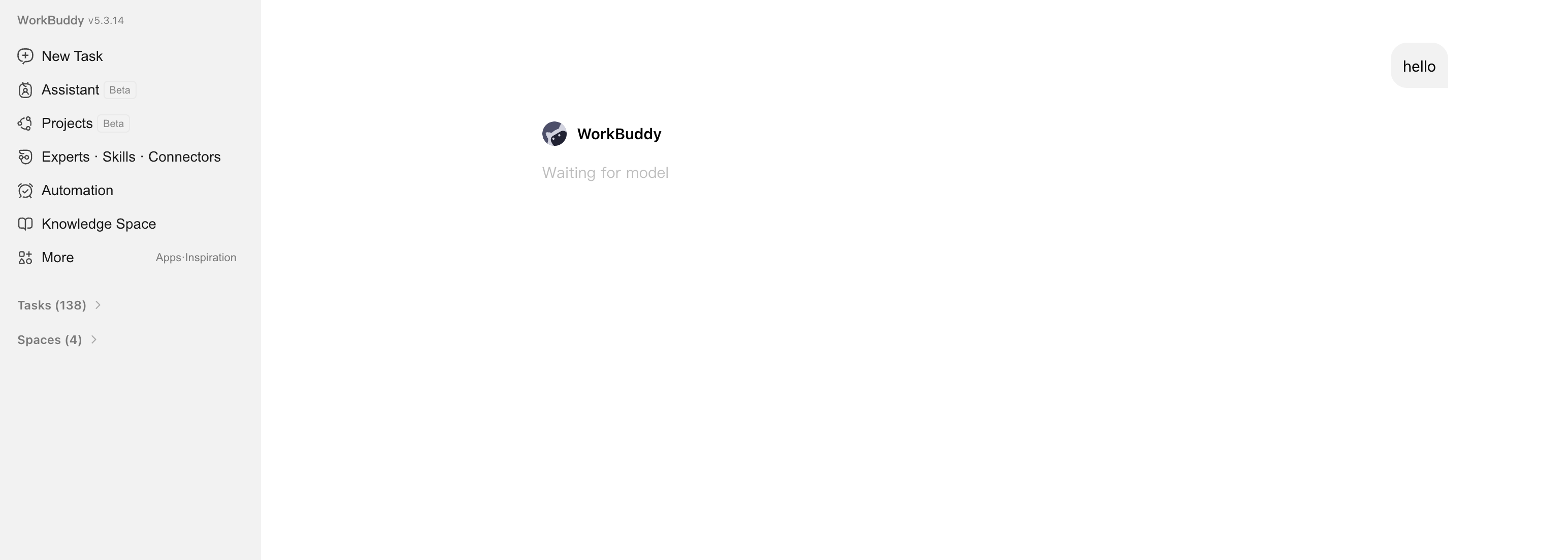
6. In the model selector of WorkBuddy, select the model you just added, and test in a chat whether the private model can be successfully called.
CodeBuddy IDE
1. Log in to the server used for this practice in the same VPC, and start CodeBuddy IDE.
2. Click the model selection button and select Configure Custom Model.
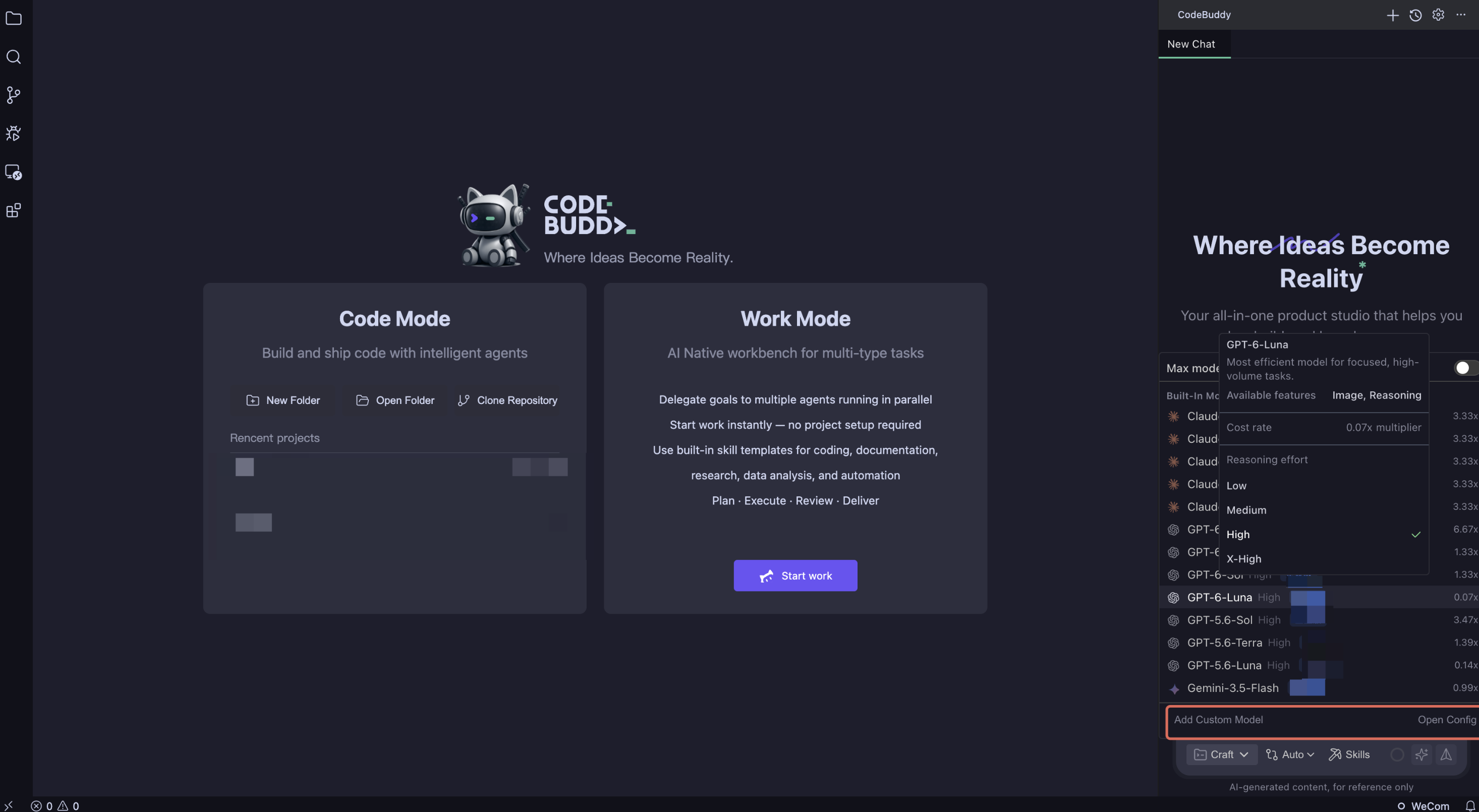
3. Select Custom as the provider and configure the following information:
BASE URL: http://<user domain>/v1/chat/completions.
API Key: Enter the CMR API Key created for CodeBuddy.
Model Name: Enter the external model name configured in CMR. In this example, the default model ModelRouter/auto is used.
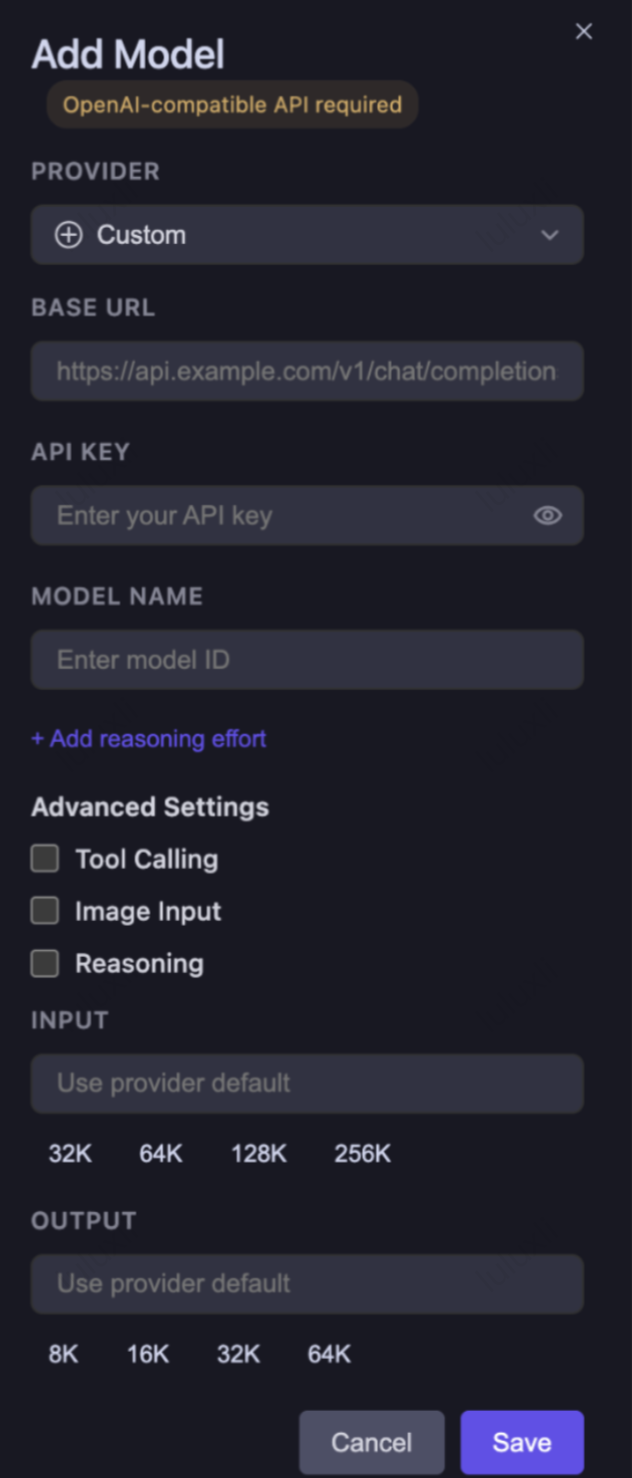
4. Configure options such as tool calling, image input, and reasoning based on the actual capabilities of the private model. Do not enable capabilities that the private model does not support, and click Save.
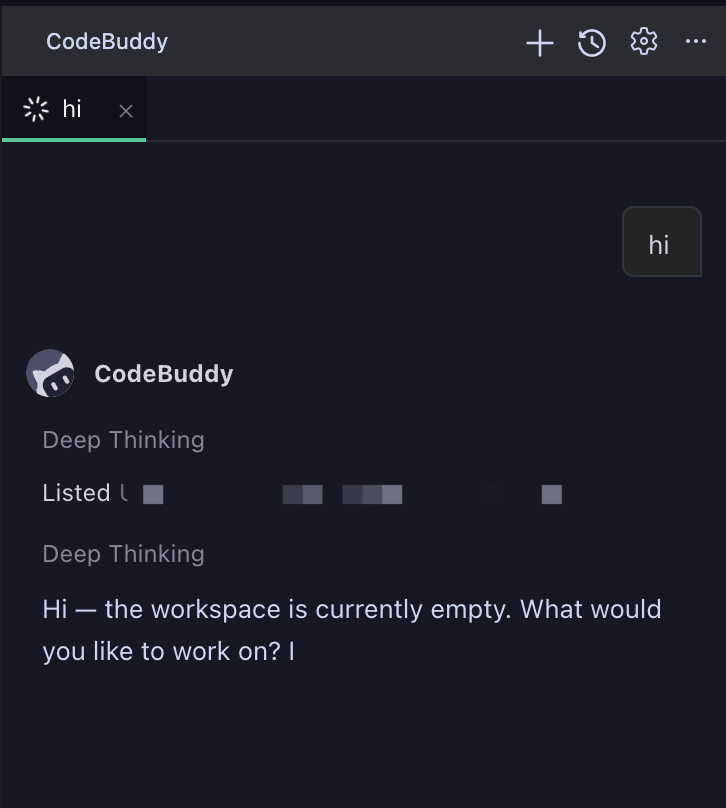
5. In the model selector of CodeBuddy, select the model you just added, and test in a chat whether the private model can be successfully called.
Step 3: Verifying the Result
After completing the configuration, verify the call chain among Buddy, CMR, and the private model by following these steps.
1. Select the configured private model in WorkBuddy and CodeBuddy IDE respectively, and send a test request that does not contain sensitive information.
2. Confirm that Buddy can return model responses normally. If you need to use tool calling, image input, multi-turn sessions, or reasoning mode, perform corresponding verification based on the actual capabilities of the private model.
3. On the Usage Details tab, check the model name, request status, and Token usage of this request to confirm that the request has been forwarded by CMR to the target private model.
References
Help and Support
Was this page helpful?
You can also Contact sales or Submit a Ticket for help.
Help us improve! Rate your documentation experience in 5 mins.
Feedback