Configuring Chat Tests
Download
Focus Mode
Font Size
This document describes how to use the chat testing feature of CMR to verify whether the model configuration is correct, whether the API Key is valid, and whether the model response quality meets expectations.
Introduction
Chat testing actually calls the model API and incurs fees.
Chat test records are stored only in the current browser session and will be lost after the page is refreshed.
Testing does not affect online business and is used only for verification and debugging.
Prerequisites
1. It is recommended to read Usage Constraints and Supported Model Providers in advance for relevant information.
2. A CMR instance has been created. For detailed instructions, see Creating a CMR Instance.
3. A BYOK instance has been created. For detailed instructions, see Creating a BYOK Instance.
4. A CMR access key (API Key) has been created. For detailed instructions, see Creating a CMR Access Key.
5. Model association and CMR policy configuration have been completed. For detailed instructions, see Configuring Model Scheduling Management.
Operation Steps
1. Log in to the CMR console. On the Instance Management page, click the target instance ID to go to the Basic Information page of the target instance.
2. Switch to the Chat Testing tab, enter the API Key, and select the desired model.
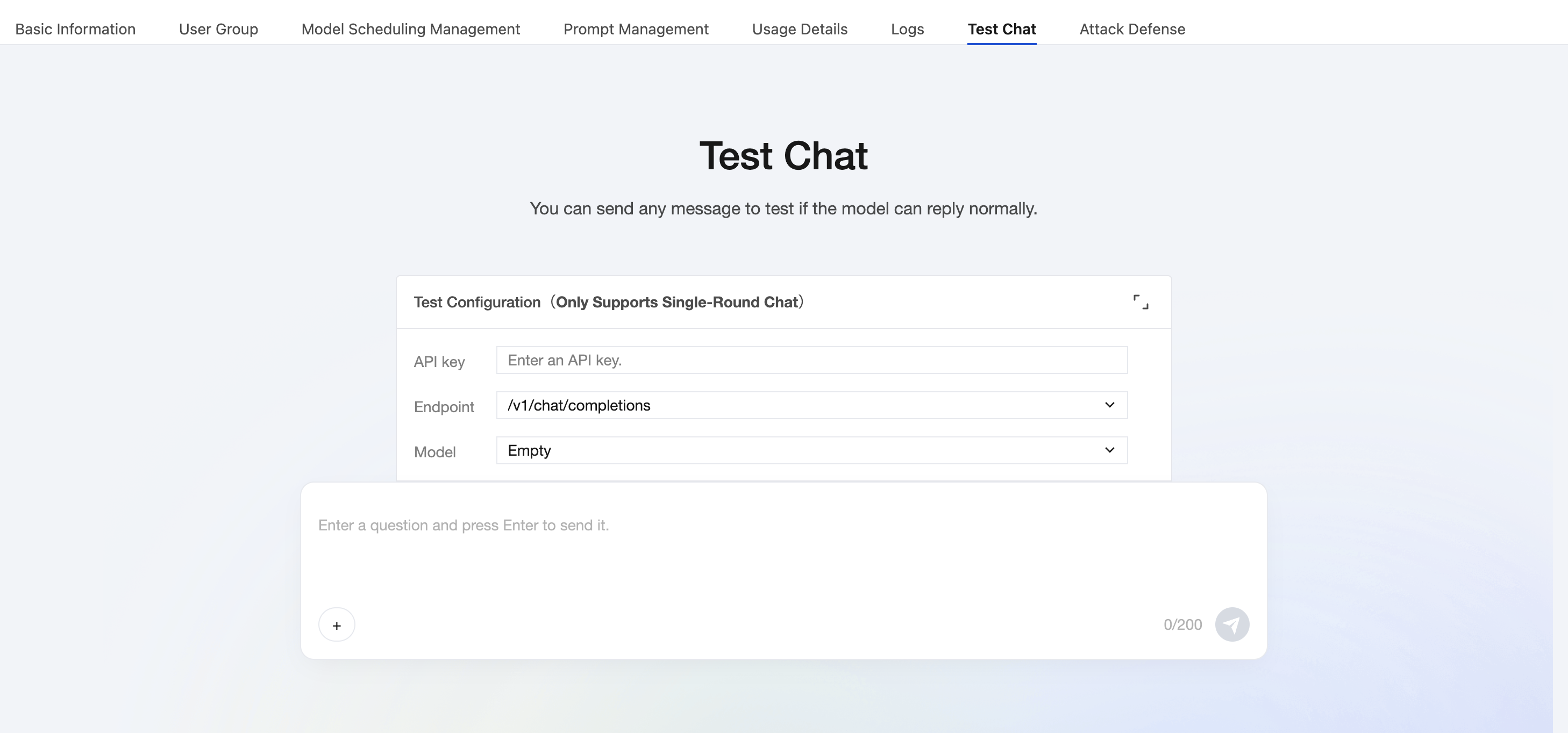
3. In the input box at the bottom, enter a test message (for example, "Hi") and press Enter to send it.
4. Wait for the model response (usually returned within 30 seconds).
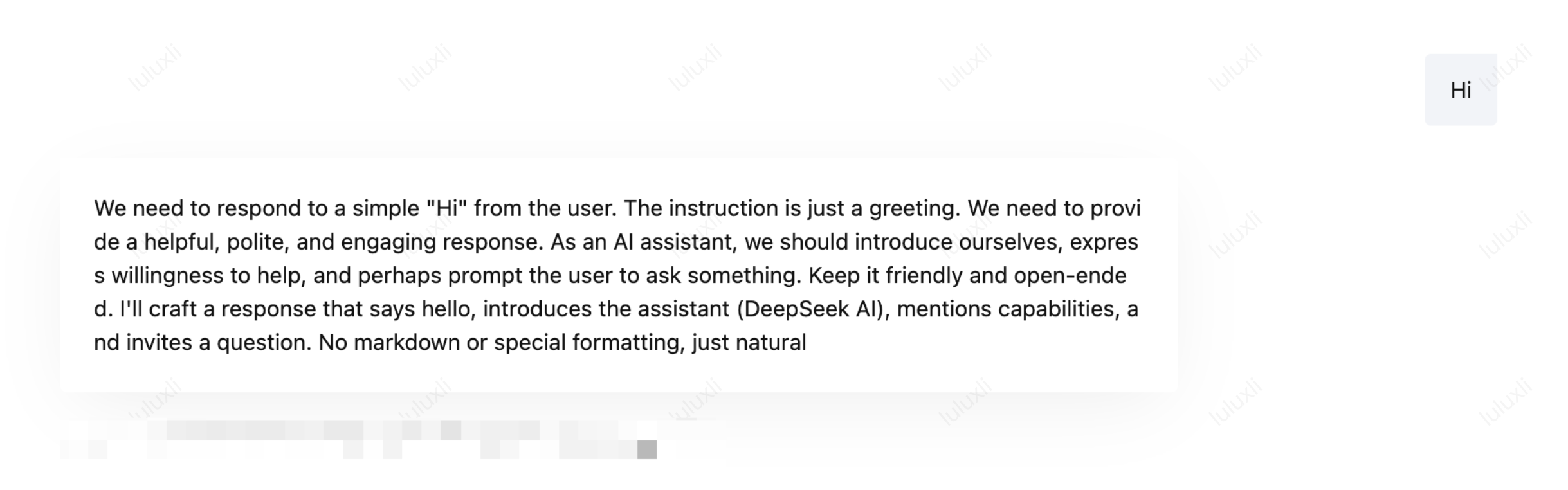
In the chat window, review the model response and pay special attention to the following information:
Information Item | Description |
Response content | The text content returned by the model, used to determine whether the model works as expected. |
Response time | Response time of the model in milliseconds, used to evaluate model performance. |
Token consumption | Number of tokens consumed by this test (input + output), used to estimate costs. |
Error Message | If the test fails, the error code and error description are displayed, and you can troubleshoot based on the error information. |
Subsequent Operation Steps
After configuration, you can switch to the Usage Details tab on the Instance Management page to monitor Token consumption and model resource usage. For detailed instructions, see Viewing Usage Details.
FAQs
Error Message | Possible cause | Solution |
Invalid BYOK API Key or Unauthorized | Incorrect or unauthorized BYOK API Key | Check whether the API Key is correct on the BYOK page, and re-enter it if necessary. |
Insufficient Balance | The BYOK API Key quota has been exhausted. | Replace the BYOK API Key, or contact the supplier to top up. |
Model Not Found | Incorrect model ID configuration | Check whether the model ID in the model configuration is consistent with the model ID provided by the supplier. |
Request Timeout | Network issue or slow model response | Check the network connection, or increase the timeout period (if a configuration item is available). |
Rate Limit Exceeded | Trigger the provider's rate limit | Reduce the request frequency, or upgrade the supplier plan. |
Help and Support
Was this page helpful?
You can also Contact sales or Submit a Ticket for help.
Help us improve! Rate your documentation experience in 5 mins.
Feedback