Step 2: Creating a RabbitMQ Cluster
Unduh
Mode fokus
Ukuran font
This document introduces the operation steps to create a RabbitMQ cluster in the TDMQ for RabbitMQ console.
Prerequisites
Operation Steps
1. Log in to the TDMQ for RabbitMQ console.
2. In the left sidebar, choose Cluster Management > Cluster List. Click Create Cluster to go to the purchase page, and select the instance specifications to be purchased.
Parameter | Required | Description |
Cluster Type | Yes | Select a Serverless Edition cluster. |
Billing Mode | Yes | The TDMQ for RabbitMQ Serverless Edition clusters provide monthly subscription and postpaid by hour billing modes. |
Region | Yes | Selecting a region close to the location where the client resources are deployed can reduce network latency and improve access speed. Cloud products in different regions cannot communicate with each other via the private network. Select a region with caution, as it cannot be changed after purchase. The underlying architecture of TDMQ for RabbitMQ Serverless Edition is multi-AZ deployment by default. |
Cluster Specification | Yes | Currently, only Pro Edition is supported. |
TPS Specification | Yes | Select the TPS specification based on the business traffic requirements. Configuration changes can be performed quickly in the console. |
Number of queues | No | The minimum adjustable value is the number of free queues provided. Each TPS specification includes a quota of free queues. If this does not meet your requirements, you can purchase additional queues. You can also increase or decrease the number of queues in the cluster later through the console. |
VPC | Yes | Bind the access point domain name of the newly purchased cluster to the pre-configured VPC in the same region. |
Cluster Name | Yes | Enter a cluster name whose length is 3–64 characters. It can only contain digits, letters, hyphens (-), and underscores (_). |
Tag | No | It is used for resource classification and management. For detailed usage methods, see Configuring Resource Tags. |
3. After confirming that the cluster information is correct, check I Have Read and Agree to the TDMQ for RabbitMQ Terms of Service, and click Buy Now.
4. After completing the payment on the order payment page, wait for 3 to 5 minutes to view the created cluster on the cluster list page.
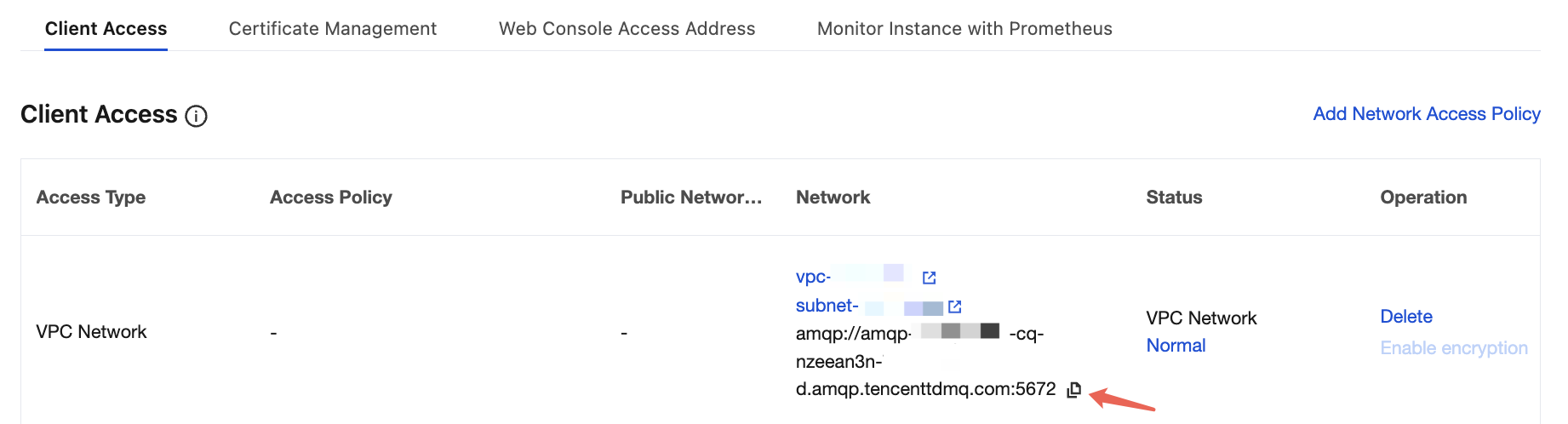
5. Click the ID of the created cluster to go to the basic information page. In the Client Access module, obtain and record the connection information of the server, which is used to connect to the cluster for sending and receiving messages later.
Bantuan dan Dukungan
Apakah halaman ini membantu?
Anda juga dapat Menghubungi Penjualan atau Mengirimkan Tiket untuk meminta bantuan.
masukan