Step 4: Using the SDK to Send and Receive Messages
Unduh
Mode fokus
Ukuran font
After completing configurations of resources, such as clusters and vhosts, in the console, you can use the SDK demo we provide to connect to the cluster and perform message sending and receiving tests. This document introduces how to use an open-source SDK (taking the Java SDK as an example) to send and receive messages, so as to help you better understand the complete process of sending and receiving messages.
Prerequisites
You have created RabbitMQ cluster resources.
You have prepared the Linux server and configured the environment according to Step 1: Preparations.
1. Preparation and Configuration
2. Upload the downloaded demo to a Linux server within the same VPC, then log in to the server, and enter the
src/***/tdmq/rabbitmq/demo directory.3. Modify the Constant.java file under this directory.
package com.tencent.tdmq.rabbitmq.demo;public class Constant {/*** RabbitMQ service address.* Select Cluster Details and go to the client access page to copy the access point.* For example, if the access point is amqp://1.1.1.1:5672, you only need to enter the IP address.*/public static final String URI = "1.1.1.1";/*** Username.* It is required to create the user first in the console, or use the admin account on the web console access address page, which appears after Cluster Details is selected.*/public static final String USERNAME = "test";/*** Password.* It is required to create the password first in the console.*/public static final String PASSWORD = "test";/*** It is used to specify the virtual hosts.* Enter the custom vhost. It is required to create the vhost first in the console.*/public static final String VHOST_NAME = "test";}
Parameter | Description |
URI | Access address of the cluster, which can be obtained from the Client Access module on the basic cluster information page. For example, if the access address is amqp://1.1.1.1:5672, only the IP address needs to be entered.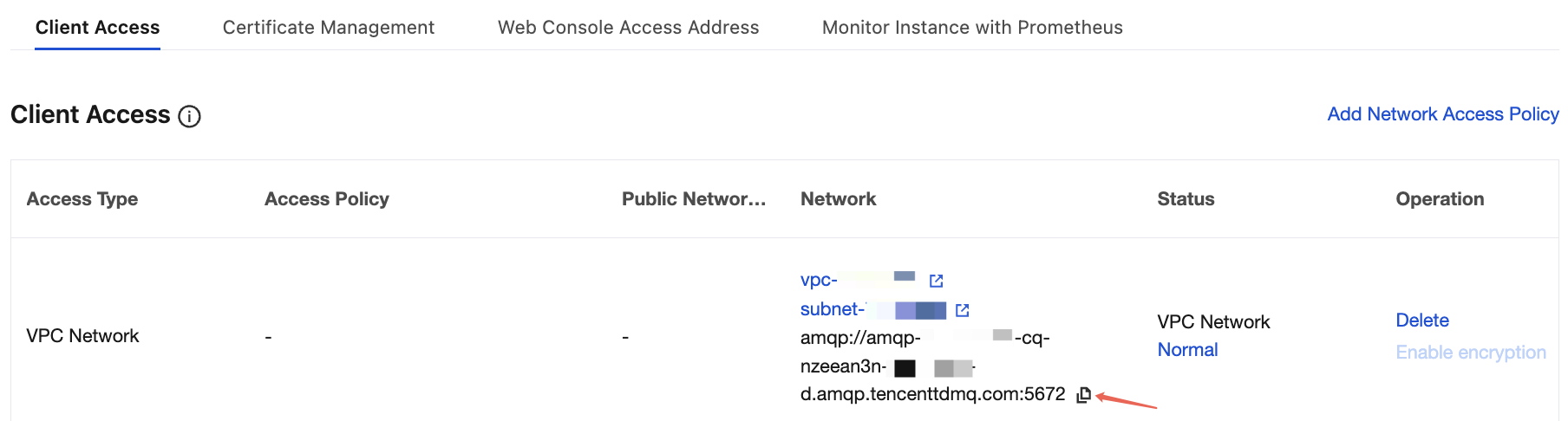 |
USERNAME | Username. Enter the username created in the console. 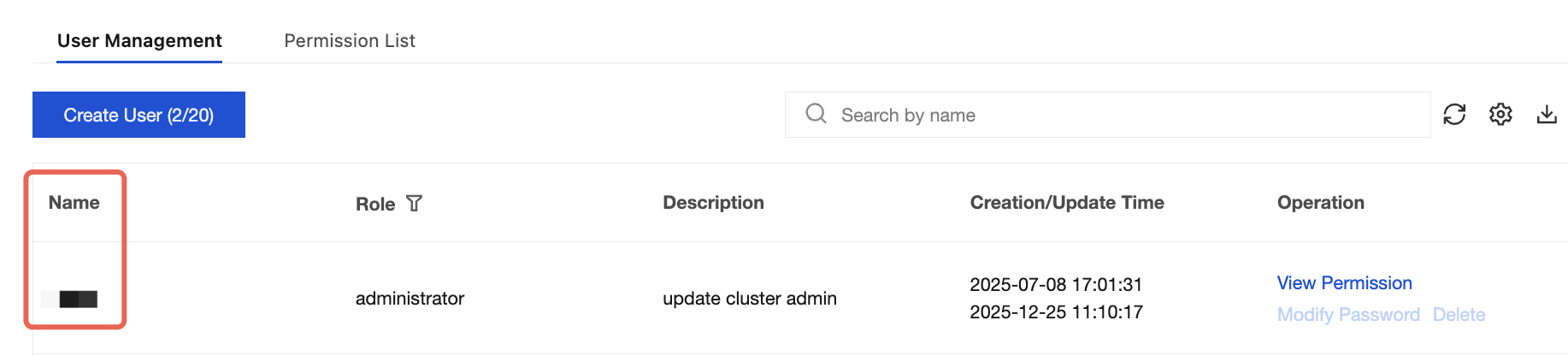 |
PASSWORD | User password. Enter the password specified during user creation in the console. |
VHOST_NAME | Vhost name, which can be obtained from the vhost list page in the console. 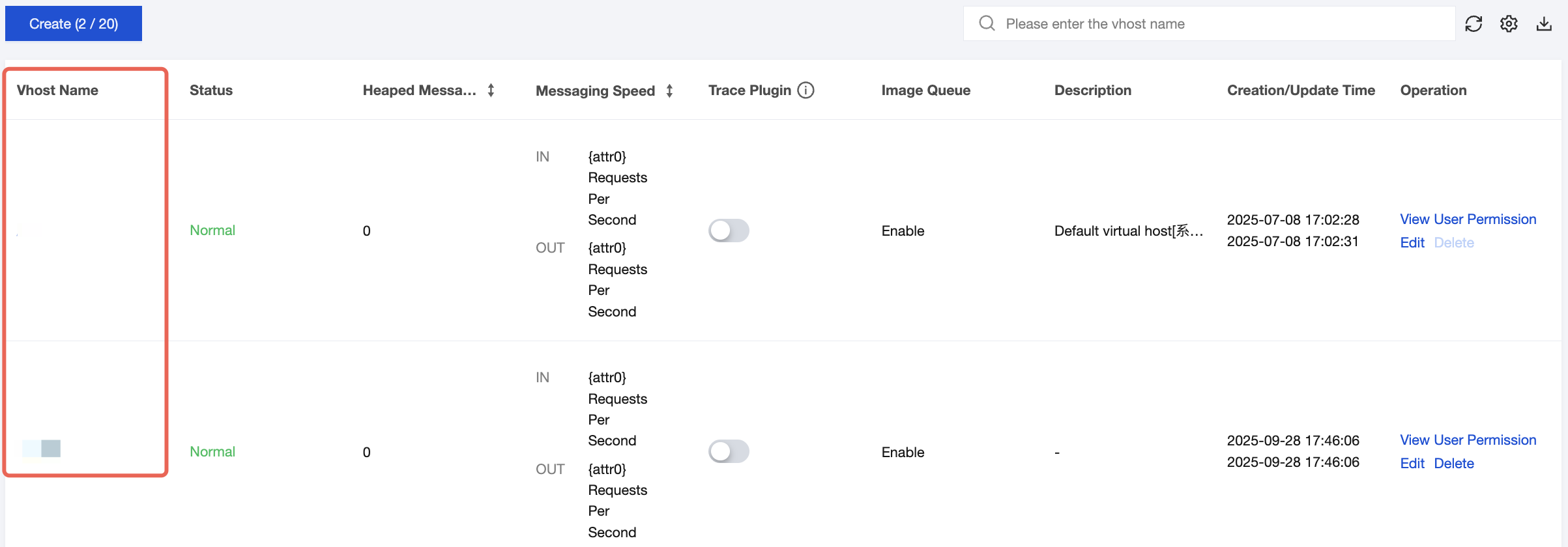 |
2. Message Production
1. Compile and run the message production program MessageProducer.java. Here, the simple message sending and receiving program in the
hello world directory is taken as an example.package com.tencent.tdmq.rabbitmq.demo.helloworld;import com.rabbitmq.client.Channel;import com.rabbitmq.client.Connection;import com.rabbitmq.client.ConnectionFactory;import com.tencent.tdmq.rabbitmq.demo.Constant;/*** RabbitMQ Hello World model example.* Message producer.*/public class MessageProducer {/*** Message queue name.*/public static final String QUEUE_NAME = "hello-world-queue";public static void main(String[] args) throws Exception {// Connection factory.ConnectionFactory factory = new ConnectionFactory();// Set the service address.factory.setHost(Constant.URI);// Set the virtual host.factory.setVirtualHost(Constant.VHOST_NAME);// Set the username.factory.setUsername(Constant.USERNAME);// Set the password.factory.setPassword(Constant.PASSWORD);Connection connection = null;Channel channel = null;try {// Obtain a connection.connection = factory.newConnection();// Establish a channel.channel = connection.createChannel();// Bind a message queue.channel.queueDeclare(QUEUE_NAME, true, false, false, null);String message = "Hello World!";// Publish a message (the exchange type is not required to be specified in the Hello World message model).channel.basicPublish("", QUEUE_NAME, null, message.getBytes());System.out.println(" [Producer(hello world)] Sent '" + message + "'");} catch (Exception e) {e.printStackTrace();} finally {// Release resources.if (channel != null) {channel.close();}if (connection != null) {connection.close();}}}}
Note:
QUEUE_NAME is the queue name, which can be obtained on the queue list page in the console.

2. The running results are as follows:
[Producer(hello world)] Sent 'Hello World!'
3. Message Consumption
1. Compile and run the message consumption program MessageConsumer.java.
package com.tencent.tdmq.rabbitmq.demo.helloworld;import com.rabbitmq.client.Channel;import com.rabbitmq.client.Connection;import com.rabbitmq.client.ConnectionFactory;import com.rabbitmq.client.DeliverCallback;import com.tencent.tdmq.rabbitmq.demo.Constant;import java.nio.charset.StandardCharsets;/*** RabbitMQ Hello World model example.* Message consumer.*/public class MessageConsumer {/*** Message queue name.*/public static final String QUEUE_NAME = "hello-world-queue";public static void main(String[] args) throws Exception {// Connection factory.ConnectionFactory factory = new ConnectionFactory();// Set the service address.factory.setHost(Constant.URI);// Set the virtual host.factory.setVirtualHost(Constant.VHOST_NAME);// Set the username.factory.setUsername(Constant.USERNAME);// Set the password.factory.setPassword(Constant.PASSWORD);// Obtain a connection and establish a channel.Connection connection = factory.newConnection();Channel channel = connection.createChannel();// Bind a message queue.channel.queueDeclare(QUEUE_NAME, true, false, false, null);System.out.println(" [Consumer(hello world)] Waiting for messages.");// Message processing callback. The message processing logic is executed when a message is received.DeliverCallback deliverCallback = (consumerTag, delivery) -> {String message = new String(delivery.getBody(), StandardCharsets.UTF_8);System.out.println(" [Consumer(hello world)] Received '" + message + "'");};// Subscribe to a message. (If the second parameter is true, it indicates that the message is automatically acknowledged upon being received.)channel.basicConsume(QUEUE_NAME, true, deliverCallback, consumerTag -> {System.out.println("consumerTag = " + consumerTag);});}}
Note:
QUEUE_NAME is the queue name, which can be obtained on the queue list page in the console.

2. The running results are as follows:
[Consumer(hello world)] Waiting for messages.[Consumer(hello world)] Received 'Hello World!'consumerTag = amq.ctag-xxx (specific tag string.)
Bantuan dan Dukungan
Apakah halaman ini membantu?
Anda juga dapat Menghubungi Penjualan atau Mengirimkan Tiket untuk meminta bantuan.
masukan