Secondary Storage
Download
Focus Mode
Font Size
TDSQL-C for MySQL provides the secondary storage capability for Serverless clusters. This capability enables dynamic allocation and efficient use of storage resources based on the intelligent hot and cold data tiering mechanism, helping users reduce storage costs. This document describes the relevant description and operation guidelines for the secondary storage feature.
Note:
This feature is currently in beta testing. If you want to experience it, submit a ticket for application.
Background
The primary storage of TDSQL-C for MySQL stores the active data of a cluster, including data files, index files, log files (such as redo log, undo log, slow log, and error log), and temporary files, to support read-write access and ensure business real-time performance. A Serverless cluster can automatically suspend an instance based on a configured policy when there is no connection access, and it also supports manual suspension. After suspension, the computing resources of the instance are not billed, but the storage resources continue to be billed because they still occupy storage space. To address these scenarios, TDSQL-C for MySQL optimizes storage costs by supporting the secondary storage capability. This capability enables data archiving storage by archiving data from primary storage to secondary storage (where data is stored in a COS bucket), thereby reducing storage usage costs.
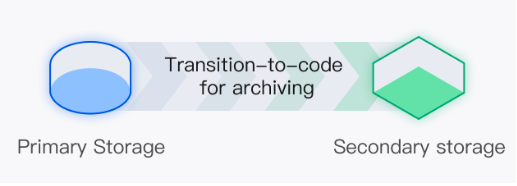
Hot and Cold Tiering and Data Archiving Mechanisms
Hot and Cold Data Tiering
Primary Storage: Primary storage can be understood as storage for hot data. It stores the active data of the current cluster and supports high-concurrency read-write access, ensuring real-time performance.
Secondary Storage: Secondary storage can be understood as cold data. When a Serverless instance is in the suspended status, TDSQL-C for MySQL archives and cools down primary data to secondary storage. The storage medium used for secondary storage is COS, which has a lower unit storage price.
Data Archiving and Restoration Mechanism
Secondary storage status: Secondary storage is disabled by default. If you need to use secondary storage, you can manually enable it.
Trigger condition for data archiving: For an instance of the Serverless mode, if the instance is suspended (whether automatically or manually) for 3 days, the data in the instance will be archived and cooled down to secondary storage.
Restoration mechanism: When an instance is started either due to resumed access or manual activation from the suspended status, the data of the instance will be gradually recovered from COS to enable data access.
Feature Strengths
Tiered pricing for storage: Secondary storage uses the cold storage method, which has a unit storage price that is only 3% to 4% of the cost of primary storage.
Releasable storage: After data is archived and cooled down from primary storage to secondary storage, if the instance is not accessed, the original primary storage space will be cleared to free up storage space and avoid resource waste from idleness.
Quick start and stop: In a Serverless architecture, when data is archived and cooled down from primary storage to secondary storage, the storage resources are instantly released. When the Serverless instance is resumed, only the necessary data needs to be loaded, ensuring an extremely fast startup.
High reliability guarantee: Secondary storage uses COS as the storage medium and stores data in a bucket. The bucket has multi-AZ characteristics. When multi-AZ is enabled, your data will be stored in different IDCs within the same region, providing intra-city disaster recovery and ensuring data durability.
Feature Overview
Serverless clusters support enabling secondary storage. Clusters with the instance mode of the provisioned resource do not support secondary storage.
The secondary storage feature is disabled by default.
When secondary storage is enabled, if the instance is resumed due to new access while the data is being archived, data access remains unaffected.
Monitoring Description
A new monitoring metric Secondary Storage Usage is added to monitor the usage of the archived storage of an instance after secondary storage is enabled. The original monitoring metrics Storage Utilization and Storage Usage are renamed to Primary Storage Utilization and Primary Storage Usage, respectively. For details about the monitoring metrics and description, see Supported Monitoring Metrics.
Billing
The billing mode for secondary storage is consistent with that of primary storage. For example, if primary storage uses the pay-as-you-go billing mode, secondary storage also uses the same mode. If primary storage uses the storage resource pack deduction mode, secondary storage also uses the same mode.
Pay-as-You-Go Price for Secondary Storage
Region | Primary Storage Price (USD/GB/Hour) | Secondary Storage Price (USD/GB/Hour) | |
Guangzhou, Shanghai, Beijing, Nanjing, and Chengdu | 0.00486 | 0.0001639 | |
Hong Kong (China), Singapore, Silicon Valley, Tokyo, Virginia, and Seoul | 0.005328 | 0.00023 | |
Storage Resource Pack Deduction Rules
A 1 GB-sized storage resource pack can be used to deduct 30 GB of secondary storage data. For details about the introduction and pricing of storage resource packs, see Storage Resource Pack.
Operation Steps
You can refer to the following steps to enable or disable the secondary storage feature.
Enabling Secondary Storage
Scenario 1: Enabling Secondary Storage When Creating a Serverless Cluster
1. Log in to the purchase page of TDSQL-C for MySQL.
2. Set the instance mode to Serverless.
3. Enable the switch next to Secondary storage in Storage Node.

4. Configure other options to complete the cluster purchase and creation. For details about the complete creation method, see Creating a Serverless Cluster.
Scenario 2: Enabling Secondary Storage on the Cluster Details Page
Note:
For a cluster in the suspended status, secondary storage cannot be enabled. Start the cluster first before enabling it.
1. Log in to the TDSQL-C for MySQL console.
2. Click the target cluster in the cluster list on the left to go to the Cluster Management page.
3. In the topology under Cluster Detail, move the mouse pointer over the Secondary Storage section and click Enable Now.
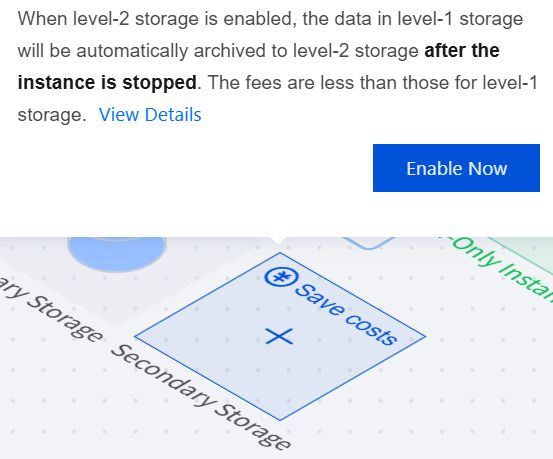
4. In the pop-up dialog box, click OK.
Scenario 3: Enabling Secondary Storage on the Serverless Configuration Page
Note:
For a cluster in the suspended status, secondary storage cannot be enabled. Start the cluster first before enabling it.
When you enable and configure Serverless for the clusters that use the provisioned resource instance mode, the secondary storage feature is not supported.
1. Log in to the TDSQL-C for MySQL console.
2. Click the target cluster in the cluster list on the left to go to the Cluster Management page.
3. Click Serverless Configuration.

4. Under the Serverless Configuration window, enable the switch next to Secondary Storage in Storage Node and then click OK.

Disabling Secondary Storage
Scenario 1: Disabling Secondary Storage on the Cluster Details Page
Note:
For a cluster in the suspended status, secondary storage cannot be disabled. Start the cluster first before disabling it.
1. Log in to the TDSQL-C for MySQL console.
2. Click the target cluster in the cluster list on the left to go to the Cluster Management page.
3. In the topology under Cluster Detail, move the mouse pointer over the Secondary Storage section and disable the switch next to Status.
Note:
You can also find the secondary storage setting in the instance information at the bottom-right corner of Cluster Detail, and then disable the switch next to Status.
4. In the pop-up dialog box, click OK.
Scenario 2: Disabling Secondary Storage on the Serverless Configuration Page
Note:
For a cluster in the suspended status, secondary storage cannot be disabled. Start the cluster first before disabling it.
1. Log in to the TDSQL-C for MySQL console.
2. Click the target cluster in the cluster list on the left to go to the Cluster Management page.
3. Click Serverless Configuration.
4. Under the Serverless Configuration window, disable the switch next to Secondary Storage in Storage Node and then click OK.
Help and Support
Was this page helpful?
You can also Contact sales or Submit a Ticket for help.
Help us improve! Rate your documentation experience in 5 mins.
Feedback