tencent cloud

Video on Demand

Release Notes and Announcements
Release Notes
Announcements
Product Introduction
Overview
Product Features
Features
Strengths
Scenarios
Solutions
Professional Edition
Introduction to Video On Demand Professional Edition
Quick Start
Console Guide
Development Guide
Purchase Guide
Billing Overview
Billing Modes
Purchase Guide
Viewing Bills
Renewal
Overdue Policy
Refund Policy
Getting Started
Console Guide
Console Overview
Service Overview
Application Management
Media Management
Package Management
License Management
Real-Time Log Analysis
Practical Tutorial
Media Upload
Smart Cold Storage of VOD Media Asset Files
Video Processing
Distribution and Playback
How to Receive Event Notification
How to Migrate Files from Origin Server to VOD
Live Recording
How to Pull from Custom Origin Servers
How to Use EdgeOne to Distribute Content in VOD
Development Guide
Media Upload
Media Processing
Video AI
Event Notification
Video Playback
Media Encryption and Copyright Protection
Broadcast Channel
CAM
Media File Download
Subapplication System
Error Codes
Player SDK
Overview
Basic Concepts
Features
Free Demo
Free Trial License
Purchase Guide
SDK Download
Licenses
Player Guide
Integration (UI Included)
Integration (No UI)
Advanced Features
API Documentation
Player Adapter
Player SDK Policy
Server APIs
History
Introduction
API Category
Other APIs
Media Processing APIs
Parameter Template APIs
Task Management APIs
Media Upload APIs
Media Management APIs
Event Notification Relevant API
Media Categorization APIs
Domain Name Management APIs
Distribution APIs
AI-based Sample Management APIs
Region Management APIs
Data Statistics APIs
Carousel-Related APIs
Just In Time Transcode APIs
No longer recommended APIs
Making API Requests
AI-based image processing APIs
Task Flow APIs
Data Types
Error Codes
Video on Demand API 2024-07-18
FAQs
Mobile Playback
Fees
Video Upload
Video Publishing
Video Playback
Web Playback
Full Screen Playback
Statistics
Access Management
Cold Storage
Agreements
Service Level Agreement
VOD Policy
Privacy Policy
Data Processing And Security Agreement
Contact Us
Glossary
DocumentationVideo on DemandPractical TutorialHow to Use EdgeOne to Distribute Content in VOD

How to Use EdgeOne to Distribute Content in VOD

PDF
Focus Mode
Font Size
Last updated: 2024-11-29 17:58:49
This document will introduce how to use EdgeOne to distribute files stored in VOD. While enabling EdgeOne domain protection, it also utilizes VOD's copyright protection capabilities to further enhance the protection of high-quality content.

Overview

If your audio and video content is of high value (e.g., courses, movies, short series, etc.), to prevent it from being pirated, you typically need to upload the content to cloud VOD and use private encryption or DRM encryption solutions to secure the content. Additionally, to avoid traffic abuse, you have configured anti-fraud settings such as usage cap and BOT protection in EdgeOne. Now, you can use EdgeOne domains with anti-fraud configurations to accelerate the distribution of encrypted videos in VOD, achieving a stronger content protection effect.

Prerequisites

1. You have signed up for and logged in to your Tencent Cloud account and completed identity verification.
2. You have activated the VOD service.
3. Refer to the guide "Site Acceleration Quick Start" to complete the site and domain integration.

Directions

Step 1. Add the EdgeOne domain for VOD origin site

1. Log in to the EdgeOne console, click Site List in the left menu bar, and click the site to be configured on the site list.
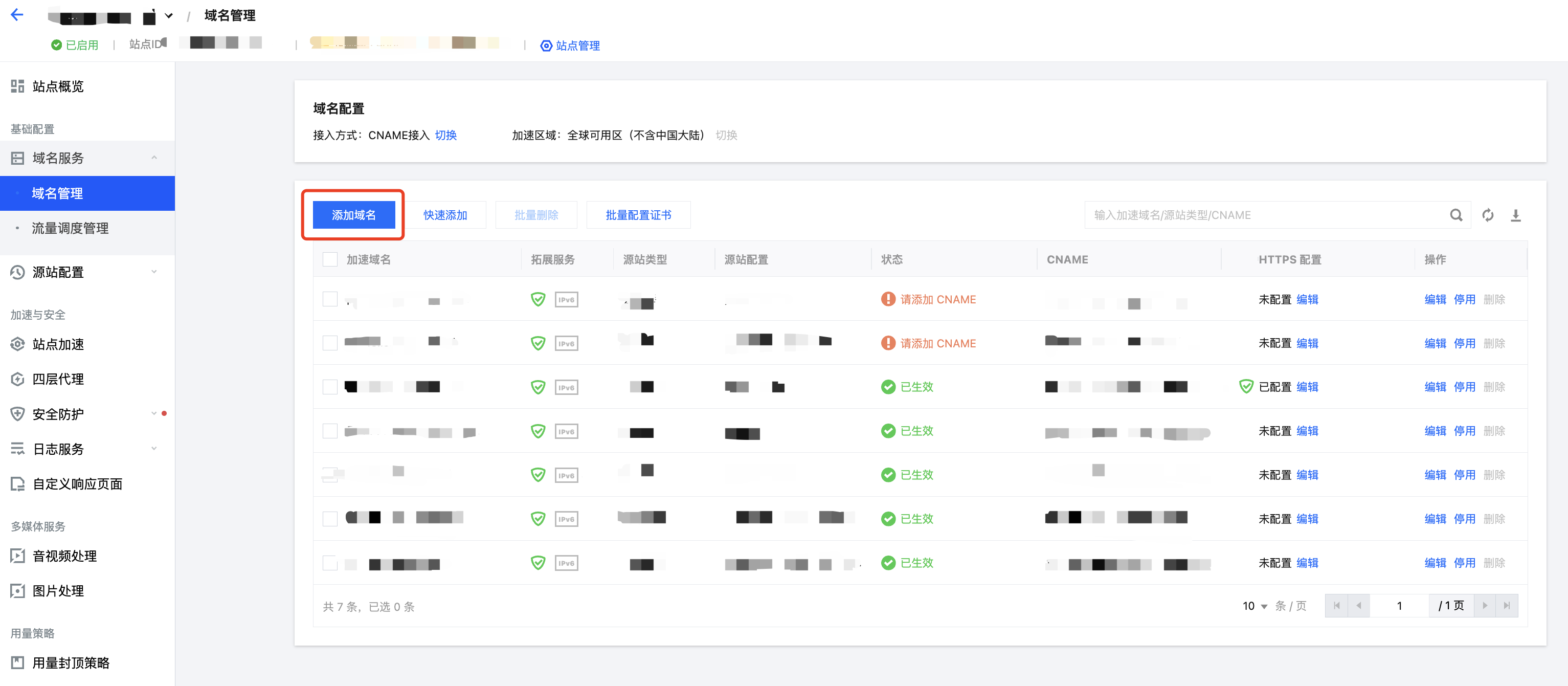
2. On the left navigation bar, click Domain Name Service > Domain Management to enter the domain name management page, and click Add domain name to add a new domain name.


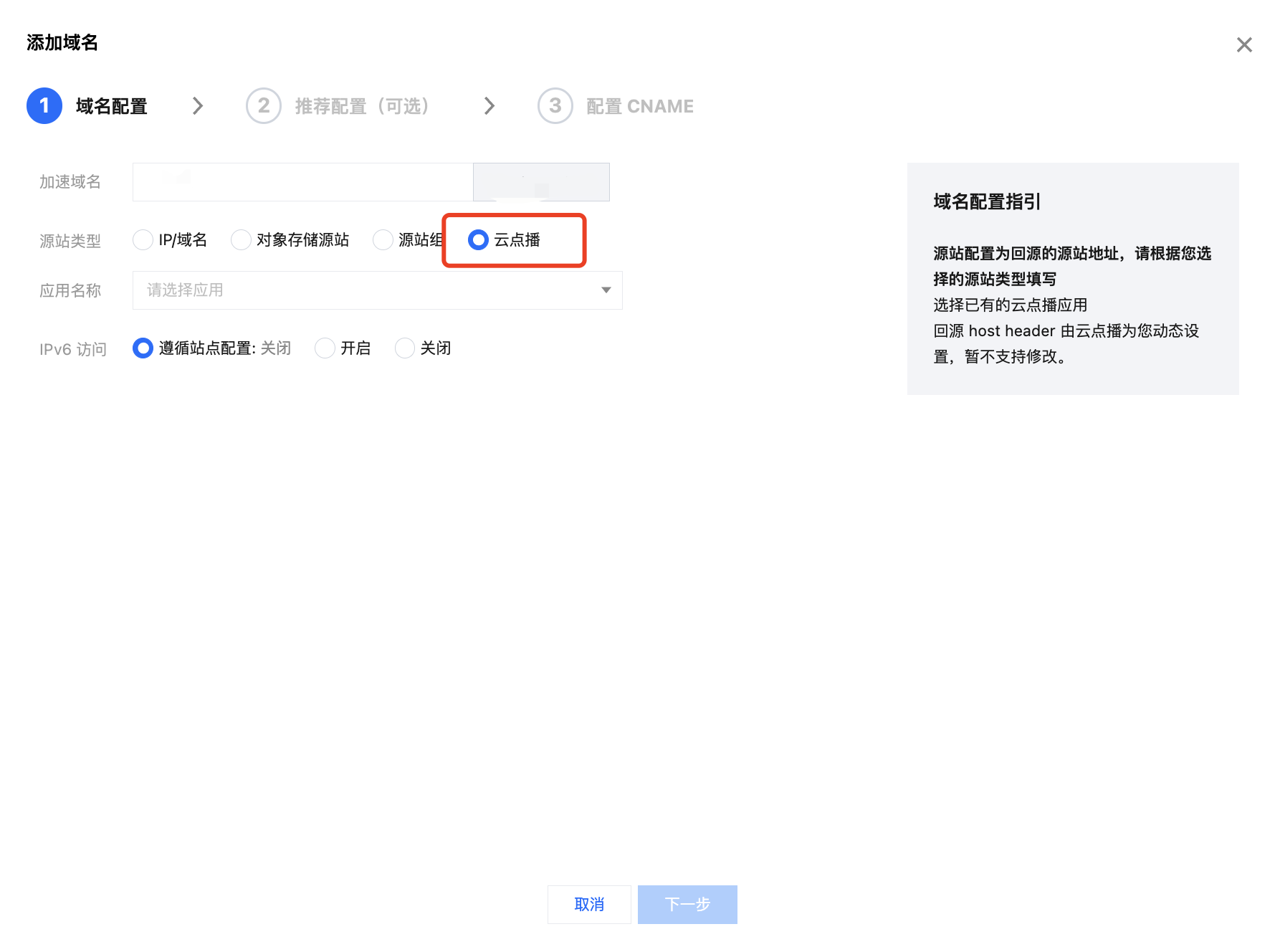
3. In the domain configuration, enter your acceleration domain, select VOD as the origin type, choose VOD application you want to use, and click Next.


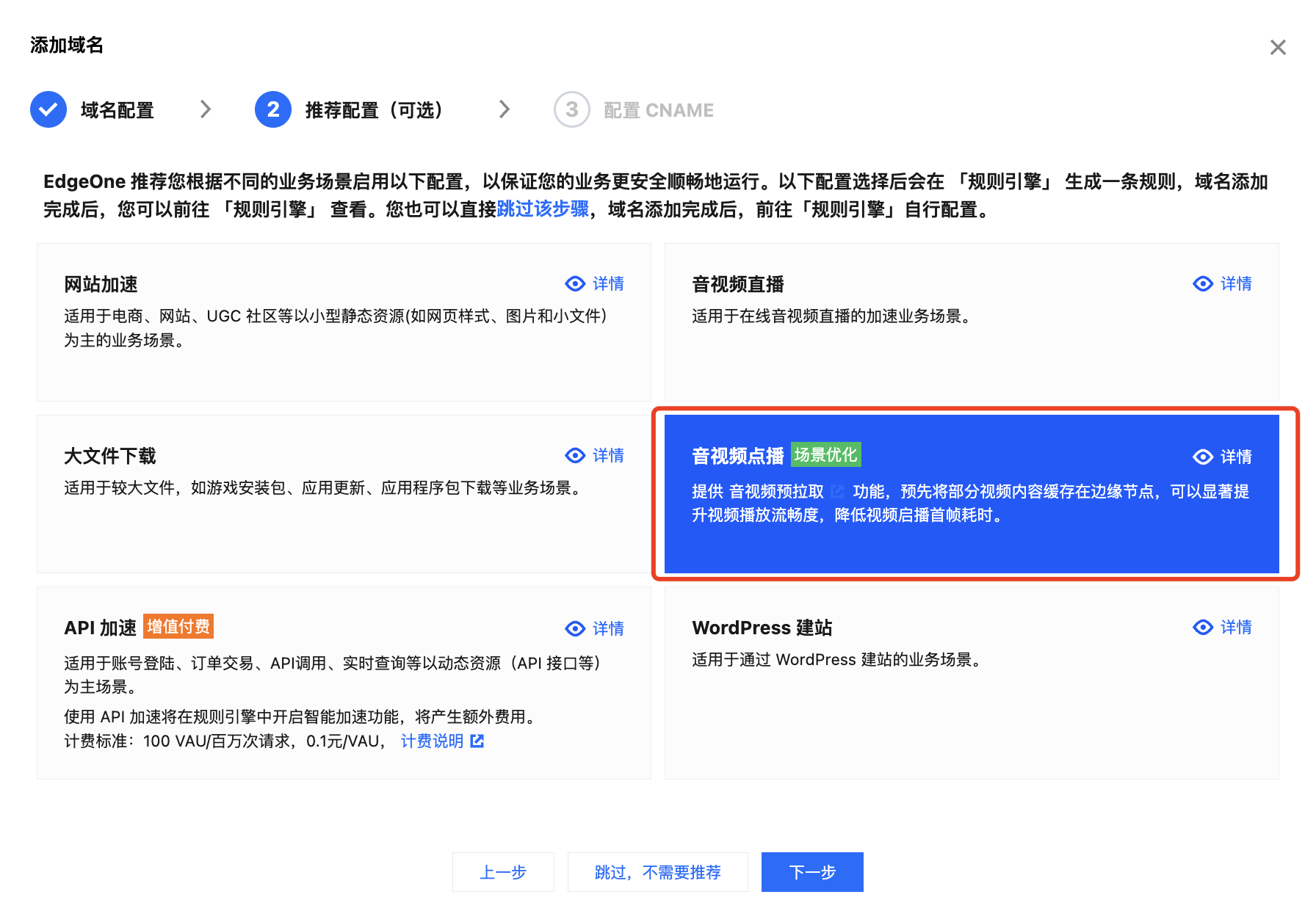
4. In the recommended configuration, select the audio and video on demand and click Next.


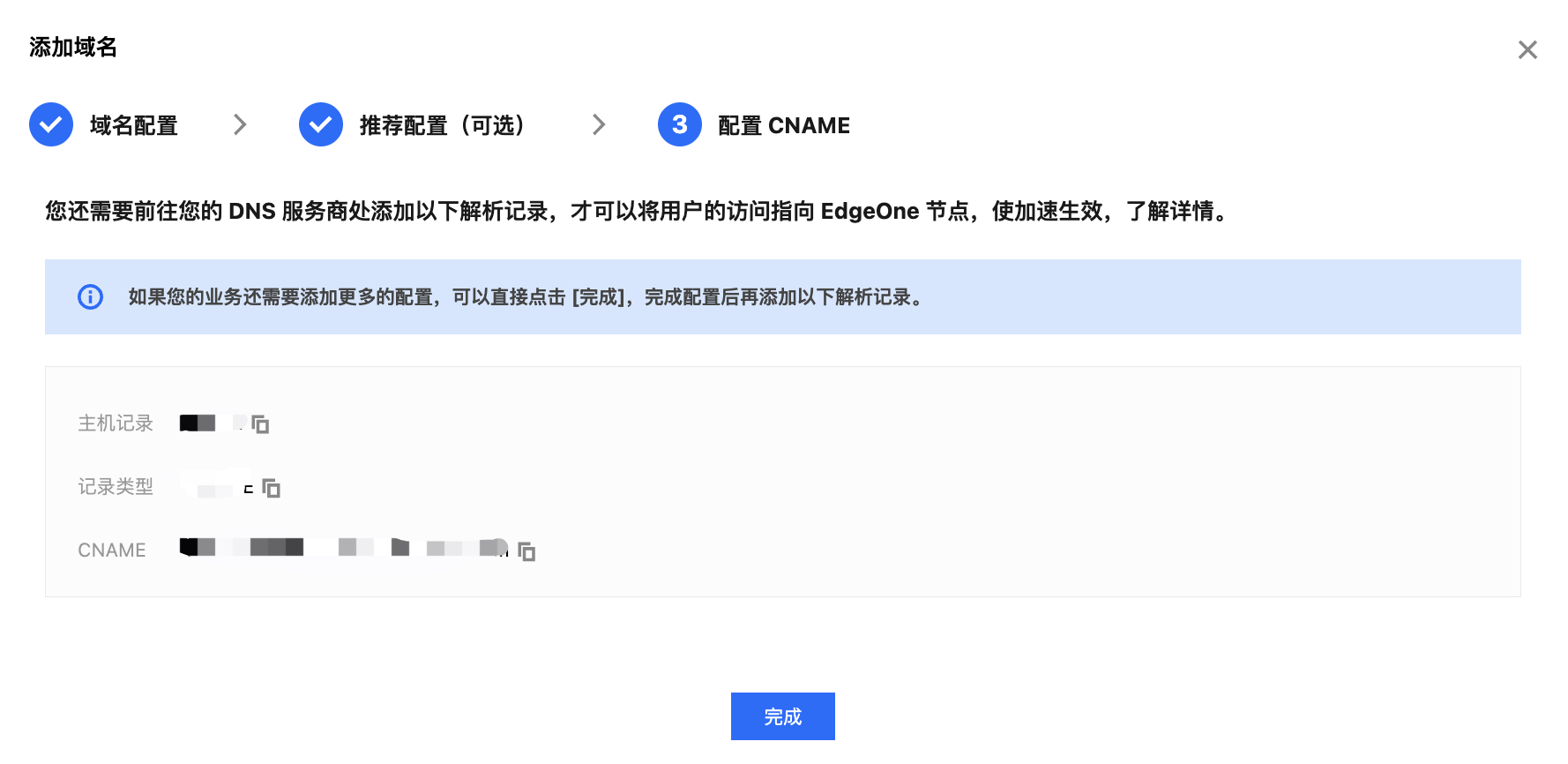
5. In the CNAME access mode, EdgeOne will assign a CNAME address for the domain. You need to configure the CNAME to enable the secure acceleration for the domain. For configuration instructions, please refer to: Modifying CNAME Records. Once the configuration is complete, click Finish.


Step 2. Enable Access Control for the EdgeOne Domain (Optional)

Note
If you do not need to enable access control, you can skip this step.
1. Log in to the EdgeOne console. In the left sidebar, click Site List. In the site list, click the site to be configured.
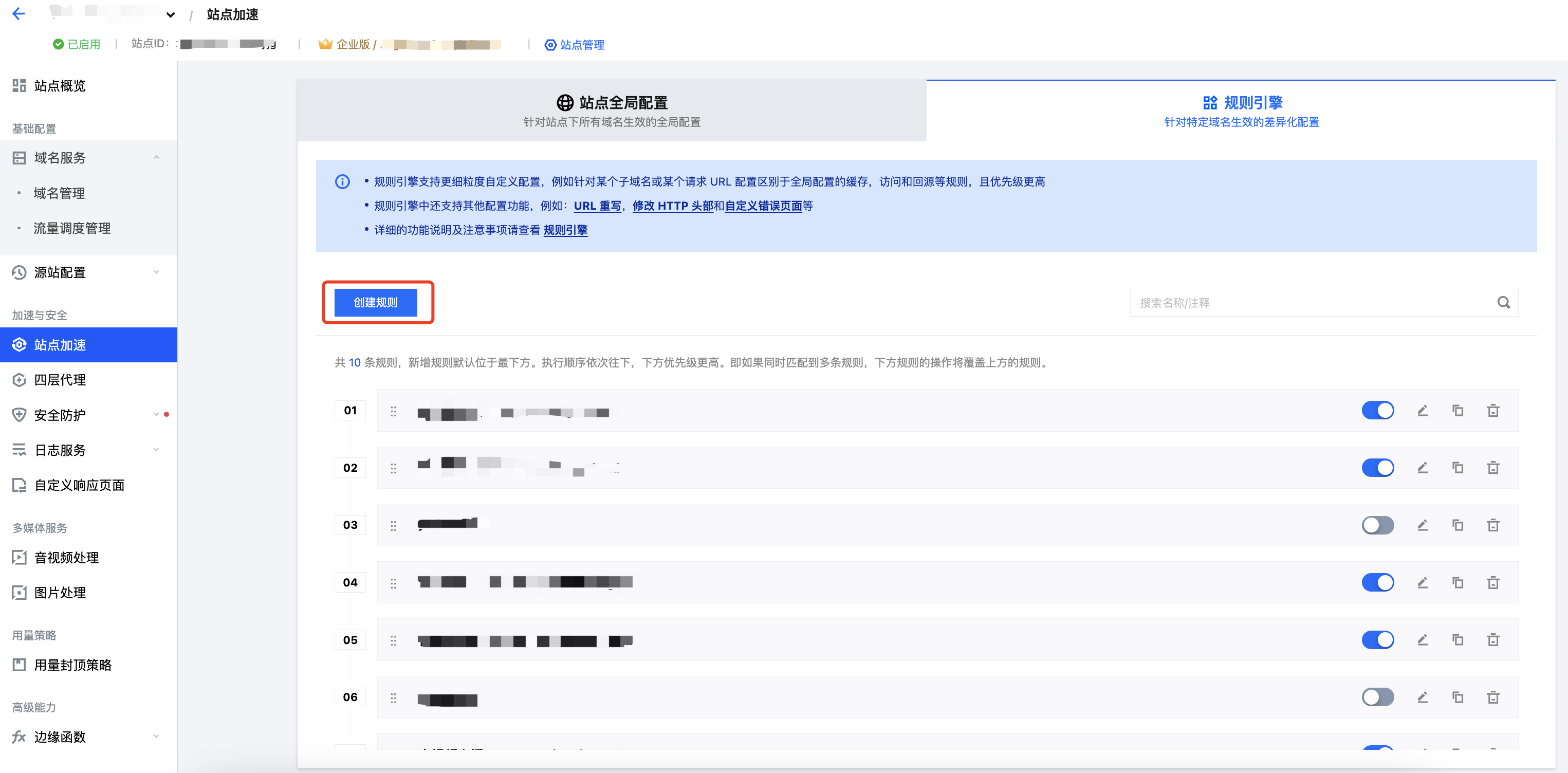
2. On the site details page, click Site Acceleration to go to the global site configuration page. Then click the Rule Engine > Create Rule tab, and select Add Blank Rule.


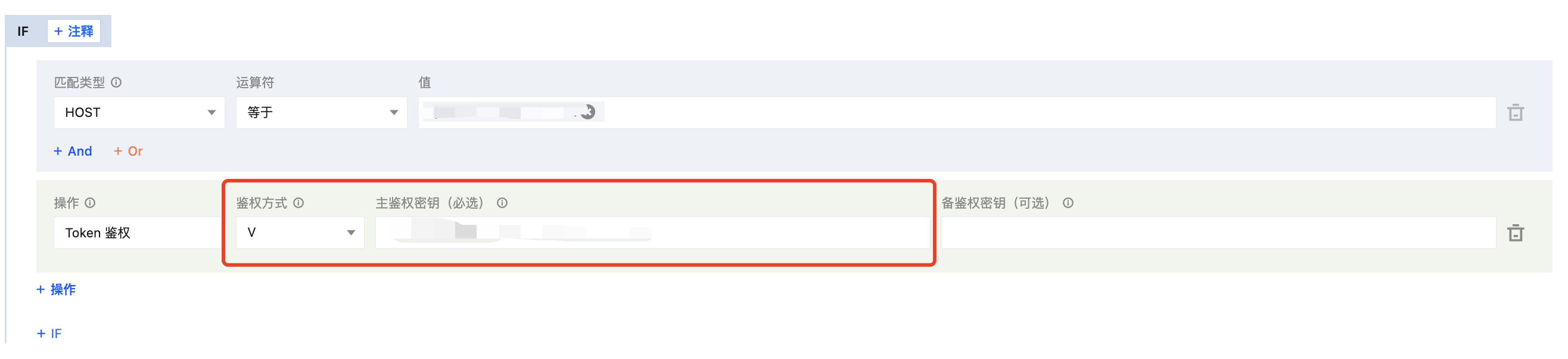
3. On the rule editing page, set the matching conditions that trigger this rule. Click Action > Select Box, and select Token Authentication in the pop-up action list.
4. In the Token Authentication operation, select "V" as the authentication method, enter your authentication key, and save the authentication key for use in subsequent steps.


5. Finally, click Save to enable access control.

Step 3. Import the EdgeOne domain into VOD.

1. Log in to the VOD console and select Application Management on the left sidebar.
2. Select the target application. By default, you will enter the Media Assets > Video Management > Uploaded page.
3. Select Distribution and Playback > Domain Name on the left sidebar, click Add Domain.
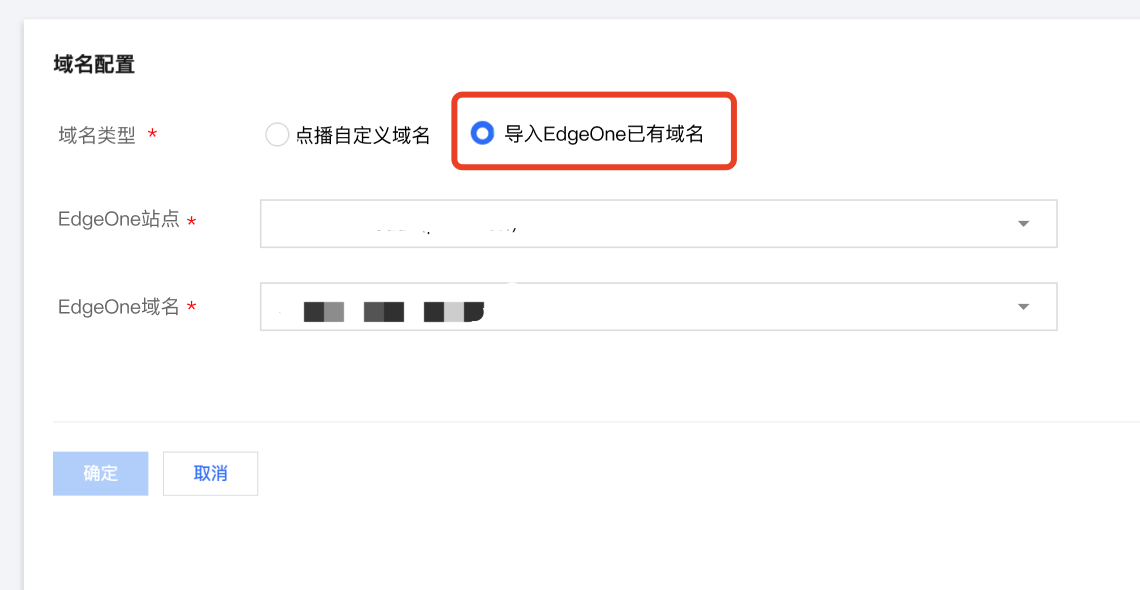
4. On the Add Domain page, select Import existing EdgeOne domain as the domain type, then choose the EdgeOne domain added in step 1. Click Confirm to import the EdgeOne domain into Cloud VOD.


Step 4. Add the Authentication Key to Cloud VOD (Optional)

Note:
If you have not enabled access control in EdgeOne, you can skip this step.
1. Log in to the VOD console and select Application Management on the left sidebar.
2. Select the target application. By default, you will enter the Media Assets > Video Management > Uploaded page.
3. Select Distribution and Playback > Domain Name on the left sidebar, select the EdgeOne domain you need to configure and click Set.
4. On the Domain Basic Configuration page, turn on the Authentication Key switch.
5. In the pop-up window, enter the authentication key saved in step 2 and click Confirm.

Notes

1. VOD currently only supports Type V authentication in EdgeOne.
2. If you modify the authentication key in EdgeOne, please promptly update the key in the domain settings of VOD to avoid any playback issues.

Related Documentation

If you want to learn more about VOD copyright protection, please refer to Media Encryption and Copyright Protection.
If you want to learn more about Type V in EdgeOne, please refer to Token Authentication.

Help and Support

Was this page helpful?

Help us improve! Rate your documentation experience in 5 mins.

Feedback