Quick Start
Download
Focus Mode
Font Size
This article will guide you on how to upload local files to Video on Demand (VOD) Pro and obtain the video playback address, helping you quickly understand how to use the VOD Pro service.
Preparations
1. An available EdgeOne acceleration site is already in place. For EdgeOne acceleration site configuration, see Quick Start.
2. There are local files available for upload, or you can choose to download the VOD Pro sample file Tencent Cloud.mp4.
Step 1. Activate VOD
1. Register for a Tencent Cloud account, and complete real-name verification.
2. Go to the VOD console and click Activate Service.
Note:
If the VOD service has already been activated, skip this step.
Step 2. Create a Professional Version Application
1. Log in to the VOD console, click Application Management on the left sidebar to enter the application list page.
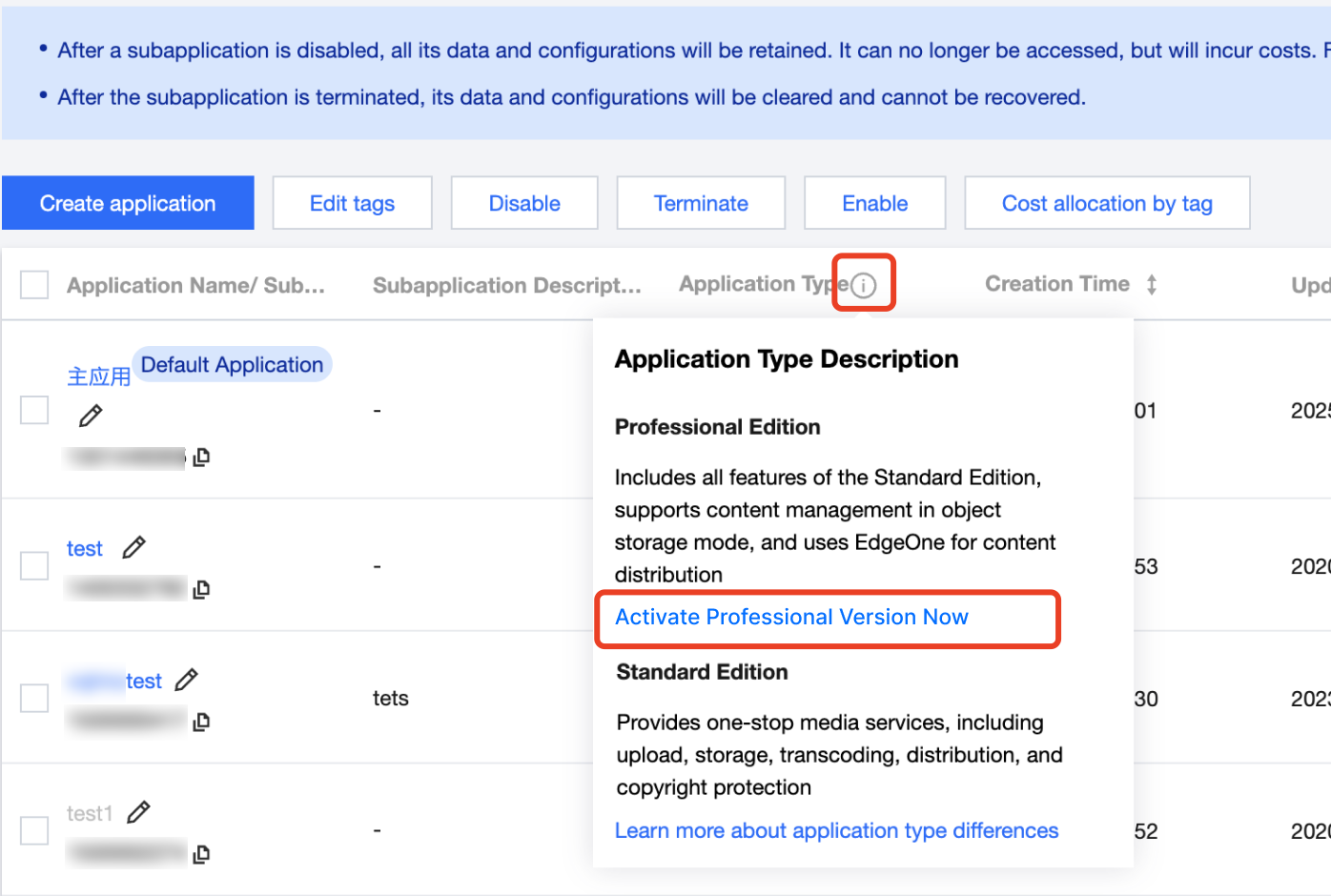
2. Click the Note button next to the application type, and in the pop-up information prompt, click Activate Professional Version Now.
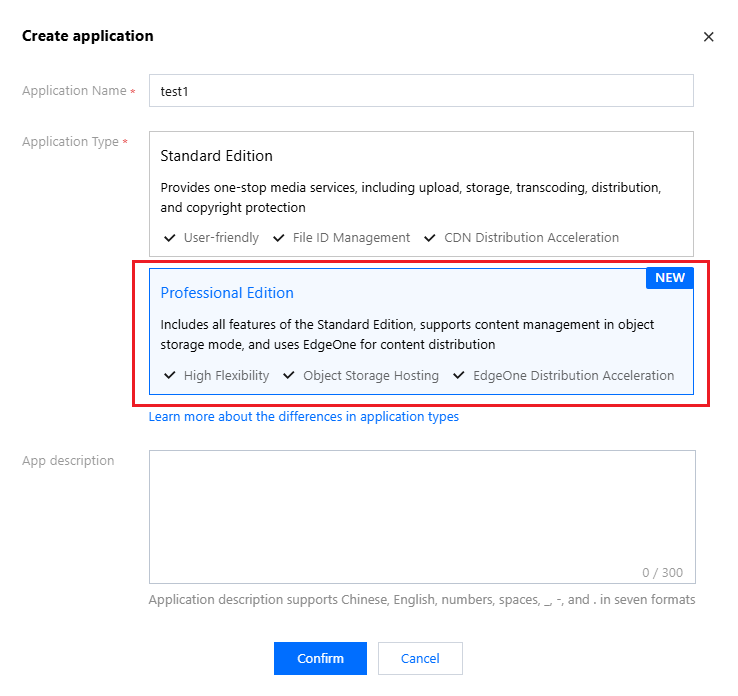
3. Click Create Application, in the Create Application pop-up, enter the application name, select the application type as Professional Version, and click Confirm to complete the creation of the Professional Version application.
Step 3. Upload Files
1. Log in to the VOD console, click Application Management on the left sidebar to enter the application list page.
2. Find the Professional Version application you created in Step 1, click the application name to enter the application, and you will be directed to the storage page by default.
3. On the storage page, click the default bucket name to enter the bucket.
4. Click Upload File, select the local target file or the "Tencent Cloud.mp4" video downloaded during preparation, and you can upload the file to the Professional Version application.

Step 4: Setting the Default Acceleration Domain Name
1. Log in to the VOD console, click Application Management on the left sidebar to enter the application list page.
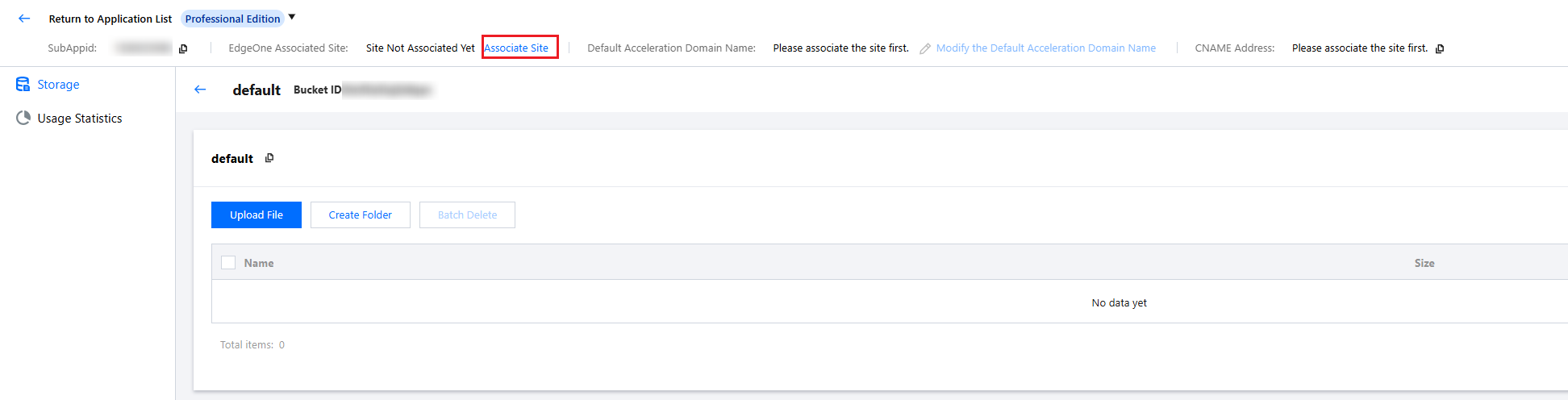
2. Find the Professional Version application you created in Step 1, click the application name to enter the application, and then click Associate Site.
3. In the Associate Site popup, select the EdgeOne site configured in your preparation, fill in the acceleration domain name, and click Next Step.
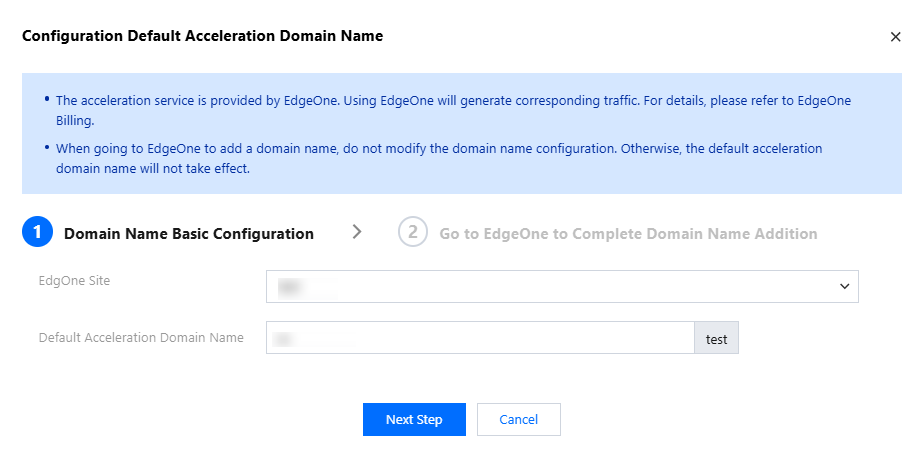
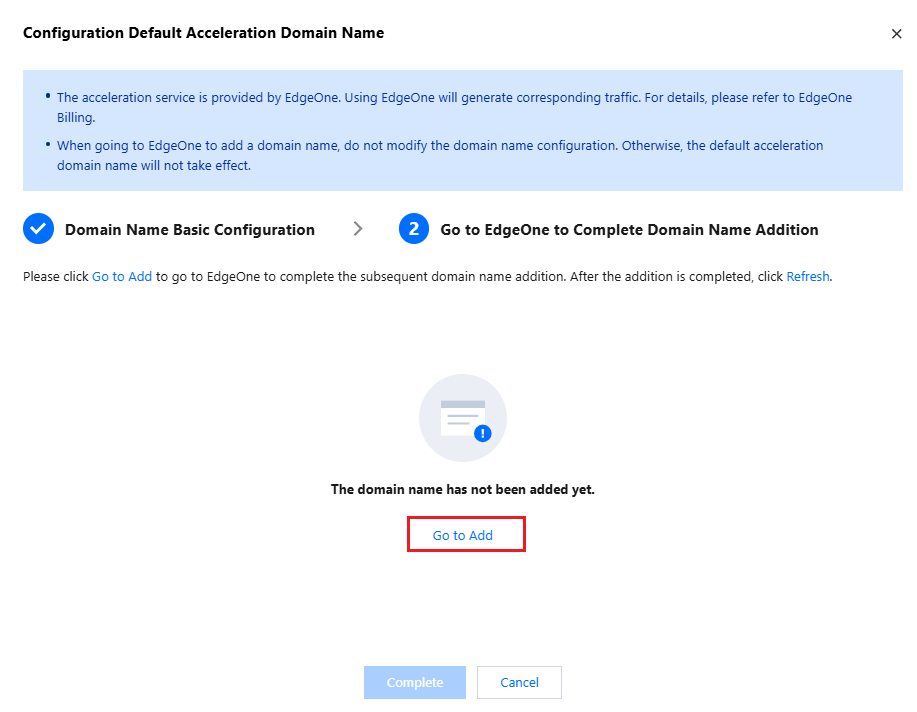
4. In Step 2 of the Set Default Acceleration Domain Name popup, click Go to Add to open the EdgeOne console.
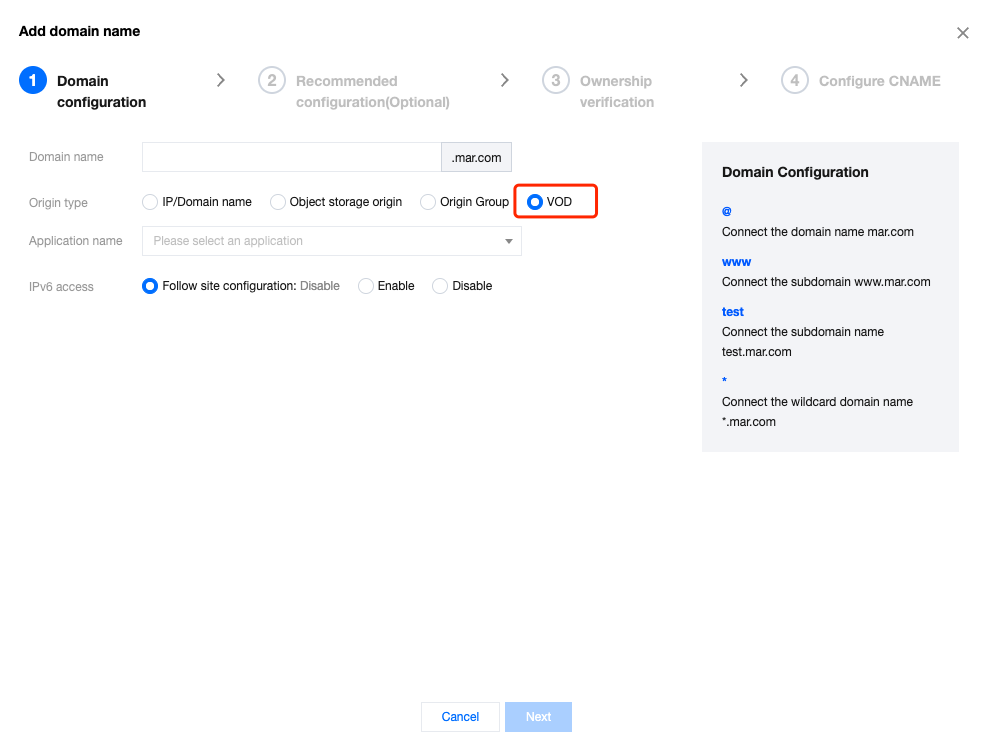
5. In the EdgeOne console, after entering the target site, select Domain Service > Domain Management, click Add Domain, fill in the domain name used in VOD Professional Edition in the acceleration domain name field, select "VOD" as the origin server type, and choose the Professional Version application created in Step 1 as the application name.
6. After adding the domain name in EdgeOne, if it is CNAME access mode or DNSPod hosted access, EdgeOne will assign a CNAME address to the domain name after creation. You need to configure the CNAME for the domain name to enable Secure Content Delivery Network (SCDN). For configuration details, see Modifying CNAME Records. If it is NS access, this step is not required.
7. After adding the domain name in EdgeOne, you need to further enable HTTPS. For configuration details, see Quickly Enable HTTPS Access with EdgeOne Free Certificate.
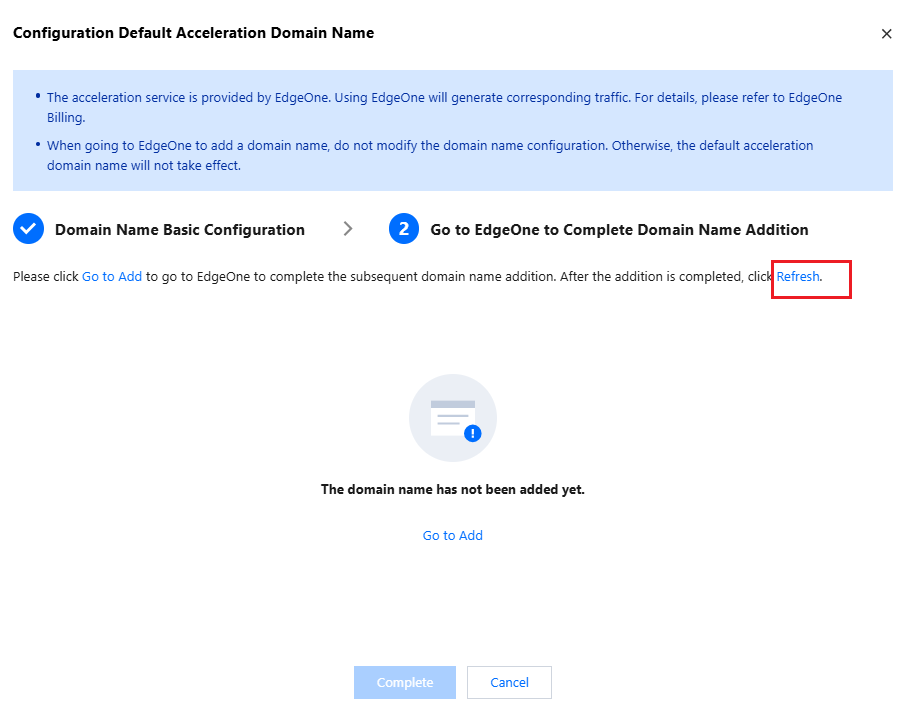
8. After adding the domain name in EdgeOne, return to the VOD console page. In the Set Default Acceleration Domain Name popup, click Refresh to verify if the domain name has been added. If it has been added, click Complete to finish the step of adding the default acceleration domain name. If the page remains unchanged after refreshing, check if the domain name added in EdgeOne matches the one added in VOD.
Step 5. Get the File Playback URL
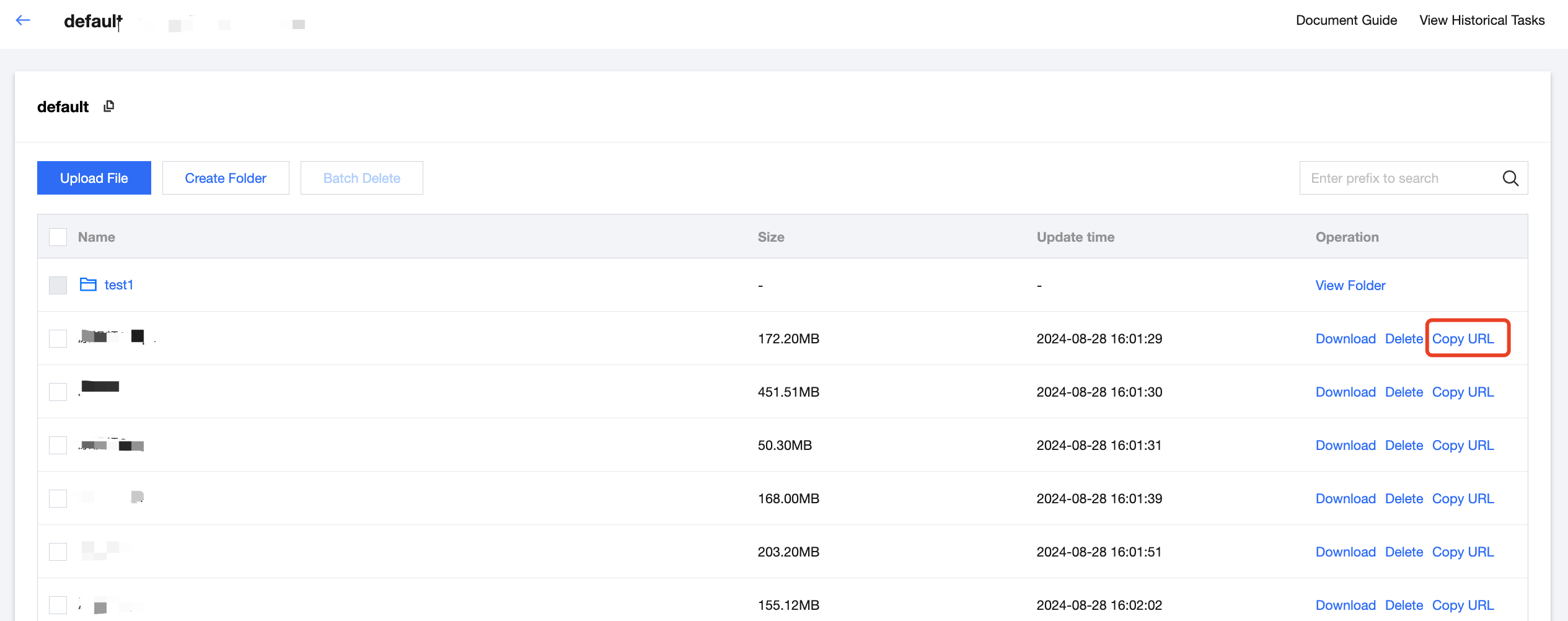
1. Click Copy URL after the target file or the Tencent Cloud.mp4 video uploaded in the previous step.
2. Paste the copied URL into the address bar on a web browser and press Enter to play the video.
Help and Support
Was this page helpful?
You can also Contact sales or Submit a Ticket for help.
Help us improve! Rate your documentation experience in 5 mins.
Feedback