Accessing BH with a CAM Role
Download
Focus Mode
Font Size
Introduction
In cloud computing environments, permission management is a core mechanism for ensuring the security of cloud resources. Cloud Access Management (CAM), as a unified identity and permission governance system, can implement fine-grained authorization across services and accounts through roles. This document focuses on how to grant access to the Ops Security Center through CAM roles. It systematically explains the full-process practices from Role creation and policy configuration to Ops operations in typical enterprise application scenarios, helping enterprises achieve the Ops goal of "least-privilege assignment + full-process security auditing."
Applicable Scenarios
This solution applies to the following typical scenarios:
1. Multi-team collaboration within an enterprise: When multiple teams within an enterprise share the Ops Security Center, permissions must be assigned based on responsibilities. For example, the Ops team can only access production servers, and the audit team can only view operation logs.
2. Cross-account collaboration: In a group account architecture, subsidiaries need to access the Ops Security Center of the root account to perform collaborative Ops.
3. Sensitive resource access control: Avoid directly using the root account or long-term sub-accounts to access sensitive resources, reducing the risk of sensitive resource leakage.
Prerequisites
Before implementing this solution, complete the following preparations:
You have activated the Tencent Cloud BH service.
Host assets have been Synchronize host assets synchronized in BH, and hosting has been enabled.
Core Operation Steps
Step 1: Creating a CAM Policy
CAM policies are the core of CAM permission control. Configure BH-related operation permissions based on the principle of least privilege, and support custom policies or preset policies.
1. Log in to the CAM console using the root account or an account with platform account permission configuration. In the left sidebar, select Policies.
2. On the Policies page in the CAM console, configure a least-privilege policy by referring to the Creating a Custom Policy with the Policy Generator document.
Example: You can refer to the following policy configuration to achieve least privilege. Users assigned this policy can only access Ops mode through the console:
{"statement": [{"action": ["bh:CanCreateTrialResource","bh:DescribeIOADeployRegion","bh:DescribeSecuritySetting","bh:DescribeAccessEntry","bh:LoginOpserver","bh:DescribeDepartments","bh:DescribeResources"],"effect": "allow","resource": ["*"]}],"version": "2.0"}
Step 2: Creating a Role
1. Log in to the CAM console using the root account or an account with platform account permission configuration. In the left sidebar, select Roles.
2. On the Roles list page in the CAM console, click Create Role.
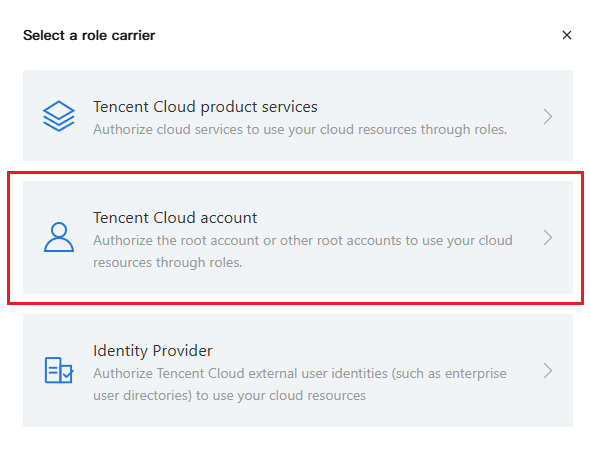
3. In the Select Role Carrier window that appears, select Tencent Cloud account as the role carrier to go to the role information page.
4. On the role carrier information page, enter the following information and click Next.
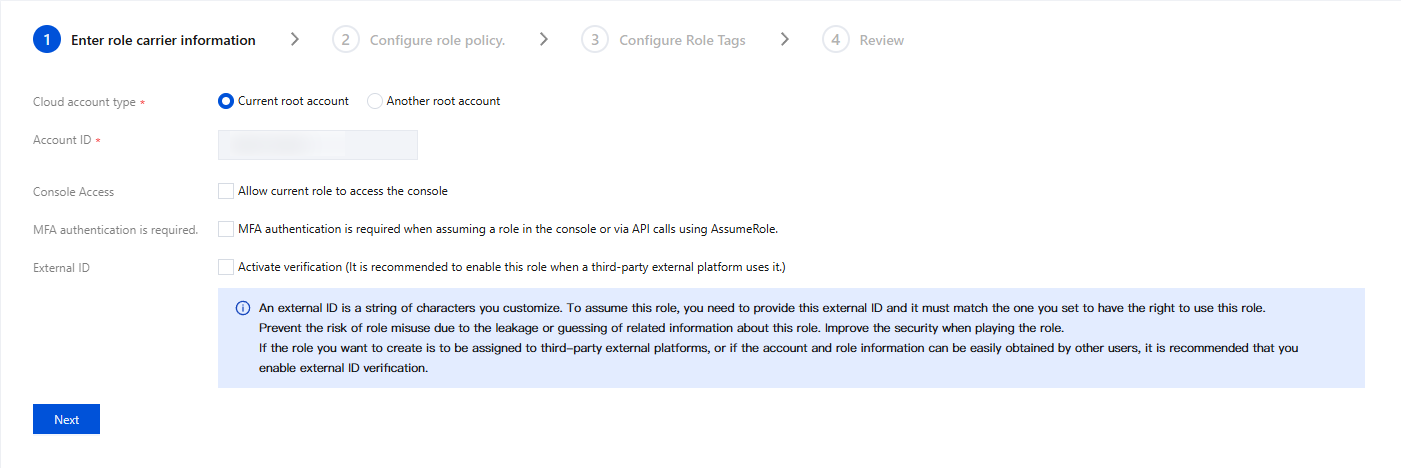
Cloud account type: Select the current root account or another root account.
Account ID: Enter the root account ID that you allow to assume the role to access your Tencent Cloud resources. By default, your root account ID is entered. If you allow other root accounts to access your resources across services, select Other root account for Cloud account type and enter the account ID.
Console Access: When creating a role with a Tencent Cloud root account as the role carrier, you can edit whether to allow the current role to access the console.
External ID: If the role you want to create will be assigned to a third-party external platform, or if the account and role information can be easily obtained by other users, we recommend that you enable external ID verification. After it is enabled, you need to enter an external ID.
5. In the Configure Role Policy step, select the policy created in Step 1 and click Next.
6. In the Configure Role Tags step (optional), enter the tag key and tag value for the role, and click Next.
7. In the Review step, enter your role name, review the role carrier and policy information, and click Complete to finish creating the custom role.
Note:
If you want to grant a role to other Tencent Cloud sub-accounts, see Granting a Role-Assuming Policy to a Sub-Account.
Step 3: Syncing a CAM Role
Synchronize CAM roles with configured permissions to BH to achieve automatic association and unified management of identity information.
1. Log in to the BH console. In the left sidebar, choose User Mgmt > CAM Role.
2. On the CAM Roles page, click Sync CAM Role, and the system will automatically sync CAM roles.
Step 4: Configuring Role Ops Permissions
Configure which assets users can access and which operations they can perform to achieve least privilege for Ops.
1. Log in to the BH console. In the left sidebar, choose Permission Mgmt > Access Privilege.
2. On the Access Privileges page, configure access privileges for the synchronized CAM roles on relevant assets by referring to the Create Access Privileges documentation.
Step 5: Accessing BH with a CAM Role
Management personnel log in to the BH console with a role identity
1. Log in to Tencent Cloud using the root account or sub-account defined when the role was created in Step 2.
2. In the console avatar dropdown menu, click Switch Role to go to the Switch Role page.
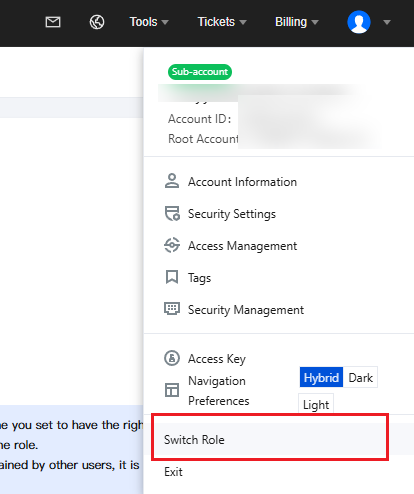
3. Enter the root account ID and role name used to create the role, and click Switch Role.
4. After the switch is successful, go to the BH console, and the role permissions will be applied automatically.
Ops personnel access the Ops portal with a CAM role
1. Log in to Tencent Cloud using the root account or sub-account defined when creating the role in Step 2.
2. In the console avatar dropdown menu, select "Switch Role" to go to the Switch Role page.
3. Enter the root account ID and role name used to create the role, and click Switch Role.
4. After the switch is successful, go to the BH console. In the left sidebar, click Switch to Ops Mode to enter the Ops portal.
5. In the Ops portal, authorized assets will be displayed, and Ops sub-accounts can perform Ops operations on target assets.
Step 6: Ops Personnel Performing Ops Operations
Verify that users who log in through roles can only access authorized assets, that their operations are restricted by permissions, and that Ops processes are not affected.
1. In Ops mode, choose Host Assets > Asset List.
2. On the Asset List page, click Access on the right side of the corresponding host.

3. On the Ops page, you can enter relevant Ops commands.
Step 7: Administrator Performing Audit and Verification
Ops Operation Audit
Record the Ops operations of Ops users to ensure that operations are auditable and traceable.
1. Log in to the BH console. In the left sidebar, choose Cloud Audit > Session Records.
2. On the Session Records page, click the Character Session Tab.
3. On the Character Session page, click Details on the right side of the corresponding session to open the session details page.

4. On the session details page, you can view the basic session information, keyboard operations, clipboard operations, and file operation records of the session.
Note:
When Ops operations are performed through role-based login, the user information in the audit will display role ID-related information.
5. On the Character Session page, click Replay on the right side of the corresponding session to check whether it matches the host operations in the Ops operation.

Administrator Operation Audit with CloudAudit
Audit permission changes and configuration operations of BH users to prevent permission abuse risks. Trace BH management-related operations to identify operational risks and prevent unauthorized operations and permission leakage risks.
1. Log in to the CloudAudit console. In the left sidebar, select Operation Records.
2. On the Operation Records page, audit the operation behaviors of administrators in BH management mode by referring to the Viewing Operation Record Event Details document.
Help and Support
Was this page helpful?
You can also Contact sales or Submit a Ticket for help.
Help us improve! Rate your documentation experience in 5 mins.
Feedback