Linux Resource Login Failure Prompting Password Error
Baixar
Modo Foco
Tamanho da Fonte
Phenomenon Description
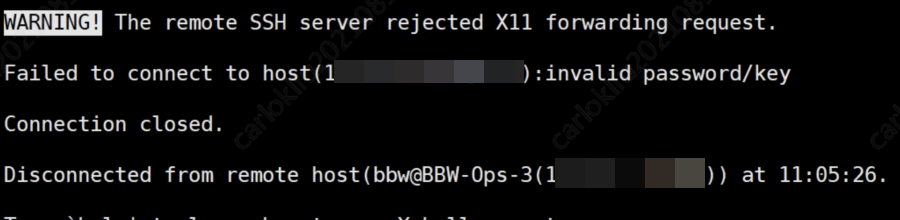
When accessing Linux resources and attempt to log in using a selected remote tool, the prompt "invalid password/key" is displayed, as shown below:
Possible Causes
The resource account information may have been entered incorrectly, or the resource is subject to an SSH login restriction policy.
Solutions
1. Check whether the account password entered for the resource is correct. If it is incorrect, re-enter the information.
2. Confirm whether the resource is configured to allow login only via key authentication and not via a password. You can either configure a managed key login in the BH or remove the login restriction within the resource system.
Directions
1. Log in to the BH Console.
2. In the left sidebar, choose Asset Mgmt > Servers.
3. On the Servers page, locate the relevant asset and click Account.
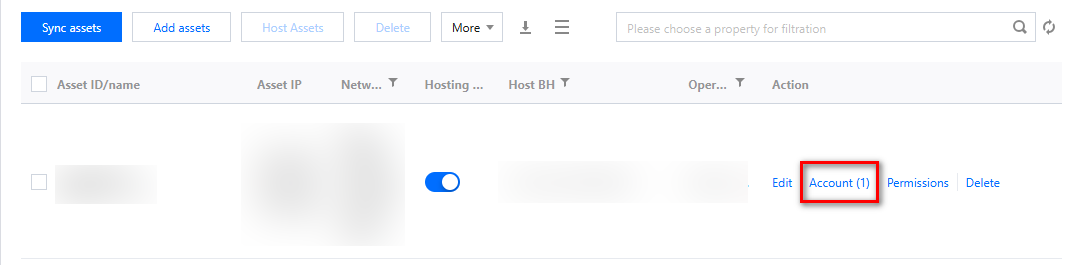
4. In the Account Management popup, click Set of the password to reset the password.
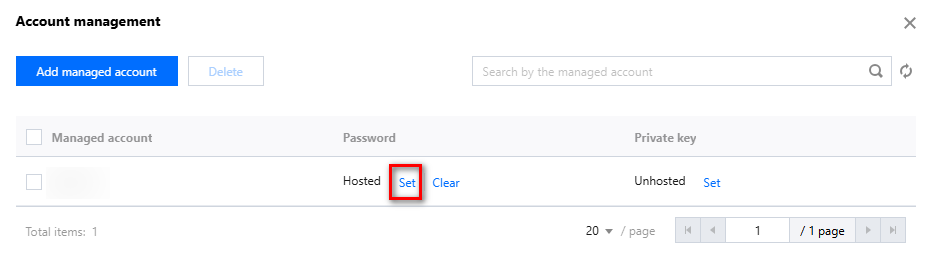
5. In the Account Management popup, click Set of the private key to configure the managed private key.
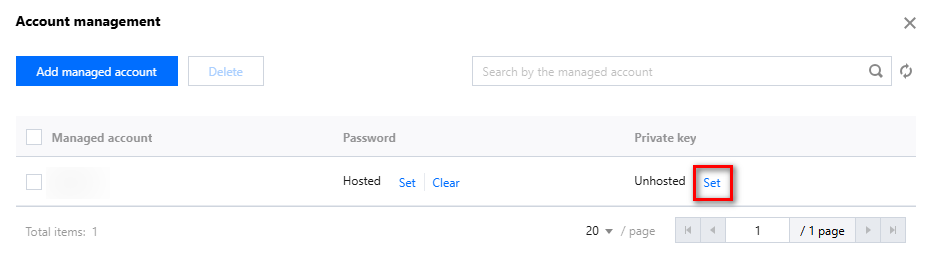
6. If the above settings for managing account passwords and private keys are correct, check the SSH configuration file on the resource to enable password login: Modify the
/etc/ssh/sshd_config file and set the PasswordAuthentication option to yes. The detailed steps are as follows:Case 1
Cause: If the resource is configured to disallow the root account from logging in via SSH, attempts to log in as the root user will fail.
Solution: Modify the
/etc/ssh/sshd_config file, locate the line with PermitRootLogin, and change its value to yes.Case 2
Cause: If the resource has an SSH allowlist configured, only specific users are permitted to log in. In this case, you need to add the corresponding account to the allowlist.
Solution: Configure the AllowUsers option in the
/etc/ssh/sshd_config file and add the corresponding account.
Ajuda e Suporte
Esta página foi útil?
Você também pode entrar em contato com a Equipe de vendas ou Enviar um tíquete em caso de ajuda.
comentários