File Transfer Control
Download
Focus Mode
Font Size
Overview
File transfer control helps prevent data leakage caused by Ops personnel downloading files. This document provides detailed instructions on how to configure file transfer permissions in the BH.
Directions
1. Log in to the BH Console.
2. In the left sidebar, choose Permission Mgmt > Access Permission.
3. On the Access Privileges page, click Create access permission to enter the New Access Privileges page.
4. On the New Access Privileges page, follow the steps to configure basic information, users, assets, and accounts. In Step 5, set the permissions to allow file upload only and prohibit file download.
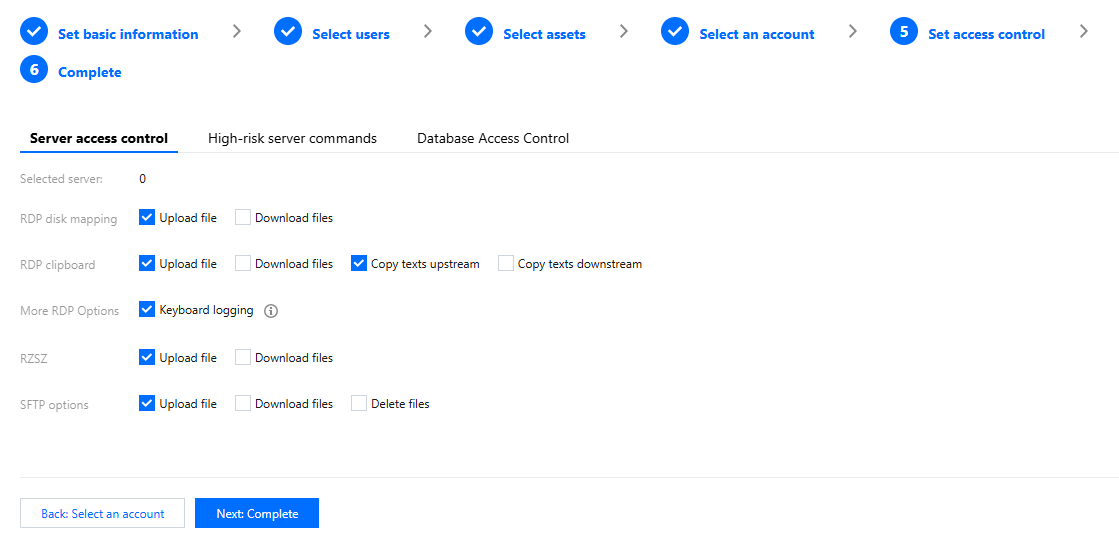
5. After completing the access operation settings, click Next: Complete to proceed with configuring high-risk commands.
6. After completing the permission configuration, click Submit to create the access permission. Users authorized through this permission will not be able to download files when accessing the host.
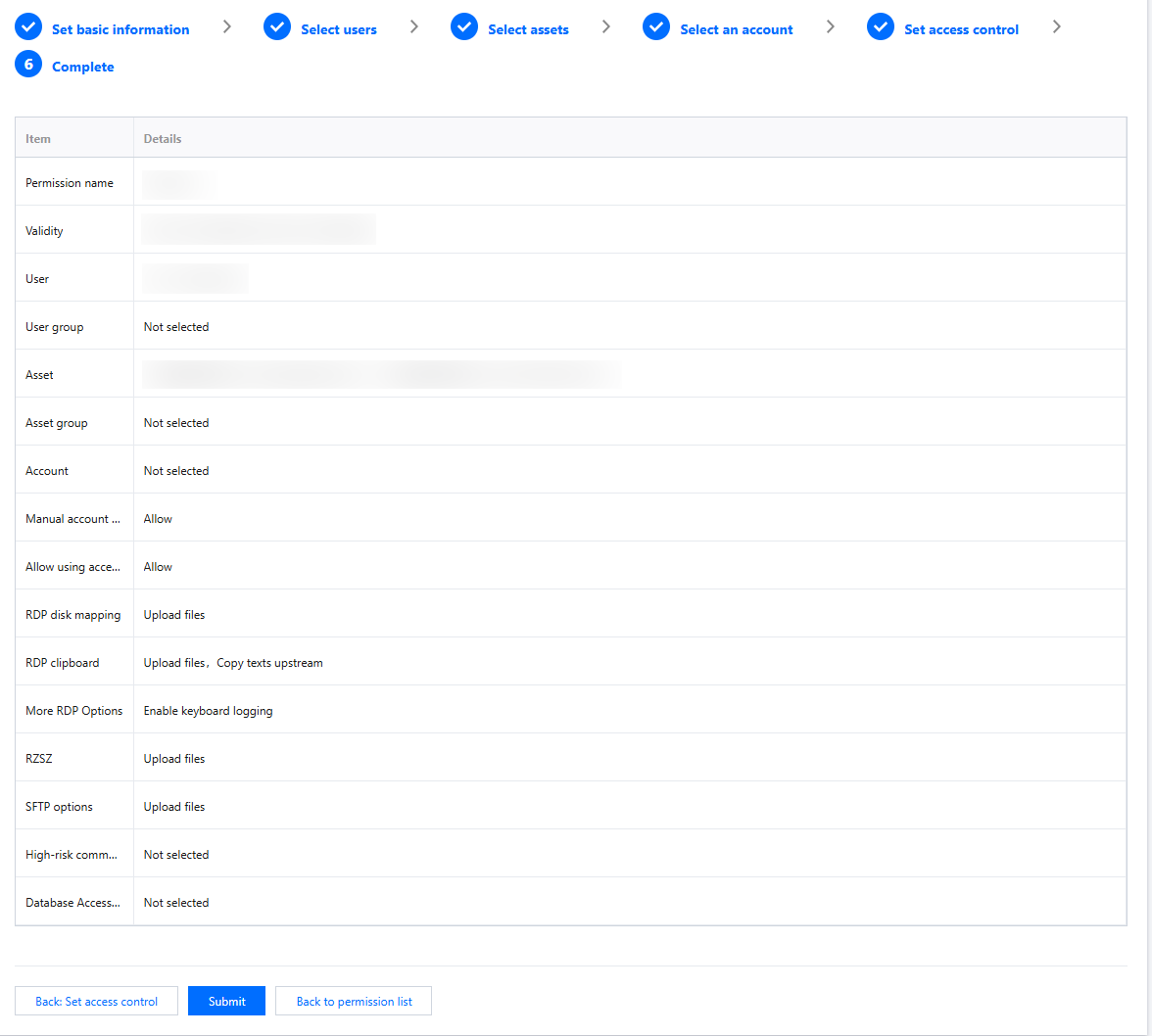
7. If the permission already exists, you can control file transfer operations by editing the permission.

Help and Support
Was this page helpful?
You can also Contact sales or Submit a Ticket for help.
Help us improve! Rate your documentation experience in 5 mins.
Feedback