Ops Members Cannot Load the Account When Logging in to Resources
다운로드
포커스 모드
폰트 크기
마지막 업데이트 시간: 2025-04-18 11:17:41
Phenomenon Description
When an Ops personnel logs in to a resource and clicks Accessing Server, the prompt "Not authorized for any account on this server" appears, preventing normal access to the resource, as shown below:
Possible Causes
Host resources have not had account information entered, or a policy has been created without binding user account permissions.
Solutions
Enter the relevant account information or configure binding for account permissions.
2. In the left sidebar, choose Asset Mgmt > Servers.
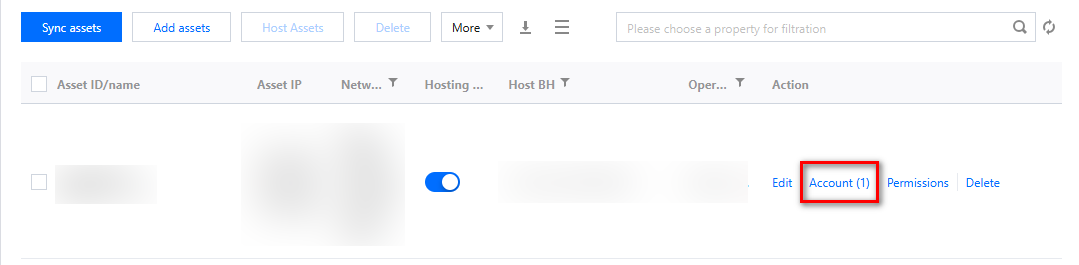
3. On the Servers page, locate the relevant asset and check if an account has been entered. If it has not been entered, add the required system login account by clicking Account.
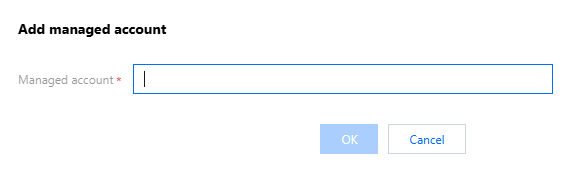
4. In the Account Management popup, click Add managed account, enter the asset account, and click OK to save the changes.
5. In the Account Management popup, click Set, configure the managed password and private key, and click OK to save the changes.
Account Already Entered
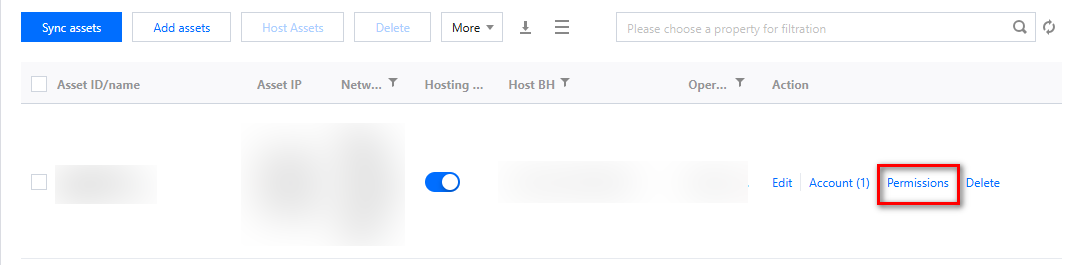
1. In Servers, locate the relevant asset and check whether an account has been entered. If the relevant system login account has been entered, click Permissions in the Operation column.
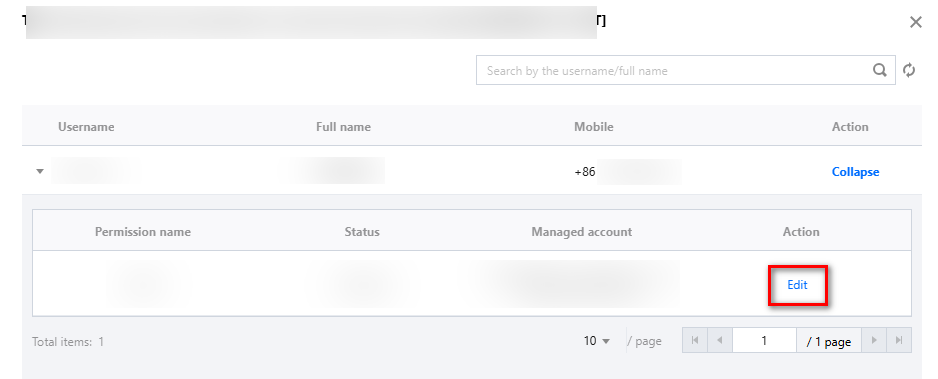
2. On the Access permissions page, select the required username, click Expand, choose the necessary permissions, and click Edit.
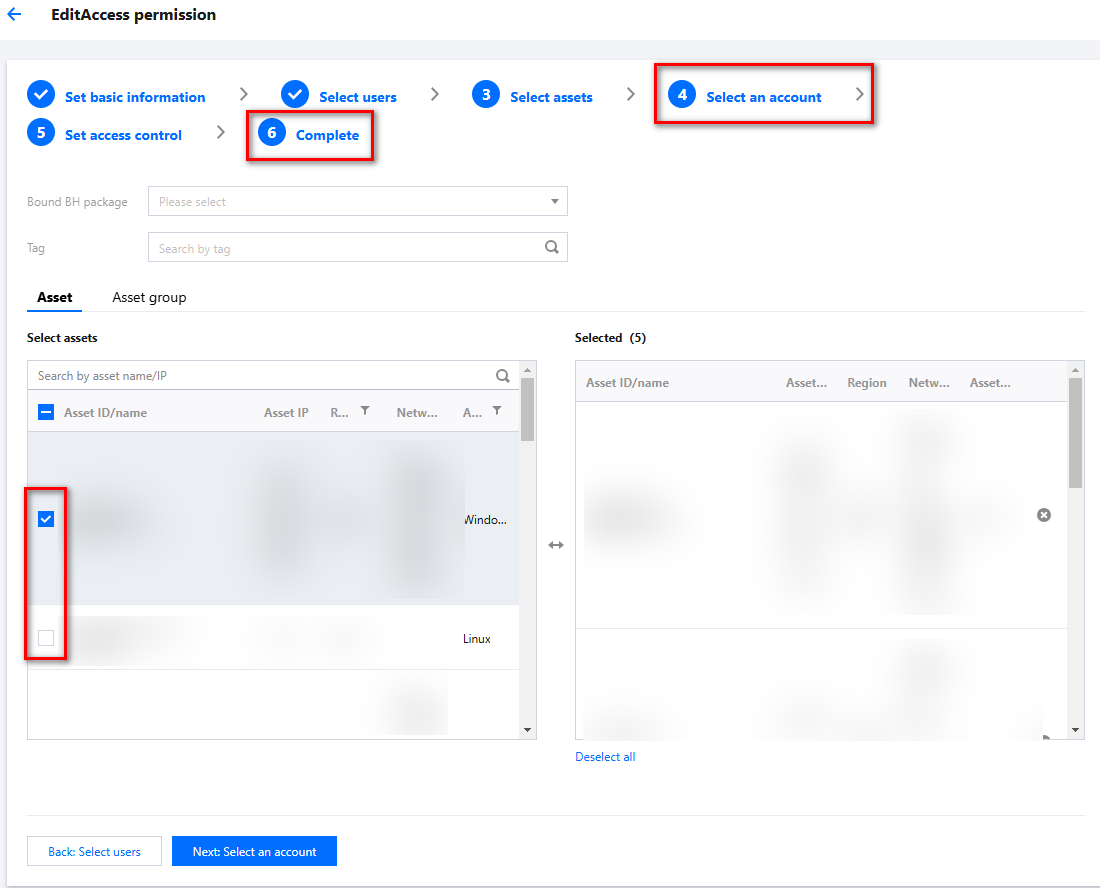
3. On the access permissions editing page, click Select assets, then click
to check the required account, and click Next: Select an account > Submit to save the settings.