Accessing BH as a CAM User
Unduh
Mode fokus
Ukuran font
Accessing the Bastion Host (BH) as a Cloud Access Management (CAM) user aims to achieve a secure Ops closed loop of "unified identity authentication, least-privilege permission assignment, and full-process operation auditing" through CAM sub-user permission isolation + centralized BH Ops.
Prerequisites
The Tencent Cloud BH service has been activated.
A sub-account has been created through the CAM console.
Host assets have been synchronized in BH, and hosting has been enabled.
Operation Steps
Step 1: Configuring CAM User Permissions
Define the BH operation permissions of sub-accounts through CAM policies to avoid the risk of excessive authorization.
1. Log in to the CAM console using the root account or an account with platform account permission configuration. In the left sidebar, choose Users > User List.
2. In the user list, locate the target sub-account and click its username.
3. On the user details page, click Permissions > Authorization.
4. On the Add Permissions page, you can configure a least-privilege policy for a sub-user by selecting a policy from the policy list to associate or by creating a custom policy.
Example: You can refer to the following policy configuration to achieve least privilege. Users assigned this policy can only access Ops mode through the console:
{"statement": [{"action": ["bh:CanCreateTrialResource","bh:DescribeIOADeployRegion","bh:DescribeSecuritySetting","bh:DescribeAccessEntry","bh:LoginOpserver","bh:DescribeDepartments","bh:DescribeResources"],"effect": "allow","resource": ["*"]}],"version": "2.0"}
Step 2: Synchronizing CAM Users
Synchronize CAM sub-users with configured permissions to BH to achieve automatic association and unified management of identity information.
1. Log in to the BH console. In the left sidebar, choose User Mgmt > CAMUser.
2. On the CAM Users page, click Synchronize CAM Users, and the system will automatically sync CAM users.
Step 3: Configuring Access Privileges for Ops Assets
Minimize Ops permissions and specify the specific assets and operation permissions accessible to synchronized CAM sub-users.
1. Log in to the BH console. In the left sidebar, choose Permission Mgmt > Access Permission.
2. On the Access Privileges page, configure access privileges for the synchronized CAM users on relevant assets by referring to the Create Access Privileges documentation.
Step 4: Accessing the Ops Console via CAM for Ops Personnel
Achieve precise binding of "user-asset-operation" to ensure that unauthorized assets are invisible to users.
1. Log in to the BH console using a sub-account that has been granted access to the Ops portal.
2. In the left sidebar, click Switch to Ops Mode to go to the Ops portal.
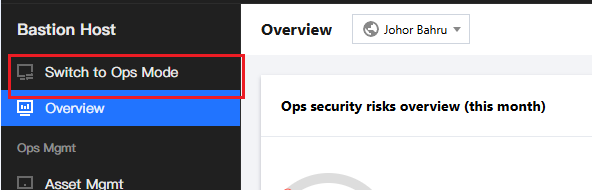
3. In the Ops portal, authorized assets will be displayed, and Ops sub-accounts can perform Ops operations on target assets.
Step 5: Performing Ops Operations by Ops Personnel
Verify that sub-users can only access authorized assets, that their operations are restricted by permissions, and that Ops processes are not affected.
1. In Ops mode, choose Host Assets > Asset List.
2. On the Asset List page, click Access on the right side of the corresponding host.

3. On the Ops page, you can enter relevant Ops commands.
Step 6: Auditing and Verification by Administrators
Ops Operation Audit
Record the Ops operations of Ops users to ensure that operations are auditable and traceable.
1. Log in to the BH console. In the left sidebar, choose Cloud Audit > Session Records.
2. On the Session Records page, click the Character Session Tab.
3. On the Character Session page, click Details on the right side of the corresponding session to open the session details page.

4. On the session details page, you can view the basic session information, keyboard operations, clipboard operations, and file operation records of the session.
Note:
When a CAM user logs in to the Ops portal to perform Ops operations, the user information in the audit will display the CAM user information.
5. On the Character Session page, click Replay on the right side of the corresponding session to check whether it matches the host operations in the Ops operation.

Administrator Operation Audit with CloudAudit
Audit permission changes and configuration operations of BH users to prevent permission abuse risks. Trace BH management-related operations to identify operational risks and prevent unauthorized operations and permission leakage risks.
1. Log in to the CloudAudit console. In the left sidebar, select Operation Records.
2. On the Operation Records page, audit the operation behaviors of administrators in BH management mode by referring to the Viewing Operation Record Event Details document.
Bantuan dan Dukungan
Apakah halaman ini membantu?
Anda juga dapat Menghubungi Penjualan atau Mengirimkan Tiket untuk meminta bantuan.
masukan