Adding a Consumer Group
Unduh
Mode fokus
Ukuran font
Overview
Data Subscription for Kafka allows users to create multiple consumer groups for multi-point consumption. By creating multiple consumer groups, you can consume data multiple times, which increases consumption channels, reduces costs, and improves data consumption speed.
Note:
Create a consumer group for testing first. After all features of the consumer program have been tested and you are ready to consume data in production, create a separate production consumer group to prevent test data and production data from being mixed in the same consumer group.
Prerequisites
Note
The data subscription task must be in the running state.
A data subscription task can have up to 10 consumer groups. If you need more consumer groups, create a new sync task.
A consumer group can be associated with only one User account, while multiple consumers can use the same User account for consumption.
Operation Steps
1. Log in to the DTS Console, select Data Subscription in the left sidebar to go to the Data Subscription page.
2. In the data subscription list, select the data subscription you want to view, and click the Subscription ID or View Subscription Details in the Operation column to go to the subscription management page.
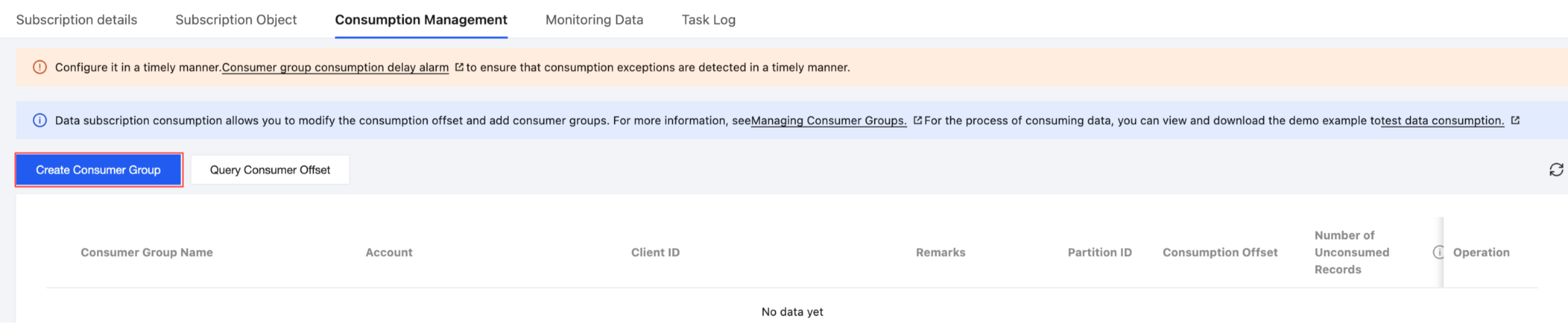
3. On the subscription management page, select the Consumption Management tab and click Create Consumer Group.
4. In the Create Consumer Group dialog box, configure the consumer group information and click Create.
Consumer group name: Create a name based on your actual situation for easy use and identification.
Account: Set the consumer group account.
Password: Set the password for the consumer group account.
Confirm password: Enter the same password again.
Remarks: Set remarks for easy record-keeping.
Bantuan dan Dukungan
Apakah halaman ini membantu?
Anda juga dapat Menghubungi Penjualan atau Mengirimkan Tiket untuk meminta bantuan.
masukan