This document describes how to pull an online video (provided in the form of URL) to VOD.
Fees
The code provided in this document is open-source and free of charge, but it may incur the following fees during use:
Fees for purchasing a Tencent Cloud CVM instance to run the API request script. For more information, please see Instance Billing Modes.
VOD storage space will be taken up by uploaded videos via pulling. For more information, please see Video Storage Pricing.
Limits
The pull from URL feature provided by VOD has the following limits:
The URL should directly point to a video file but cannot be a link to a video website page.
If the URL has a timestamp for hotlink protection, please make sure that the hotlink protection limits (such as the validity period and number of allowed access requests) are favorable; otherwise, the access may fail.
URLs with referer hotlink protection enabled are not supported.
DASH (MPD file type) is unsupported.
If the pull object is an HLS (.m3u8 file type) file, the URIs of media segments (generally in .ts file type) should be relative paths without parameters.
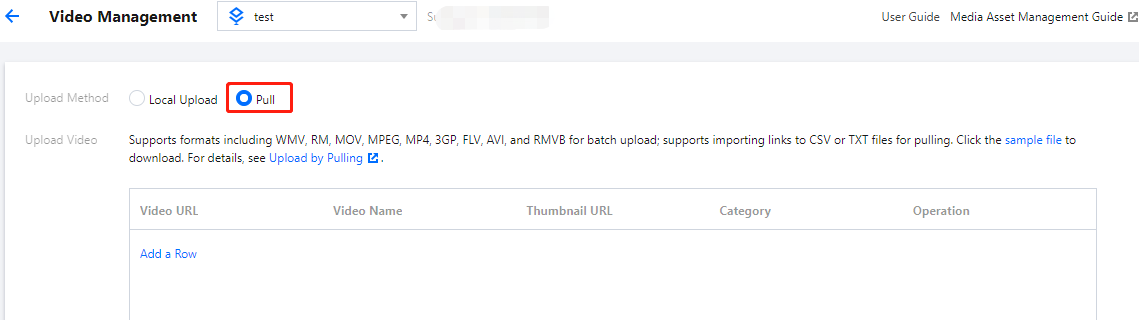
Go to the upload page in the VOD console, select Pull as the upload method, click Add a Row, enter the URL of the video to be pulled (the test URL is used here as an example. Other configuration items are optional, which can be entered as needed), and click Pull Video in the bottom-left corner:
Note:
The time it takes to pull a video is directly proportional to the video file size. We recommend you use a small video (of dozens of megabytes in size) for the test to avoid long wait.
Step 3. View the pull result
After waiting for one or two minutes (subject to the video file size), you can see the pulled video on the Media Assets page.
Note:
If the browser is stuck at the media assets page during the pull process, you need to refresh the page to view the pulled video.
Calling TencentCloud API for Pull
Step 1. Prepare a CVM instance
The TencentCloud API request script needs to be executed on a CVM instance meeting the following requirements:
Region: not limited.
Model: the minimum official configuration (1 CPU core and 1 GB memory) is sufficient.
Public network: a public IP is required, and the bandwidth should be at least 1 Mbps.
Operating system: official public image Ubuntu Server 16.04.1 LTS 64-bit or Ubuntu Server 18.04.1 LTS 64-bit.
If you do not have a CVM instance satisfying the above conditions, you can also run the script on another Linux (such as CentOS or Debian) or macOS server with public network access, but you need to modify certain commands in the script based on the operating system. Please search for the specific modification method by yourself.
Step 2. Get the API key
Your API key (i.e., SecretId and SecretKey) is required for TencentCloud API request. If you have not created an API key yet, please generate one as instructed in Root Account Access Key. If you have already created a key, please get it as instructed in the same document.
Please assign the corresponding values obtained in step 2 to SECRET_ID and SECRET_KEY in the command.
This command will download the demo source code from GitHub and automatically run the installation script. The installation process will take several minutes (subject to the CVM network conditions), during which the remote terminal will print the following information:
[2020-07-15 17:40:13] Start installing pip3.
[2020-07-15 17:40:39] pip3 is successfully installed.
[2020-07-15 17:40:39] Start installing the TencentCloud API SDK for Python.
[2020-07-15 17:40:42] The TencentCloud API SDK for Python is successfully installed.
[2020-07-15 17:40:42] Start configuring API parameters.
[2020-07-15 17:40:42] API parameter configuration is completed.
Run the pull_upload.py script to initiate upload:
ubuntu@VM-69-2-ubuntu:~$ cd ~/vod-server-demo/pull_upload_api/; python3 pull_upload.py http://example.com/ff439affvodcq1400329073/e968a7e55285890804162014755/LKk92603oW0A.mp4 API-PullUpload
Note:
Please replace the URL in the command with the actual address of the video to be pulled.
This command will initiate a PullUpload request to the specified URL and print the response similar to the following: