Guide for Migrating Power BI Reports from Snowflake to DLC
Download
Focus Mode
Font Size
This document describes the complete process for migrating Power BI reports and datasets from a Snowflake data source to a DLC data source, it covers: pre-migration preparation, step-by-step operations, script replacement, post-migration verification, gateway configuration, and troubleshooting.
Pre-Migration Preparation
File Backup
Keep the original .pbix file connected to Snowflake as a backup. If configuration errors occur during migration, you can use it to roll back.
Preparing an Available DLC SQL Script
Develop and validate an SQL query that can run properly in the DLC environment.
Refer to the example:
select day, region,sum(ms_all_xl) ms_all_xl,sum(ms_all_tsel) ms_all_tsel,sum(ms_all_isat) ms_all_isatfrom PRD_BCA.AURORA_FB_REGION_W_V2where month = 202407group by day, region
Preparing a DLC Connection String Template
Obtain the official DLC connection string, DSN name, and gateway information in advance. Be sure to use the formal production data source, and do not use test nodes or test accounts.
Standard DLC ODBC connection template:
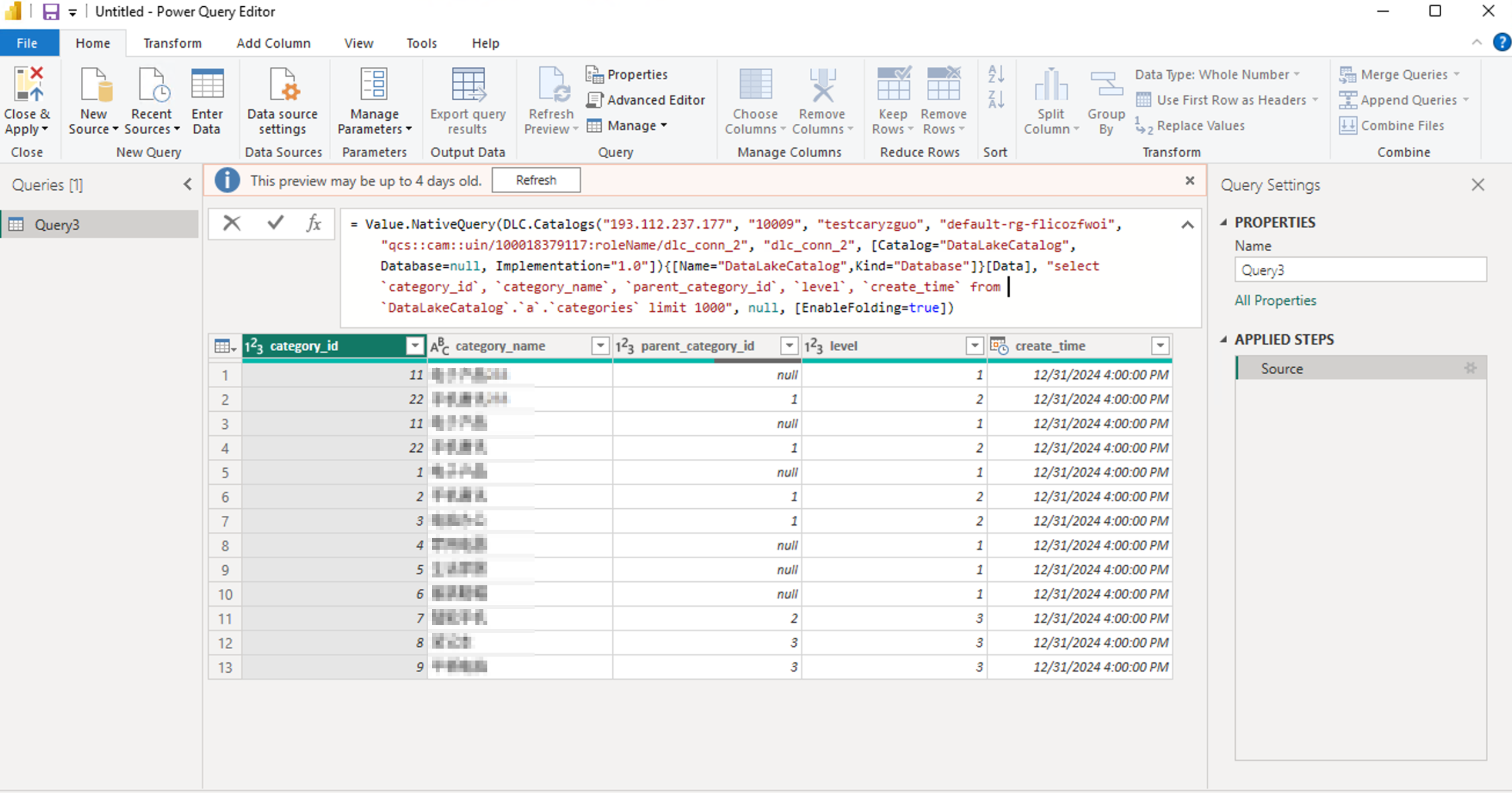
1 = Value.NativeQuery(DLC.Catalogs("193.112.237.177", "10009", "testcaryzguo","default-rg-flicozfwoi", "qcs::cam::uin/100018379117:roleName/dlc_conn_2","dlc_conn_2", [Catalog="DataLakeCatalog", Database=null,Implementation="1.0"]){[Name="DataLakeCatalog",Kind="Database"]}[Data],"select `category_id`, `category_name`, `parent_category_id`, `level`, `create_time`from `DataLakeCatalog`.`a`.`categories` limit 1000", null, [EnableFolding=true])
Permission and Environment Check
1. Confirm that your account has query access permissions to the DLC database and data tables.
2. Verify access permissions to the Power BI Gateway and the DLC ODBC connector.
3. Check the connectivity of network policies, private links, and the gateway server to the DLC environment.
Step-by-Step Migration Procedure
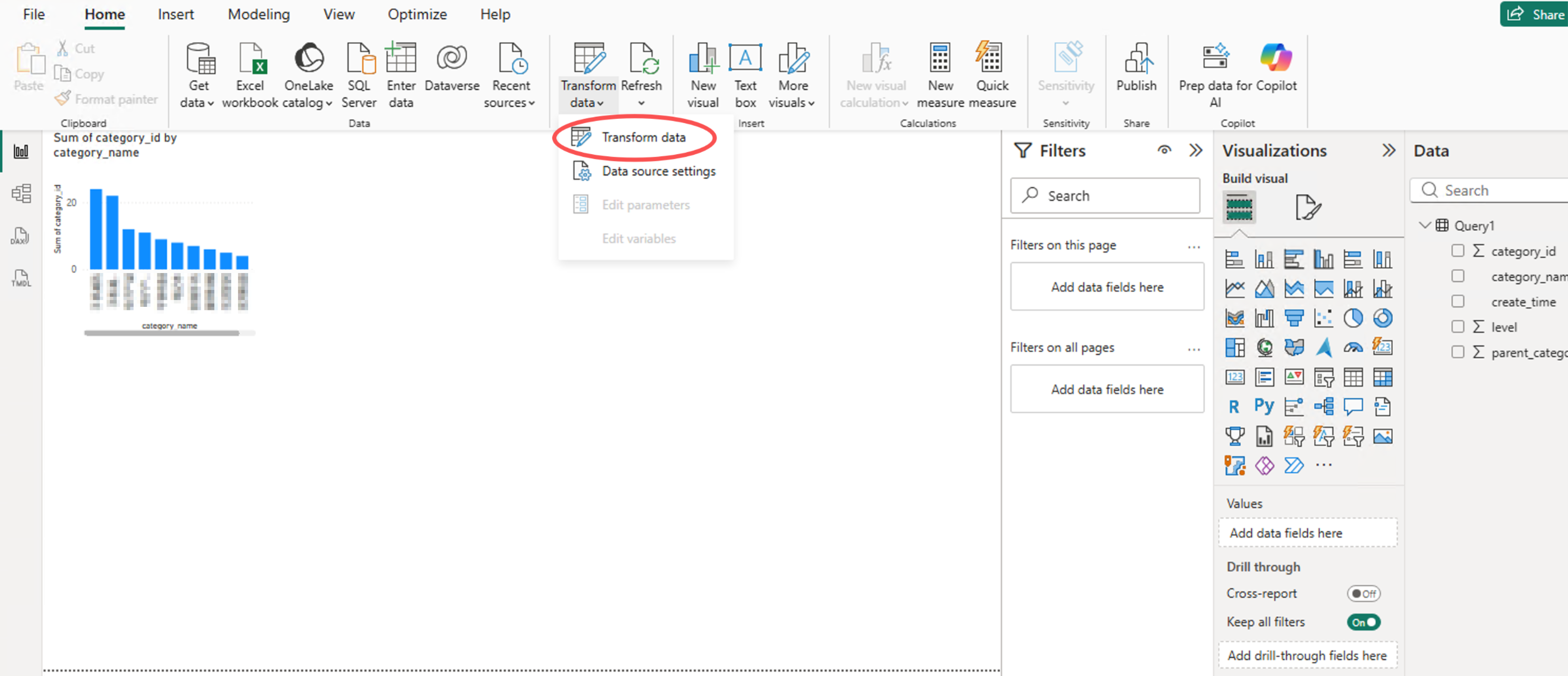
Step 1: Opening the Query Editor
1. Open the target Power BI report and select the dataset connected to DLC.
2. Right-click the dataset, select Transform Data, and open the Power Query Editor.
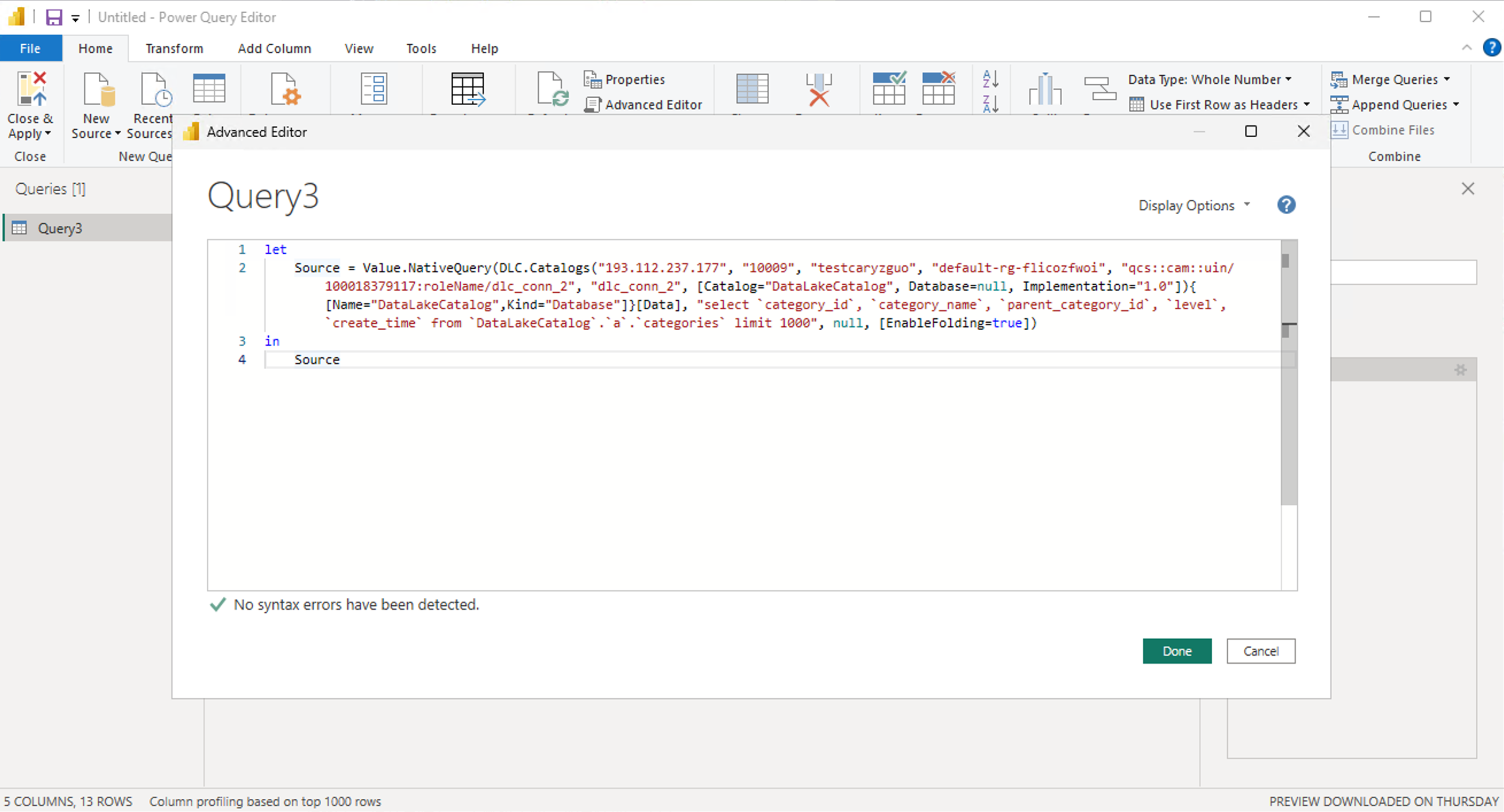
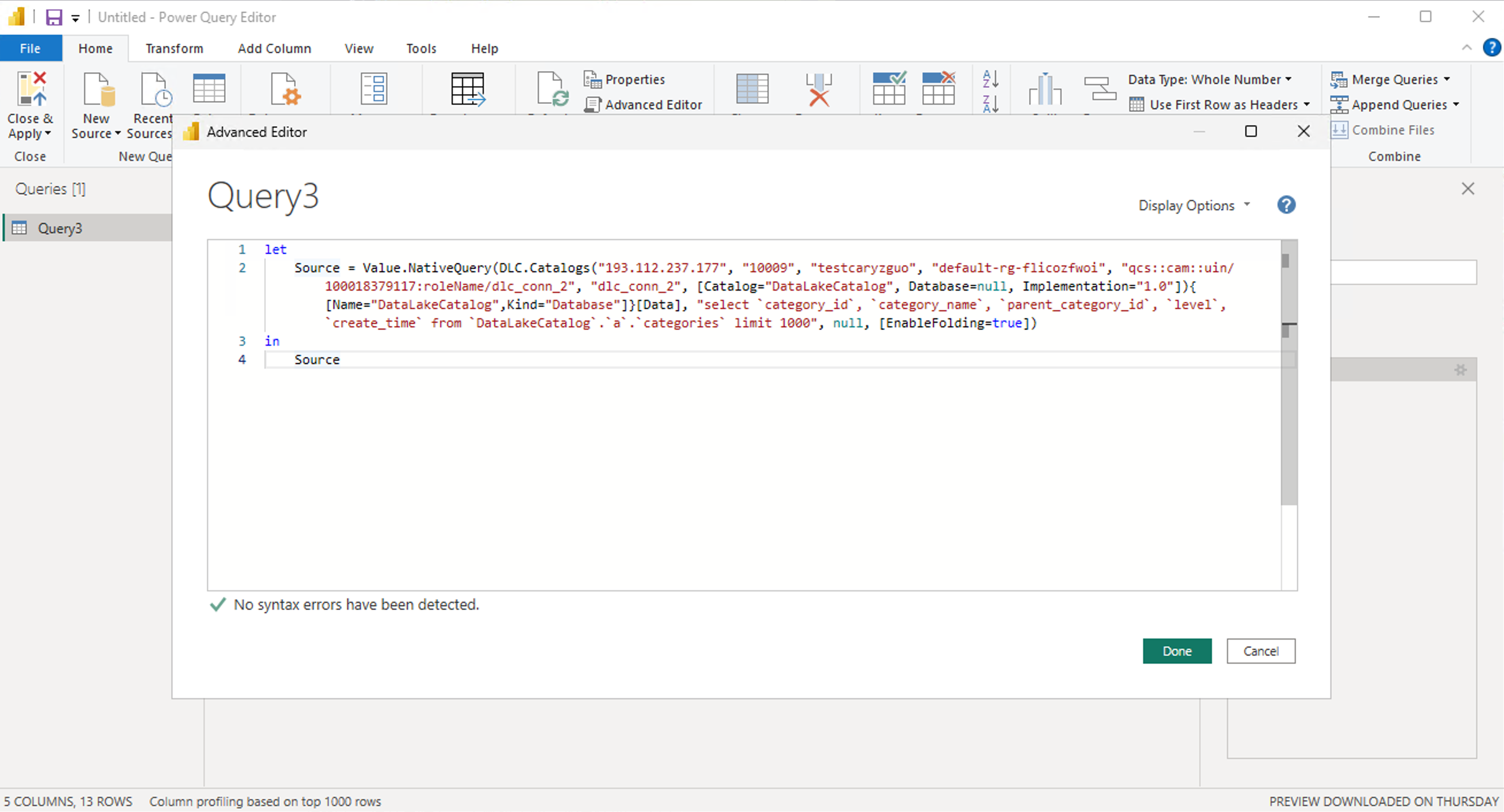
Step 2: Replacing the Data Source via the Advanced Editor (Core Step)
1. Go to the Home tab and click Advanced Editor.
2. Enable Word Wrap and line numbers for easier viewing.
3. Completely delete the original Snowflake Source code, and then paste the prepared DLC ODBC connection string.
4. Keep the Lower column transformation step unchanged. If no syntax errors are detected, click Done.

Step 3: Replacing with the Formal Business SQL
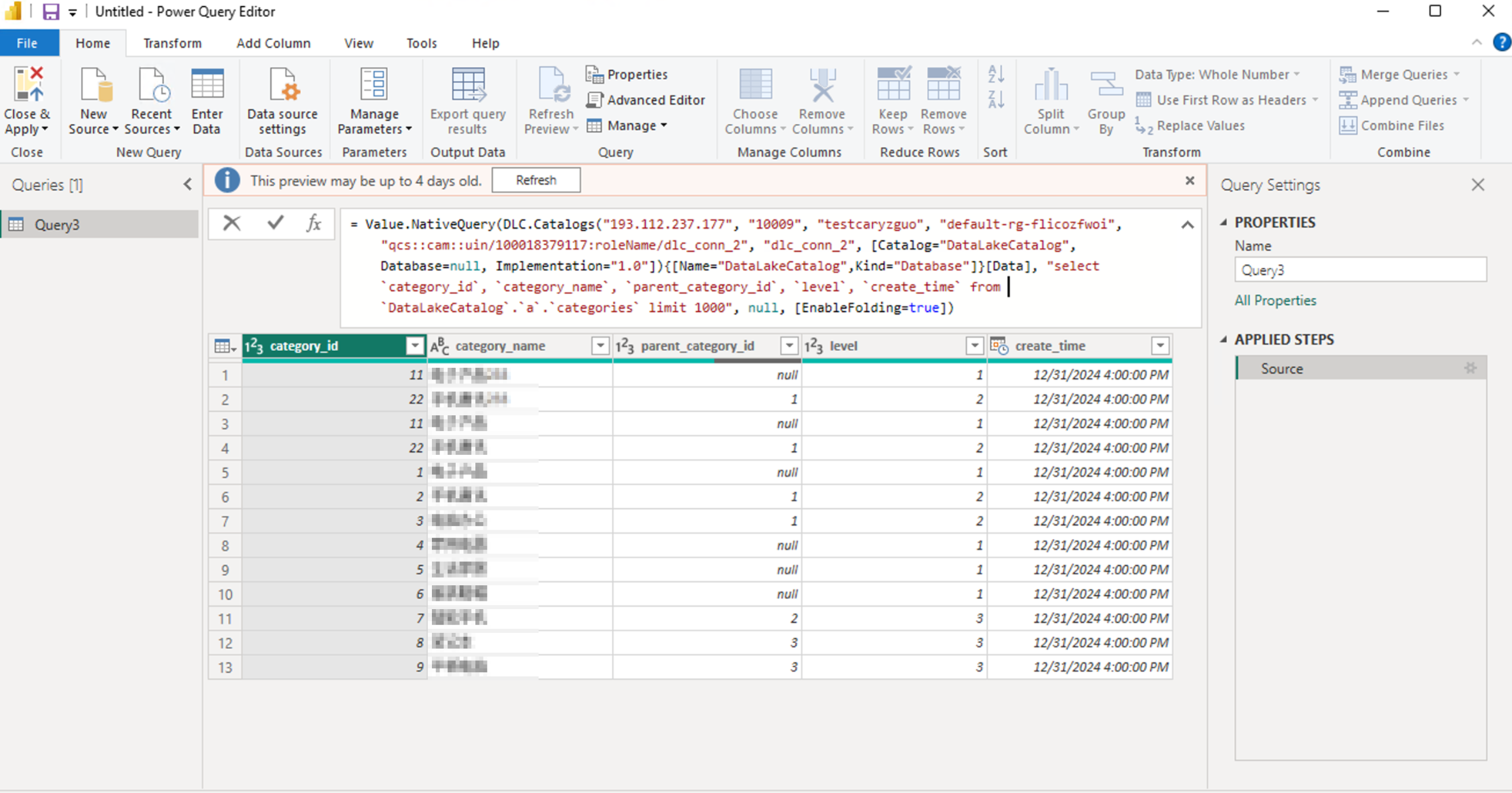
1. Under Applied Steps, click the Source step to open the DLC ODBC connection window.
2. The pre-configured DSN settings are loaded in the window. Delete the default test SQL statements within them.
3. Paste the validated DLC business SQL query and click OK.
Step 4: Saving the Local Query Configuration
Click Close & Apply at the top of the Query Editor to complete the switch of the local data source from Snowflake to DLC. Wait for the data refresh to complete.
Step 5: Republishing the Report to Power BI Service
1. Thoroughly test all visual components, filters, measures, and calculated columns in the local report.
2. Click Publish, select the original workspace, and overwrite the existing cloud report with the same name.
3. After publishing is complete, go to the Power BI Service settings and confirm that the Semantic Model and gateway data source have been updated to DLC.
Power Query Code Comparison: Snowflake vs. DLC
Original Snowflake Code
letSource = Value.NativeQuery(Snowflake.Databases("zm67644.ap-southeast-3.aws.privatelink.snowflakecomputing.com","PROD_WH"){[Name="PROD"]}[Data],"select `category_id`, `category_name`, `parent_category_id`, `level`, `create_time` from `DataLakeCatalog`.`a`.`categories` limit 1000", null, [EnableFolding=true]),Lower = Table.TransformColumnNames(Source,Text.Lower)inLower
Migrated DLC Code
letSource = Value.NativeQuery(DLC.Catalogs("193.112.237.177", "10009","testcaryzguo", "default-rg-flicozfwoi","qcs::cam::uin/100018379117:roleName/dlc_conn_2", "dlc_conn_2",[Catalog="DataLakeCatalog", Database=null,Implementation="1.0"]){[Name="DataLakeCatalog",Kind="Database"]}[Data],"select `category_id`, `category_name`, `parent_category_id`, `level`, `create_time`from `DataLakeCatalog`.`a`.`categories` limit 1000", null, [EnableFolding=true])inSource
Post-Migration Verification
After the report is published, complete all the following checks to ensure normal business operation:
1. Data Model Relationships: Compare with the original Snowflake report and verify that all table relationships are complete and valid.
2. Visual Components: Check charts, groups, slicers, and filters to ensure there are no errors or missing data.
3. Data Format: Verify the data types and display formats of date, numeric, and text fields, as well as the aggregation logic.
4. Gateway and Connection Status: Go to the semantic model settings in Power BI Service and confirm that the data source is DLC ODBC.
Check the gateway's operational status and data source mappings.
Gateway Troubleshooting
1. Confirm the private link and server allowlist settings for DLC.
2. Verify that the DSN name and connection parameters are consistent with those in the production environment.
3. Check the account permissions for the gateway connector and DLC data access.
Common Errors and Solutions
Error 1: Date Parsing Failure
Error Message
OLE DB or ODBC error: [DataFormat.Error] We couldn't parse the input provided as a Date value.
Root Cause: The date format is incompatible or incorrectly configured in the query or transformation step.
Solution:
1. Check all applied steps in Power Query and verify the column name and data type conversions.
2. Adjust the date field format in the DLC SQL to comply with Power BI's parsing rules.
3. Refresh the query step and reload the data.
Error 2: ODBC Connection Failure
Error Message
ODBC: Failed to connect to data source, DSN not found / Access denied
Root Cause: Incorrect DSN configuration, network failure, or insufficient account permissions.
Solution:
1. Carefully verify the DSN name and parameters for DLC ODBC on the gateway server.
2. Test the network connectivity between the gateway server and the DLC database.
3. Apply for the relevant permissions required for the DLC data tables and the Power BI gateway.
Important Notes
1. Back up the original Snowflake .pbix file before migration to enable rollback.
2. Do not add a semicolon at the end of a DLC SQL statement.
3. Use only the DSN and account from the formal production environment for DLC, and do not use test environment configurations.
4. Overwriting an existing cloud report will replace all original settings. Complete a full local test before publishing.
5. Retain both the old and new reports for a period after migration to facilitate issue tracking.
6. If incremental refresh and aggregation tables are enabled, you must revalidate these features.
Help and Support
Was this page helpful?
You can also Contact sales or Submit a Ticket for help.
Help us improve! Rate your documentation experience in 5 mins.
Feedback