tencent cloud

Data Lake Compute

DocumentationData Lake ComputePractical TutorialScheduling DLC Report Refresh in Power BI Cloud

Scheduling DLC Report Refresh in Power BI Cloud

Download
Focus Mode
Font Size
Last updated: 2026-09-08 16:48:12
AI-Translated
This document describes how to configure a Power BI on-premises data gateway to enable scheduled automatic refresh of Tencent Cloud DLC reports in the cloud.

Installing a Local Data Gateway

Note:
The content on installing an on-premises data gateway is intended for gateway administrators. Regular report authors can skip this chapter and start from Choosing a Deployment Mode.
If your organization already has a running Power BI gateway, you only need to perform the following three steps to install the on-premises data gateway:

Selecting a Suitable Server

Requirement
Recommended Configuration
Operating system
Windows Server 2019 / 2022 (64-bit)
CPU
4 cores or more
Memory
8 GB or more (adjust according to business needs for large data volumes)
Networking
Must be able to access the DLC service address (typically via a public network or dedicated line).
Continuous availability
Remain powered on 24/7 (scheduled refreshes will fail if the system is shut down).

Downloading and Installing On-premises Data Gateway

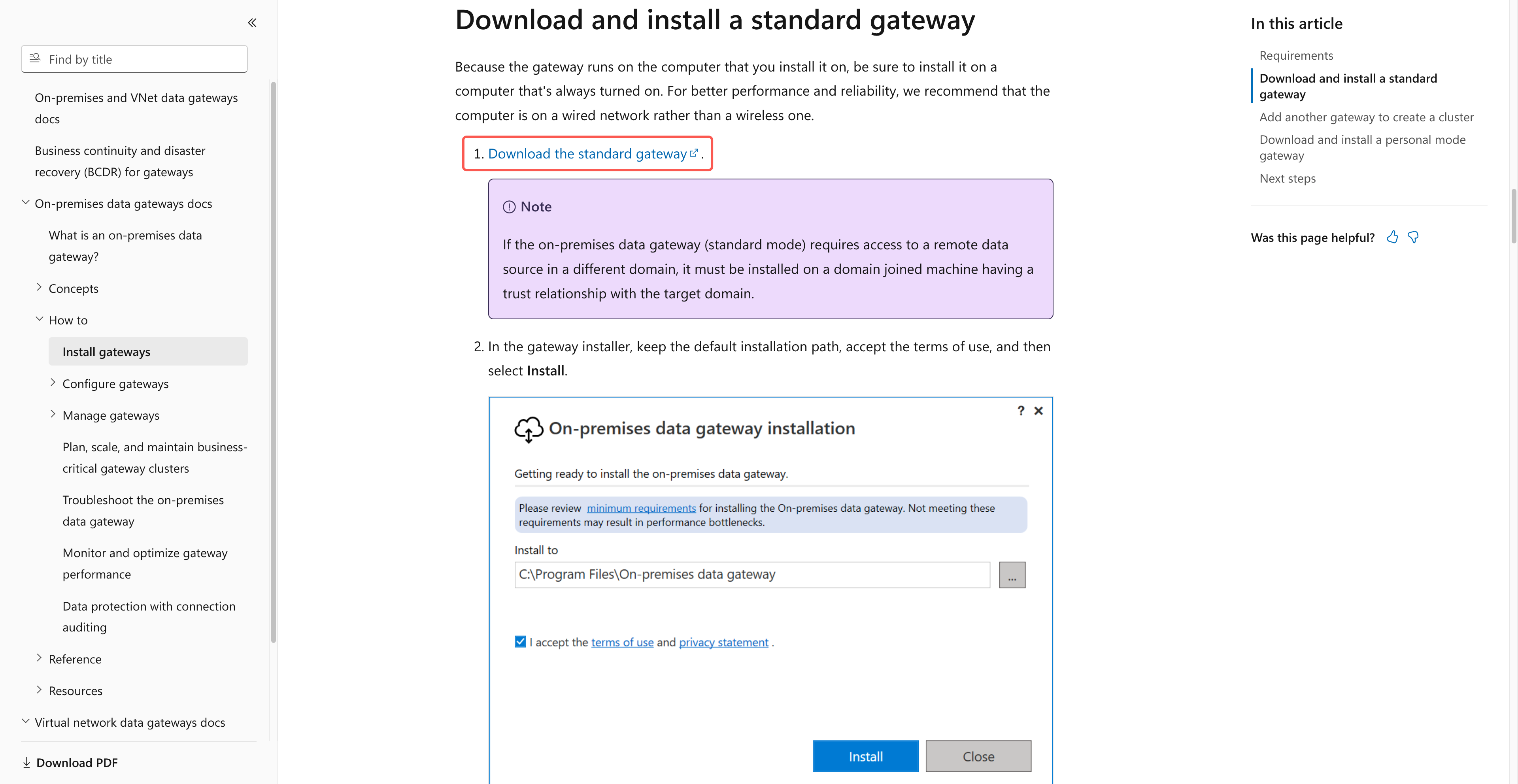
1. Open the introduction page and click Download and install a standard gateway to download it.

2. On the server, double-click GatewayInstall.exe, follow the on-screen installation wizard, keep the default configuration, and click Next repeatedly until the installation is complete.
3. After the installation is complete, the gateway configuration tool opens automatically.

Binding the Gateway to a Power BI Tenant

1. Log in to Power BI Desktop using an account with a Power BI Pro license.
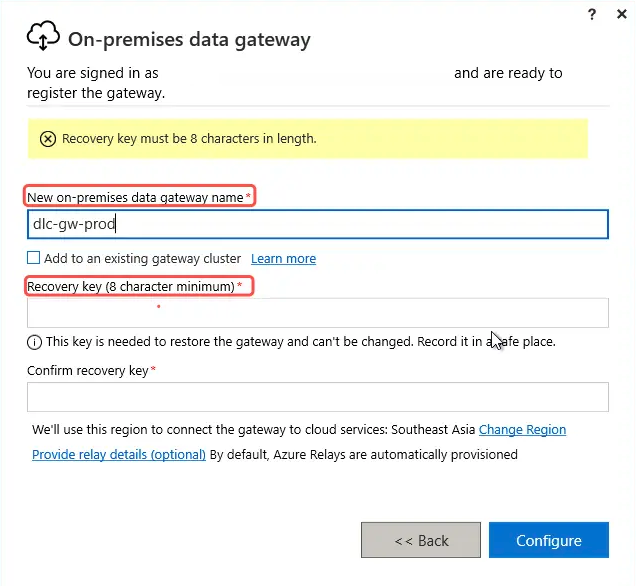
2. Select Register a new gateway on this computer.
3. In New on-permises data gateway name, enter a name for the new on-premises data gateway. A name that includes the department + purpose is recommended, such as dlc-gw-prod.
4. Set a recovery key in the Recovery key field and store it in a safe place, as it will be used to migrate the gateway to a new machine.


Installing the DLC ODBC Driver on the Gateway Server

On the server where the gateway is located, double-click dlc-spark-odbc-1.0.0-win64.msi (the same MSI provided to report authors), and follow the UAC prompts to proceed.
Silent deployment:
msiexec /i "dlc-spark-odbc-1.0.0-win64.msi" /qn /norestart /l*v gateway-odbc.log

Placing the DLC Connector in the Gateway Directory

1. Copy DlcODBCNative.mez to the following path:
C:\\Windows\\ServiceProfiles\\PBIEgwService\\Documents\\Power BI Desktop\\Custom Connectors\\
(This directory might not exist and may need to be created manually. Note that it is the Documents folder for the PBIEgwService service account, not for the currently logged-in user.)
2. Confirm that the file size and modification time are correct.

Allowing the Gateway to Load Custom Connectors

Note:
Due to the architectural changes in the new gateway version, custom connectors are now automatically detected locally, and permission control has been moved to the cloud.

Step 1: On-premises Gateway Confirmation and Identification

1. Open the On-premises data gateway configuration tool.
2. Go to the Connectors tab on the left.
3. In the "Custom data connectors" section, confirm that the path bar displays the target directory path.
4. Confirm that DlcODBC is automatically scanned and displayed in the middle list. After confirming that it is correct, close the configuration tool directly.

Step 2: Enabling Refresh Permissions on the Cloud Gateway

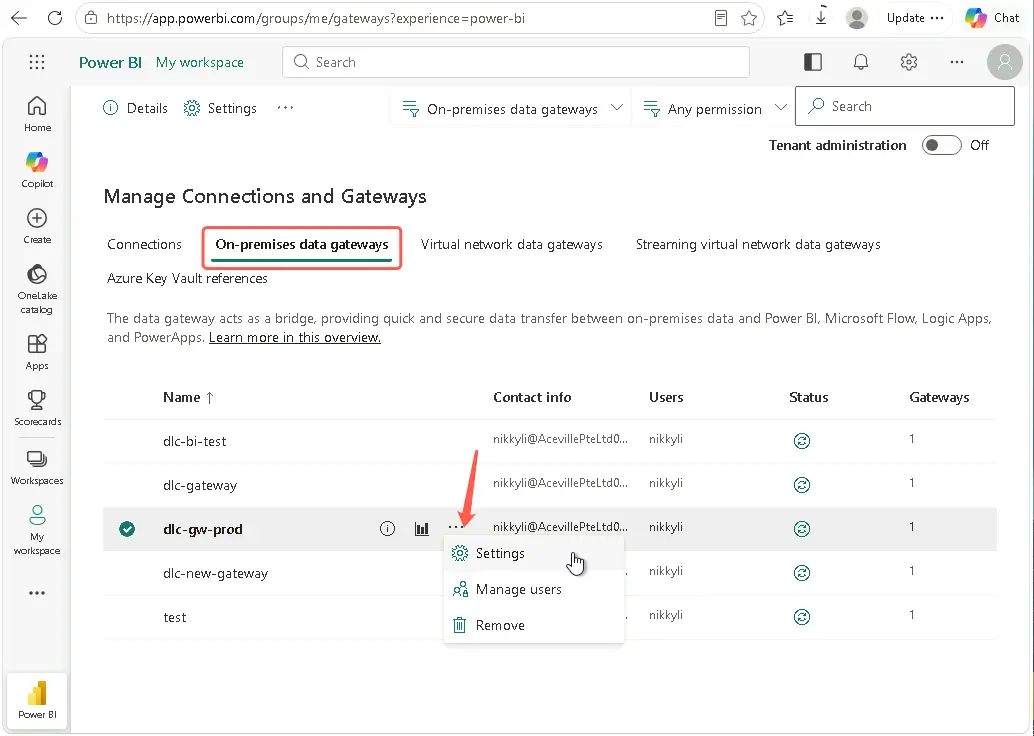
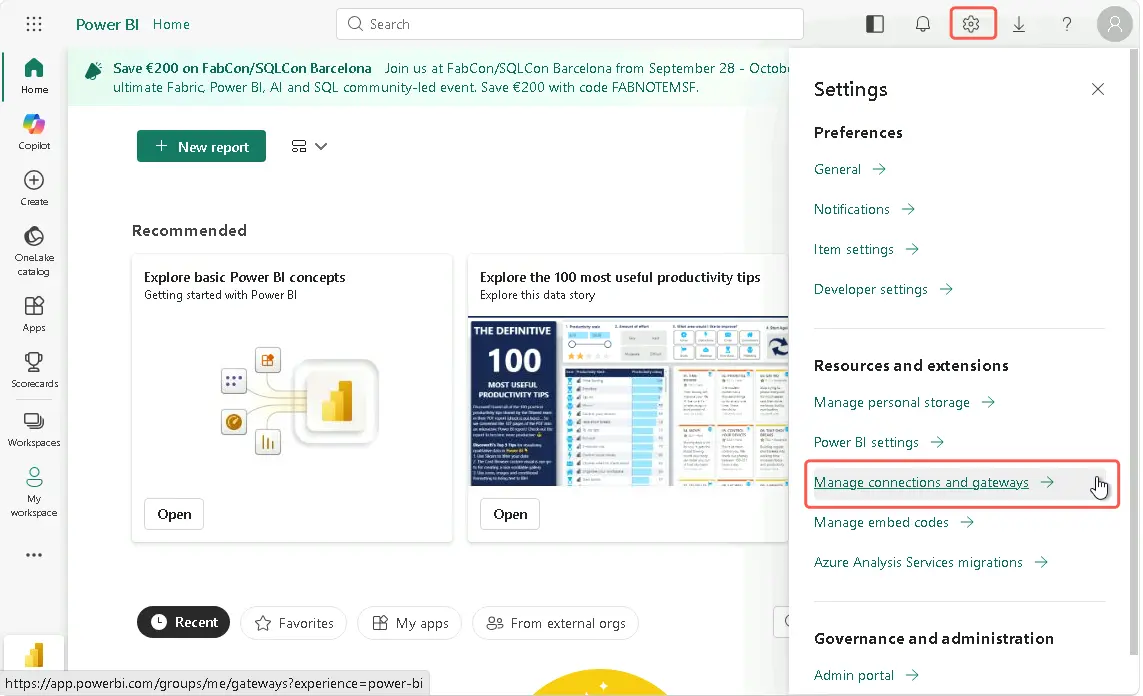
1. Open a browser and log in to the Power BI service (app.powerbi.com) using a corporate account with the required permissions.
2. Click the gear icon in the upper-right corner of the page, and select "Manage connections and gateways" from the drop-down menu.
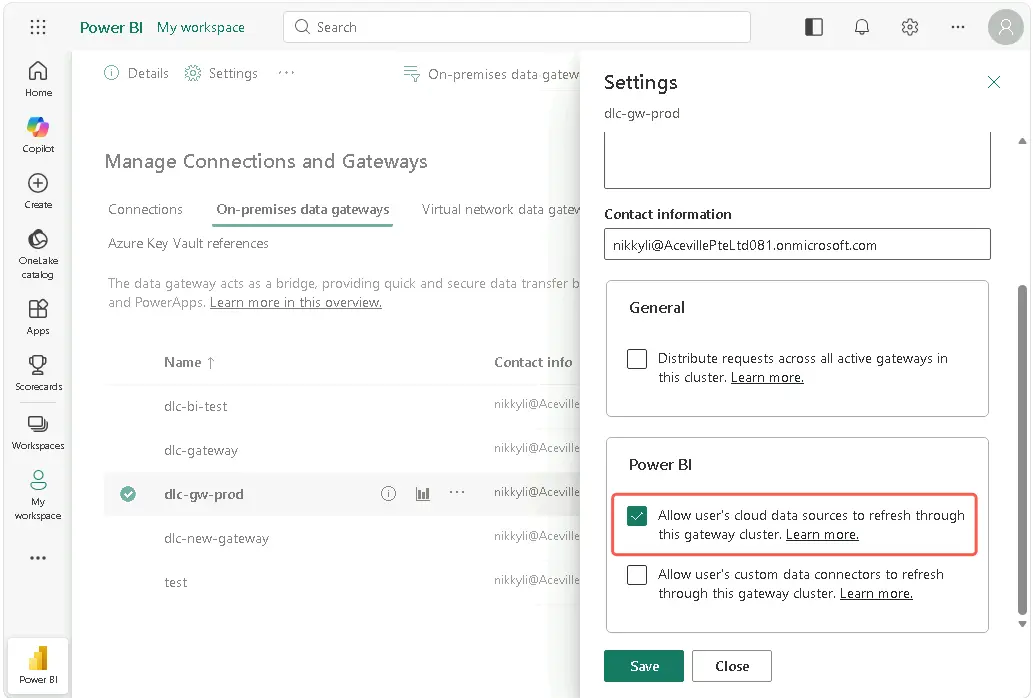
3. Find the gateway cluster you just registered in the gateway list, and click Settings.

4. Find and select Allow user's cloud sources to refresh through this gateway cluster.
5. Click Save to apply the changes.


Restarting the Gateway

Warning:
The following two steps are both required. You must not only restart the service but also terminate the background processes together, otherwise the old connector will continue to take effect.
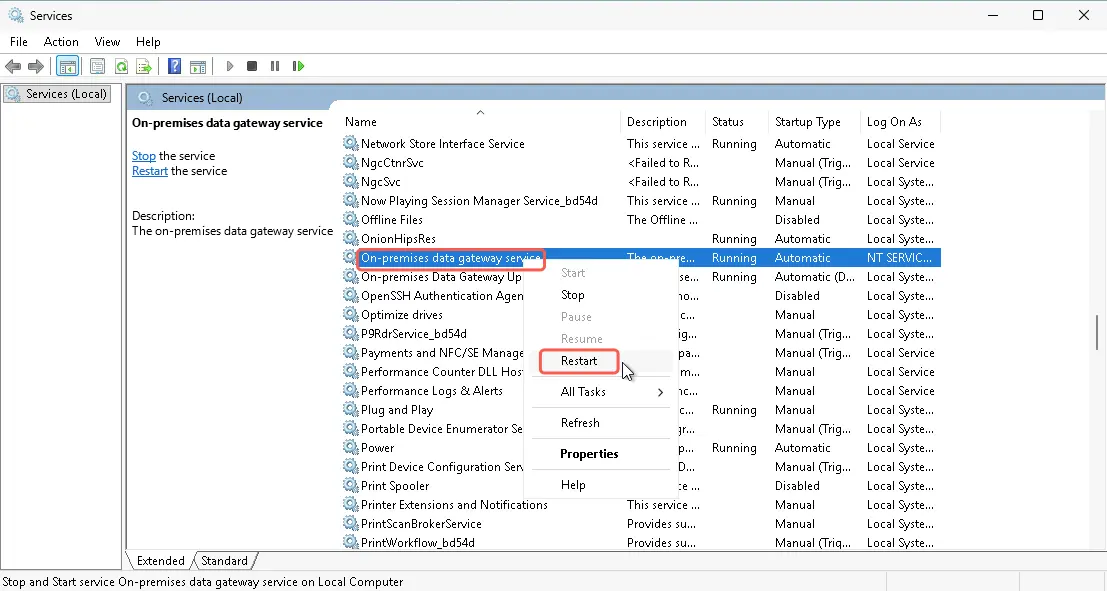
Step 1: Restarting the Gateway Service
1. Press the Win + R keys on your keyboard simultaneously > type services.msc > press Enter.
2. Find and right-click On-premises data gateway service.
3. Click Restart.

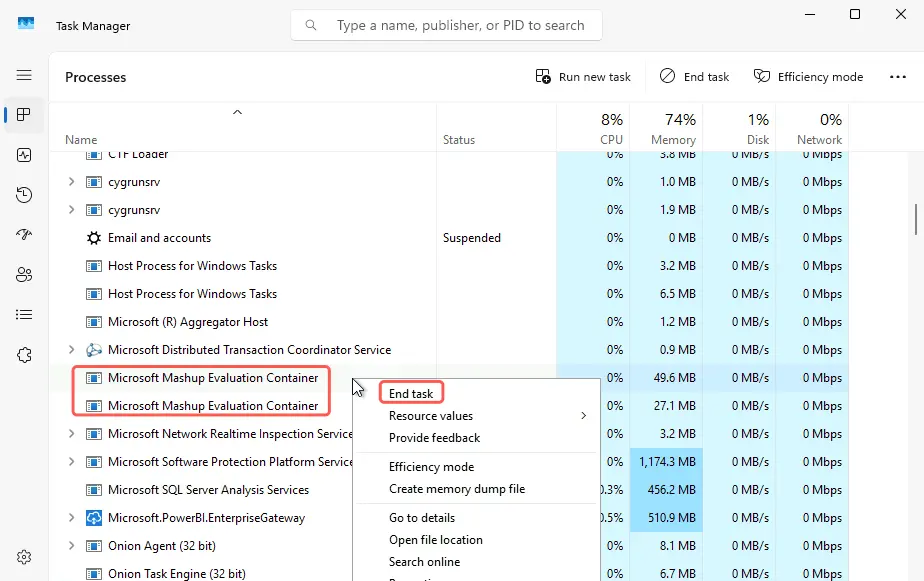
Step 2: Stopping All Mashup Container Processes
1. Press the Ctrl + Shift + Esc keys on your keyboard simultaneously to open Task Manager.
2. Switch to the Details tab.
3. Find all processes named Microsoft.Mashup.Container.NetFX45.exe, right-click each process, and click End task.

After completion, wait about 30 seconds to allow the gateway to pull up a new container and load the new connector.

Selecting a Deployment Mode

Deployment Mode
Description
Whether Supported
On-premises data gateway (Standard mode)
Report authors / business units manage their respective gateways independently.
Recommended
VNet data gateway
Azure Virtual Network-hosted gateway
Not fully tested
Direct cloud (No gateway)
Bypasses the gateway
Not supported
Note:
Currently, the DLC Connector must relay through the On-premises data Gateway when refreshing cloud data. Due to Microsoft's platform-level restrictions on Custom connectors, such connectors cannot directly access cloud services.

Registering the DLC Data Source on the Gateway

After the gateway is installed, each DLC report that needs to be refreshed must have its corresponding data source registered once on the gateway.

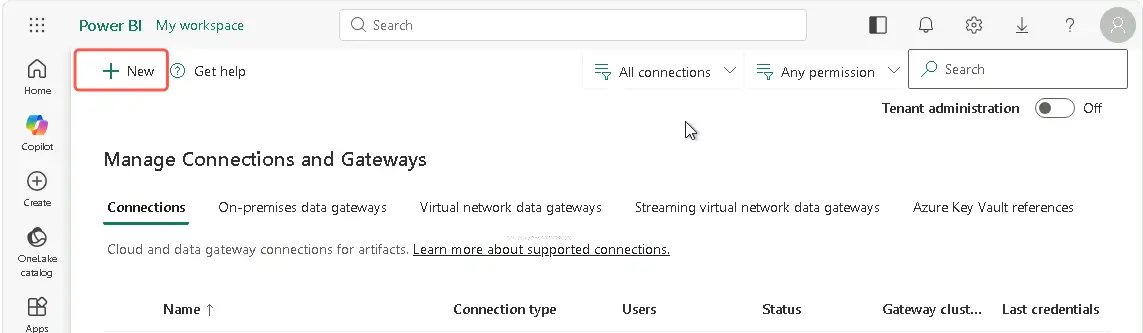
Going to Connection Management

1. Open a browser and log in to Power BI.
2. Click the gear icon in the upper-right corner > Manage connections and gateways.

3. Switch to the Connections tab.
4. Click + New.


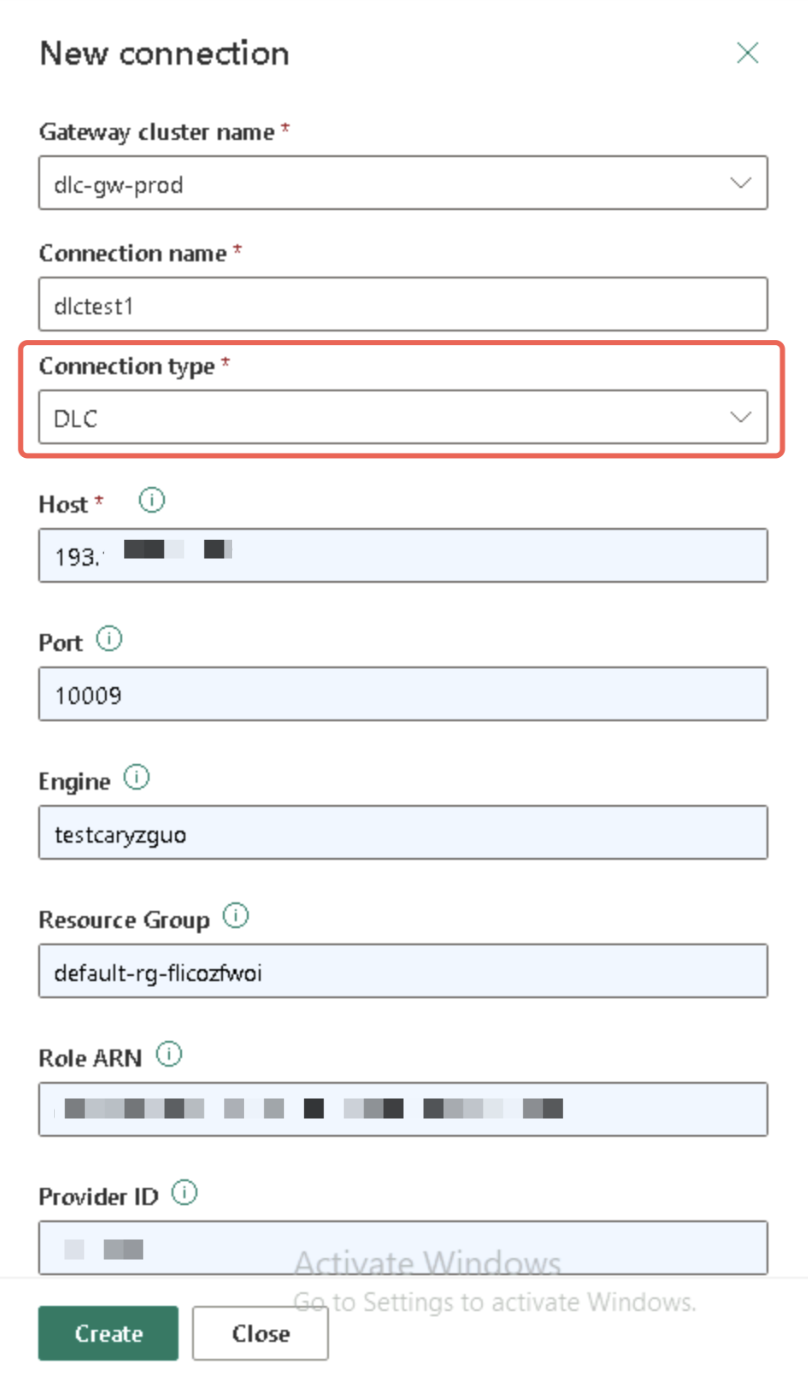
Filling in Connection Information

Field
What to Fill In
Gateway cluster name
Select the gateway name registered in the Power BI tenant to which the gateway is bound.
Connection Type
Search for and select DLC in the dropdown list.
Connection Name
Assign a distinctive name yourself (for example, dlc-prod-data-lake).
Host / Port / Engine / Resource Group / Role ARN / Provider ID
Fill in the same information as in Desktop (for details, see Connecting to Tencent Cloud DLC in Power BI Desktop).
Catalog / Database (Advanced)
Keep it exactly the same as in Desktop.


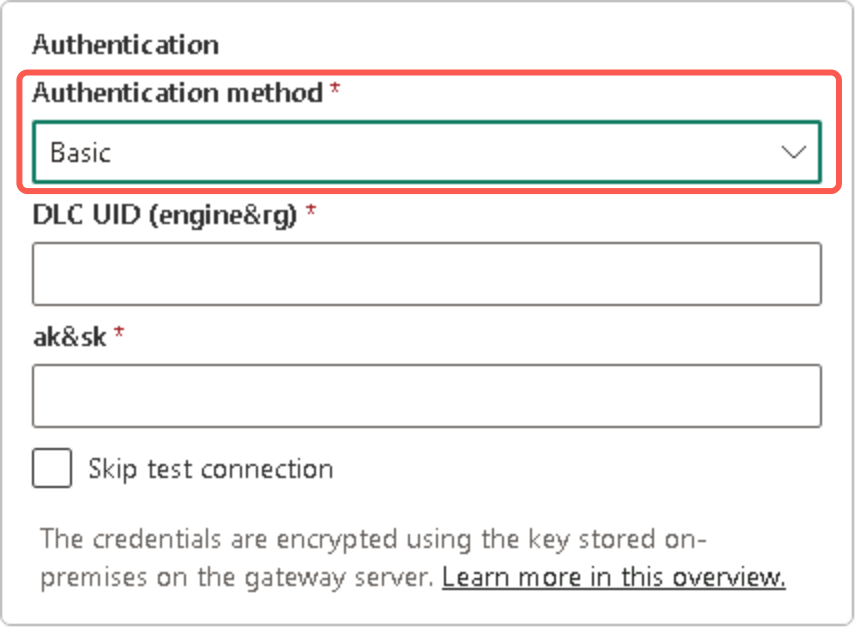
Selecting an Authentication Method

Note:
It is strongly recommended to use Basic authentication (username + password). If OAuth 2.0 authentication is used, the access_token is valid for only one hour, which may interrupt scheduled refresh tasks unless the IT administrator has pre-configured an automatic Token renewal mechanism.

Recommended: Basic
Field
What to Fill In
Username.
DLC two-segment username, format as shown in the example below
Password
DLC service account long-term key (apply to the IT/DLC administrator)
Username format:
{Engine} & {ResourceGroup}
Privacy Level
From the Privacy Level drop-down list, select Organizational. (Organizational is recommended. This level is the most commonly used and restricts the connection to use within this tenant.)

Saving the Connection (Skipping the Connection Test)

Note:
Click Create directly to save the connection. You do not need to pay attention to the result of "Test connection".
Due to the special nature of the Power BI gateway test connection mechanism, the DLC connector is likely to time out after 50 seconds or report an error at this step. This is a known phenomenon and does not affect actual scheduled refresh. To verify whether the connection is truly available, use Refresh now after completing the dataset configuration.
Procedure:
1. Fill in the fields in order: Connection Information / Authentication Method.
2. Click Create at the bottom of the page.
3. If "Test connection failed" or "Timeout" is displayed, ignore the message and proceed with the next steps.
4. Return to the "Connections" list page and confirm that the newly created connection (such as dlc-prod-Data Lake) is displayed in the list, which indicates that the connection has been saved successfully.
How do you determine if a problem occurs?
A test connection error cannot be used as a criterion. To confirm whether the data source actually has a problem, the only reliable method is:
Complete Publish Report and Configure Scheduled Refresh > Click Refresh Now on the dataset page.
Check the actual result of the refresh history.
If Refresh Now also fails, troubleshoot by referring to Q3 / Q4.

Publishing the Report and Configuring Scheduled Refresh

Prerequisites: The gateway administrator has registered the DLC data source on the gateway, and you have properly saved the connection name and credentials (username/password).

Step 1: Publishing from Desktop to the Cloud

1. Open the .pbix report in Power BI Desktop.
2. Click Home > Publish.
3. Select the target workspace.
4. Wait for the "Publish Complete" prompt.

Step 2: Binding the Dataset to the Gateway in the Cloud

1. Open Power BI > Go to the workspace where the report was just published.
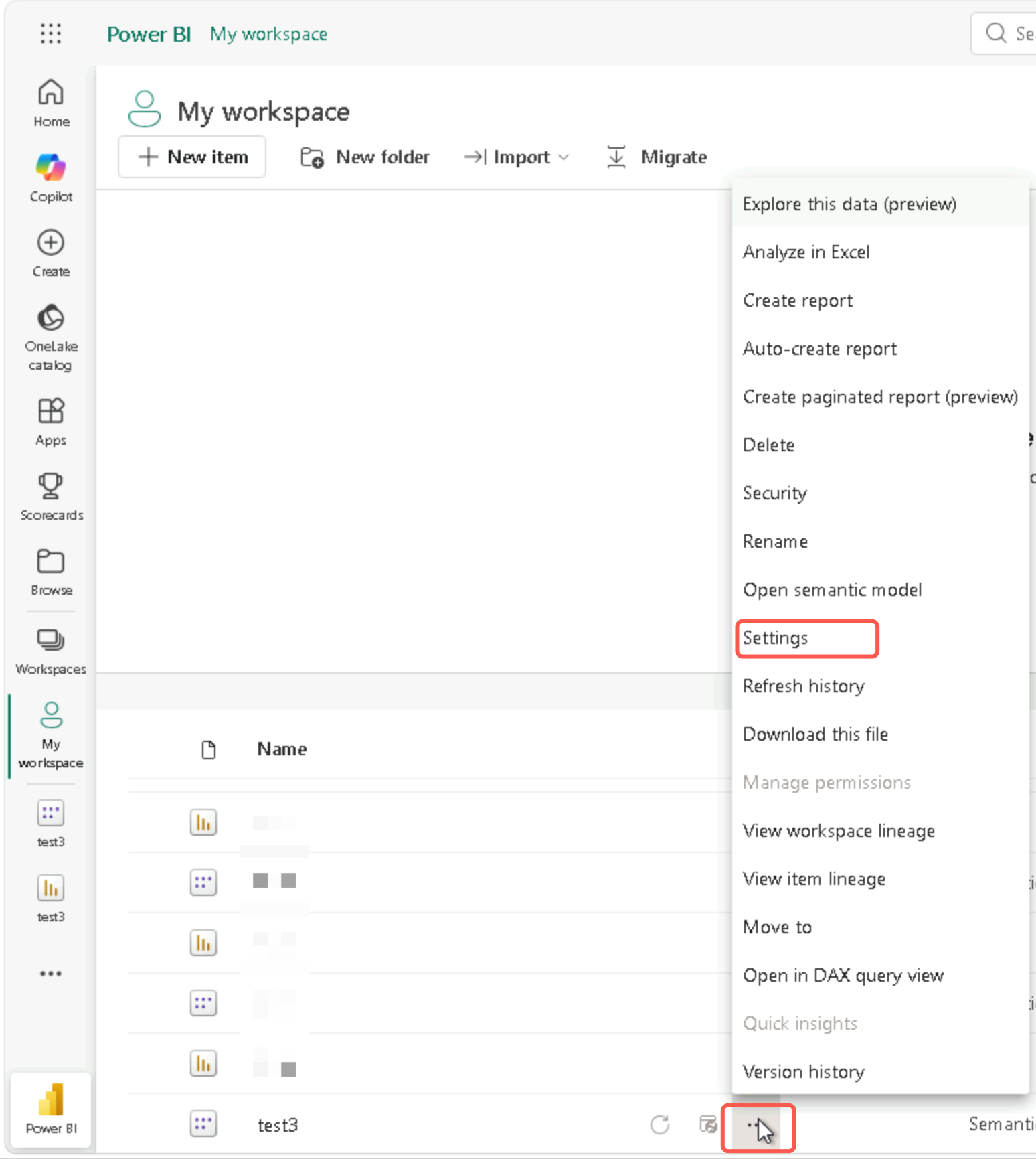
2. Locate the dataset that was just published (make sure to select the dataset, not the report).
3. Hover over the dataset, and choose More options (...) > Settings.

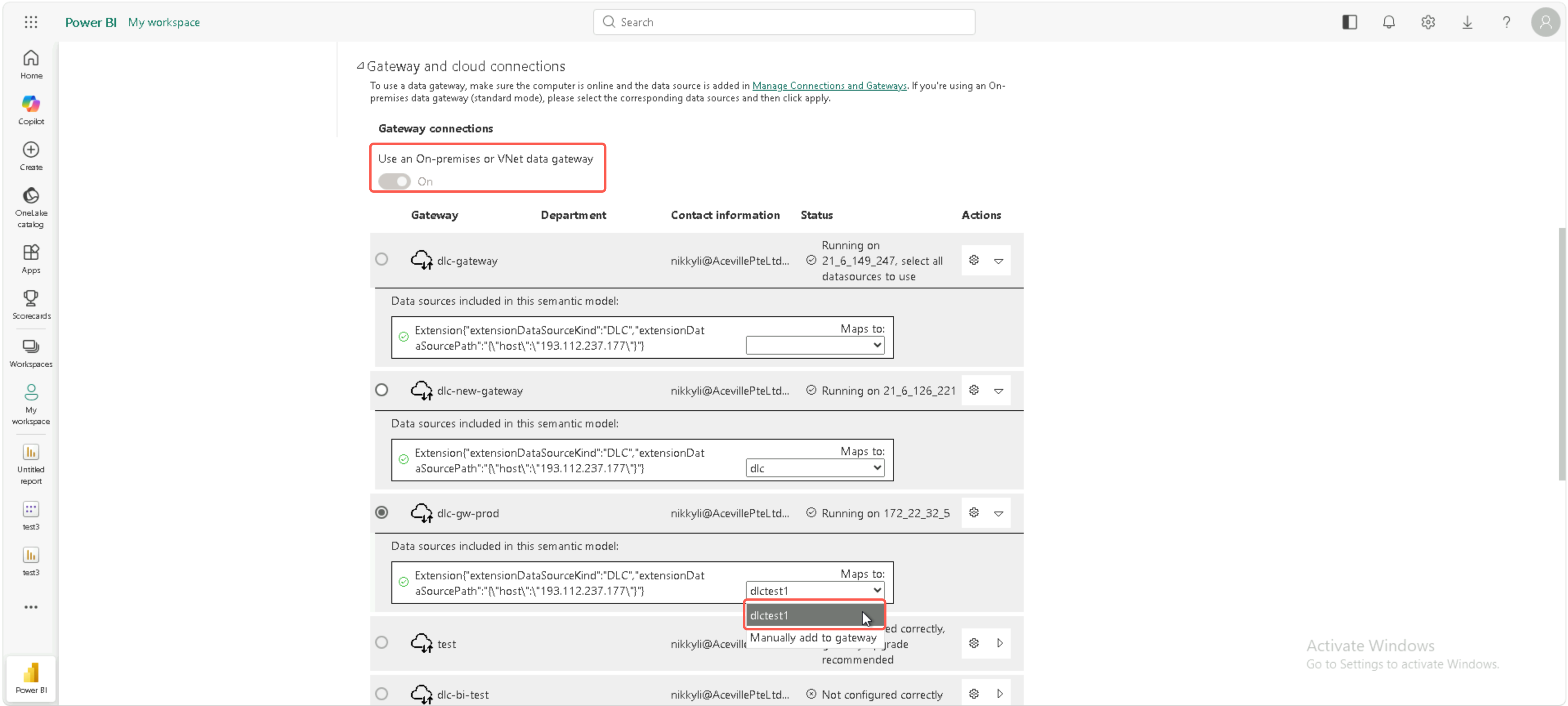
4. On the Settings page, locate the Gateway and cloud connections section.
5. Turn on the Use an On-premises or VNet data gateway toggle.
6. In the data source list below, select a registered connection (such as dlc-prod-Data Lake) for the detected data source.
7. Click Apply.

Note:
If you cannot find the registered connection in the drop-down list, the gateway administrator may not have granted you permission to use the connection. Contact the administrator to go to the connection management page of the gateway, access the Manage Users page for the connection, and add the corresponding user.

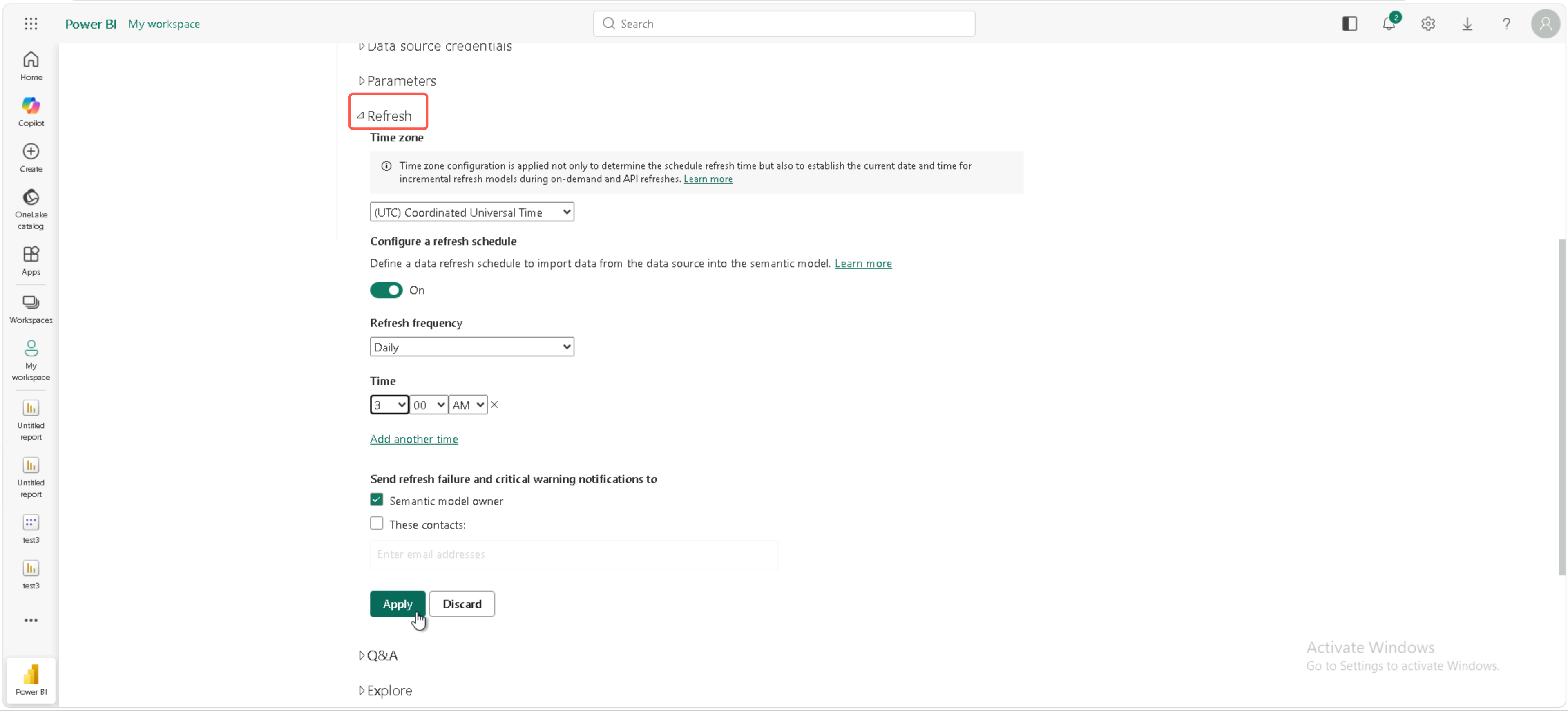
Step 3: Configuring Scheduled Refresh

Continue on the dataset settings page:
1. Expand the Refresh section.
2. Set the time zone to the local time zone.
3. Turn on Configure a refresh schedule.
4. In Refresh frequency, select Daily or Weekly as needed.
5. In Time, add refresh time points. You are advised to choose off-peak hours of the DLC engine (such as 3:00 AM). You can add multiple time points.
6. Select Send refresh failure and critical warning notification. You are advised to send the notification to the report owner.
7. Click Apply.


Step 4: Manually Triggering Refresh for Verification

After the configuration is completed, you are advised to manually trigger a refresh immediately to verify whether the configuration takes effect:
1. In the row of the dataset, choose More options (...) > Refresh now.
2. After waiting for a few minutes, check the refresh history on the dataset page.
Status is "Completed": The configuration is successful.
If the status is "Failed", click the error message to view details, and then troubleshoot by referring to the FAQ below.


Usage Recommendations

Scenario
Recommendation
Data volume ≤ 10 million rows
Import mode + daily refresh
Large data volume / high real-time requirement
DirectQuery mode (no scheduled refresh required; queries run in real time on each view)
Reports can be viewed only by this department.
Use workspace permissions to control access.
Reports need to be published to external users.
Use Row-Level Security (RLS) and bind it to DLC roles.

FAQs

Q1: What Should I Do If the Connection Test Times Out or Reports an Error?

No action is required. Save the connection and continue with subsequent configuration. The DLC connector often displays a timeout or an error during the "Test Connection" step on the gateway side, which is a known issue and does not mean that the connection is unavailable. Use Refresh now to verify actual connectivity. Only if Refresh now also fails, troubleshoot by referring to Q3 to Q5.

Q2: What Should I Do If DLC Is Not Found in the Connection Type Dropdown List?

This is because the gateway has not loaded the DLC connector. Contact the gateway administrator to complete the following three configurations in order:

Q3: What Should I Do If Scheduled Refresh Fails with the Error "Invalid Credentials" or "Token Expired"?

This is because OAuth 2.0 authentication was used when the data source was registered, and the access_token has expired. Contact the gateway administrator to change the authentication method of the data source to "Basic" (see Selecting an Authentication Method). The Basic method uses a long-term key and does not expire.

Q4: What Should I Do If Scheduled Refresh Fails with the Error Message "Spark Engine Unreachable"?

This is because the DLC engine has been automatically stopped or is undergoing a cold start. You can use either of the following methods to resolve the issue:
Schedule the refresh time to avoid the sleep period of the DLC engine.
In the DLC console, disable "Auto Start/Stop" for the engine.
In the dataset settings, increase the "Refresh Timeout" duration.

Q5: What Should I Do If Refresh Succeeds but the Report Data Is Not Updated?

This is because the report uses DirectQuery mode, which does not support scheduled refresh, or the Desktop client cache has not been updated. Use the following methods to troubleshoot:
1. On the dataset settings page, confirm the storage mode.
2. In DirectQuery mode, scheduled refresh is not required, and each access retrieves real-time data.
3. If Import mode is expected, return to Power BI Desktop, change the mode, and republish the report.

Q6: What Should I Do If Refresh Fails with the Error "Gateway Size Limit Exceeded"?

This is because the amount of data pulled in a single request is too large, exceeding the default limit of 1 GB. You can use either of the following methods to resolve the issue:
Add a date partition filter to the SQL query to pull only incremental data.
Contact the gateway administrator to increase MaximumLiveDataMovementMessageSize in Microsoft.PowerBI.DataMovement.Pipeline.GatewayCore.dll.config.
Switch to incremental refresh (Dataset Settings > Incremental Refresh Policy).

Q7: What Should I Do If Refresh History Keeps Showing "Queued"?

This is because the gateway concurrency limit has been reached, or the gateway is offline. Use the following methods to resolve the issue:
1. Contact the administrator to check that the status shows "Online" on the "Gateway" tab of the gateway configuration tool.
2. Stagger the refresh schedules to prevent multiple datasets from being triggered at the same time.

Q8: What Should I Do If a Report Can Be Queried but Goes Blank After the Browser Is Closed and Reopened?

This is because the authentication cookie has expired, which is unrelated to the connection configuration. Refresh the browser page or sign in to the Power BI service again.


Help and Support

Was this page helpful?

Help us improve! Rate your documentation experience in 5 mins.

Feedback