tencent cloud

Elasticsearch Service

User Guide
Release Notes and Announcements
Release Notes
Product Announcements
Security Announcement
Product Introduction
Overview
Elasticsearch Version Support Notes
Features
Elastic Stack (X-Pack)
Strengths
Scenarios
Capabilities and Restrictions
Related Concepts
Purchase Guide
Billing Overview
Pricing
Elasticsearch Service Serverless Pricing
Notes on Arrears
ES Kernel Enhancement
Kernel Release Notes
Targeted Routing Optimization
Compression Algorithm Optimization
FST Off-Heap Memory Optimization
Getting Started
Evaluation of Cluster Specification and Capacity Configuration
Creating Clusters
Accessing Clusters
ES Serverless Guide
Service Overview
Basic Concepts
5-Minute Quick Experience
Quick Start
Access Control
Writing Data
Data Query
Index Management
Alarm Management
ES API References
Related Issues
Data Application Guide
Data Application Overview
Data Management
Elasticsearch Guide
Managing Clusters
Access Control
Multi-AZ Cluster Deployment
Cluster Scaling
Cluster Configuration
Plugin Configuration
Monitoring and Alarming
Log Query
Data Backup
Upgrade
Practical Tutorial
Data Migration and Sync
Use Case Construction
Index Configuration
SQL Support
Receiving Watcher Alerts via WeCom Bot
API Documentation
History
Introduction
API Category
Instance APIs
Making API Requests
Data Types
Error Codes
FAQs
Product
ES Cluster
Service Level Agreement
Glossary
New Version Introduction
Elasticsearch Service July 2020 Release
Elasticsearch Service February 2020 Release
Elasticsearch Service December 2019 Release

Index Configuration Management

PDF
Modo Foco
Tamanho da Fonte
Última atualização: 2024-11-29 21:59:50

Overview

The data management feature allows you to view and manage indices. You can view the configuration of an index or modify the index configuration on the Configuration management page to quickly adapt to business changes.

Directions

1. Log in to the ES console.
2. Select the target cluster in Data Management, click More in the index list, and select Configuration management in the drop-down list to enter the index configuration management page.

View mode

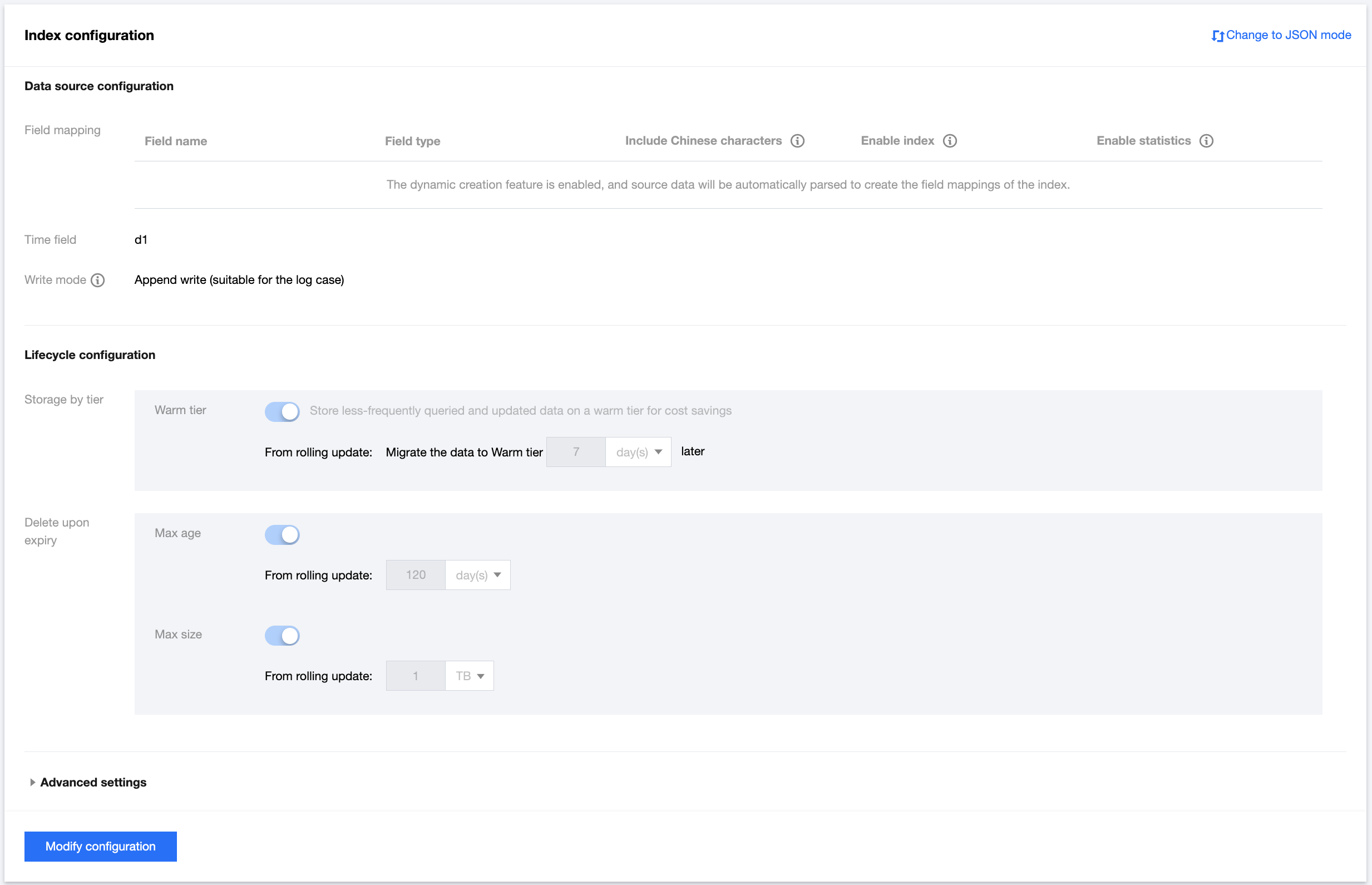
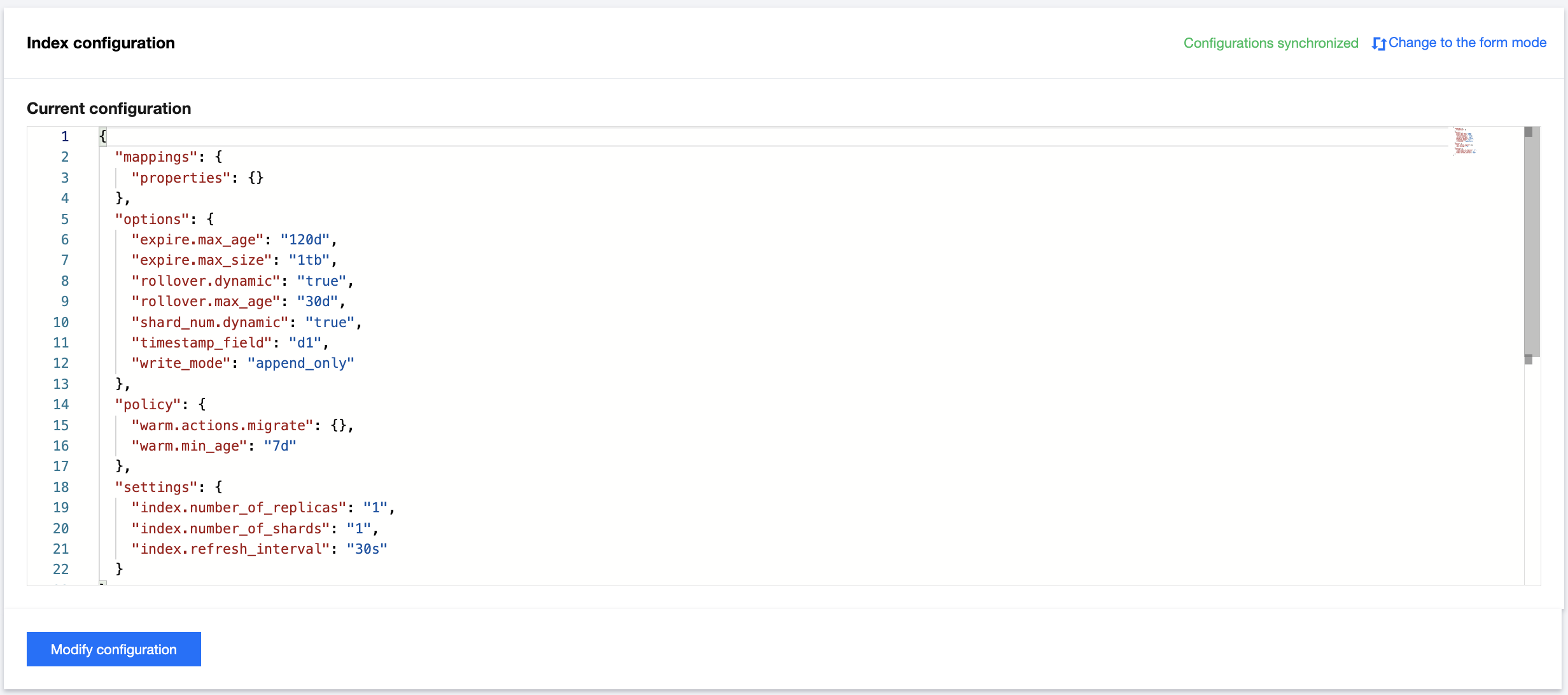
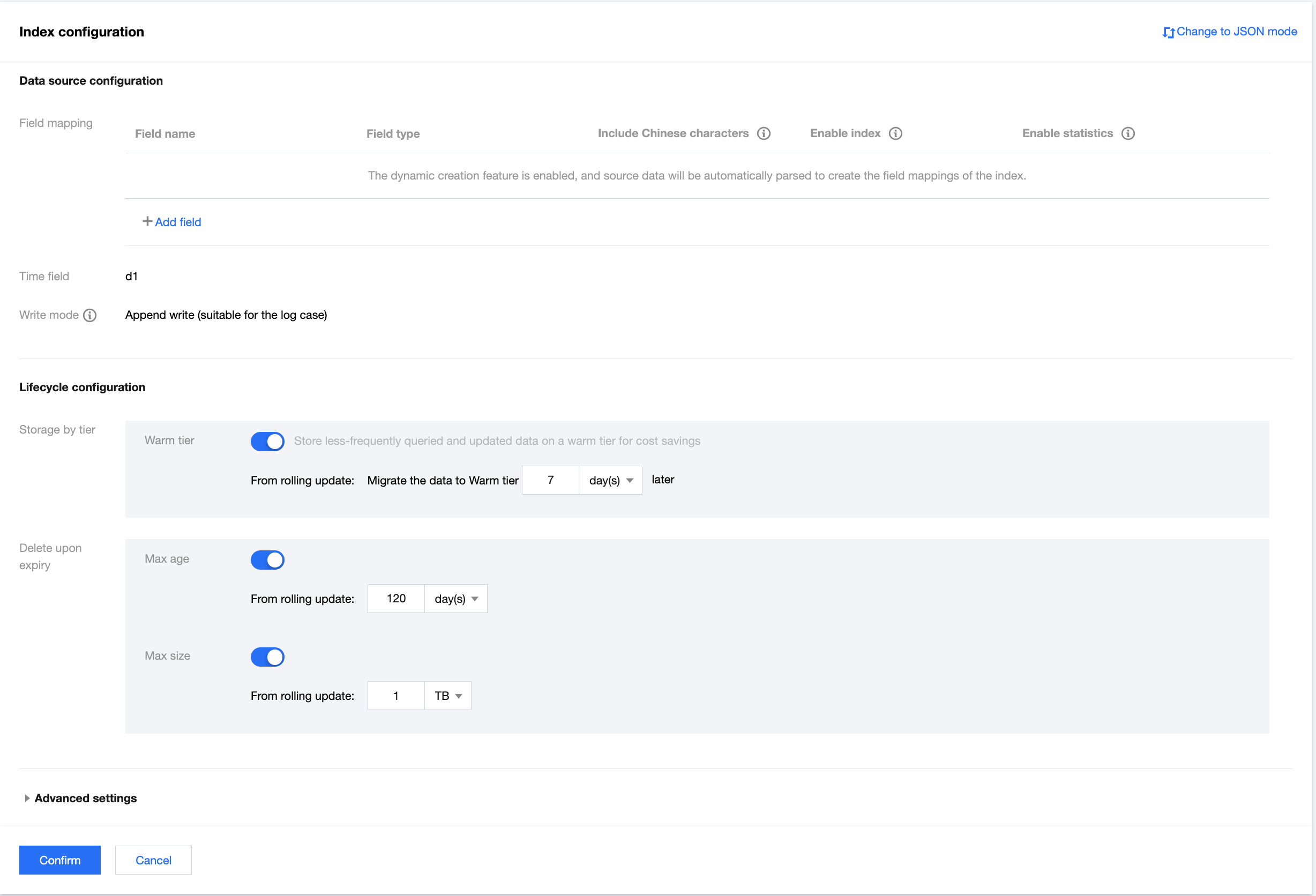
After entering this page, the view mode is selected by default, where the information of data source configuration, lifecycle configuration, and advanced settings is displayed. You can click Change to JSON mode in the top-right corner to view the current index configuration in JSON format.


UI edit mode

In the view mode, click Modify Configuration in the bottom-left corner to enter the edit mode, where you can modify the information of the index configuration. After successful modification, lifecycle configurations will apply to all backing indices, and configurations of other items such as shard number, replica shards, and field mappings will take effect only in those rolled over later and will not update existing ones.
Note:
The time field and write mode cannot be modified.


JSON mode

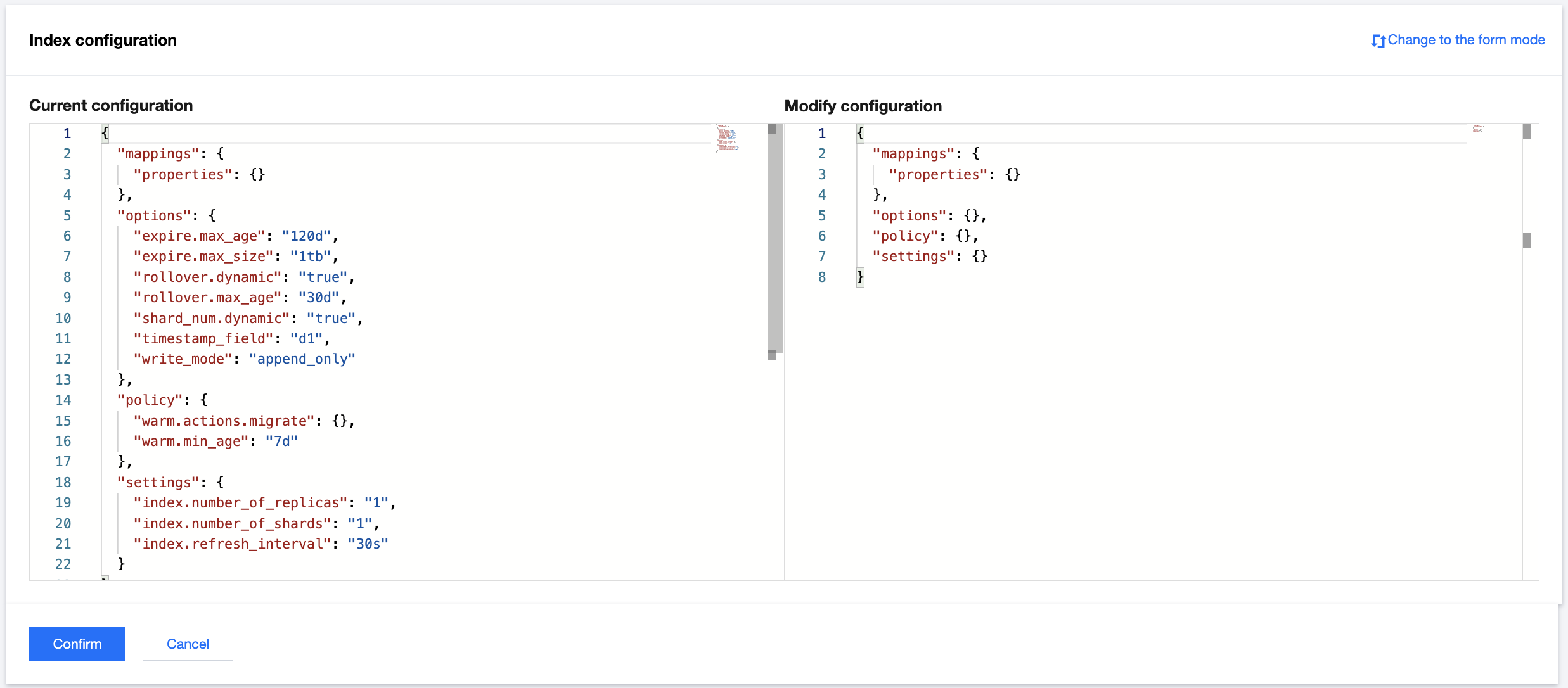
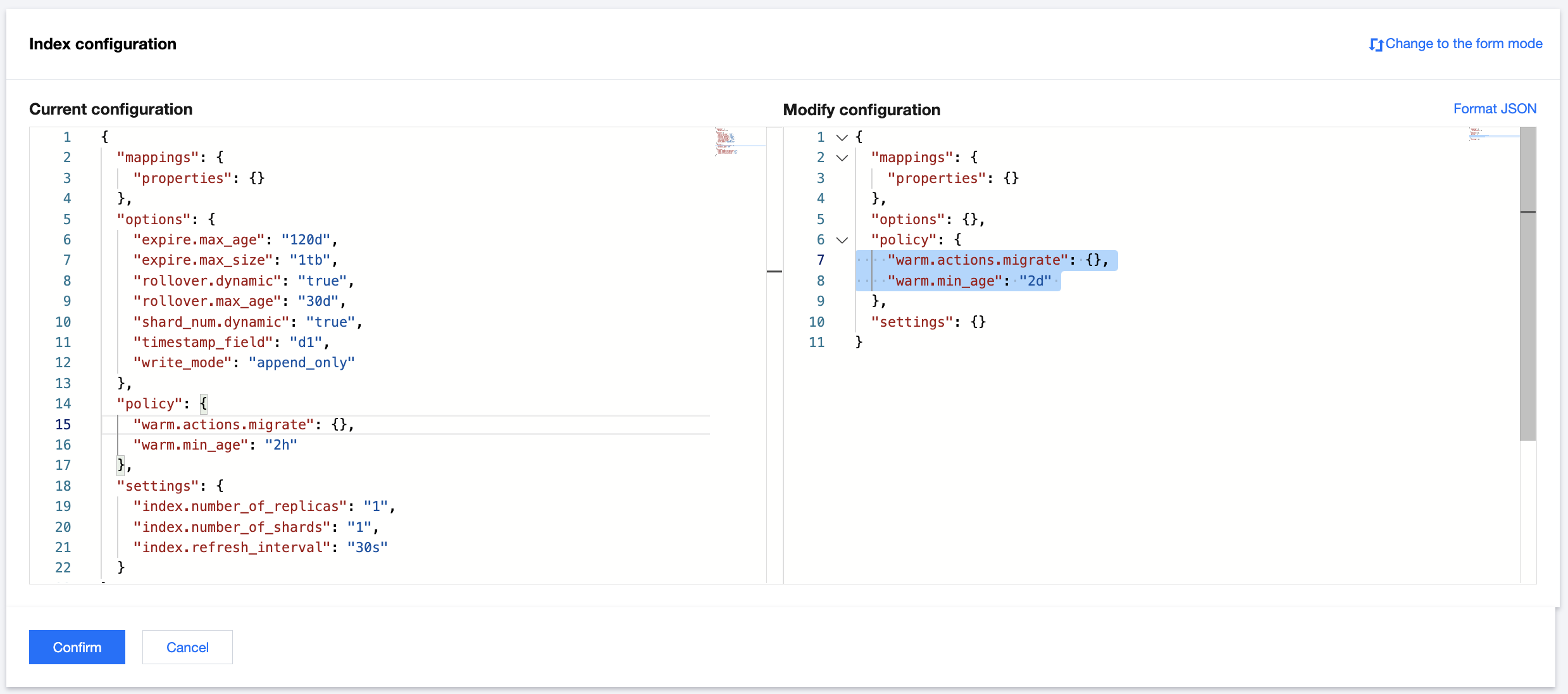
After switching to the JSON edit mode, the left side is the current configuration of the running index, and the right side is the Modify Configuration input box where you can enter the modified configuration information. Corresponding index configuration items will be updated after the modification is saved successfully.

As shown in the figure, you can change the storage time before data is moved to the warm tier from 2 hours to 2 days. Click Confirm, and the configuration will be updated.
Ajuda e Suporte

Esta página foi útil?

comentários