Tencent Cloud Elasticsearch Service (ES) Platinum edition supports the X-Pack Watcher feature. After you configure triggers, actions, etc., specific actions will be triggered when specified conditions are met. For example, when an error log is detected in the index, an alert will be automatically sent. This document describes how to configure the WeCom bot to receive alerts from Watcher.
Note:
X-Pack Watcher is only available in the Platinum edition.
Due to the adjustment of the Tencent Cloud ES network architecture, only instances created in June 2020 or later support configuring WeCom bot to receive alerts from Watcher.
Background
With X-Pack Watcher, you can create watches. A watch consists of the following four parts:
Trigger: defines when to start executing a watch. A trigger must be configured for each watch. For more information about supported triggers, see Schedule trigger.
Input: specifies the query criteria for the monitored index execution. When a watch is triggered, its input loads data into the execution context. This context is accessible during subsequent watch execution phases. For more information, see Inputs.
Condition: defines the condition that needs to be met to execute the actions.
Actions: defines the actions to execute when the specified condition is met. For example, the webhook action described in this document.
Directions
1. Prepare a CVM instance that is in the same VPC as the ES cluster and can access the webhook address (via a public network).
2. Install Nginx on the CVM instance. For detailed installation steps, see here.
3. Configure Nginx agent forwarding. Replace the configuration in the Server section of the nginx.conf file with the following configuration:
The default port of the Nginx service is 80. If you need to change the port, log in to the Tencent Cloud console and go to Security Group to allow this port.
<WeCom bot webhook address>: enter the WeCom bot webhook address that receives alerts.
server {
listen 80;
server_name localhost;
index index.html index.htm index.php;
root /usr/local/nginx/html;
#charset koi8-r;
#access_log logs/host.access.log main;
location ~ .*\\.(php|php5)?$
{
fastcgi_pass 127.0.0.1:9000;
fastcgi_index index.php;
include fastcgi.conf;
}
location ~ .*\\.(gif|jpg|jpeg|png|bmp|swf|ico)$
{
expires 30d;
# access_log off;
}
location / {
proxy_pass <WeCom bot webbook address>;
}
location ~ .*\\.(js|css)?$
{
expires 15d;
# access_log off;
}
access_log off;
#error_page 404 /404.html;
# redirect server error pages to the static page /50x.html
error_page 500502503504 /50x.html;
location = /50x.html {
root html;
}
}
4. Load the modified configuration file and restart Nginx.
/usr/local/webserver/nginx/sbin/nginx -s reload
/usr/local/webserver/nginx/sbin/nginx -s reopen
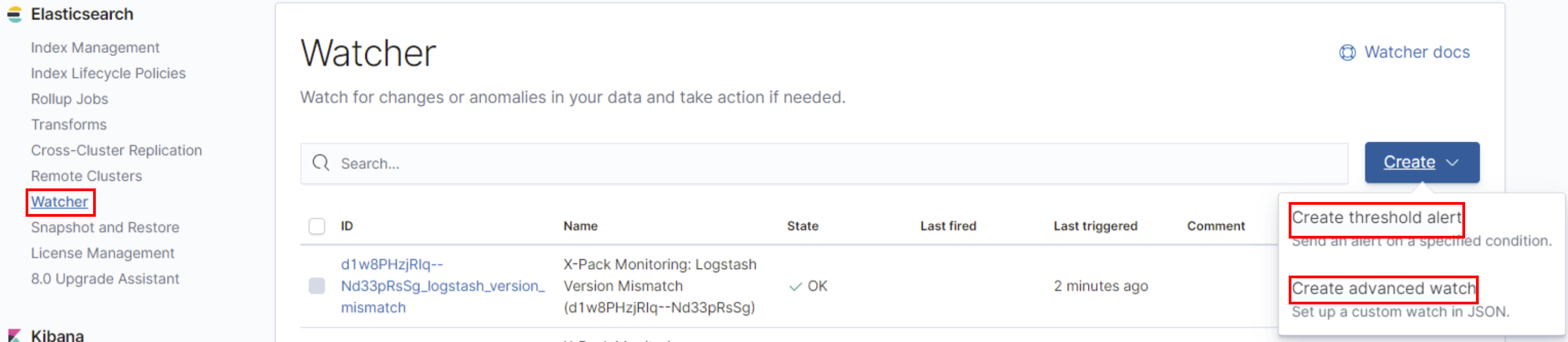
5. Configure the alerting rule for a watch. **This step can be performed in Management > Watcher in the Kibana UI.
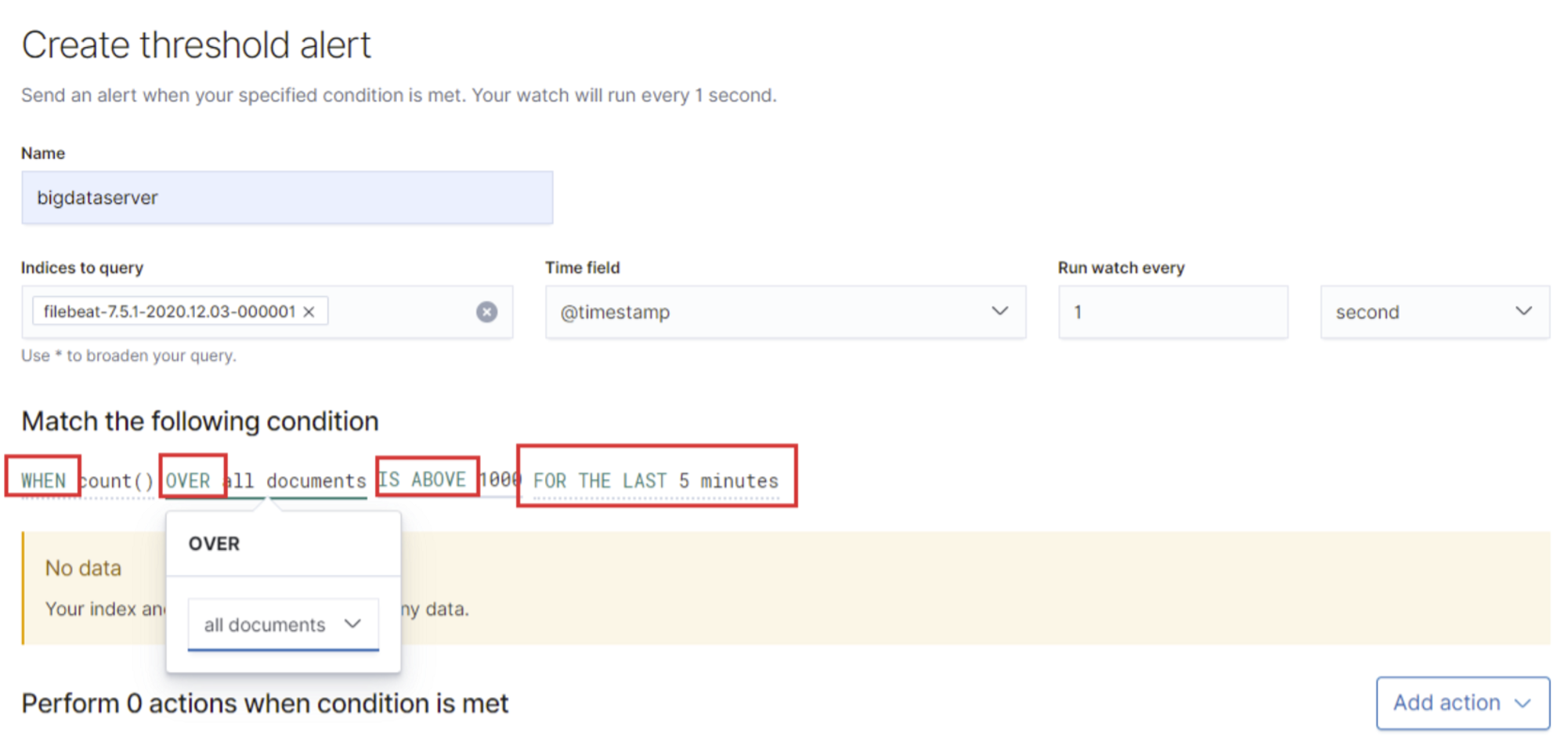
Create threshold alert: you can set threshold alerts to monitor specific conditions of an index, such as CPU usage, number of documents, etc. You can make more detailed settings in the condition section, as shown in the following figure:
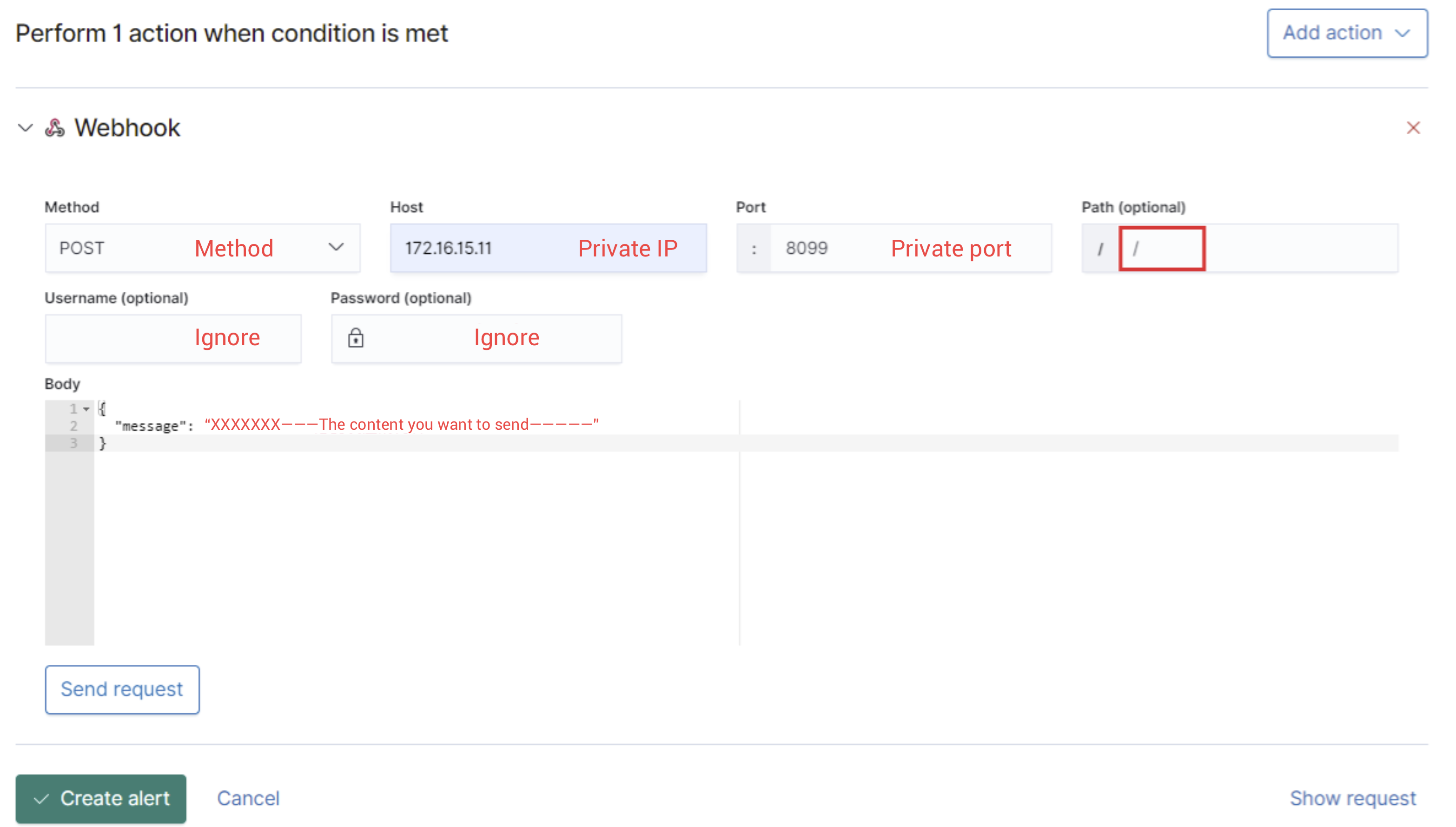
Click Add action in the upper right corner, select Webhook, and configure related settings, as shown in the following figure:
Click Send request to perform a test and then click Create alert.
Create advanced watch: you can set the parameters for a watch via the PUT watch API.
6. After finishing the above steps, you can receive alerts from WeCom bot in the group you created.