Log in to the ES Console, select a cluster, and enter the Plugin List tab on the cluster details page. You can see the IK analysis plugin pre-installed in the cluster by default. For more information on this plugin, please see IK Analysis Plugin for Elasticsearch. You can use it to create an index of Chinese keywords for your data stored in the ES cluster to implement searches.
Updating Dictionary
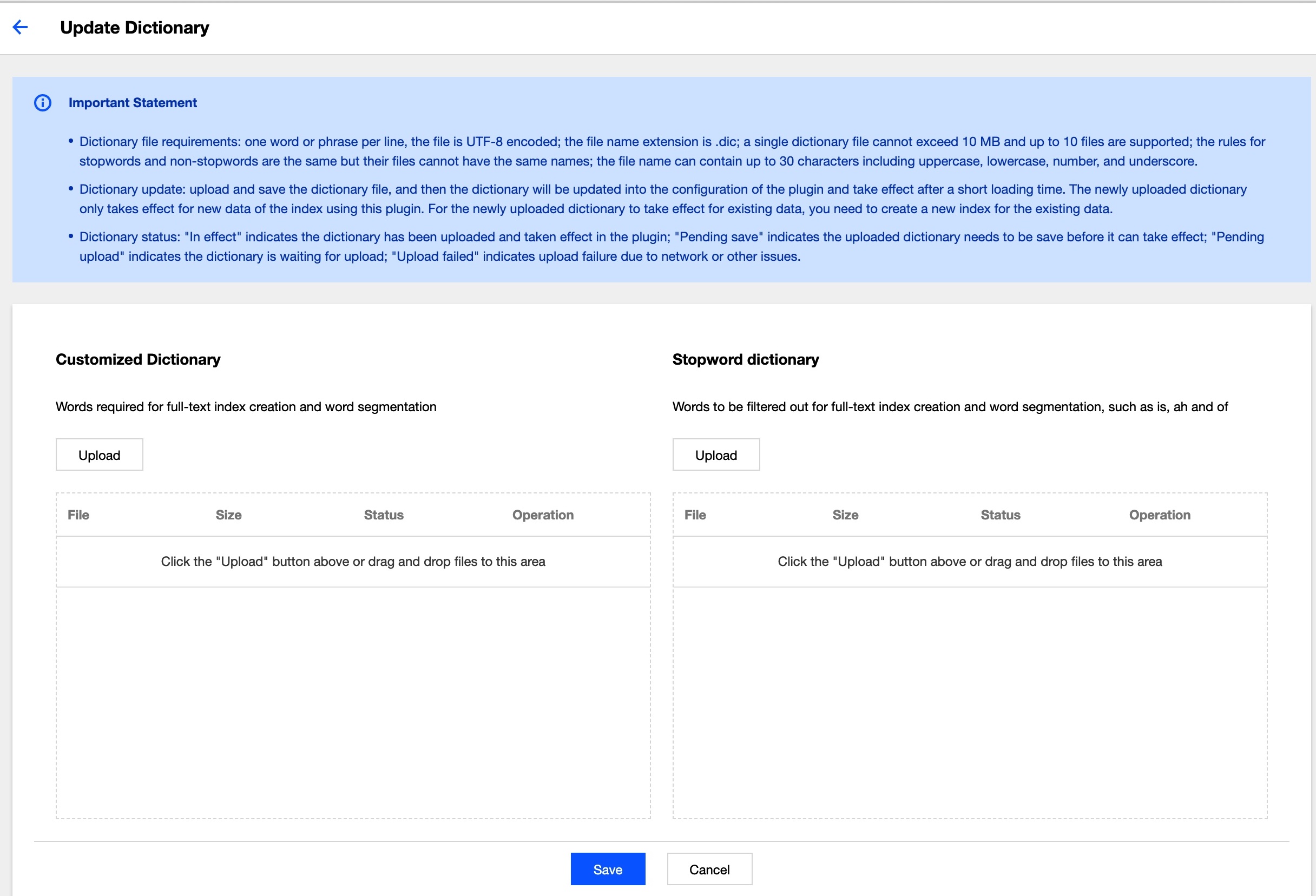
Click Update Dictionary to enter the dictionary update page, where you can see two options: customized dictionary and stopword dictionary. Click Upload, select the dictionary file to be updated, and click Save to hot update it (with no cluster restart needed).
Requirements for Dictionary File
Dictionary type: there are two types of dictionaries: "customized dictionary" and "stopword dictionary". The "customized dictionary" specifies IK as the analyzer when data is stored to the ES cluster for index creation. If the stored data contains a word in this dictionary, an index will be created and can be queried and found by using keywords. "Stopwords" will be deliberately avoided and will not be indexed.
Restrictions and requirements: there are certain restrictions and requirements for dictionary files. For example, a dictionary file should contain one word per line and be encoded in UTF-8. For avoidance of confusion, the name of a customized dictionary file should not be the same as that of a stopword dictionary file. In addition, as dictionary files will be loaded into the memory, you are allowed to upload a maximum of 10 files of up to 10 MB in size each.
Update process: the list displays the dictionaries that have been uploaded and updated. A new dictionary will be blocked during upload if it does not meet the requirements. After a file is uploaded, it will be displayed in "pending activation" status. After all dictionaries to be updated are uploaded, click Save, and they will be saved to your cluster and take effect. If there is a file that fails to be uploaded or is not in UTF-8 format, a failure will be prompted, and you need to delete the failing file before you can click Save for other ones to take effect.