ES provides a cluster restart feature that allows you to restart your cluster as needed.
Notes
1. Restarting a cluster is time-consuming; therefore, you are not recommended to do so unless necessary.
2. During the restart process, all nodes will be restarted one by one. Therefore, you should ensure that your cluster has at least one replica; otherwise, your cluster will change to RED health status or even incur a risk of data loss.
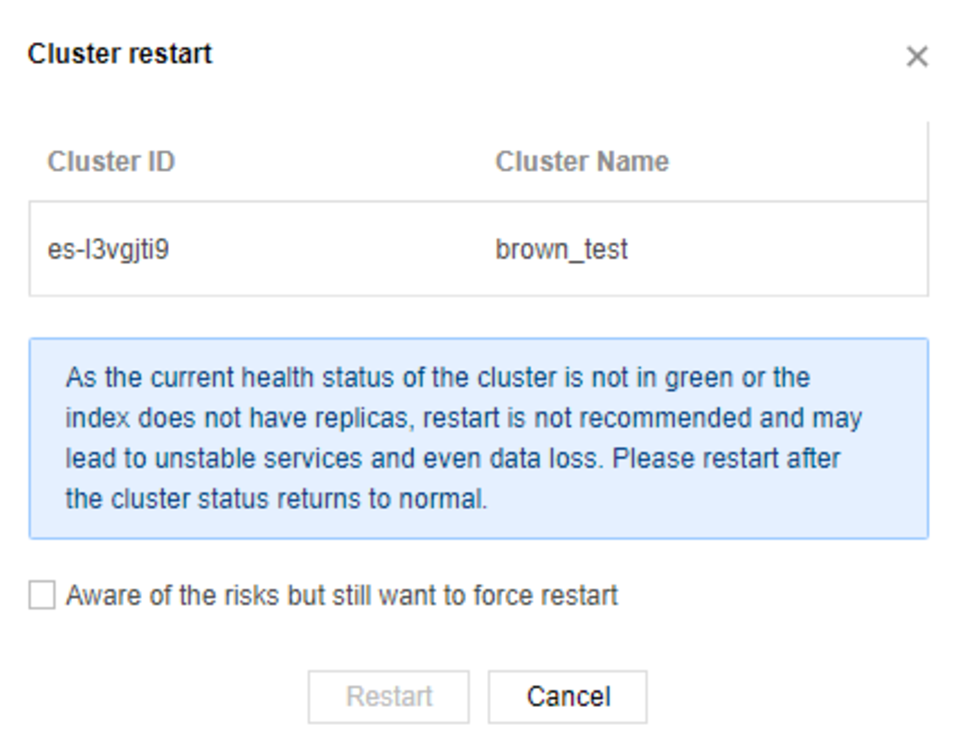
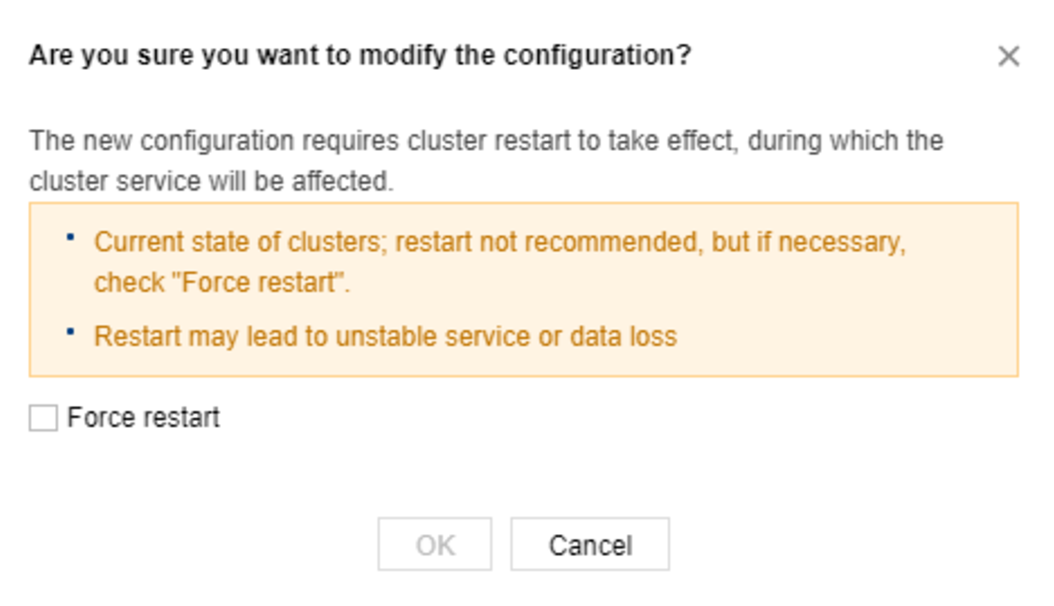
3. If the health status of your cluster is YELLOW or RED, or there is an index that has no replicas, you will be prompted to force restart your cluster when performing a restart operation, which involves a high risk of data loss. In this case, you are recommended to restore the status of your cluster to GREEN first and create at least one replica for all indices before proceeding. If the status of your cluster cannot be restored, and you still want to restart it after becoming aware of the risk involved in a force restart, you can check the force restart option to restart your cluster.
2. You can restart your cluster either on the cluster list page or the cluster details page.
On the cluster list page, select a cluster and then select Operation > More > Restart.
Click the cluster name to enter the cluster details page, and select More > Restart in the top-right corner.
3. The following screen will appear after you click Restart. After you click OK, the cluster status will change to "processing", and the restart operation will be finished once the cluster status is restored to normal.
4. If the cluster status is YELLOW or RED, or there is an index in your cluster that has no replicas, a force restart prompt will appear as shown below, and you can only initiate a restart operation by checking "Force Restart". In this case, you can refer to the description in item 3 of Notes. After you initiate the restart operation, the cluster status will change to "processing", and the restart operation will be finished once the cluster status is restored to normal.