Using a Dedicated BGP IP Address to Access the Public Network
Baixar
Modo Foco
Tamanho da Fonte
An EIP of the dedicated BGP IP address line type uses the dedicated line that avoids detours through the egress networks of international ISPs. It has lower latency and can effectively improve the coverage quality of overseas businesses for users in the Chinese mainland.
Note:
Currently, they are only supported by the standard account type, so the traditional account type needs to be upgraded to use them. For more information on the upgrade, see Account Type Upgrade Instructions.
Dedicated BGP IP addresses are only supported in the Hong Kong (China) and Singapore regions. For more information on the prices, see Dedicated BGP Bandwidth Packages.
Directions
Step 1: Creating a Dedicated BGP Bandwidth Package
Before creating an EIP of the dedicated BGP IP address line type, you need to create a dedicated BGP bandwidth package first.
1. Log in to the VPC console and click Bandwidth Package in the left sidebar.
2. At the top of the Bandwidth Package page, select the Hong Kong (China) region and click Create in the upper left corner.
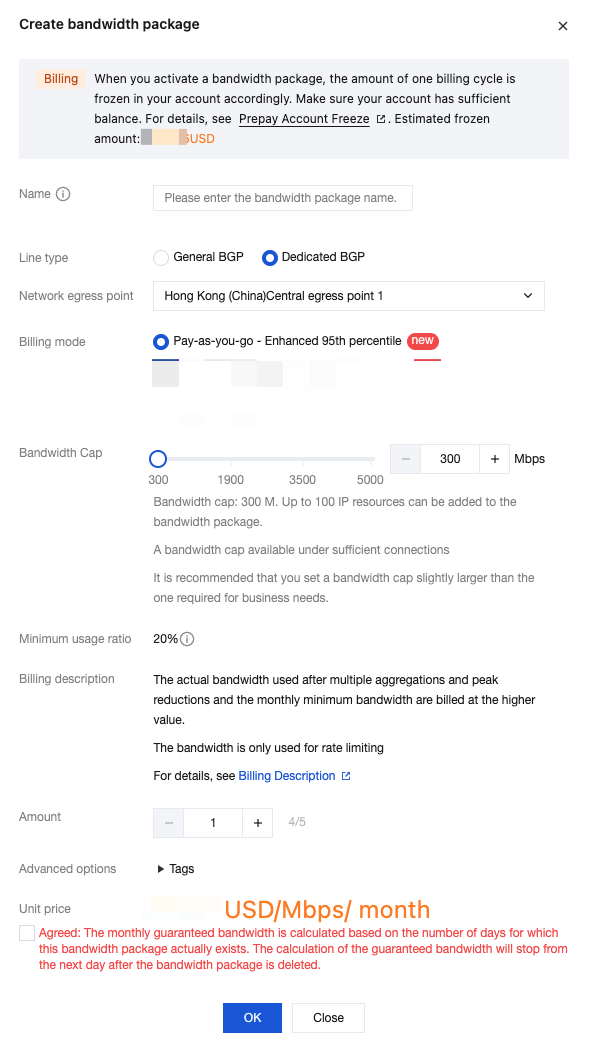
3. In the Create Bandwidth Package dialog box, enter the name, select the Dedicated BGP line type and billing mode, set the bandwidth limit, and click OK.
Step 2: Creating an EIP of the Dedicated BGP IP Address Line Type
Create an EIP of the dedicated BGP IP address line type and add this EIP to the dedicated BGP bandwidth package you just created.
1. Log in to the public IP address console.
2. At the top of the Public IP page, select the Hong Kong (China) region and click Apply in the upper left corner.
3. In the pop-up Apply for EIP dialog box, configure the following parameters, confirm the agreement information, and check to agree. After configuring all the parameters, click Confirm.
Parameter | Description |
IP Address Type | Select the dedicated BGP IP address. |
Billing Mode | Dedicated BGP IP addresses support the BWP billing mode. |
Bandwidth Package | If you select the BWP billing, select the ID of the BWP you created in step 1 in the drop-down list. |
Bandwidth Cap | Set the EIP bandwidth limit as needed and allocate bandwidth resources rationally. Bandwidth limits supported by different billing modes are different. For more information, see Bandwidth Limits. |
Quantity | Select the number of EIPs you apply for as needed and ensure that the total number of EIPs does not exceed the total quota for the product. For more information, see Quota Limits. |
Name | EIP instance name, not required. It can be up to 128 characters. Uppercase and lowercase letters, Chinese characters, digits, hyphens (-), and underscores (_) can be used, and spaces cannot be contained. |
Tag | If you need to add tags, you can add them here. Then, you can perform permission management by tags. |
Step 3: Binding Cloud Resources
1. Log in to the public IP address console and select the Hong Kong (China) region.
2. In the operation column on the right of the target EIP instance, select More > Bind.
3. In the pop-up Bind Resource window, select the cloud resource type and cloud resource to be bound, and click OK.
Note:
For the Standard Account Type, if the CVM instance already has a common public IP address, you need to release the common public IP address before binding an EIP.
The limit on the number of CVM instances that can be bound to an EIP varies based on the CPU configuration of the CVM instance. See Usage Limits.
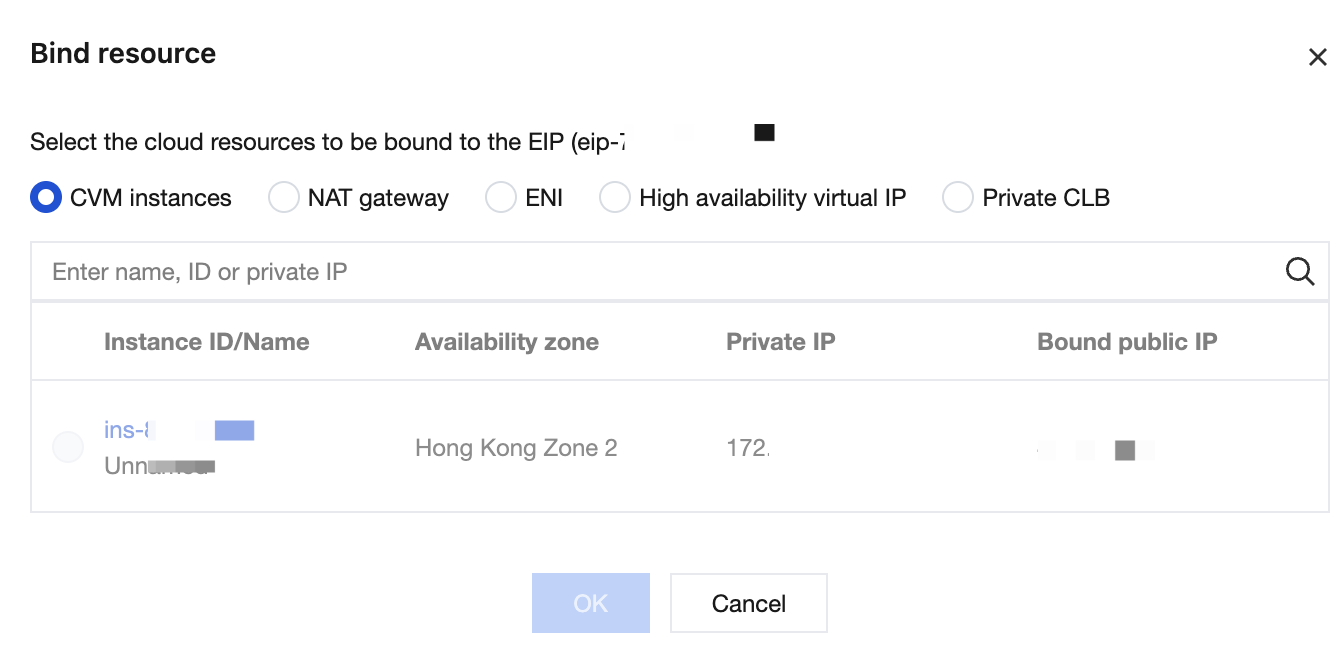
4. In the pop-up Confirm Binding dialog box, click Confirm to complete the binding of the EIP to the cloud resource.
Ajuda e Suporte
Esta página foi útil?
Você também pode entrar em contato com a Equipe de vendas ou Enviar um tíquete em caso de ajuda.
comentários