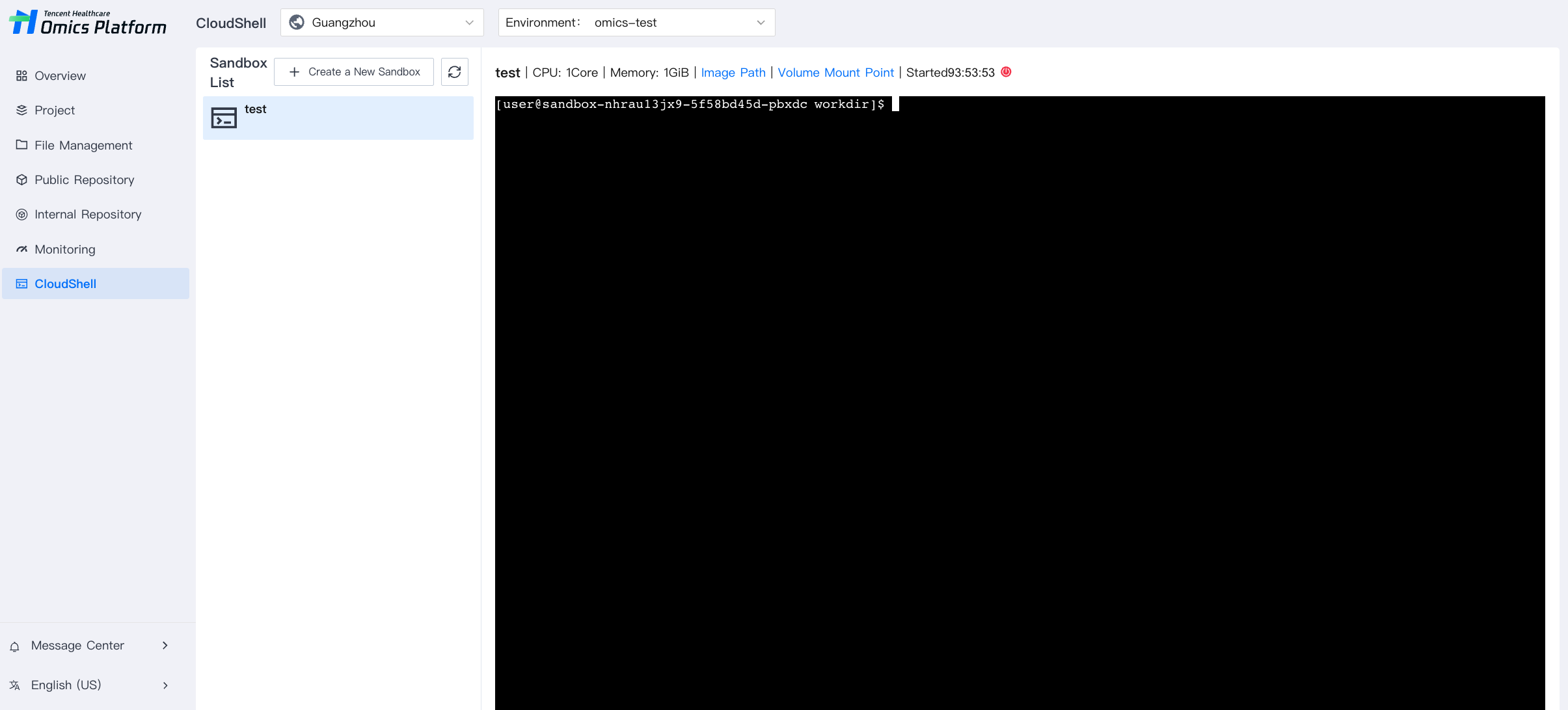
The Tencent HealthCare Omics Platform provides a development and debugging module to help users verify the feasibility of the process during the development and debugging stage of the bioinformatics analysis process. The key feature of the current development and debugging module is the Sandbox feature (hereinafter referred to as Sandbox). Sandbox provides a isolated Sandbox running environment and a variety of images and CPU and memory specifications. At the same time, it integrates the cache data volume feature in the platform to mount the data volume to Sandbox. Users can use command lines to operate in Sandbox. This is highly flexible.
Creating Sandbox
Before you start using the Sandbox feature, you need to create a Sandbox configuration. The steps are as follows:
1. Enter Development and Debugging module, and select the corresponding region and environment (currently only supports the hosting environment. For creation steps, see Environment Management).
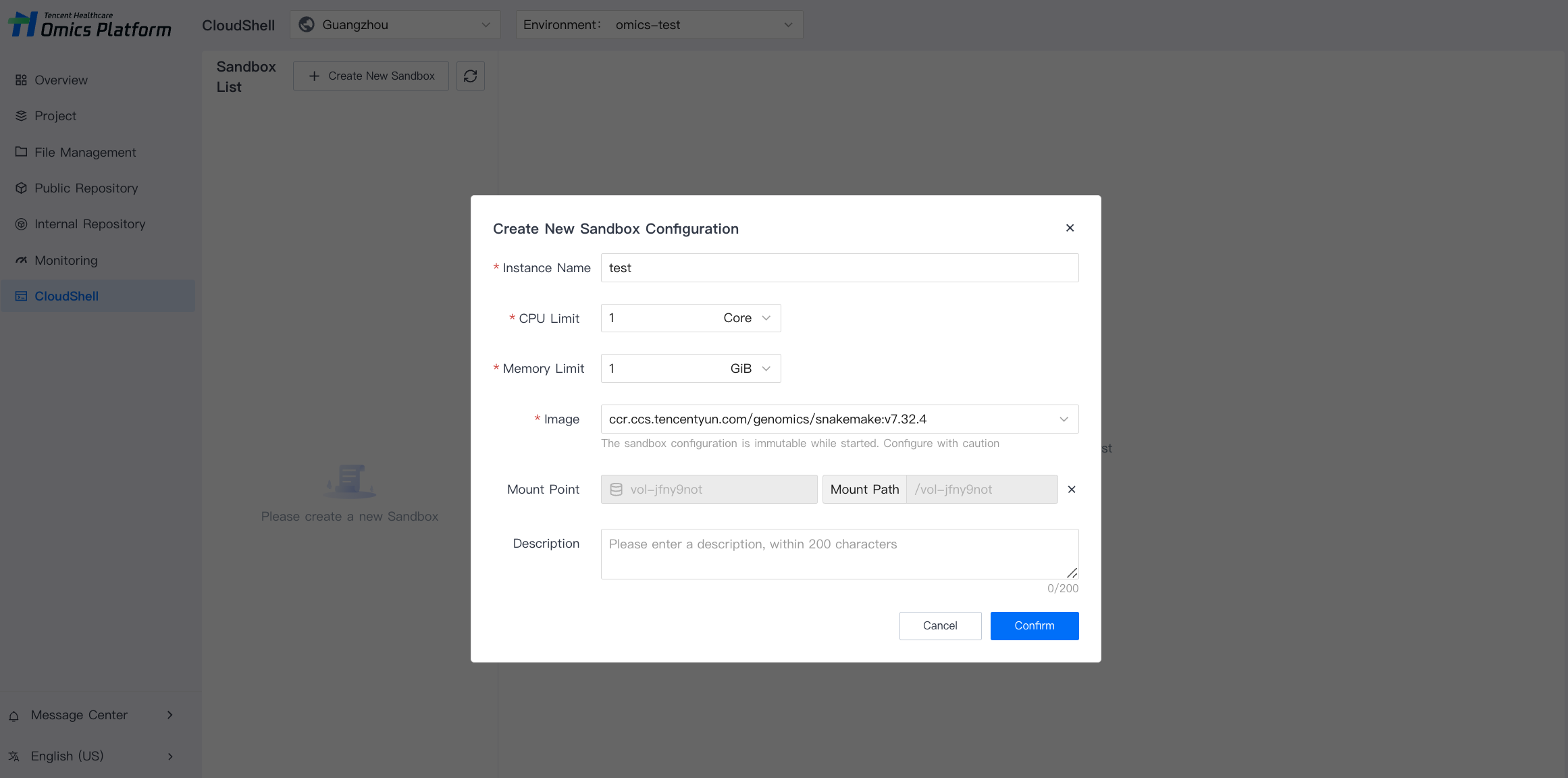
2. Click Create Sandbox in the Sandbox list and fill in the required Sandbox configuration information in the form:
CPU and memory configuration: For CPU and memory specifications and billing instructions, see Pricing.
Image configuration: Currently, only the nextflow and snakemake image types are supported.
Mount point configuration: Currently, you can select a cache volume in the mount point for mounting. The mount path is the default mount path of the cache volume, and the current mount path cannot be modified.
3. After the configuration, click Confirm to submit. This will complete the Sandbox creation process.
Operating Sandbox
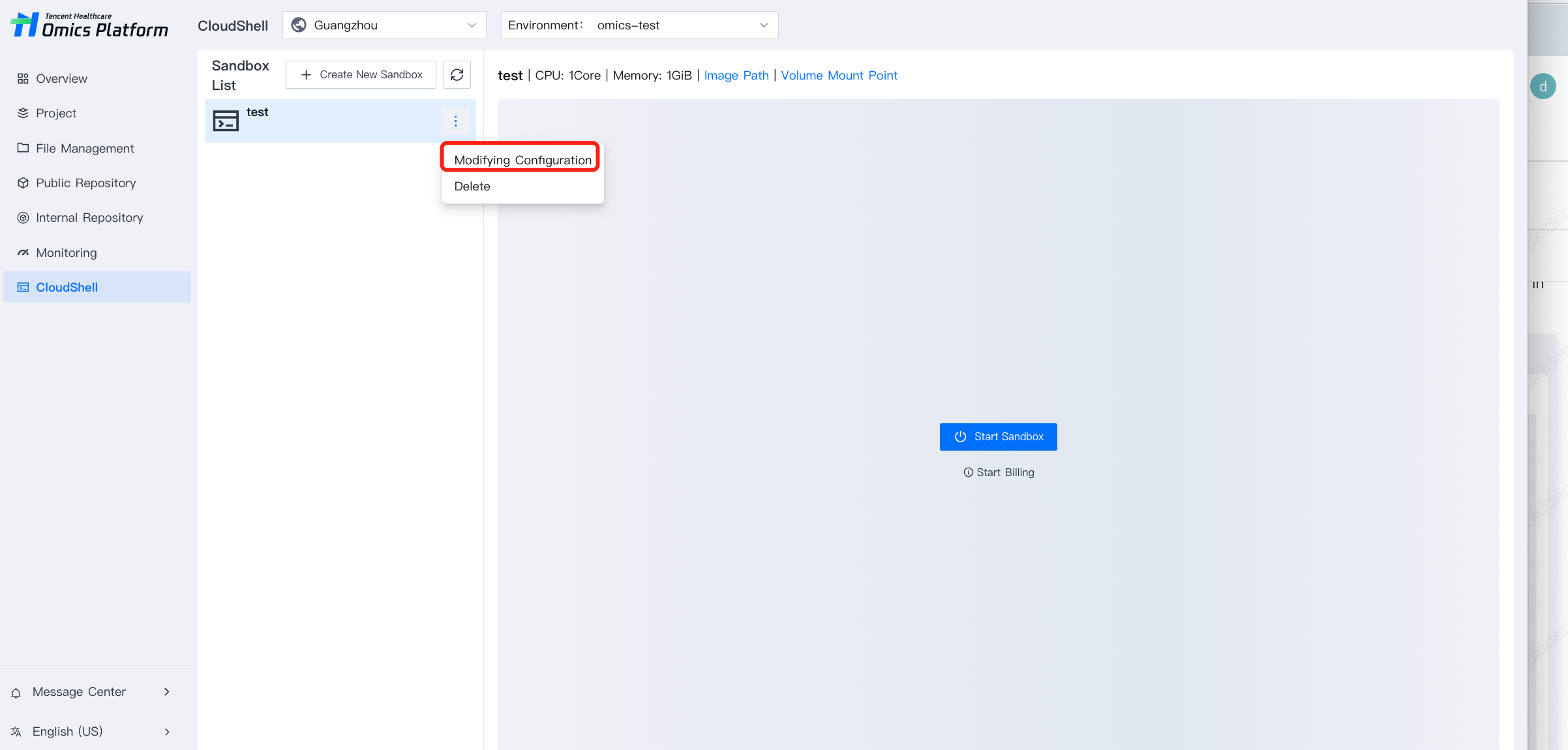
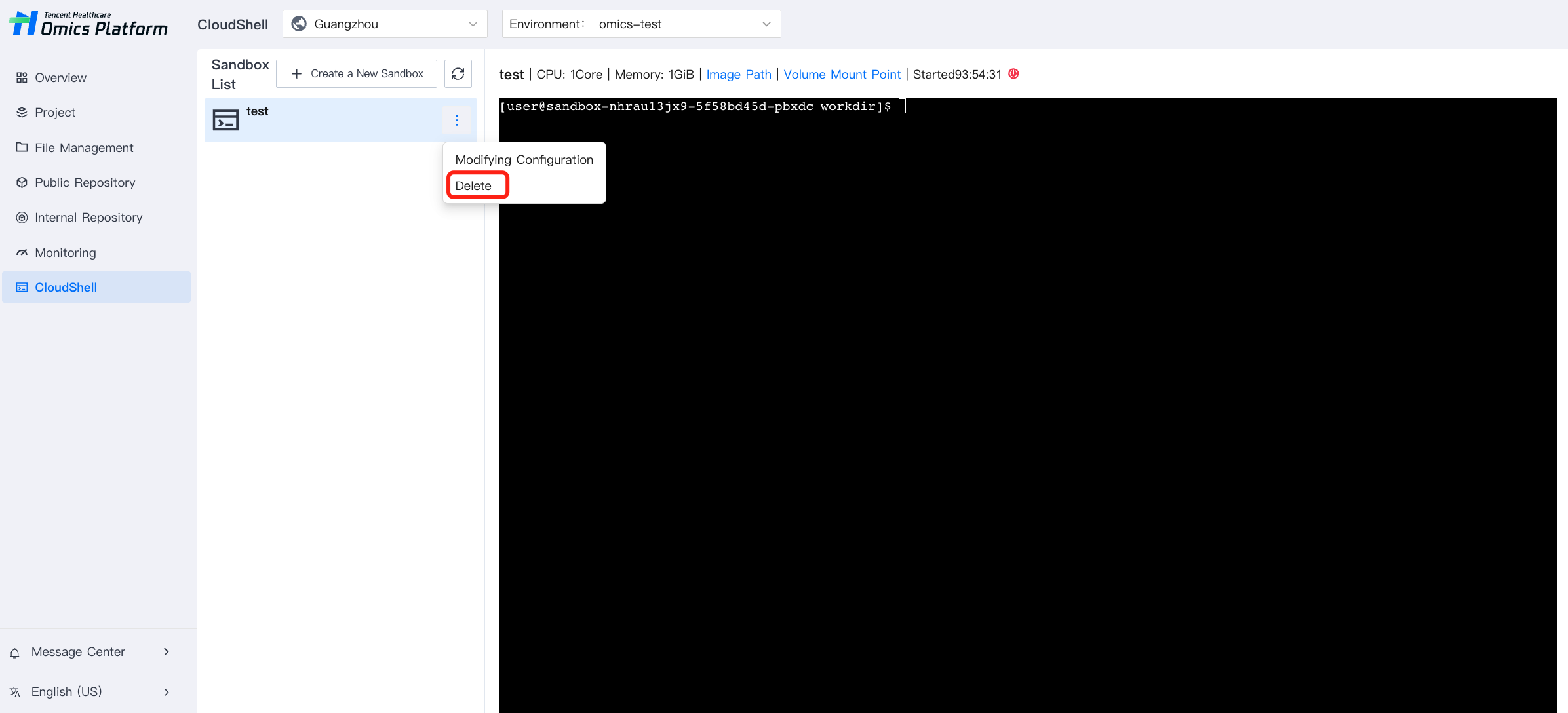
Enter the development and debugging module, and you can view the Sandbox list on the left. The list supports the refresh feature, and each item in the Sandbox list supports Modifying Configuration and Delete for the individual Sandbox.
Modifying Sandbox Configuration
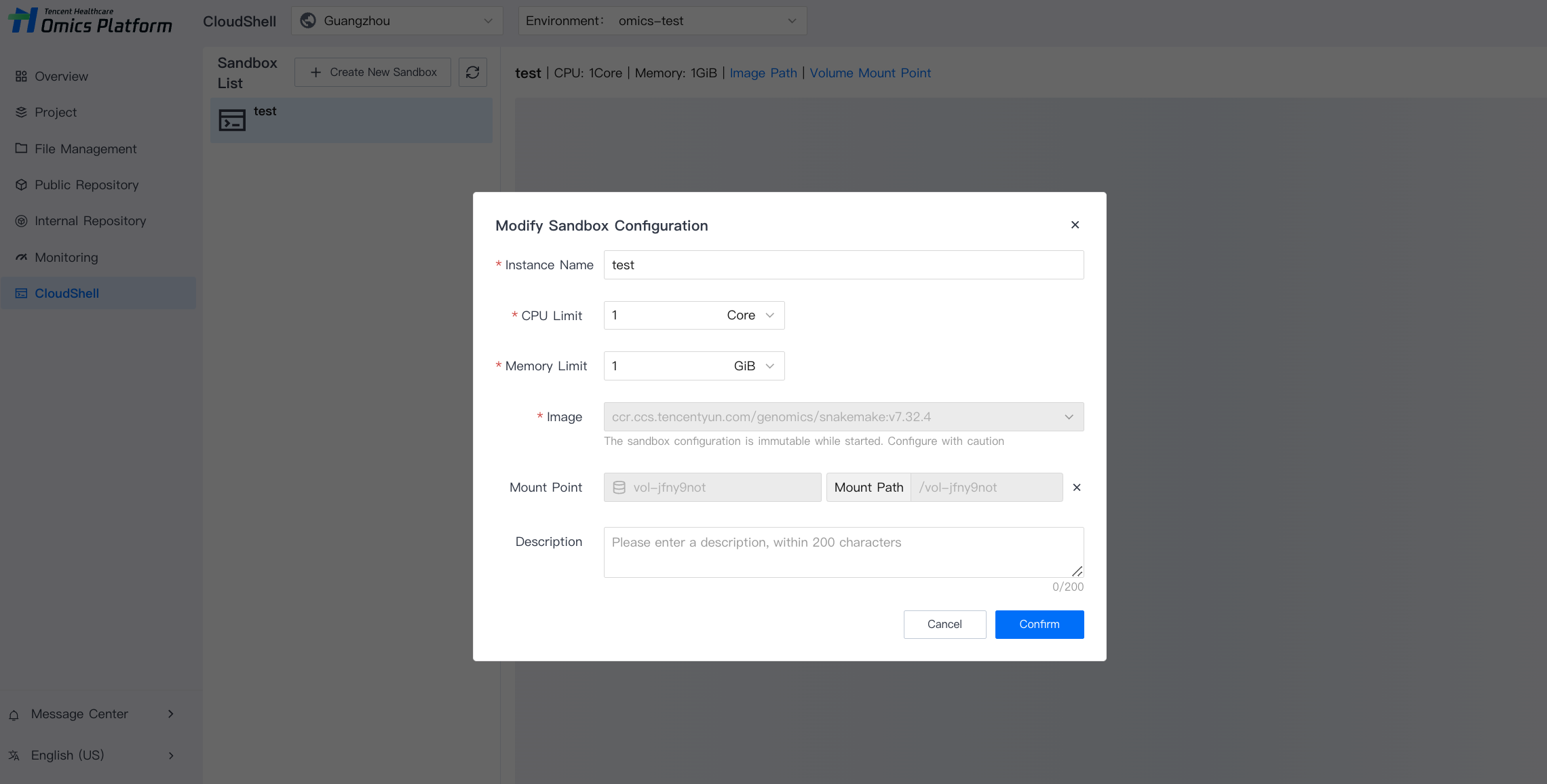
Modification of Sandbox configuration is supported, including the name, CPU, memory, mount point, and description of related configuration. The modification must be done when the Sandbox is not started.
Starting and Closing the Sandbox
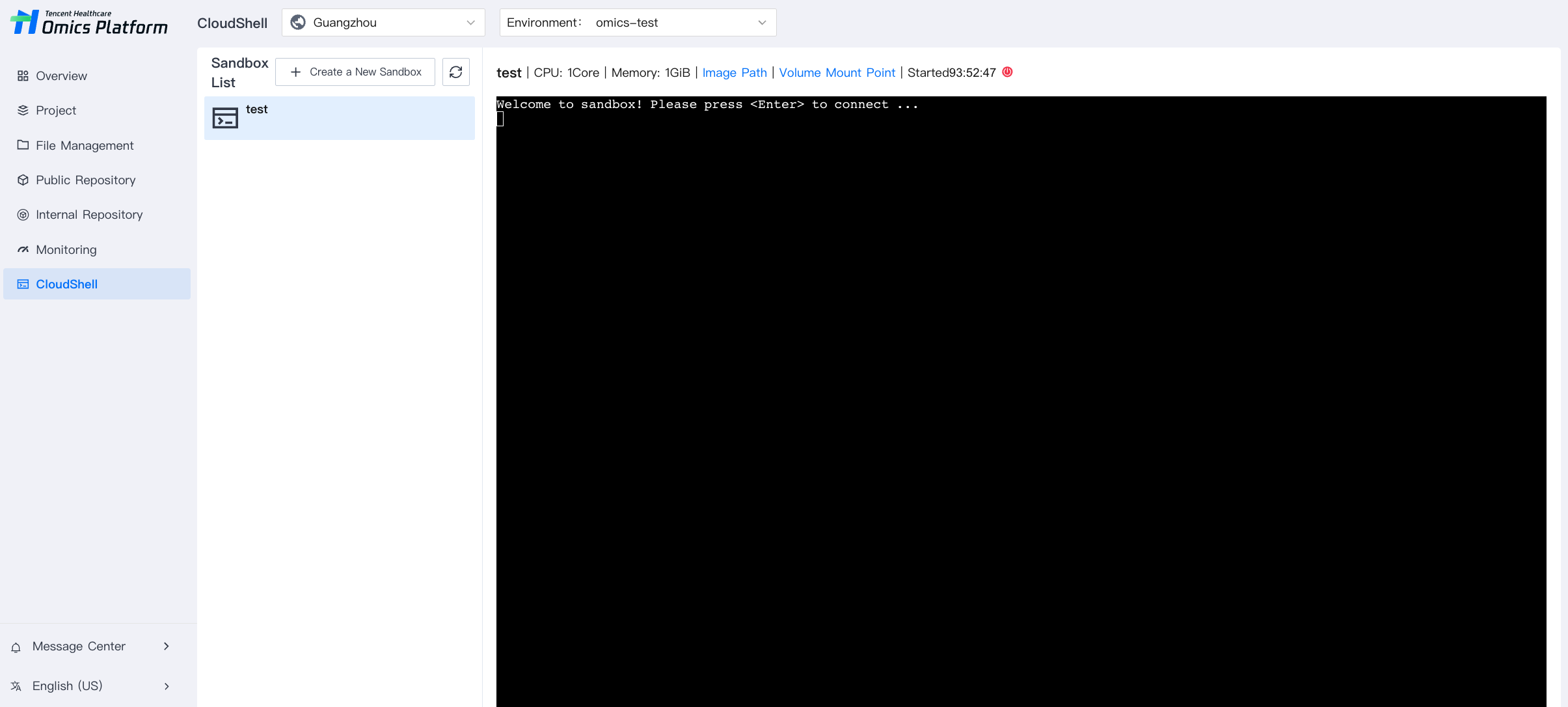
1. After creating a new Sandbox, you can see the Sandbox browser on the right. Click Start Sandbox, and after a while, the Sandbox will start successfully. After the start is successful, the page will enter the command line input mode and display the start-related countdown.
Note:
The Sandbox needs to start a computing instance (specifications are the CPU limit and memory limit in the Sandbox configuration) to provide an execution environment. Close Sandbox in time after use to avoid unnecessary fees. For detailed billing and price description, see Product Pricing.
2. According to the page prompts, press the Enter key on the keyboard to connect to the Sandbox. After the connection is successful, you will enter the Sandbox running environment. In the Sandbox running environment, you can enter commands for operations.
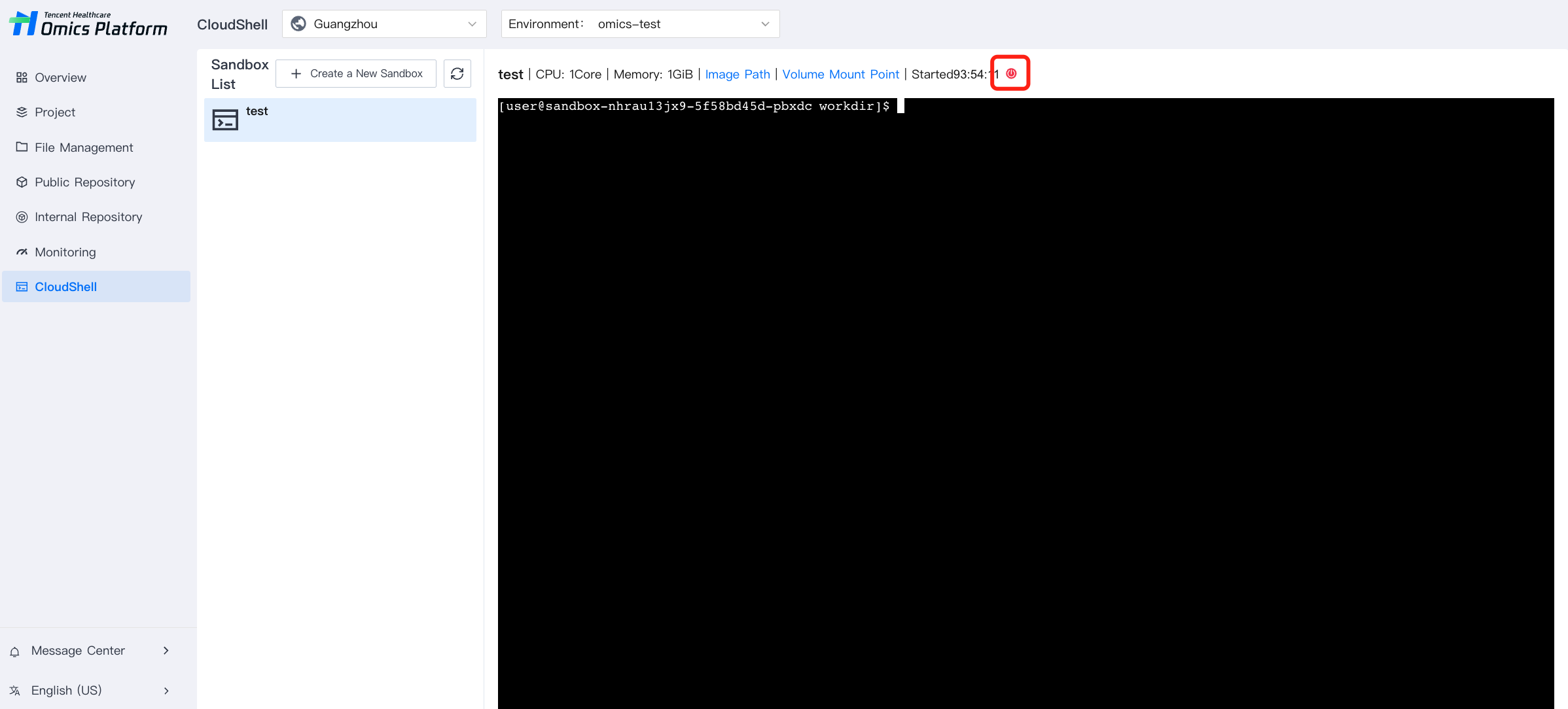
3. Click the
icon at the top of the page to close the Sandbox. The Sandbox running environment will be closed, and the interface will be restored to the status before starting the Sandbox.
Note:
After the Sandbox running environment is restarted, the files in the running environment will be reset. If you need to persist files, you can move the files to be persisted to the mounted volume.
Deleting the Sandbox
In the Sandbox list, select the Sandbox to be deleted and click Delete. The Sandbox will be closed while being deleted.