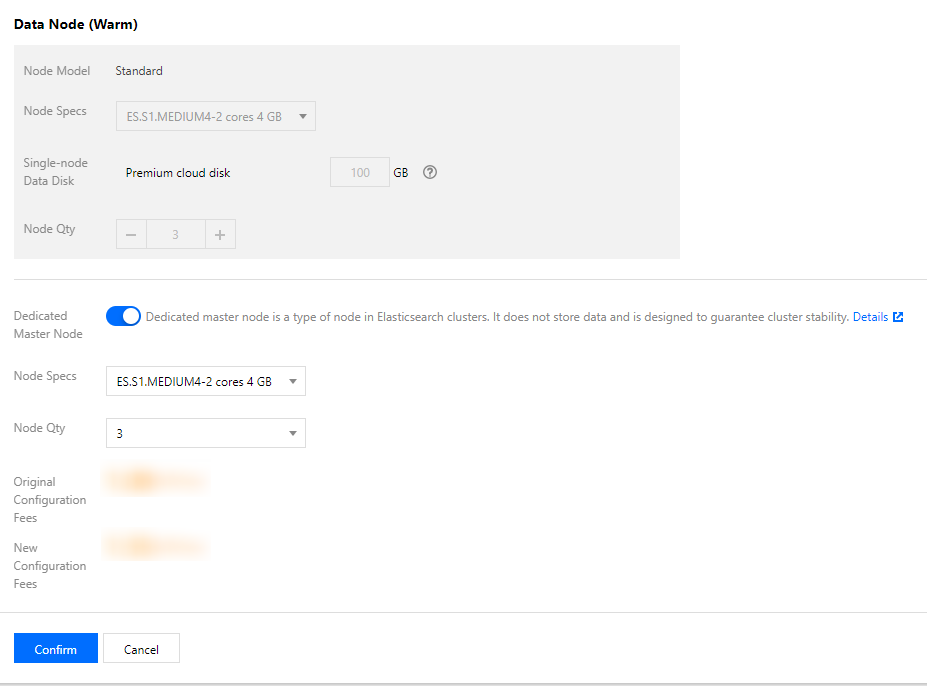
As your business grows, the amounts of data and access requests in a cluster are ever-changing and may increase significantly. When the size of the cluster fails to meet your actual business needs, you can dynamically adjust the cluster configuration to scale it out. You can also temporarily scale it in if the amounts of data and access requests get smaller. ES supports adjusting configuration items such as number of nodes, node types, and storage capacity of individual data nodes. In addition, it also supports adjusting dedicated master nodes as detailed below.
Note:
Scale-in is currently restricted and you can submit a ticket for application.
Directions
1. Log in to the ES Console and enter the cluster list page.
2. You can adjust the cluster configuration on either the cluster list page or cluster details page.
On the cluster list page, select the cluster to be scaled out and select More > Adjust Configuration in the "Operation" column.
Click the cluster name to enter the cluster details page and select More > Adjust Configuration in the top-right corner.
3. In the Adjust Configuration dialog box that pops up, adjust the cluster node model or quantity according to your business needs and click OK.
Note:
Either node type (node model and storage capacity) or node quantity can be adjusted at a time.
1. After the configuration adjustment starts, the cluster status will change to processing. After the status changes to normal, the cluster can be used normally.
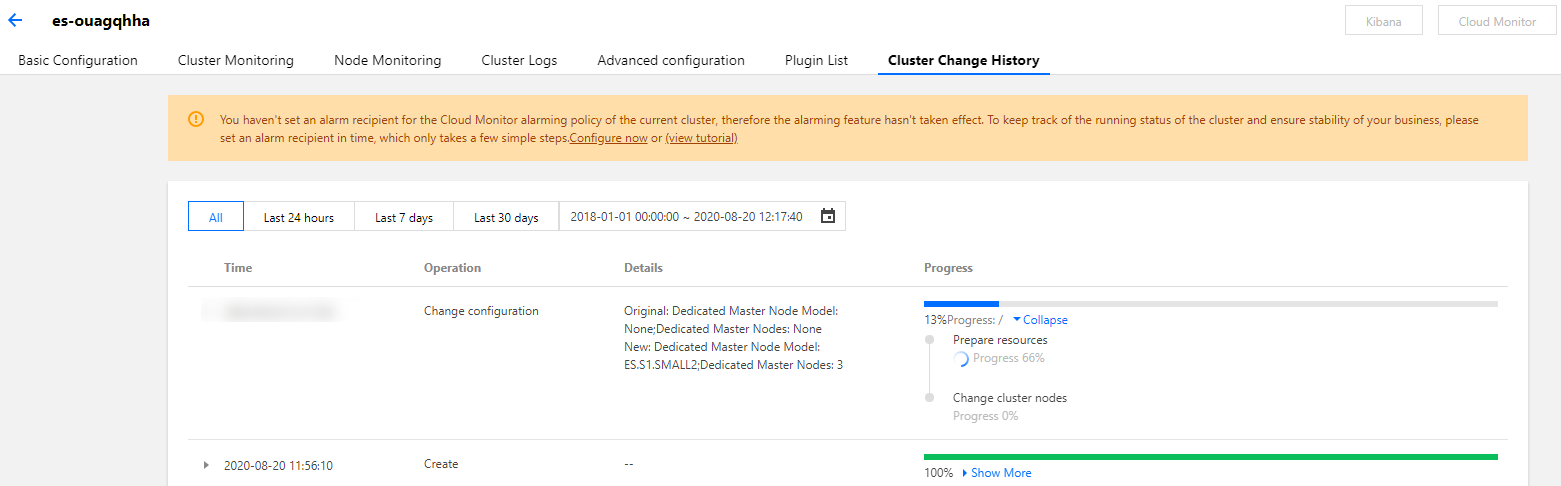
4. You can view the progress of cluster adjustment on the cluster details page.
View the progress of cluster adjustment.
Configuration Adjustment Fees
For postpaid pay-as-you-go clusters, fees are charged by the minute. After the configuration adjustment is completed, fees for the next minute will be calculated based on the price of the new configuration.