Live Recording
Download
Focus Mode
Font Size
Live recording enables you to capture and store audio and video from a live streaming room. Recorded files can be used for playback, evidence collection, quality assurance, review, archiving, and other scenarios.
This guide covers the live recording feature of the TRTC Live, outlines typical recording outcomes for live rooms, and walks you through enabling recording quickly. If the built-in recording options here do not meet your needs, see TRTC Cloud Recording for more advanced options.
Note:
The recording feature described in this document is based on TRTC Cloud Recording and pre-configures common recording parameters for live rooms created via Live, making setup faster and easier.
Feature Overview
Before you start, configure your recording storage location. When you create a live streaming room, you can choose whether to enable recording for that room. Once enabled, recordings are automatically saved to your configured storage address. See below for details.
Application Scope
Live recording is available only for live rooms that meet all the following conditions.
The room is created via Live.
The
isUnlimitedRoomEnabled field for the Live room is set to true. Default values for isUnlimitedRoomEnabled vary by room template, as shown below:Template Case | isUnlimitedRoomEnabled | Scenario Description |
.videoDynamicGrid9Seats | true | Portrait dynamic 9-grid |
.videoDynamicFloat7Seats | true | Portrait 1v6 floating |
.videoFixedGrid9Seats | true | Portrait static 9-grid |
.videoFixedFloat7Seats | true | Portrait static 1v6 |
.videoLandscape4Seat | true | Landscape 4-seat mic |
.karaoke | false | Voice KTV |
.audioSalon | false | Voice Salon |
Based on these rules, the actual recorded content is as follows:
Video Live: In single-host rooms, records a single-stream of the host’s audio and video. In multi-host rooms, records a mixed-stream of all hosts’ audio and video, producing a single recording file.
Voice Chat Room: By default,
isUnlimitedRoomEnabled is false, so recording is not supported. To enable, please Contact Us.Note:
If
isUnlimitedRoomEnabled is set to true and you use TRTC Cloud Recording's Global Auto-Recording, the same audio/video content may be recorded twice, resulting in extra charges. In this scenario, use Live recording first. If Live recording does not meet your needs, see TRTC Manual Recording for custom recording.Enabling Recording
Step 1: Configure Recording Storage in the Console
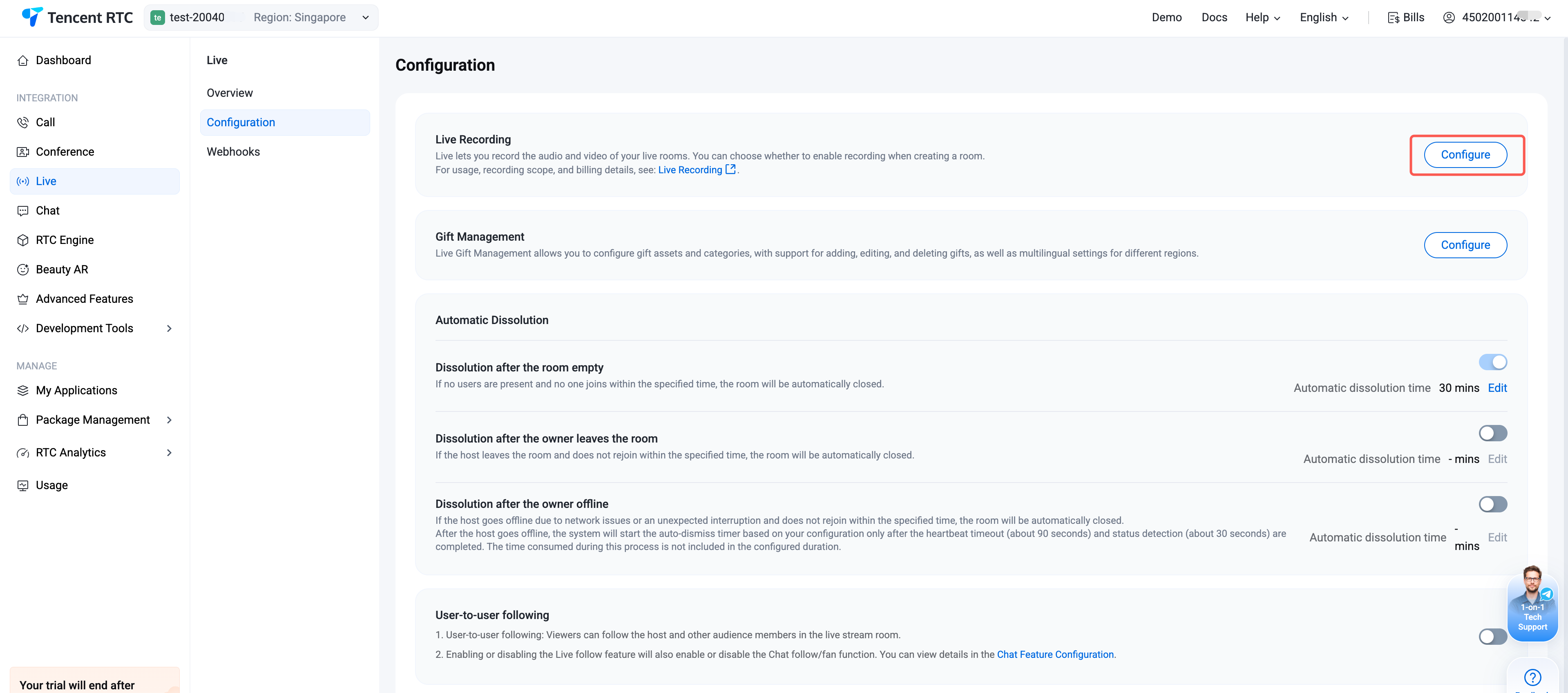
1. Open the TRTC Console, go to Live Configuration > Live Recording, and click Configure.
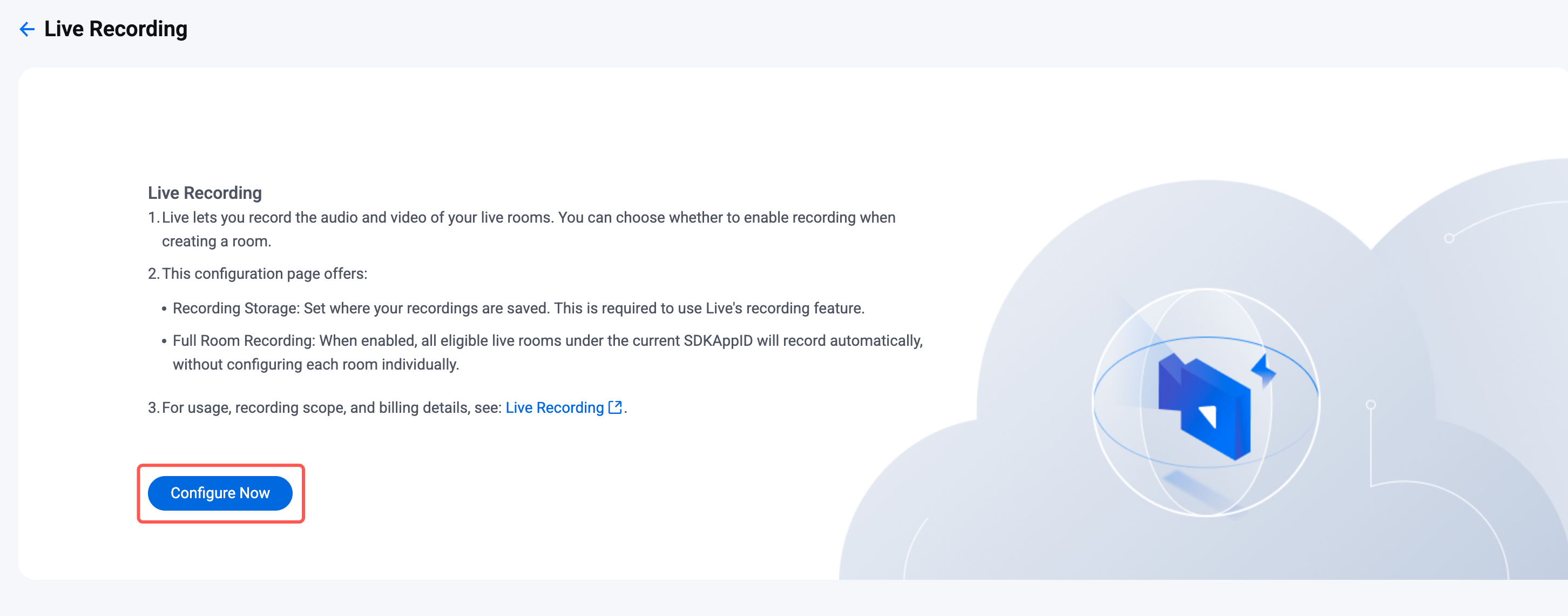
2. Click Configure Now.
3. Set up your recording preferences in the popup window.
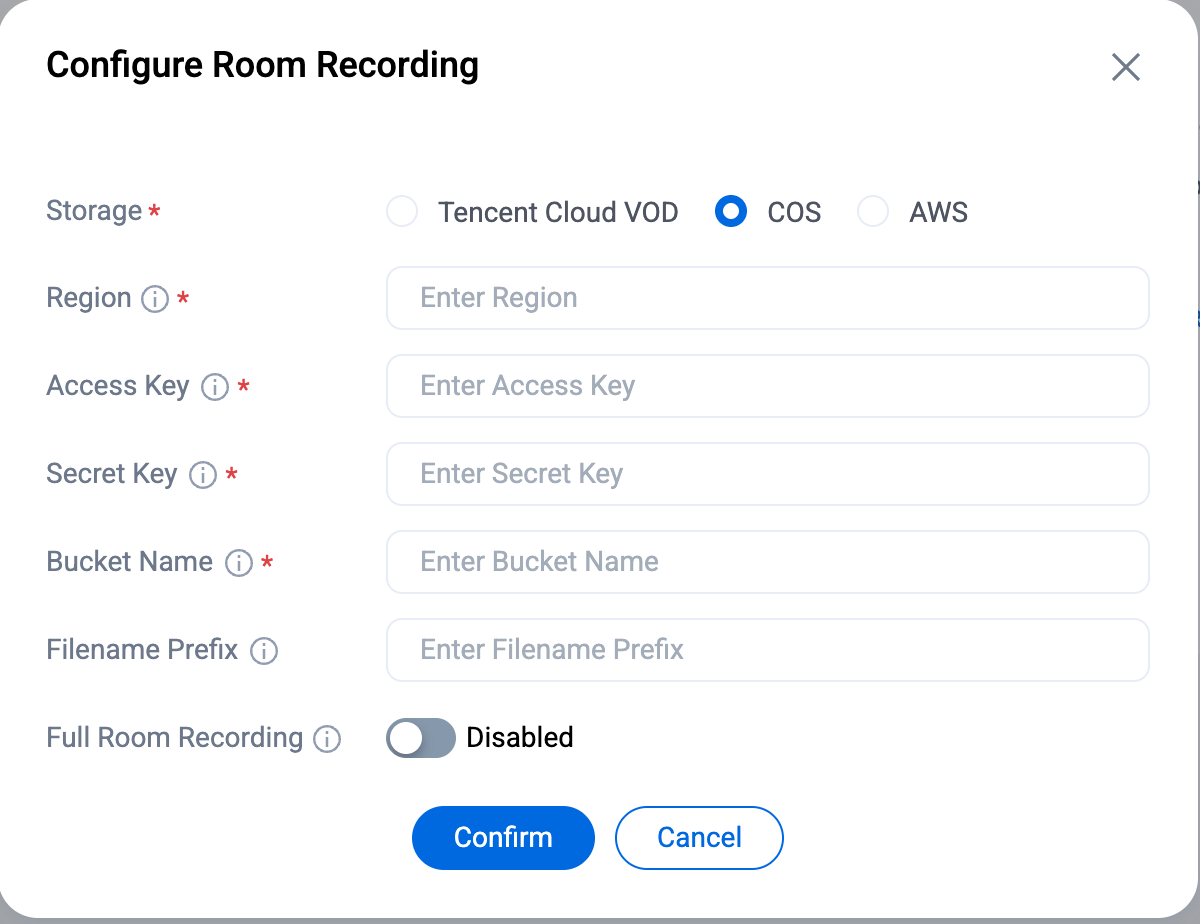
See the table below for details on each configuration item.
Configuration Item | Description |
Storage | Required. Recording files can be stored in Video on Demand (VOD), Cloud Object Storage (COS), or AWS. |
Full Room Recording | Enable recording for all rooms under the current SDKAppID with a single click. Once enabled, the system automatically records all live rooms under the current SDKAppID that meet the following conditions: The live room matches the application scope above. When creating a live room, IsCloudRecordEnabled is empty (default) or explicitly set to true. See Step 2 for details. |
Note:
The default value for
IsCloudRecordEnabled is empty. If set to false, the room will not be recorded even if Full Room Recording is enabled.Step 2: Set Recording Parameters During Room Creation
When creating a room (
RoomInfo), you can control recording for the current room by setting IsCloudRecordEnabled. The behavior depends on the parameter value:Parameter Value | Description | Room Recording Behavior |
Empty | Default value | Follows the Full Room Recording setting. If the live room matches the application scope and Full Room Recording is enabled in Step 1, the room will be recorded; otherwise, it will not be recorded. |
true | Explicitly enable recording | If the live room matches the application scope, recording is enabled for the current room regardless of the Full Room Recording setting. |
false | Explicitly disable recording | Recording is disabled. Even if Full Room Recording is enabled in Step 1, the room will not be recorded. |
Note:
Make sure "Storage" are properly configured in Step 1. Otherwise, recording cannot be enabled even if you perform this step.
Recording Results
Default recording parameters are as follows:
Feature Item | Description |
Recording Duration | Once recording is enabled, the entire session from room creation to dissolution is recorded. The maximum duration for a single file is 1440 minutes. If exceeded, recording is interrupted, and Resume Recording will wait for 30 seconds before restarting. Currently, starting or stopping recording mid-session is not supported. |
Recording File Format | MP4. |
Note:
The current maximum concurrent recording limit is 300 streams. For higher concurrency, contact sales or Contact Us for technical support.
Billing Description
Live recording involves the following fees:
Billing Item | Description | Billing Reference |
Recording Fee | Charges for recording audio and video content. By default, TRTC Cloud Recording uses Single-stream recording. | Recording fees are based on recording duration and video resolution. For detailed billing rules and pricing, see TRTC Cloud Recording, with pricing based on Single-stream recording. |
File Storage Fee | Recording storage fees are billed by the selected storage service (VOD, COS, or AWS). | Detailed billing rules and pricing: For VOD, refer to Media Asset Management. For COS, refer to Object Storage Billing. For AWS,refer to AWS S3 Billing. |
FAQs
Difference Between Live Recording and TRTC Cloud Recording?
Live recording is built on TRTC Cloud Recording but only records Live rooms. It provides APIs to easily enable recording during room creation, streamlining the process. In multi-host scenarios, only one mixed-stream file is generated for all hosts, preventing duplicate recordings and eliminating manual mixed-stream parameter setup.
Comparison Item | Live Recording | TRTC Cloud Recording |
Recording Scope | Applies to Live rooms under the current SDKAppID. | Applies to TRTC rooms under the current SDKAppID. |
Recording Method | Method 1: Enable Full Room Recording in the console. Method 2: Enable recording via parameters during room creation. | Method 1: Enable Global Auto-Recording in the console. Method 2: Manual recording via REST API. |
Recording File | Both methods record a single audio/video stream: Video live: Single-host rooms record a single-stream of the host’s audio and video; multi-host rooms record a mixed-stream of all hosts. Voice chat rooms: Recording is not supported by default. To enable, please Contact Us. | Recording method varies, resulting in different streams: Global Auto-Recording: Each host’s audio/video stream is recorded separately, resulting in multiple video files. REST API: Manually select single-stream or mixed-stream recording. |
Storage Service | Store recordings in VOD, COS, or AWS. | Custom storage configuration. |
Difference Between "Full Room Recording" in Live and "Global Auto-Recording" in TRTC Cloud Recording?
Recording Scope | Full Room Recording in Live | Global Auto-Recording in TRTC |
Rooms Recorded | Records only rooms created via Live under the current SDKAppID. Rooms created via TUICallKit, TUIRoomKit, and TRTC SDK integration are not recorded. | Records all TRTC rooms under the current SDKAppID, including those created via TUICallKit, Live, TUIRoomKit, and TRTC SDK integration. |
Content Recorded | Records only video live rooms: single-host rooms record a single-stream of the host’s audio and video; multi-host rooms record a mixed-stream of all hosts. Voice chat room content is not recorded by default. To enable, please Contact Us. | Records all hosts’ audio/video streams; each host receives an individual file. |
Does Enabling TRTC Cloud Recording Affect Live Recording?
TRTC Cloud Recording and Live recording are independent features. Both can be enabled at the same time. Once enabled, TRTC and Live record separately without interfering with each other.
Important Considerations When Using TRTC Cloud Recording Instead of Live Recording?
If you use TRTC Cloud Recording's Global Auto-Recording feature instead of Live recording, the same audio and video content may be recorded twice, resulting in extra charges. In this scenario, use Live recording first. If Live recording does not meet your business needs, see TRTC Manual Recording for custom recording control.
Help and Support
Was this page helpful?
You can also Contact sales or Submit a Ticket for help.
Help us improve! Rate your documentation experience in 5 mins.
Feedback