This document describes how to enable the cloud recording feature of TUICallKit, applicable to scenarios such as call archiving, playback, and compliance auditing.
Note:
For detailed billing rules, pricing information, and billing examples for cloud recording, please refer to TRTC Cloud Recording
Overview
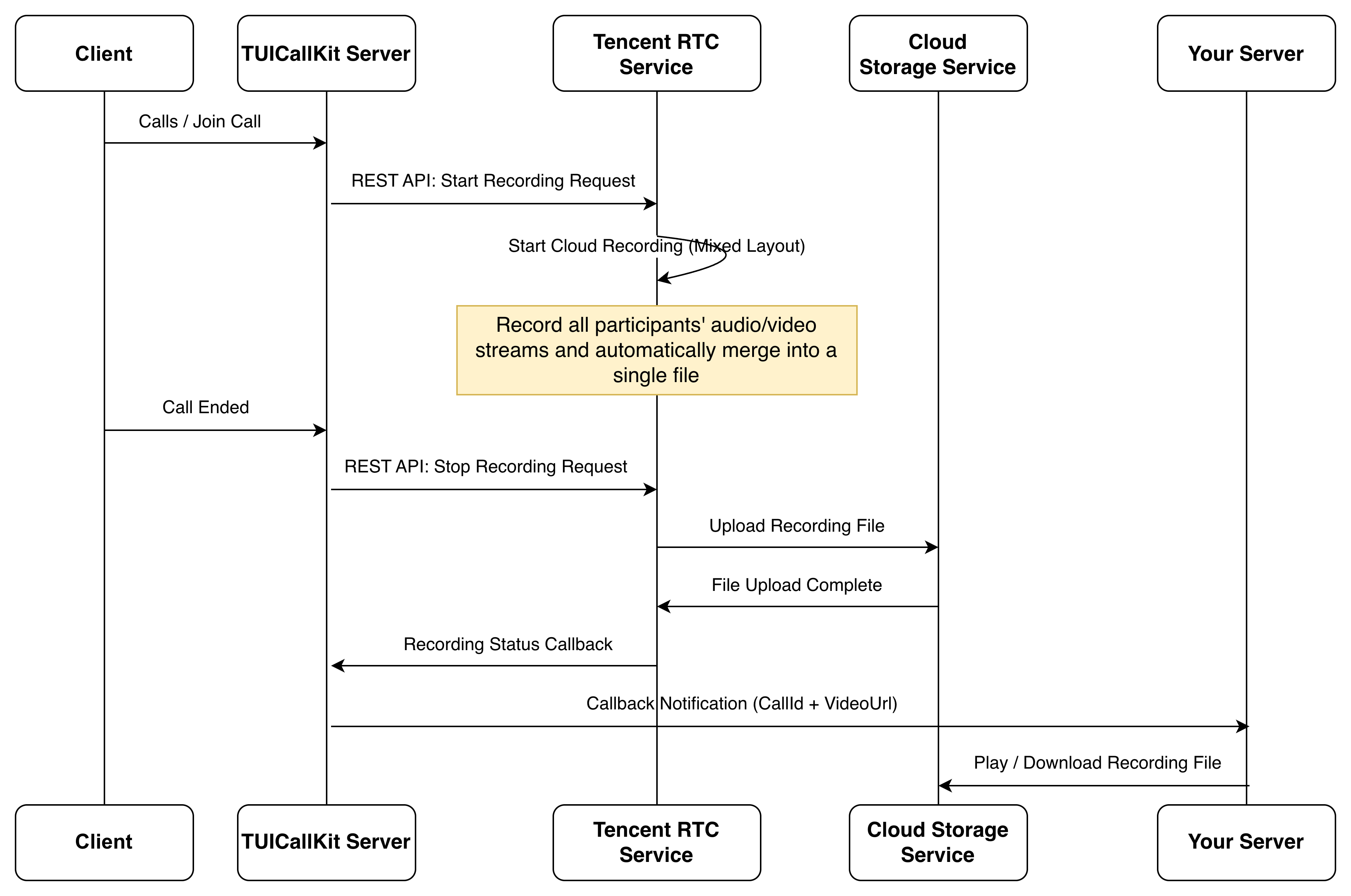
TUICallKit Call Recording is a scenario-specific abstraction built on top of TRTC's cloud recording capabilities. It is deeply optimized for call scenarios, allowing you to achieve automatic full-call recording without dealing with underlying recording configuration details. Key advantages include:
Zero-code integration: Enable global recording with one click in the console, or control recording behavior for specific calls with just one line of code — no need to assemble complex configurations such as stream mixing layouts or transcoding parameters.
Automatic lifecycle management: Recording starts automatically when a call begins and stops automatically when the call ends — fully managed with no manual start/stop required.
Grid-layout mixed recording: Automatically mixes the audio and video of all call participants into a single file using a grid layout, making it easy to play back the complete call.
Automatic call ID association: Recording files are automatically bound to call IDs. Callback notifications directly return the mapping between call IDs and video URLs, making it easy for your business to retrieve and manage recordings.
Use Cases
TUICallKit Call Recording is applicable to a variety of industry scenarios. The following are common use cases:
Industry Scenario
Core Value
Telemedicine
Meets compliance review requirements from medical regulatory authorities; accumulates consultation data for internal quality control and training; patients can replay consultations to reduce communication gaps.
Social & Entertainment
Meets content safety regulatory requirements; recorded content can be used as evidence for violations and traceability.
Video Customer Service
Records service sessions for quality inspection and satisfaction analysis; recording files serve as objective evidence in service disputes.
Online Counseling
Meets compliance archiving requirements for the counseling industry; counselors can review recordings for case analysis and professional supervision.
Enabling Cloud Recording
TUICallKit supports automatically mixing and recording the audio and video of all call participants into a single file. You can enable recording in the following two ways, which can be used together: global configuration sets the default behavior, while code-level control can override the global configuration for specific calls.
Option 1: Record All Calls (Recommended)
You can enable this with one click in the console, suitable for scenarios requiring full recording coverage.
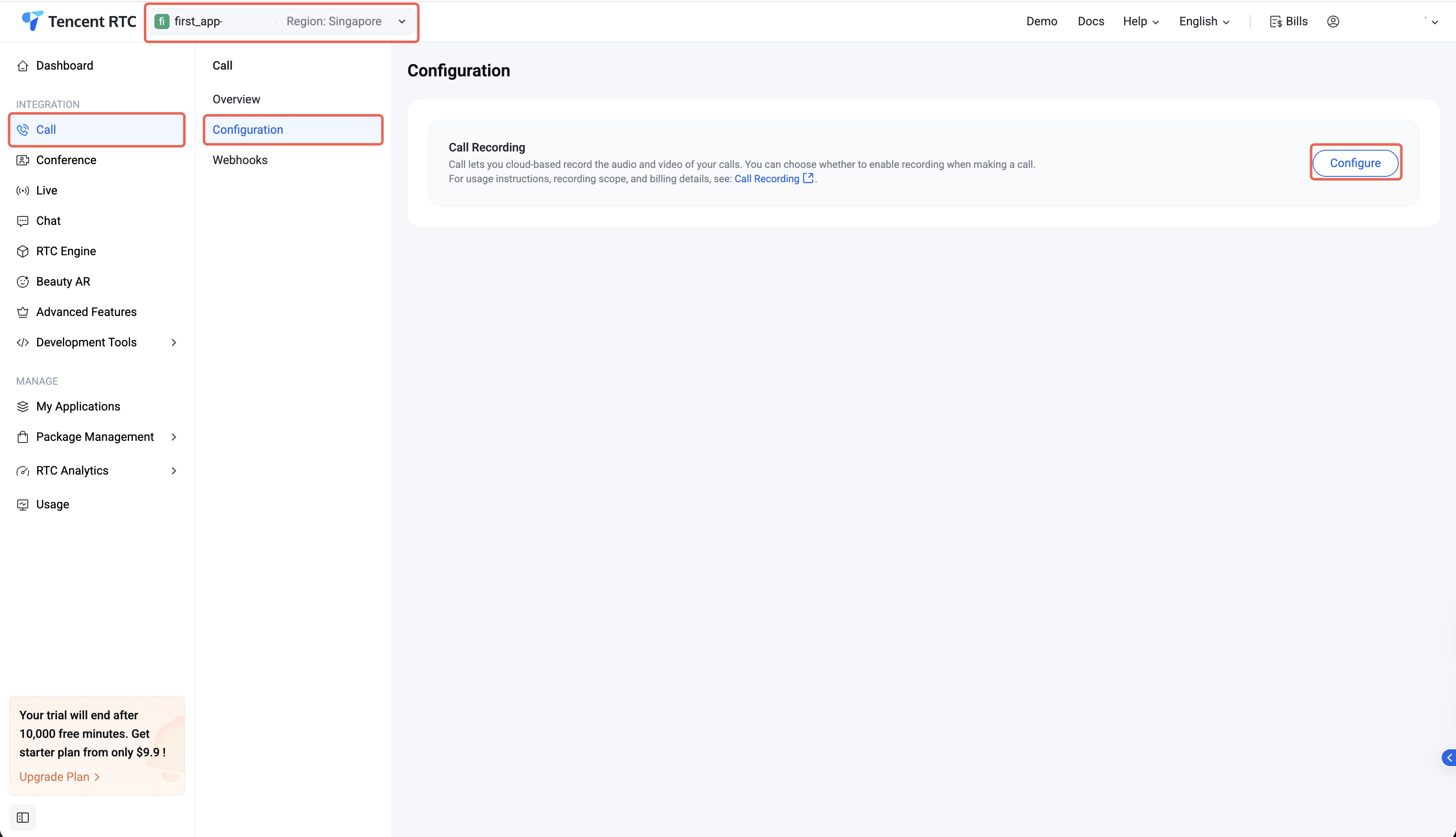
1. Go to Tencent RTC Console> Call > Configuration, select the application you want to configure at the top, and click Configure.
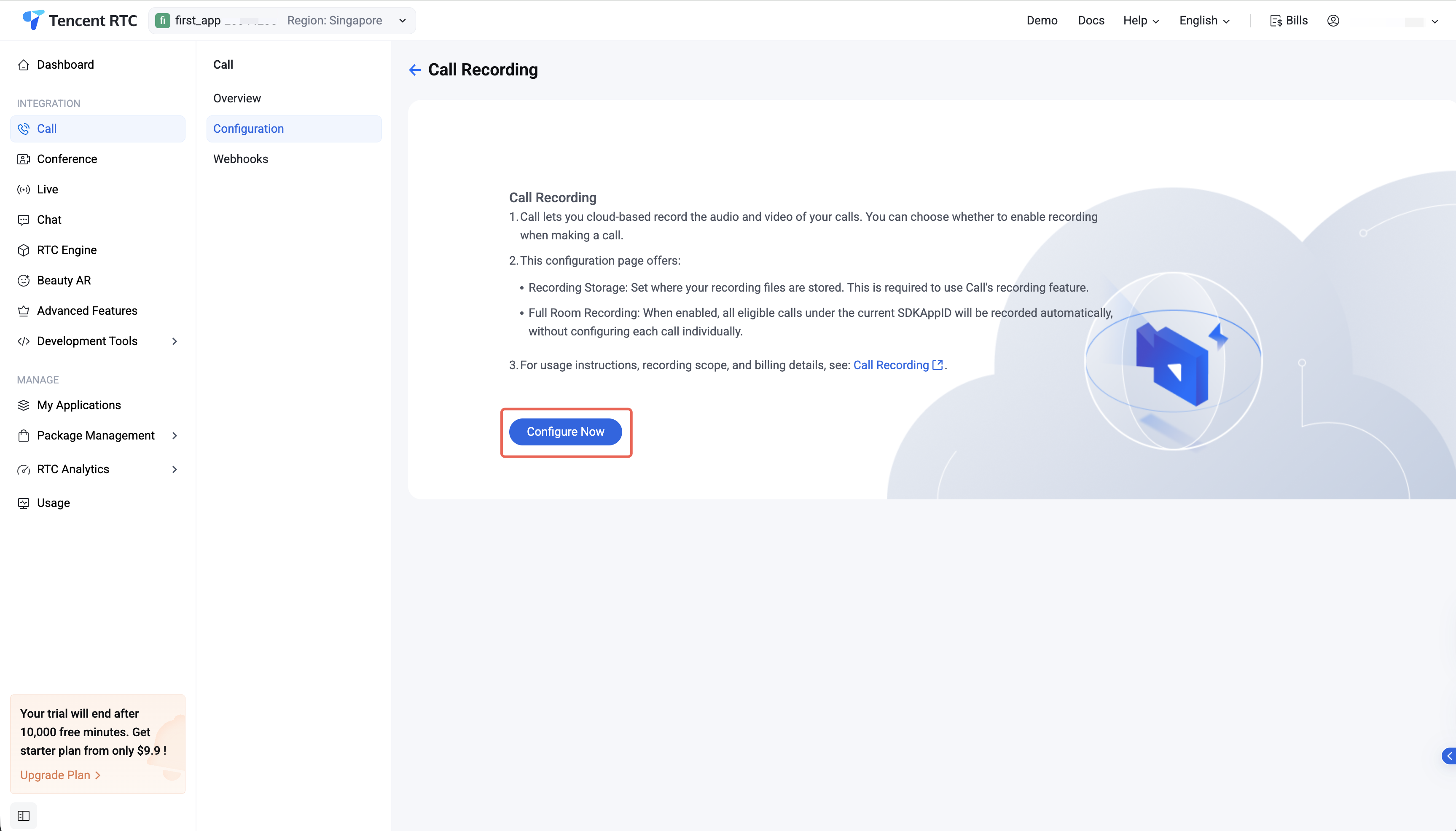
2. Clicking Configure Now.
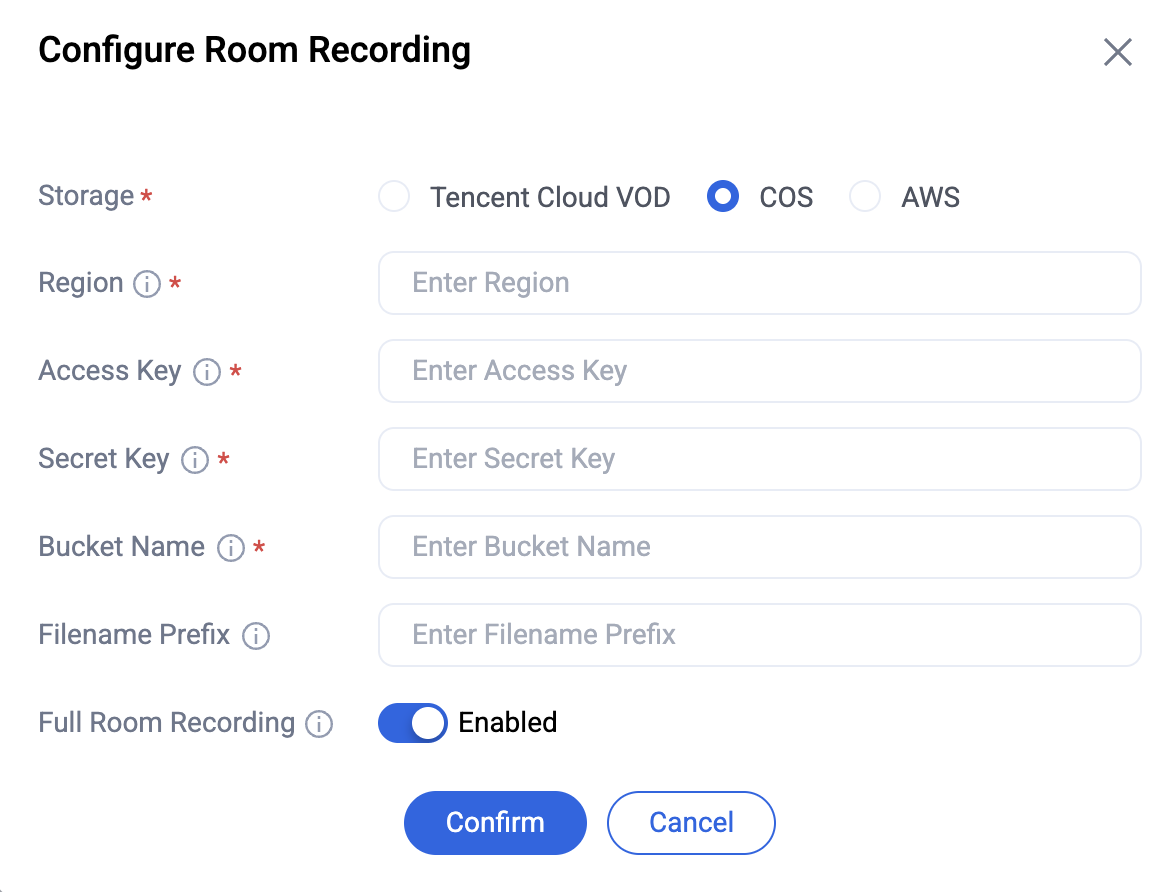
3. Complete the following recording configuration on the configuration page, then enable Record All Rooms.
Configuration
Description
Storage
Required. Recording files can be stored in Video on Demand (VOD), Cloud Object Storage (COS), or AWS.
Full Room Recording
When enabled, all calls under the current SDKAppID will be automatically recorded
Option 2: Record Specific Calls
You can use the cloudRecordPolicy parameter to control whether recording is enabled for a specific call, suitable for on-demand recording scenarios.
Note:
Make sure you have completed the Storage Application and Recording File Retention Period configuration in the console. See: Option 1.
You can configure a callback URL to have Tencent Cloud automatically push recording file information to your server upon recording completion.
1. Configure the callback URL
You can configure the callback URL via REST API. After a call ends, the system will complete file transfer within 30 seconds to several minutes and send a callback notification to your configured URL.
2. Listen for callback messages
After recording is complete, you will receive a callback notification containing the recording file information. See: Callback After Recording Status Change.
Playing Recording Files
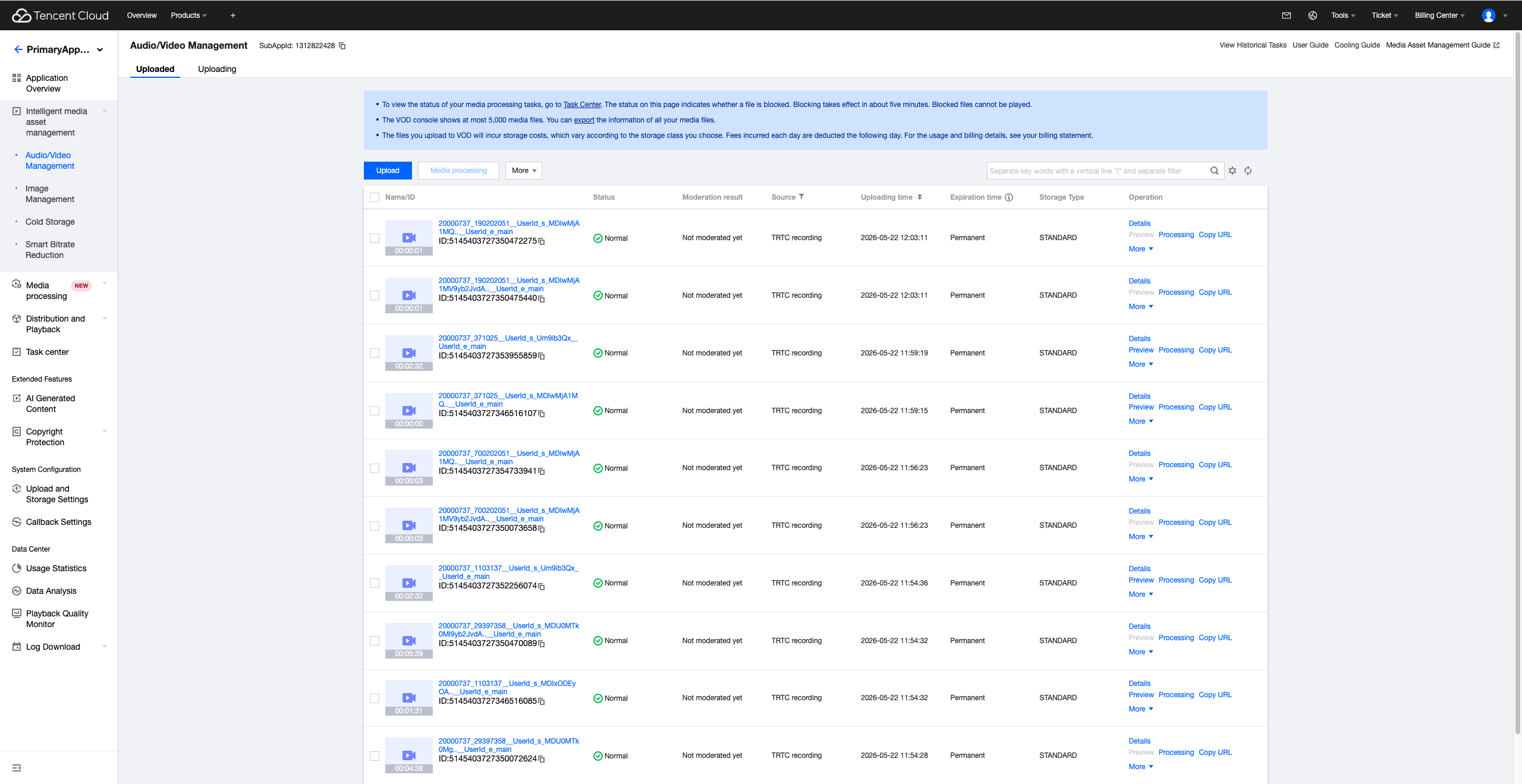
You can obtain the VideoUrl field from the callback message. This field is the playback URL of the recording file on Tencent Cloud VOD. You can use this URL directly for playback on your platform.
FAQ
Why is no recording file generated after setting cloudRecordPolicy = Enable?
Please check whether the following required configurations have been completed in the console:
Storage Application: Specifies the storage location for recording files.
Recording File Retention Period: Sets the retention period for files.
If the above configurations are missing, the system cannot generate recording files even if recording is enabled in code.
What are the layout, output format, and resolution of recording files?
Layout
Specifications
Spec
Details
File Format
MP4
Video Codec
H.264
Audio Codec
AAC
Resolution
360 × 640
Composite Recording Mode
All participants' audio and video streams are composited into a single output file.
Note:
Custom recording resolution is not currently supported via the console. If you require a custom output resolution, please contact us.
What is the difference between TUICallKit Call Recording and TRTC Cloud Recording?
TUICallKit Call Recording is a scenario-specific abstraction built on top of TRTC Cloud Recording. The main differences are as follows:
Comparison
TRTC Basic Cloud Recording
TUICallKit Call Recording
Lifecycle Management
Requires manual control of recording tasks and state management based on call callbacks.
Recording starts automatically when a call begins and stops when it ends — fully managed.
Mixed-stream Recording
Requires manual configuration of stream mixing layout parameters.
Automatically mixes all call participants into a single file using a grid layout.
Call Association
Recording files have no direct association with business calls; mapping must be maintained manually.
Recording files are automatically associated with call IDs; callbacks directly return the mapping.
Callback Notifications
Requires separate configuration of recording callbacks.
Automatically pushes file information upon recording completion, including call ID + video URL.
Will the recording be interrupted after a network reconnection?
No. If a participant experiences a brief network disconnection and subsequently reconnects during an active call, the recording will not be interrupted, and a single complete recording file will still be generated. During the disconnection period, that participant's video track will render as a black frame and their audio track will be muted.
Will a recording file be generated if the callee does not answer?
Yes. If the callee does not answer — due to ring timeout or an explicit rejection — the system will still generate a recording file. However, the file will contain only the caller's audio/video stream.