The platform supports exporting the latest historical version of an application from a release domain as a complete application package (in ZIP format). It also supports re-importing the application across different workspaces and environments.
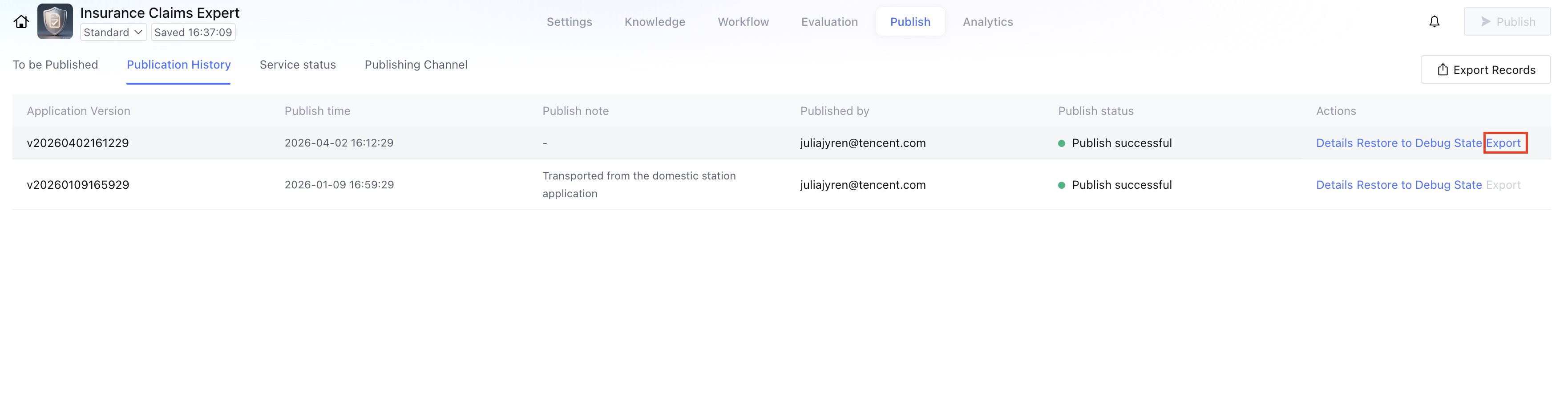
1. On the Release History page under Application Release, locate the most recent historical release version and click Export.
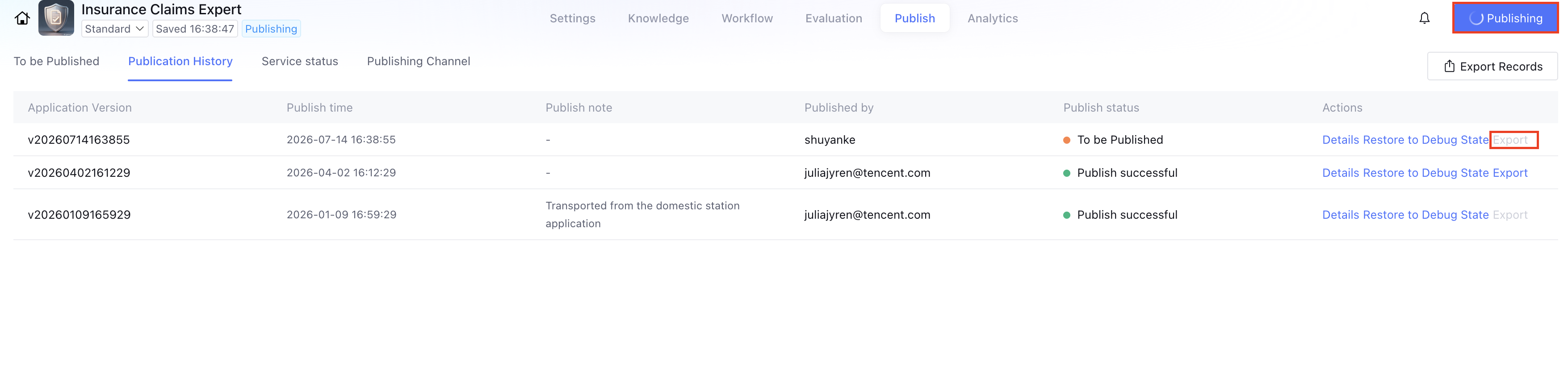
2. If an application is currently Publishing , the publishing version does not support export.
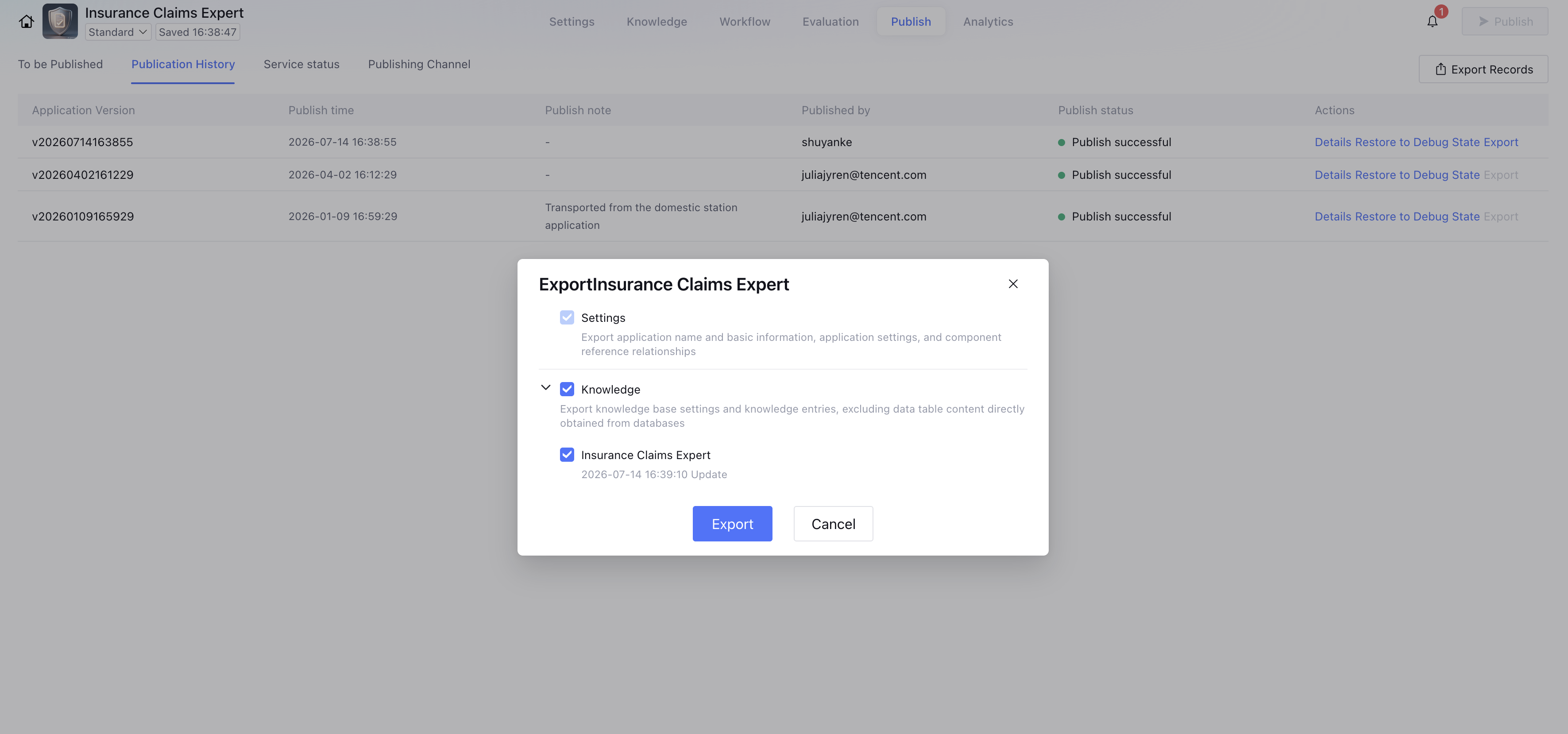
3. Select the scope of application packages to be exported.
Required:
Application Settings: Export basic information such as the application name, application settings, and component reference relationships.
Optional:
Workflow: The latest version of the workflow configuration file
Connectors and Tools: Includes custom connectors and tools. The exported content does not contain sensitive information such as passwords.
Knowledge Base: Exports knowledge base settings and knowledge entries, excluding data table content obtained by directly connecting to databases.
When a selected workflow is exported, all connectors and tools as well as the knowledge base referenced by the workflow must be exported. Deselecting them is not supported.
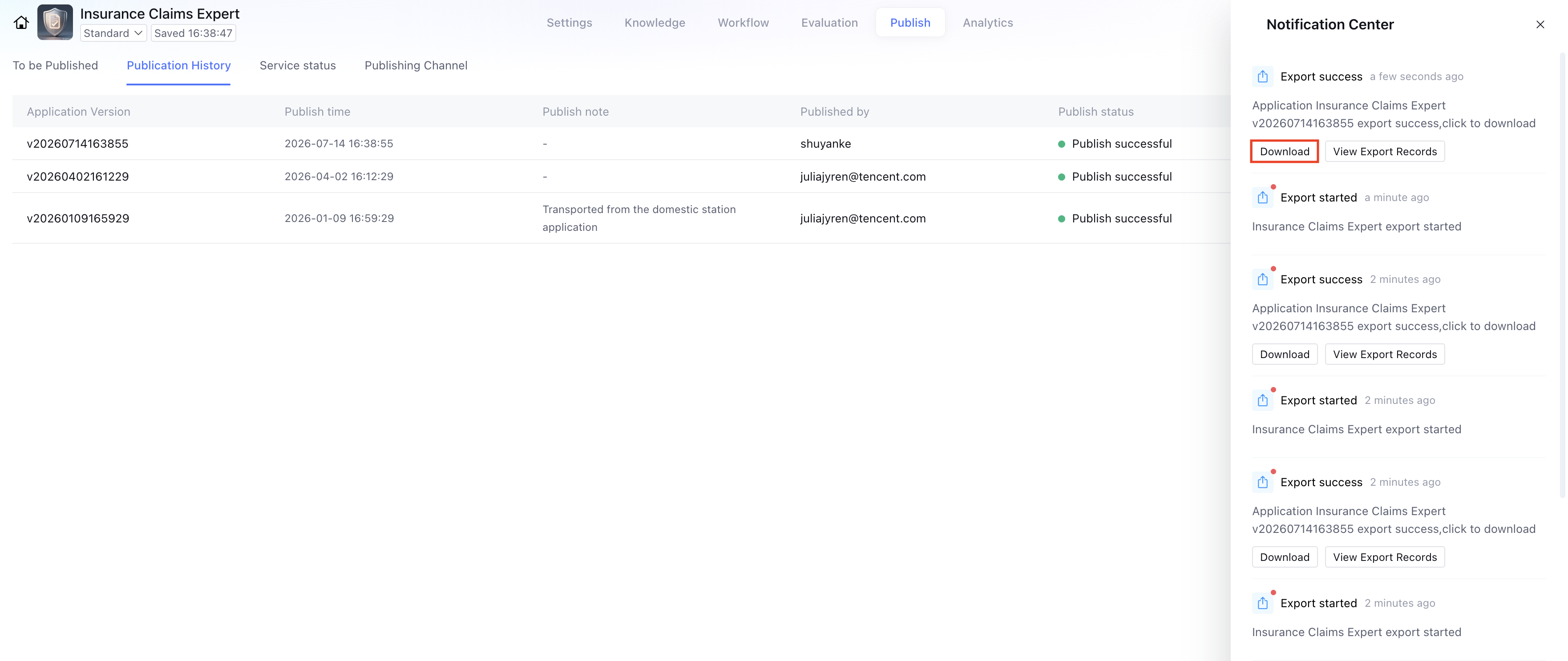
4. After Export is clicked, the system backend performs the export operation.
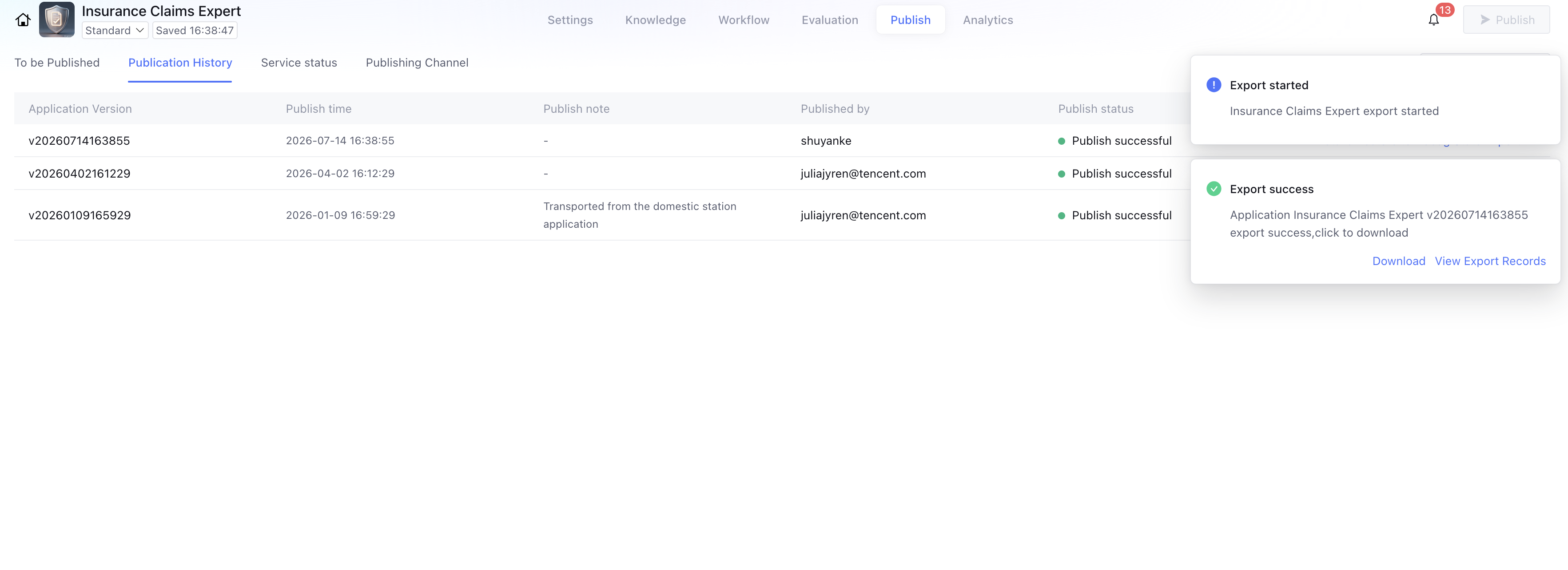
5. After the export succeeds, you can click Download to download the application package (in ZIP format) to your local machine.
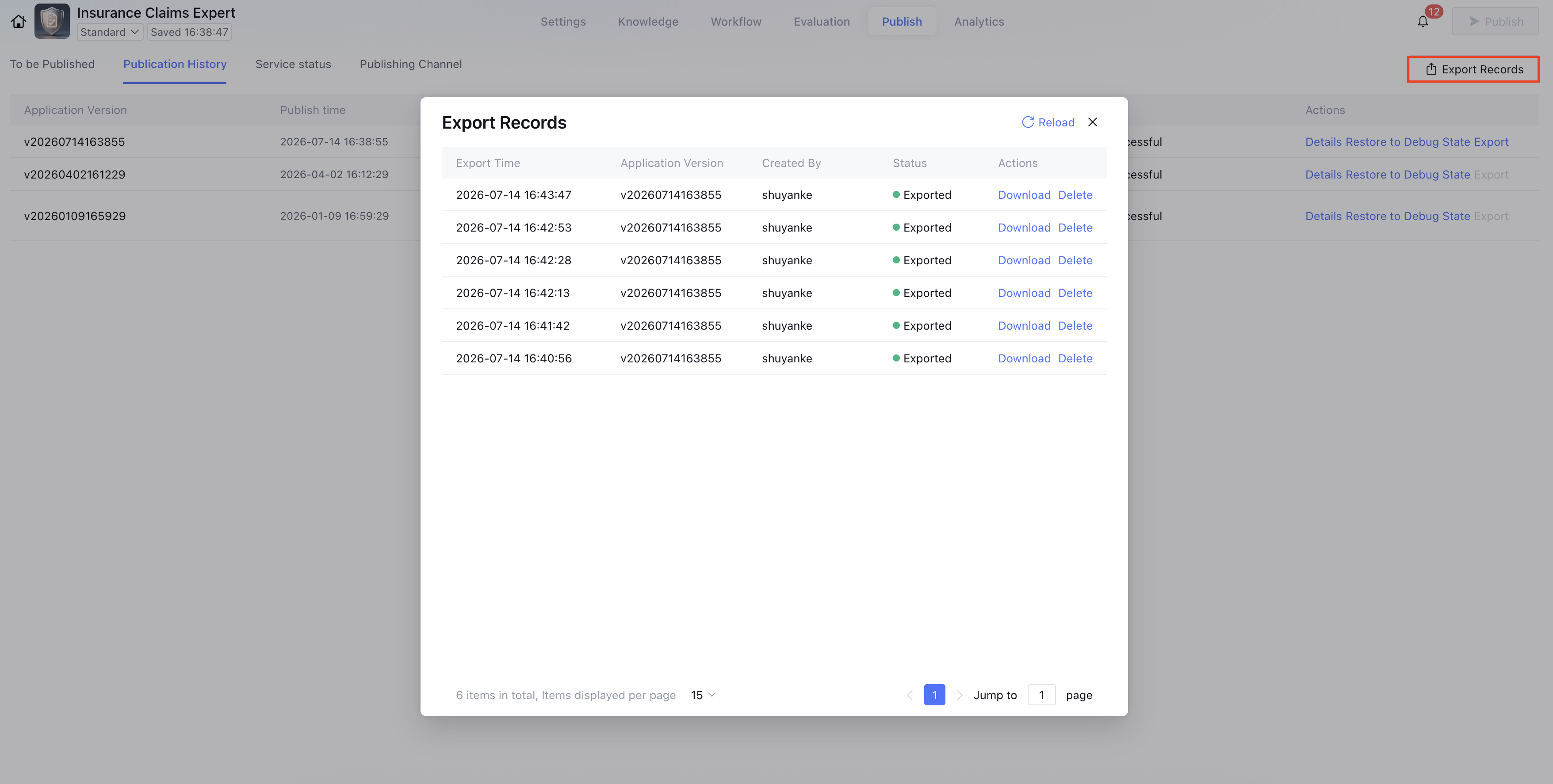
6. You can click Export Records to view information such as the export time, application template, and operator.
Note:
Content that will not be exported:
Application-side Permission Settings
Application Evaluation Section (including evaluation sets, evaluation settings, evaluation results, and so on)
Application Operations Section (including conversation records, data analysis)
Application Publishing Channels
Apply Content Security Settings
User Profiles Extracted from Long-term Memory
Content that needs to be reconfigured in the target environment:
Connected third-party databases must be reconfigured in the target environment.
Third-party models authorized via API keys must be reconfigured in the target environment.
Tool configurations authorized via the platform cam must be reconfigured in the target environment.
Files captured from web pages retain only their content upon export, losing the original webpage source and scheduled update capability. If updates are required after import, you must reconfigure the webpage address.
Permission Bits:
Application package export and import support independent permission bits.
Tencent Cloud root accounts have permissions by default. Permissions for sub-accounts must be assigned by the root account.
Application Package Import
You can import an application package (in ZIP format) in the application development UI. After the system successfully validates it, the application will be created in the current account, workspace, and environment.
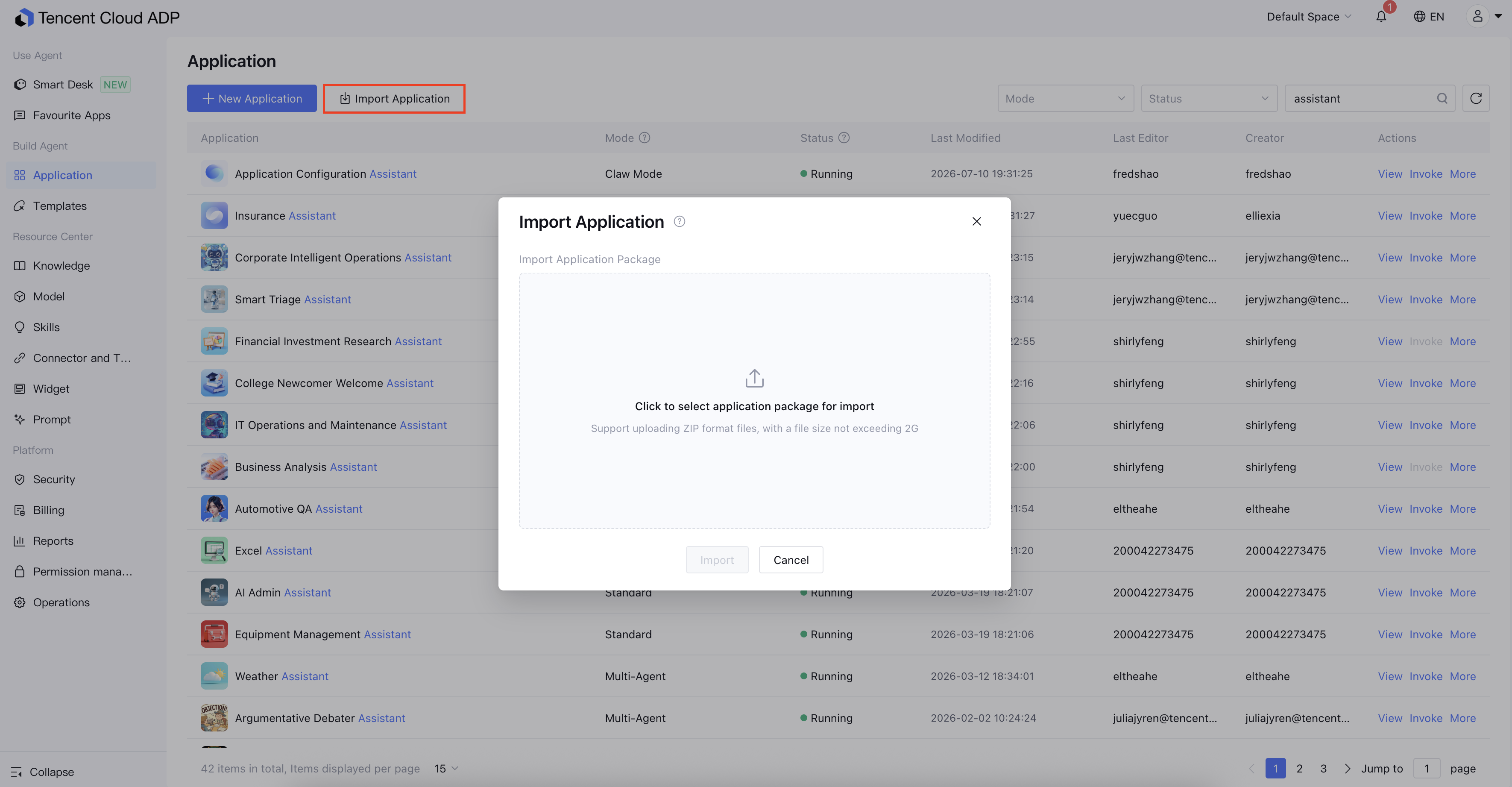
1. In the application development UI, click Import Application.
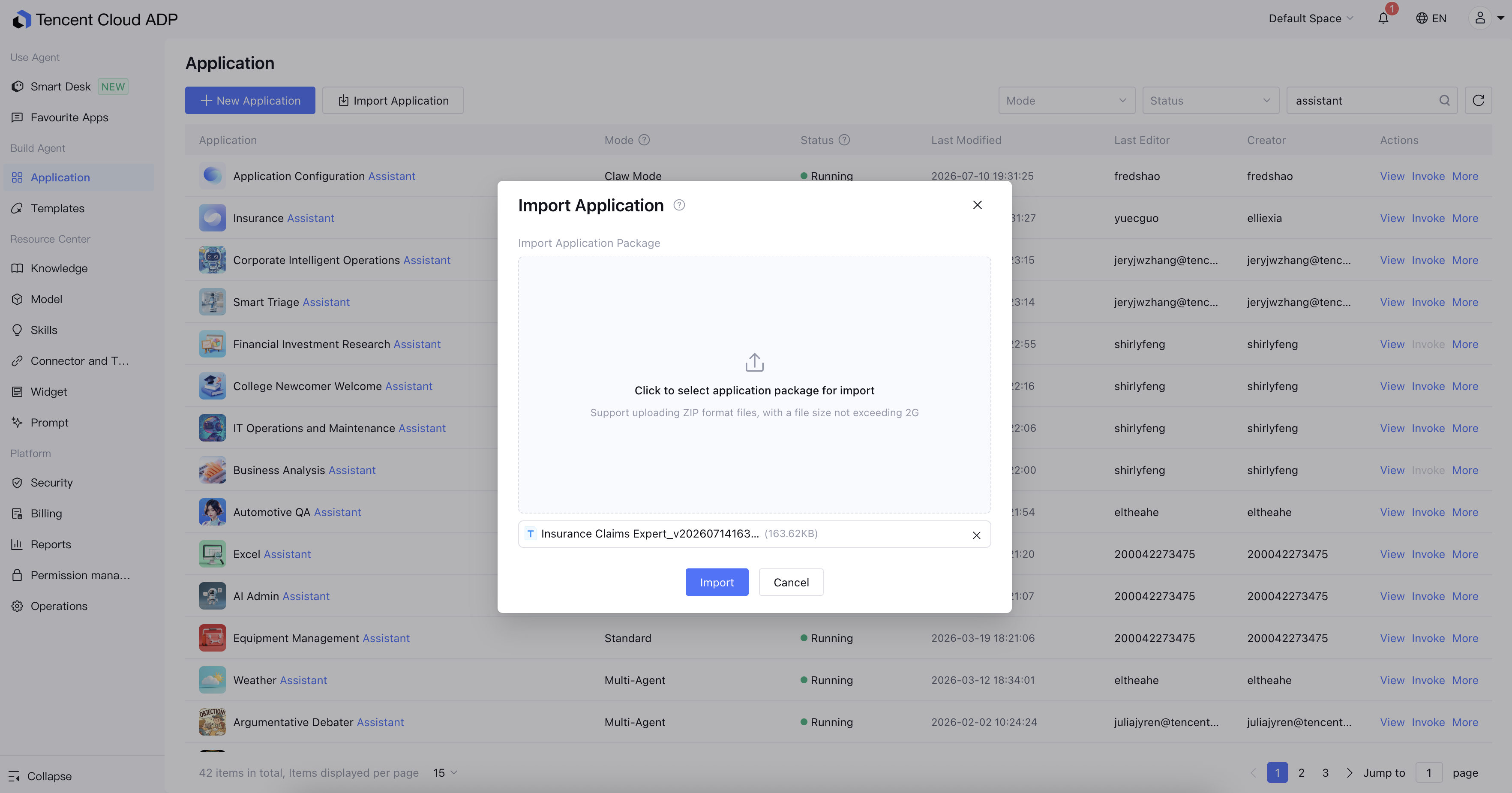
2. Select an application package file in ZIP format (size must not exceed 2 GB).
3. After you click Import, the system will validate and import the application. If an application with the same name already exists in the target environment, the system will automatically generate an application name ending with "_copy". You will receive a notification message upon successful import.
4. You can view and modify the application in the application list.
Attention:
Importing creates a new application; it does not overwrite existing applications.
After an application package is imported into the target environment "Development Domain", it remains in an unpublished state. You must click Publish again to update and activate it in the Release Domain.