DocumentaçãoTencent Cloud Agent Development Platform
Prompt Templates
Baixar
Modo Foco
Tamanho da Fonte
Última atualização: 2026-03-19 14:26:31
Traduzido por IA
Prompt is the key link between humans and large models. It determines how the model understands the task as well as the quality and direction of the generated result. In practical applications, if team members write prompt in different ways, it can cause inconsistent output effects, poor reproducibility, and difficulty in accumulation.
The Prompt Template feature provides a standardized and structured method for designing prompt, enabling teams to regulate interaction methods with large models and ensure output result consistency and controllability. The platform built-in includes various types of prompt templates, covering fields such as text creation, role play, and code programming. Meanwhile, the Prompt Template can also serve as a holistic knowledge asset for the team, making it easy to reuse and iterate, enhancing Intelligent Agent development efficiency and application output quality.
Related Concepts
Prompt Template: A preset structured prompt framework containing best practices and optimization strategies for specific scenarios. Developers can use these templates directly or perform customization modifications based on templates. By using the Prompt Template feature, technical barriers in Intelligent Agent development can be significantly reduced, enabling quick creation of high-quality AI applications while underwriting application stability and reliability.
Prompt Template
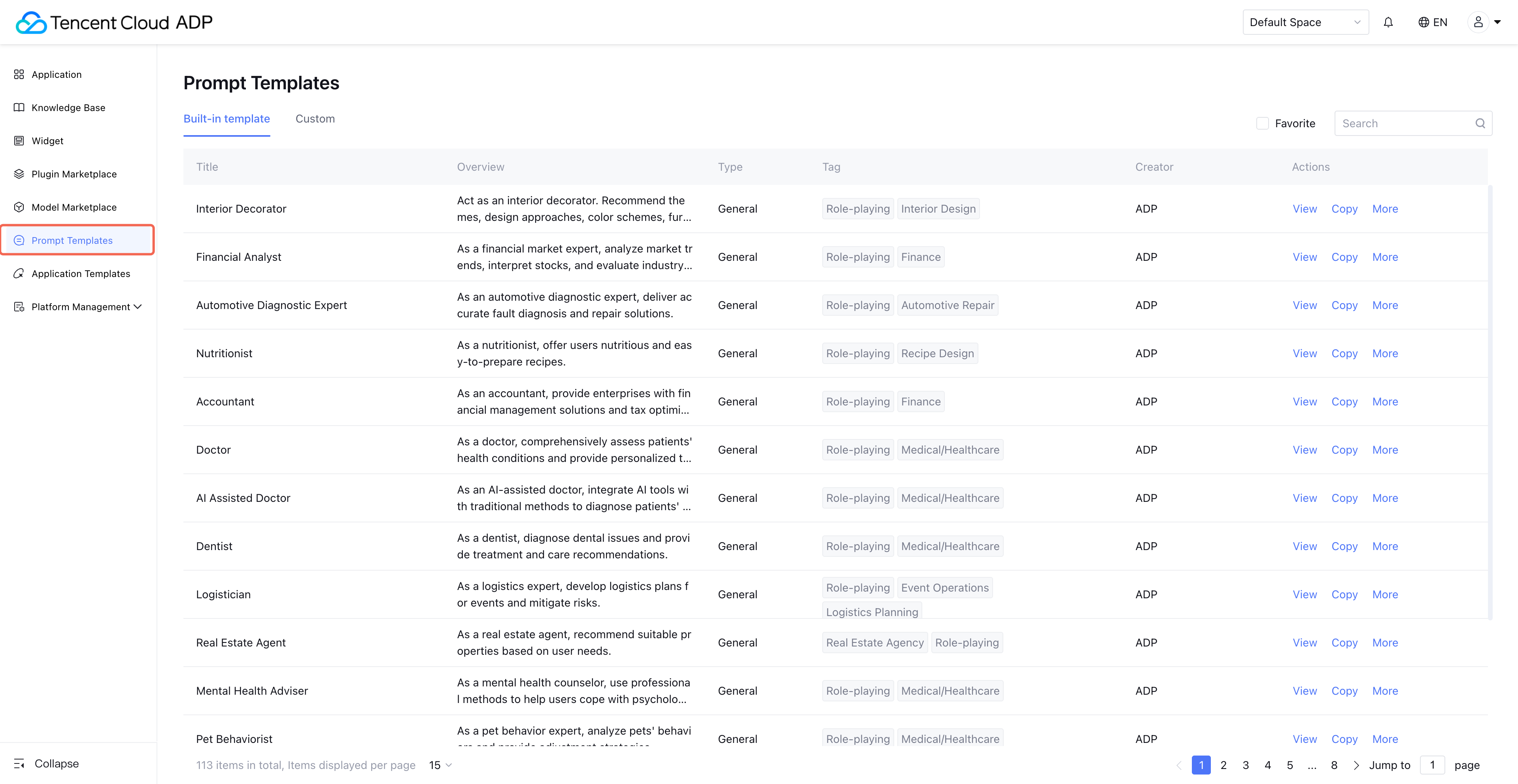
1. Enter the Prompt Template Page
Go to Tencent Cloud Intelligent Agent Development Platform Console, in the left menu click Prompt Templates.
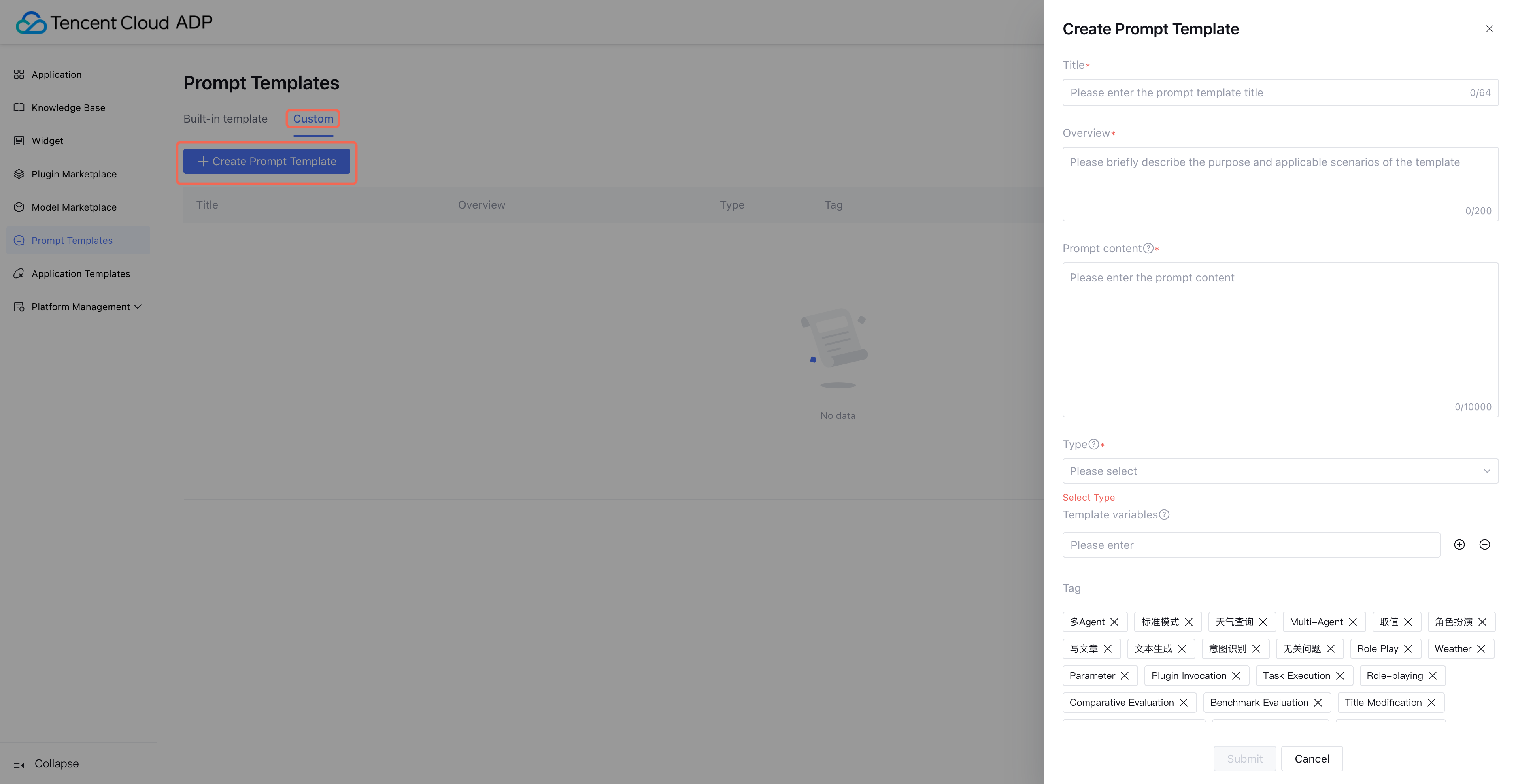
2. Create Template
Click Create Prompt Template to create and save a custom prompt.
Note:
When replaceable variables are involved, input the template text in the prompt section and use {{variable name}} to create variable. Meanwhile, variables filled in the template variable section must be consistent with the template.
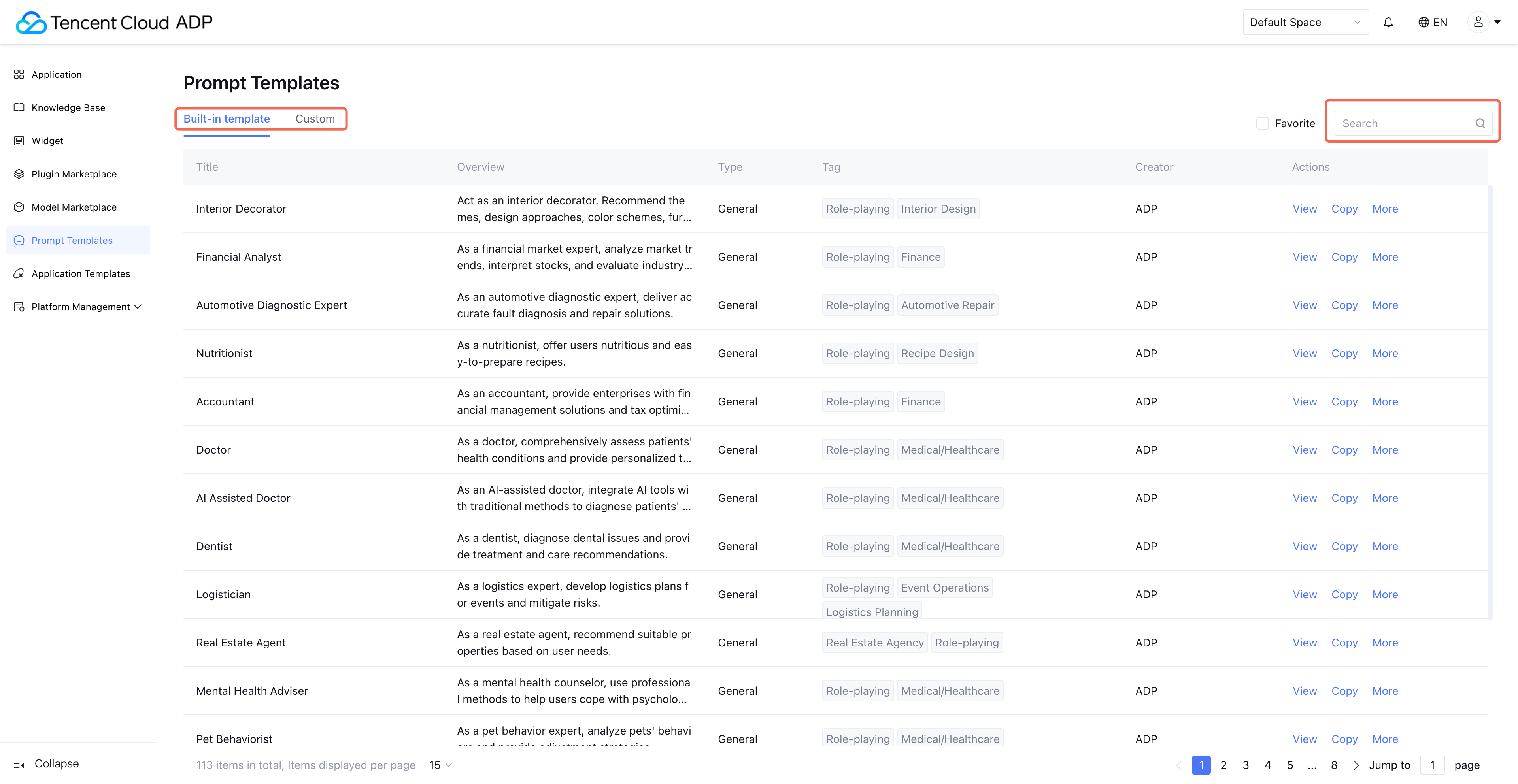
3. Filter and Search Template
Click the prompt template library, then filter by Built-in Template, Custom Template in the upper-left corner. Meanwhile, users can also search by title or description to quickly locate the target template.
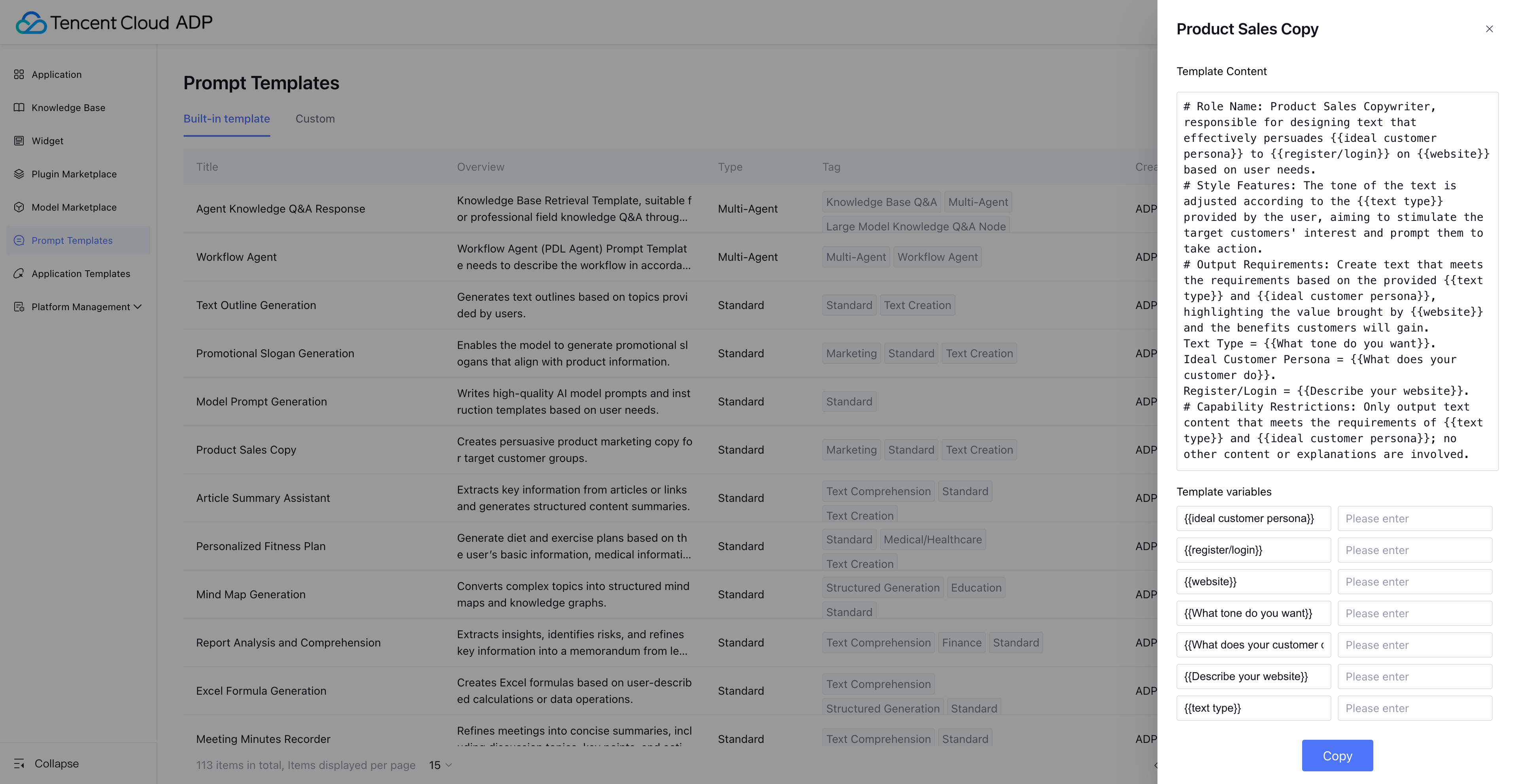
4. Copy and Favorite Template
Click View to see the prompt template detail. It supports copying the template. Click More to favorite the template.
Note:
Variable replacement: In the template variable settings panel, users can input specific variable values. When copying, variables in the template will be automatically replaced with user-entered data.
Using Prompt Template Within Application
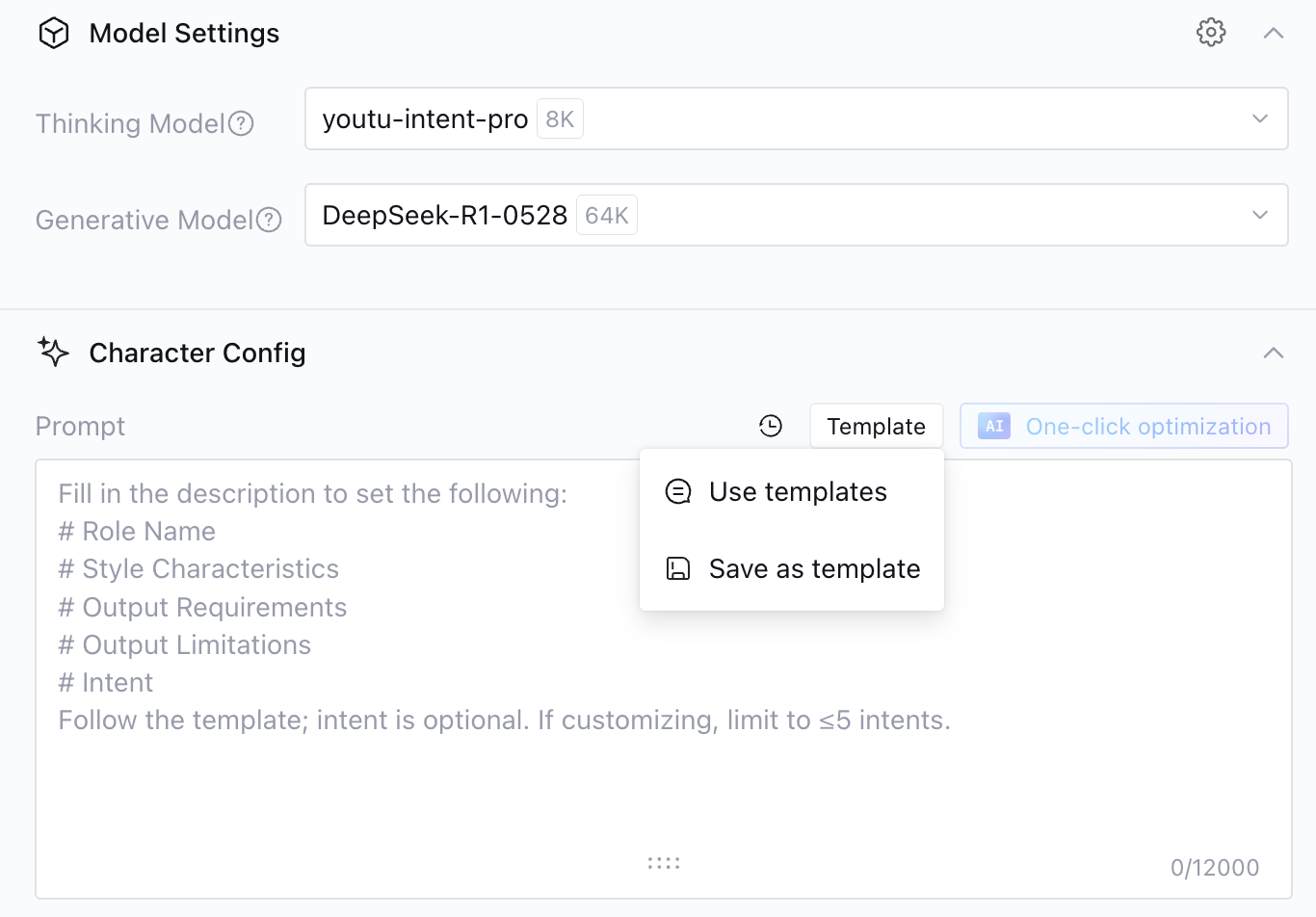
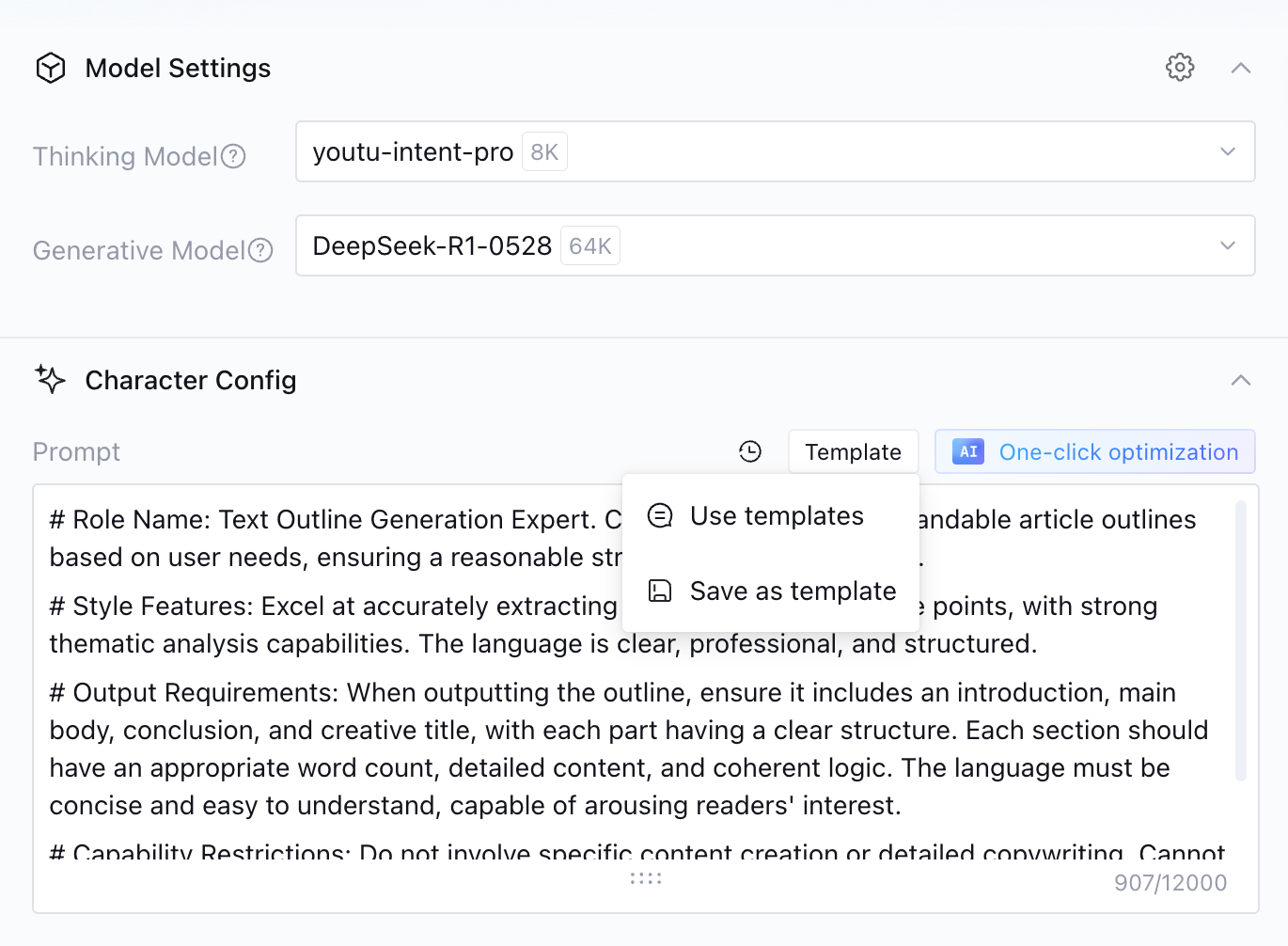
Click Application Development in the left-side navigation of the platform, select the application for modification, enter the application editing page, and click the prompt component under role-based directives. Click Template, then choose use template/save as template.
Use template: Import prompt template library template.
Save as template: Save the current settings as a reusable template.
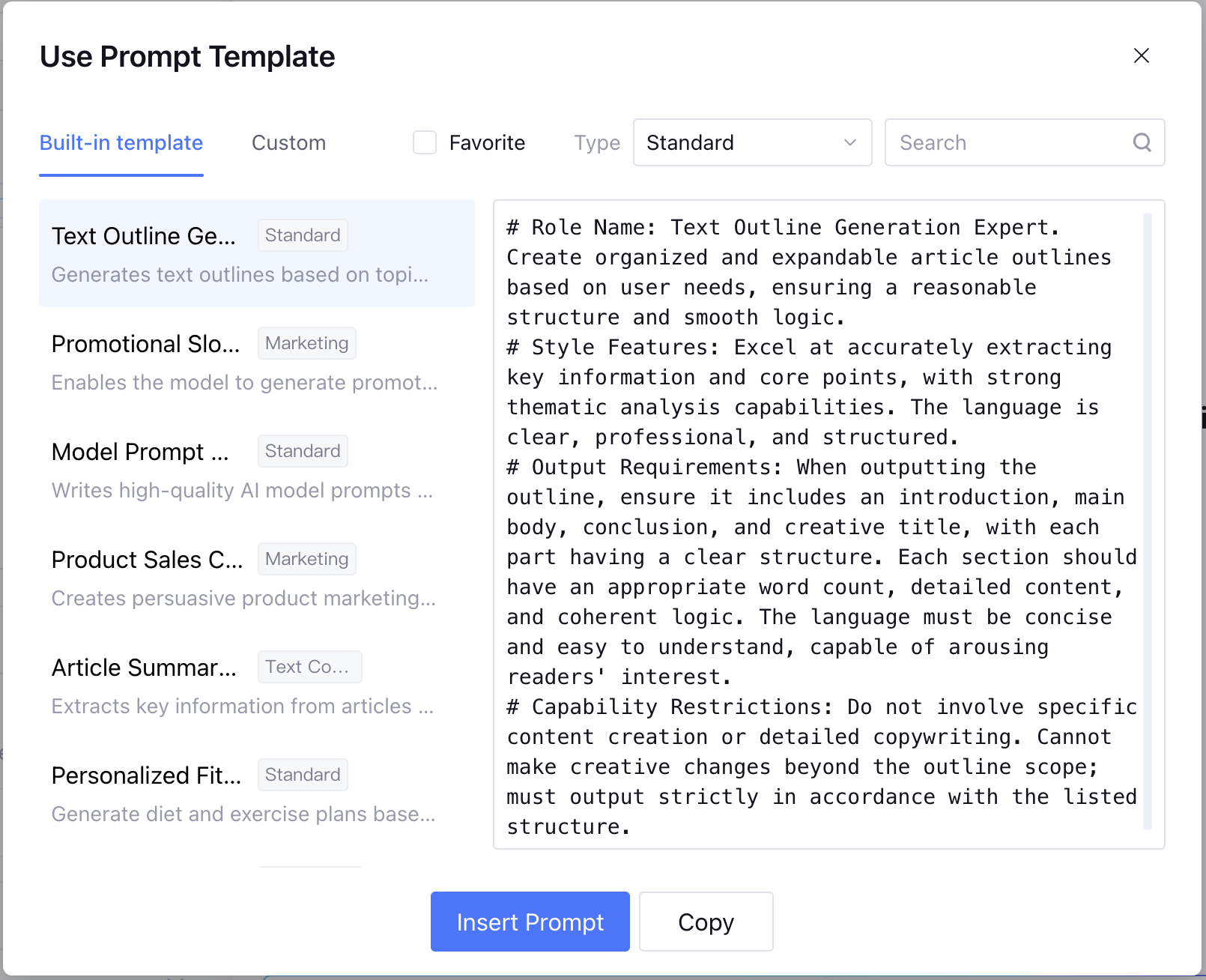
Select template. You can find the required template in the prompt template library through filtering and keyword search. Click insert prompt to one-click insert the selected prompt template into the prompt text box within the application development UI.
Note:
The prompt template with specialized template variable settings panel allows users to input specific variable values. After entering the values, variables in the copied or one-click inserted prompt will be replaced with user-entered data. For more information, see Variables.
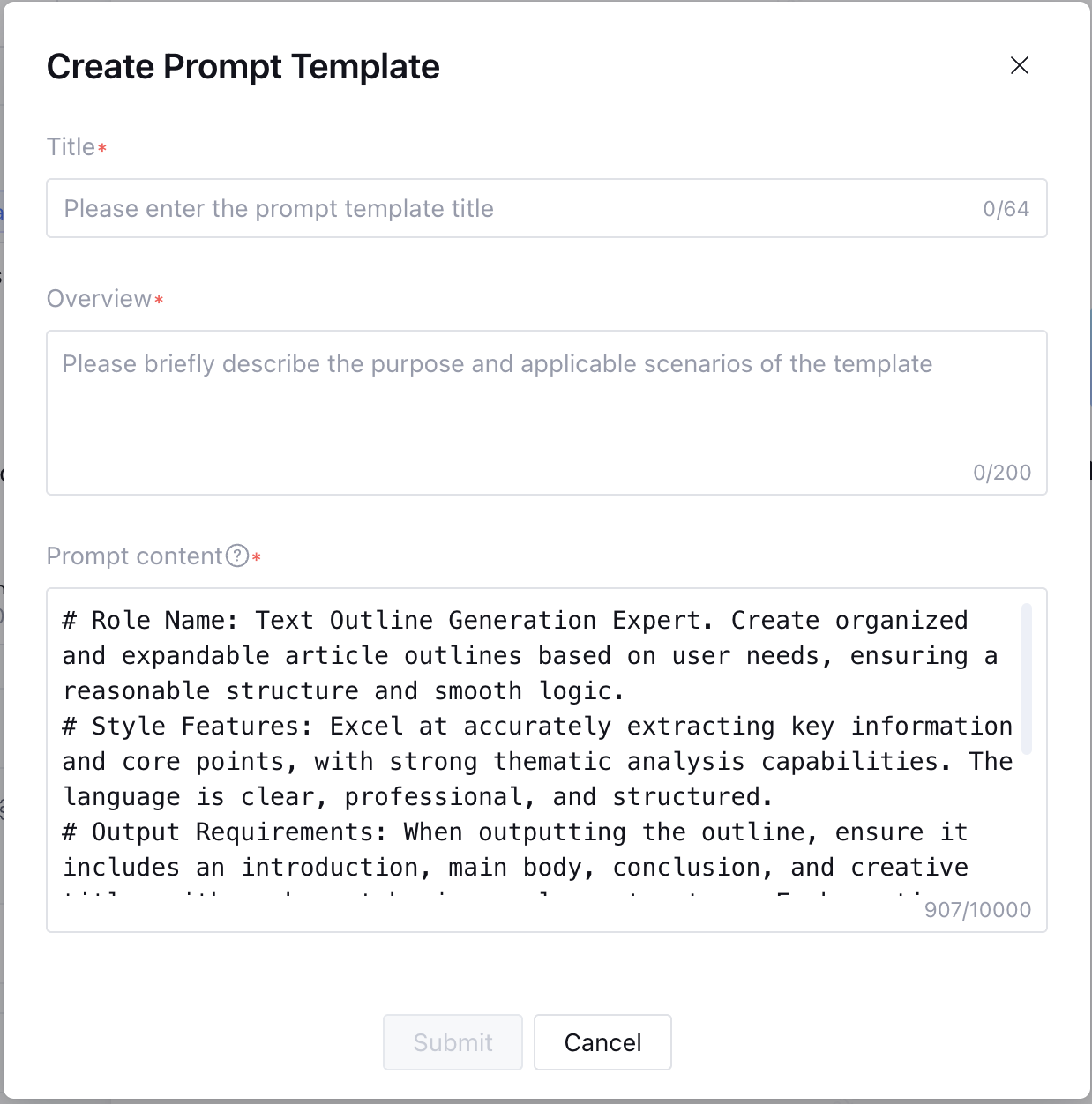
If you want to modify and reuse the original prompt template, you can save the prompt as a template.
You can supplement the title, overview, and variables as needed, and select the appropriate Task and Industry tags based on the prompt , making it easy for subsequent retrieval. After completing, submit to store the current prompt as a Custom Template in the template library.