DokumentasiTencent Cloud Agent Development Platform
Create Application
Unduh
Mode fokus
Ukuran font
Terakhir diperbarui: 2026-07-24 10:11:35
Diterjemahkan oleh AI
By creating an Agent application on the Agent Development Platform, you can leverage large model technology to achieve autonomous orchestration and decision-making, or efficiently execute processes and complete tasks according to fixed workflows.
Application Mode
The Agent Development Platform supports building four types of applications: Claw mode, standard mode, single-workflow mode, and Multi-Agent mode.
Mode Name
Description
Claw mode
Claw mode applications drive agents to autonomously think and solve complex problems through natural language. The applications have an independent workspace and can autonomously write and run code, and invoke various capabilities such as Skills / tools / connectors. They are suitable for complex task scenarios such as data analysis, content generation, and automated processing.
Standard Mode
Standard mode applications use the platform's preset standardized processing flow and the collaboration of dual models (thinking model and generation model) to achieve stable and precise knowledge Q&A results. They also support adding workflows to implement complex process business. They are suitable for serious Q&A scenarios such as enterprise knowledge services and product consultation.
Single-workflow mode
Single-workflow mode applications support selecting a specific workflow for execution, using the designated workflow to respond to all user conversations, ensuring the completeness and standardization of business processes. They are suitable for enterprise service scenarios with clear business objectives and unified operational procedures.
This mode application supports two invocation methods: synchronous call and asynchronous call.
Synchronous Call (Default)
In synchronous call, the workflow runs in real time and replies to the user, and the next request can be triggered only after the workflow execution is completed. For example, when calling the bank customer service workflow to implement credit card installment, the user needs to sequentially complete steps such as selecting installment parameters and confirming the fee, and wait for real-time approval results. Only after this complete process can the user initiate a new request.
Asynchronous Call
In async call, after the workflow starts running, the user will get an immediate response. The workflow executes asynchronously in the background, and the user does not need to wait to trigger the next request. This effectively avoids situations such as workflow timeout due to complexity, resource-constrained caller (such as mobile devices in weak network environments), or inability to maintain a persistent connection (such as stateless HTTP requests). For example, when asynchronously calling a workflow for video analysis, the user will immediately receive a response confirming the task creation and can then exit the application or analyze the next video without a long delay for the task to complete.
Note:
Async call only supports single-workflow applications that do not contain parameter extraction nodes, tab nodes, or reply nodes. It simply executes asynchronous tasks and does not engage in multi-turn interactions with users.
The concurrency of large model async calls is controlled by the permissions associated with the account. If multiple asynchronous invocation tasks are initiated simultaneously, they will need to queue and wait.
The results for asynchronously run tasks will be returned within 24 hours.
Multi-Agent mode
Multi-Agent mode applications autonomously plan execution paths and flexibly invoke tools using large models. Their core feature is to delegate more conversational initiative to the model, fully leveraging the model's proactivity. This mode is suitable for scenarios requiring flexible responses, multi-tool invocation, and multi-agent collaboration. For more information, see What Is Multi-Agent?
New Application
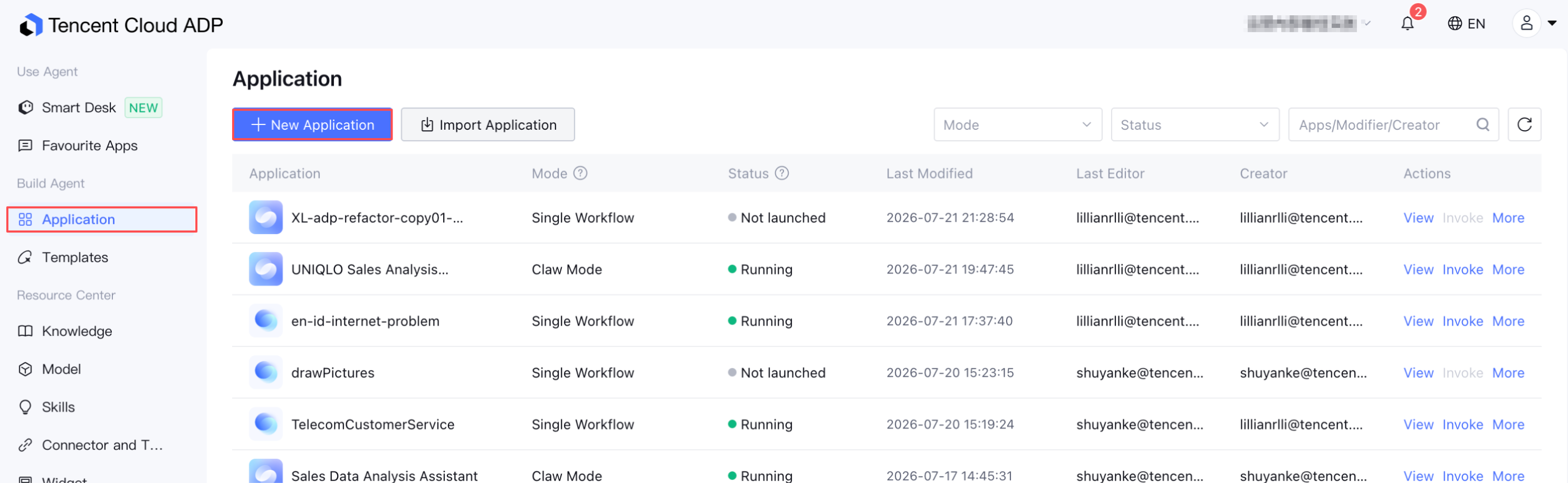
1. Go to the Console of Tencent Cloud Agent Development Platform, and click Application in the left menu.
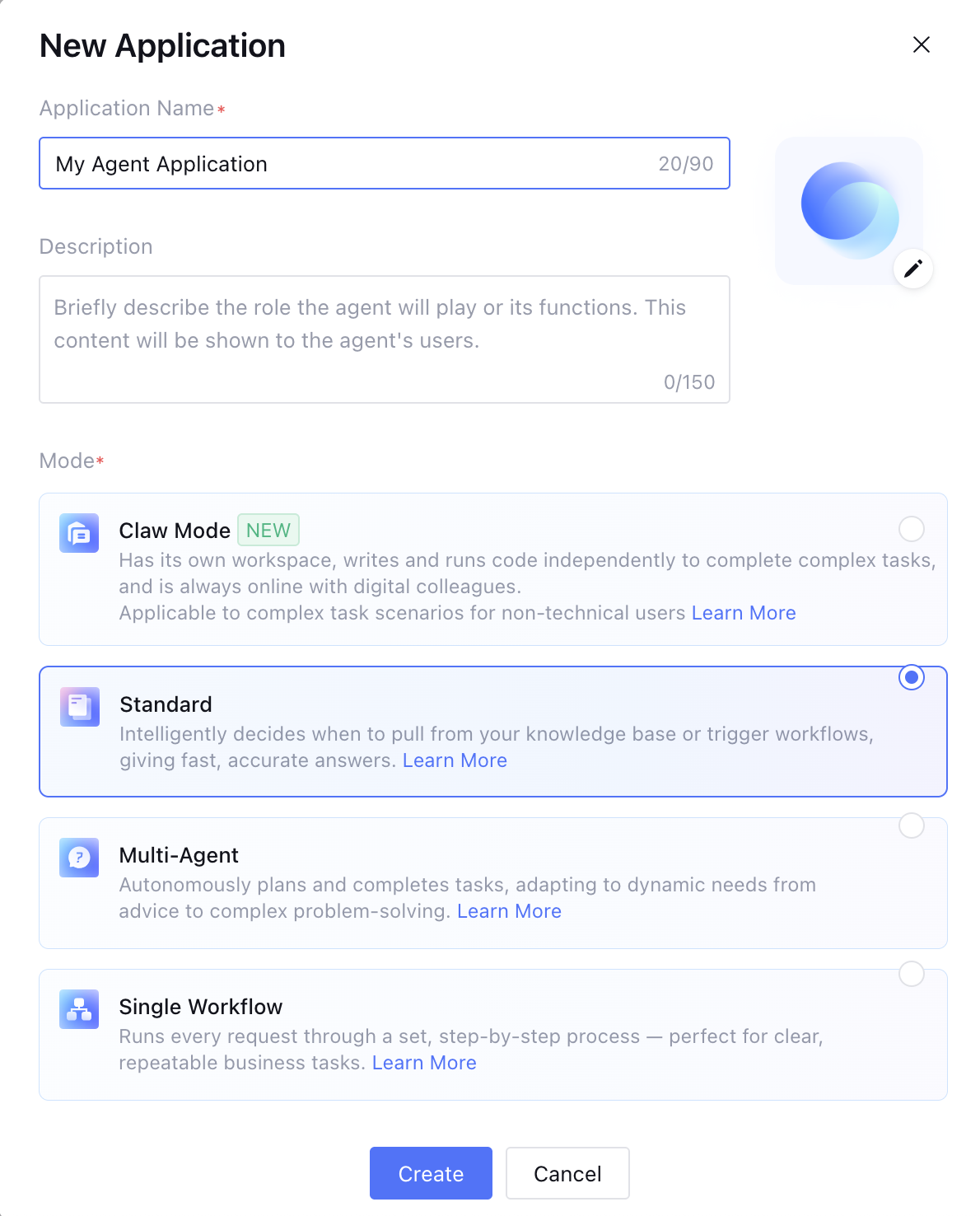
2. Click New Application to go to the New Application page. Fill in the Application Name and Application Description, select the Application Mode, and upload the Application Icon. Then, click Create.
Application Icon: Supports JPG and PNG formats. The image must be smaller than 500 KB.
Application Name: Supports a custom application name. The name can contain up to 30 characters, and duplicate names are not allowed.
Description: The description can contain up to 150 characters.
Mode: Select one from Claw mode, standard, Multi-Agent , and Single Workflow.
Note:
After a Claw mode application is created, switching to other modes is not supported. Switching between the other three modes is supported. Confirm the application mode when creating a new application.
3. After successfully creating an application, click View on the right side of the application to go to the Application Settings page. There, you can further configure, evaluate, publish, and operate the application.