tencent cloud

Tencent Kubernetes Engine

Release Notes and Announcements
Release Notes
Announcements
Release Notes
Product Introduction
Overview
Strengths
Architecture
Scenarios
Features
Concepts
Native Kubernetes Terms
Common High-Risk Operations
Regions and Availability Zones
Service Regions and Service Providers
Open Source Components
Purchase Guide
Purchase Instructions
Purchase a TKE General Cluster
Purchasing Native Nodes
Purchasing a Super Node
Getting Started
Beginner’s Guide
Quickly Creating a Standard Cluster
Examples
Container Application Deployment Check List
Cluster Configuration
General Cluster Overview
Cluster Management
Network Management
Storage Management
Node Management
GPU Resource Management
Remote Terminals
Application Configuration
Workload Management
Service and Configuration Management
Component and Application Management
Auto Scaling
Container Login Methods
Observability Configuration
Ops Observability
Cost Insights and Optimization
Scheduler Configuration
Scheduling Component Overview
Resource Utilization Optimization Scheduling
Business Priority Assurance Scheduling
QoS Awareness Scheduling
Security and Stability
TKE Security Group Settings
Identity Authentication and Authorization
Application Security
Multi-cluster Management
Planned Upgrade
Backup Center
Cloud Native Service Guide
Cloud Service for etcd
TMP
TKE Serverless Cluster Guide
TKE Registered Cluster Guide
Use Cases
Cluster
Serverless Cluster
Scheduling
Security
Service Deployment
Network
Release
Logs
Monitoring
OPS
Terraform
DevOps
Auto Scaling
Containerization
Microservice
Cost Management
Hybrid Cloud
AI
Troubleshooting
Disk Full
High Workload
Memory Fragmentation
Cluster DNS Troubleshooting
Cluster kube-proxy Troubleshooting
Cluster API Server Inaccessibility Troubleshooting
Service and Ingress Inaccessibility Troubleshooting
Common Service & Ingress Errors and Solutions
Engel Ingres appears in Connechtin Reverside
CLB Ingress Creation Error
Troubleshooting for Pod Network Inaccessibility
Pod Status Exception and Handling
Authorizing Tencent Cloud OPS Team for Troubleshooting
CLB Loopback
API Documentation
History
Introduction
API Category
Making API Requests
Elastic Cluster APIs
Resource Reserved Coupon APIs
Cluster APIs
Third-party Node APIs
Relevant APIs for Addon
Network APIs
Node APIs
Node Pool APIs
TKE Edge Cluster APIs
Cloud Native Monitoring APIs
Scaling group APIs
Super Node APIs
Other APIs
Data Types
Error Codes
TKE API 2022-05-01
FAQs
TKE General Cluster
TKE Serverless Cluster
About OPS
Hidden Danger Handling
About Services
Image Repositories
About Remote Terminals
Event FAQs
Resource Management
Service Agreement
TKE Service Level Agreement
TKE Serverless Service Level Agreement
Contact Us
Glossary

Interconnection Between Cluster in GlobalRouter Mode and IDC

PDF
Modo Foco
Tamanho da Fonte
Última atualização: 2025-09-28 21:27:22

Overview

Currently, a container cluster can communicate with your IDC mainly through two methods: Direct Connect and IPsec VPN.
Note:
The directions in this document are based on an existing cluster with nodes. For how to create a cluster, see Quickly Creating a Standard Cluster.
Make sure that the VPC where TKE resides is successfully connected to your IDC through Direct Connect or VPN Connections. If no tunnel is established, you can establish one as instructed in Features.

Directions

Communication over Direct Connect

1. Apply for a connection as instructed in Applying for Connection.
2. Apply for a tunnel as instructed in Creating a Dedicated Tunnel.
3. Create a Direct Connect gateway as instructed in Creating Direct Connect Gateway.
4. Verify that the container node can communicate with the IDC.
Note:
When performing this step, please make sure that the container node can communicate with the IDC and the verification is successful.
5. Prepare information such as the region, appID, cluster ID, vpcID, and Direct Connect gateway ID and submit a ticket to open up the container network.
6. Select the mode of operation based on the type of protocol used by the IDC.
If the IDC uses the BGP protocol, the container IP address range route will be automatically synchronized.
If other protocols are used, you need to configure the next hop of the container IP address range in the IDC to be routed to the Direct Connect gateway.
7. Verify that the container can communicate with the IDC.
Communication over VPN

Configuring an SPD Policy

1. Log in to the VPC console.
2. On the left sidebar, click VPN Connections > VPN Tunnel to enter the VPN tunnel management page.
3. 
On the VPN
tunnel details page, click Edit in the SPD Policy column to add the container IP address range.
4. Click Save.
5. Repeat step 3 to step 5 to configure the SPD policy for the opposite VPN tunnel.

Adding a Container IP Address Range

Note:
One subnet can be bound to only one routing table. If multiple routing tables are associated, they will be replaced with the last bound one.
1. On the left sidebar, click Route Table to enter the route table management page.
2. 
Find
the route table configured when you set intra-region cross-cluster interconnection or set cross-region cross-cluster interconnection. Click the ID/name of the route table to enter the route table details page.
3. Click + New routing policies to add the container IP range.
4. Select the Associated Subnets tab and click Create Associated Subnet to associate with the subnet where the CVM instance is.
5. Repeat step 2 to step 4 to add the IP address range where the Tencent Cloud container is located to the opposite routing device.

Expected Result

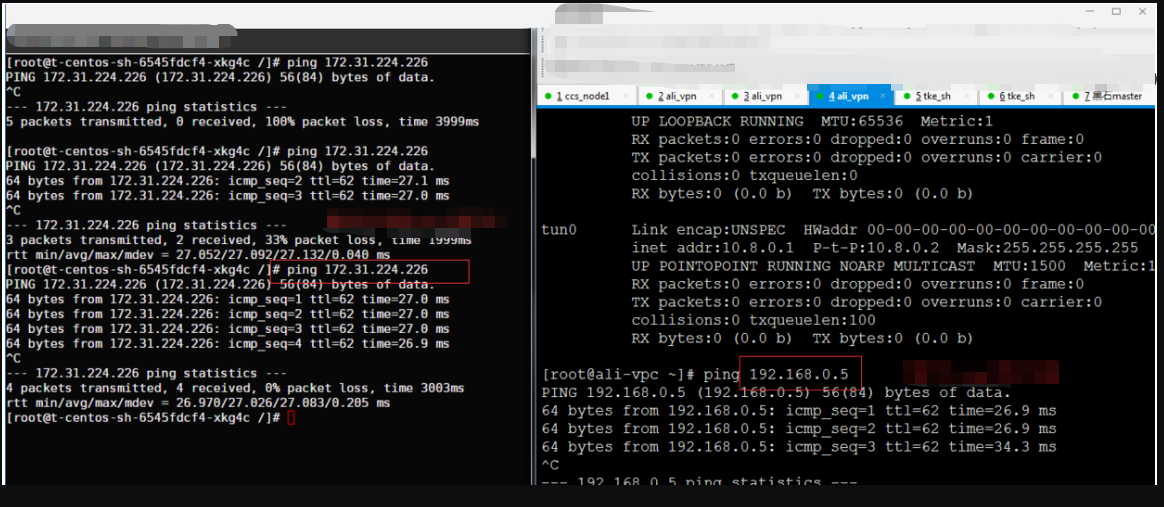
Containers can communicate with the peer CVM instance as shown below:

Containers can communicate with VPN opposite servers.
Note:
If you want your cloud containers to communicate with your IDC over an IPsec VPN, you need to set the SPD policy and routing table.

Ajuda e Suporte

Esta página foi útil?

comentários