Key Nodes
Baixar
Modo Foco
Tamanho da Fonte
Feature Introduction
Keypress Node is used to collect numeric keypresses from the caller's telephone keypad, which is what traditional IVR systems refer to as "press 1 for..., press 2 for...". It is suitable for menu-based branching, numeric data entry (such as account numbers, dynamic Captcha OTPs, and PIN codes), or as a more reliable alternative to ASR in noisy network conditions.
Guide
Go to the created workflow canvas. Then, choose Start Call> +> Keypress Node on the canvas in order. Select one of the two types based on your business needs: Keypress Navigation or Digit Collection. Finally, fill in the following configuration items in the corresponding pop-up window.
Keyboard Navigation
Menu-style single-key selection is used. When a user presses a specific numeric key, the corresponding branch is triggered. This is designed for routing scenarios such as "press 1 for X, press 2 for Y", where each key corresponds to an independent branch.
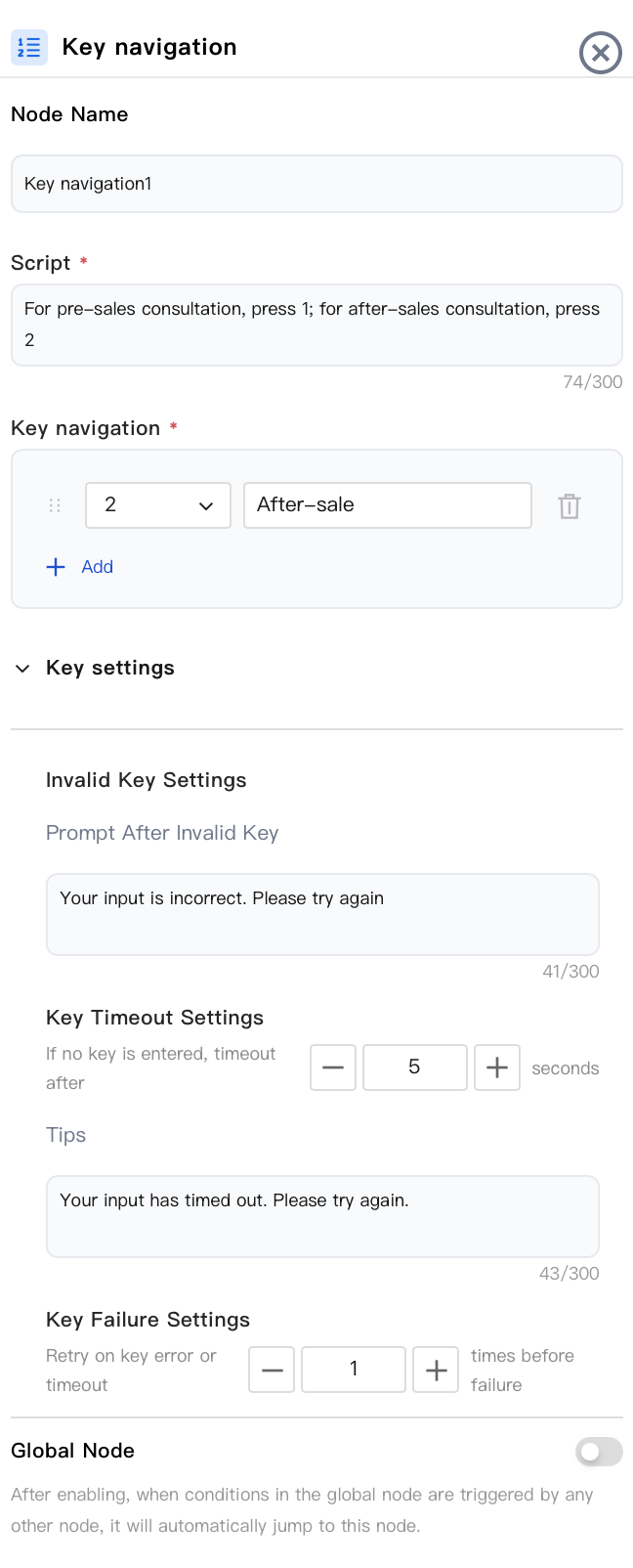
Node Name: For example, "Main Menu".
Script: This is the script played by the AI Agent before listening for keypresses (for example, "Press 1 for pre-sales consultation, press 2 for after-sales consultation."). It supports the same Response Generation Mode options as the Dialogue Node.
Keypress Navigation: Configure the branch and meaning corresponding to each key. For example,
1 = pre-sales consultation, 2 = after-sales consultation. After the user presses the corresponding key, the flow is directed to the corresponding branch.Keypress Settings
Incorrect Keypress Settings: The prompt message after an incorrect keypress can be configured.
Keypress Timeout Settings: This setting configures the duration to wait for the first keypress. If no input is received after this time, the prompt message is replayed or the flow enters the "No Input" branch.
Keypress Failure Settings: This setting allows you to configure the number of retries after an incorrect keypress or timeout before the system determines a keypress failure.
Global Node: After it is enabled, the system automatically jumps to this node when any other node triggers a condition defined within the Global Node.
Number Collection
Collect a multi-digit string. The user continuously enters a string of digits (for example, an ID number, account number, or verification code). The collected result is then stored in a variable for use in subsequent dialogue flows, API calls, or conditional logic.
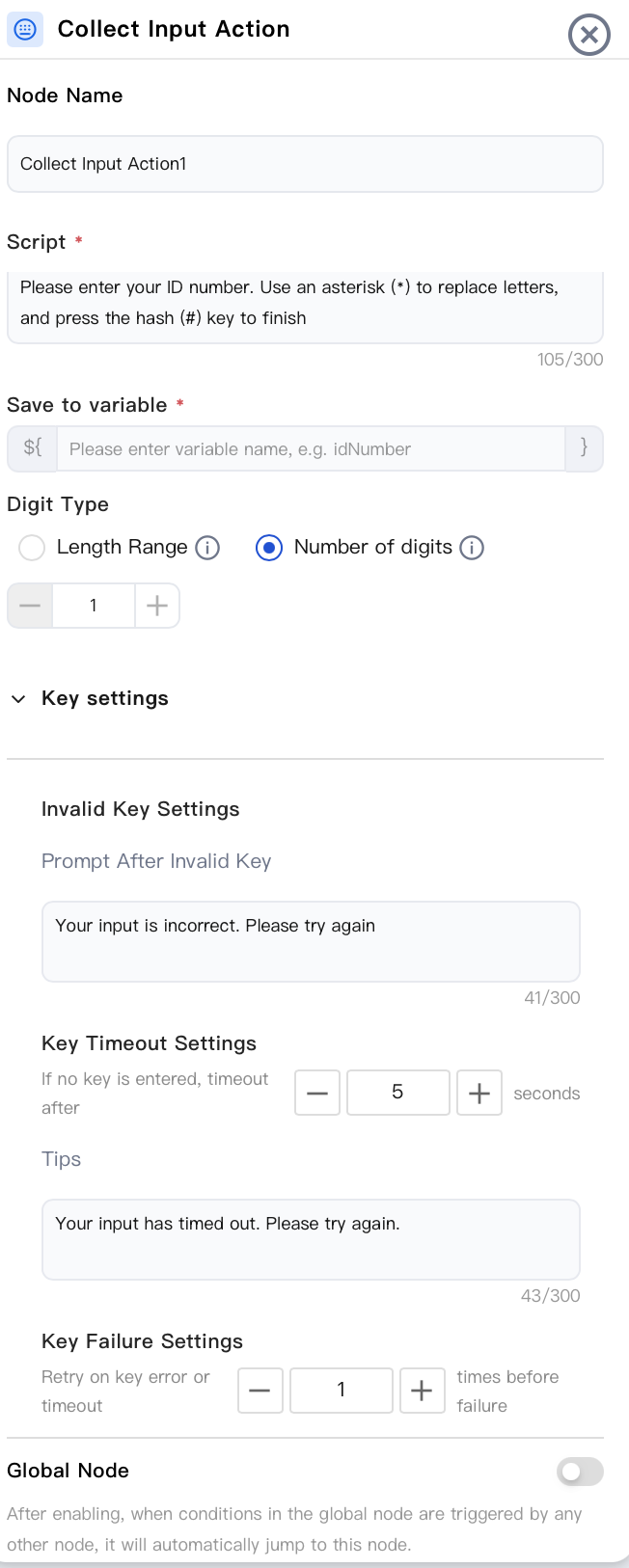
Node Name: For example, "Enter ID Number" or "Enter Verification Code".
Script: This is the guidance message played before collection (for example, "Please enter your ID number. Use the asterisk key for letters and the pound key to finish."). It supports the same Response Generation Mode options as the Dialogue Node.
Store to Variable: (Required) The complete number entered by the user is stored in a specified variable. Downstream nodes can reference it via
${variable_name}. For example, after it is stored in idNumber, you can reference ${idNumber} in subsequent dialogue flows, API calls, or conditional logic.Digit Type: Set the length of the number to be collected:
Length Range: Set the minimum and maximum length. This setting is suitable for scenarios where the length may vary, such as for account numbers or ID numbers.
Fixed Length: This setting configures a fixed number of digits. It is suitable for scenarios where the length is predetermined, such as for verification codes or PINs. The collection process automatically ends once the specified length is reached.
Keypress Settings
Incorrect Keypress Settings: The prompt message after an incorrect keypress can be configured.
Keypress Timeout Settings: This setting configures the duration to wait for a keypress. If no input is received after this time, the prompt message is replayed or the flow enters the "No Input" branch.
Keypress Failure Settings: This setting allows you to configure the number of retries after an incorrect keypress or timeout before the system determines a number collection failure. The flow then enters the "Number Collection Failure" branch.
Global Node: After it is enabled, the system automatically jumps to this node when any other node triggers a condition defined within the Global Node.
Tip:
For long numeric inputs that users may need to correct, specify the end key in the prompt message, for example: "Press the pound key after you finish entering."
Node Overview
Node | Purpose |
Core interaction unit plays prompts, listens to user replies, classifies replies, and branches. | |
Exchanges data with external systems during a call (for example, queries orders, writes back results). | |
Explicitly writes or updates variables within a flow (sets default values, derives values, normalizes slots). | |
Branches based on variable values using comparison operators a generalized if/else if/else logic. | |
Branches based on date, time, and time zone (for example, business hours or non-business hours). | |
Collects numeric keypad inputs (0–9, *, #) suitable for menu-based IVR branching, Captcha/PIN entry, or numeric data collection. | |
Transfers the call to an Agent skill group. | |
Transfers the call to another AI Agent (dialog flow or proprietary model), retaining conversation history and variables. | |
Terminates the call with an optional closing message. |
Related Guides
Select the corresponding path based on your deployment method:
First time user? Deploy a functional AI Agent in just five minutes create a conversation flow or integrate an external model.
Want to learn about our conversation flow nodes? Go to Conversation Nodes.
Want to build a knowledge base for your dialogue flow? Go to Build Your Knowledge Base.
How to test your model? Refer to Test Dialogue Workflow.
Configure a voice AI Agent with your own model? Go to Integrate External Model, Edit Conversation Content, Configure Voice Interaction, and Add Call Control.
Want to view application scenarios? Try Voice Notification, Lead Mining, Feedback Collection, or Customer Support.
How to make outbound and inbound calls with an AI Agent? Refer to AI Agent Outbound Calls or AI Agent Inbound Calls.
View data logs? Refer to Call Records, Call Recordings, Latency.
How to create and view post-call tags? Refer to Post-call Tags (Created via Conversation Flow) or Post-call Tags (Created via External LLM).
Ajuda e Suporte
Esta página foi útil?
Você também pode entrar em contato com a Equipe de vendas ou Enviar um tíquete em caso de ajuda.
comentários