A knowledge base is the primary tool for managing reference information for your AI voice Agent. When a user's question matches one stored in the knowledge base, the AI Agent looks up the answer within it and replies using the matched answer in a natural voice.
A knowledge base is built from manually curated Q&A pairs. Each Q&A pair consists of a question (trigger condition) and a preset answer (what the AI Agent says when the trigger condition is met). You can add Q&A pairs one by one for quick editing, or batch add them via Excel when you need to import a large amount of content at once. Q&A pairs are well-suited for questions that are short, frequent, and require precise answers, such as refund policies, business hours, or return procedures.
Reply Logic
How an AI Agent broadcasts Q&A answers (and what it says when there is no match) is controlled by a single AI Agent-level switch located in AI Agent > Start Call > Persona and Reply Logic > Reply setting. The same Q&A pair will sound different in different modes:
Enable Large Model (Default):Matched answers are rewritten by the large model into natural, conversational expressions, and any unmatched questions still receive a large model-generated reply that fits the conversation. This option is best suited for general customer service that values tone and flexibility.
Fixed Script: Matched answers are broadcast verbatim according to the original text, while unmatched questions fall back to the single fixed script you configured. No large model rewriting occurs at any stage of the entire call. This option is best suited for industries with high compliance requirements (finance, law, healthcare), where every word must be pre-approved.
The complete behavioral description is provided in the following section, Bind Knowledge Base. Once you set this switch in that step, it will be applied to every knowledge base bound to this AI Agent.
Guide
Adding a Q&A Pair
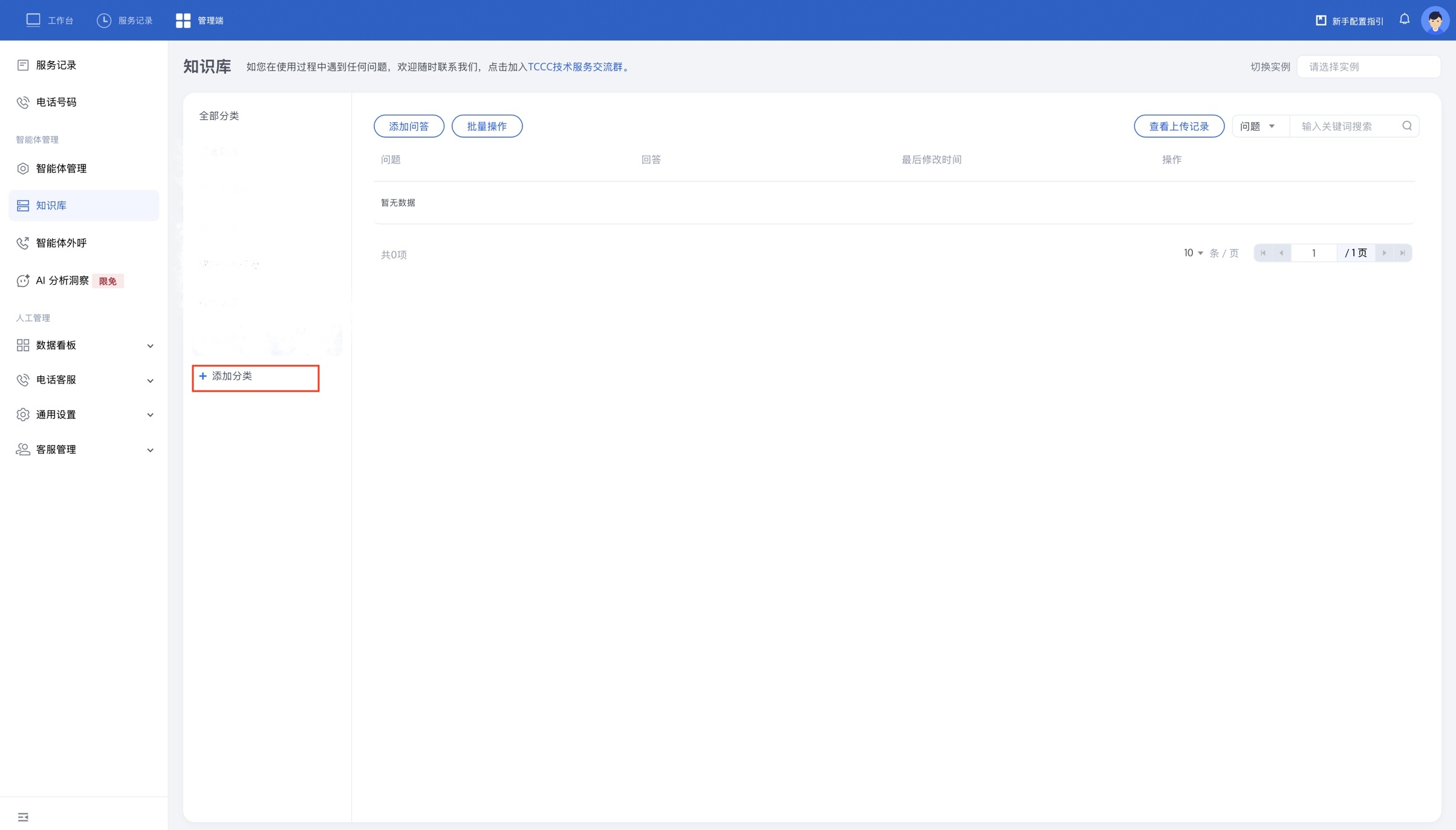
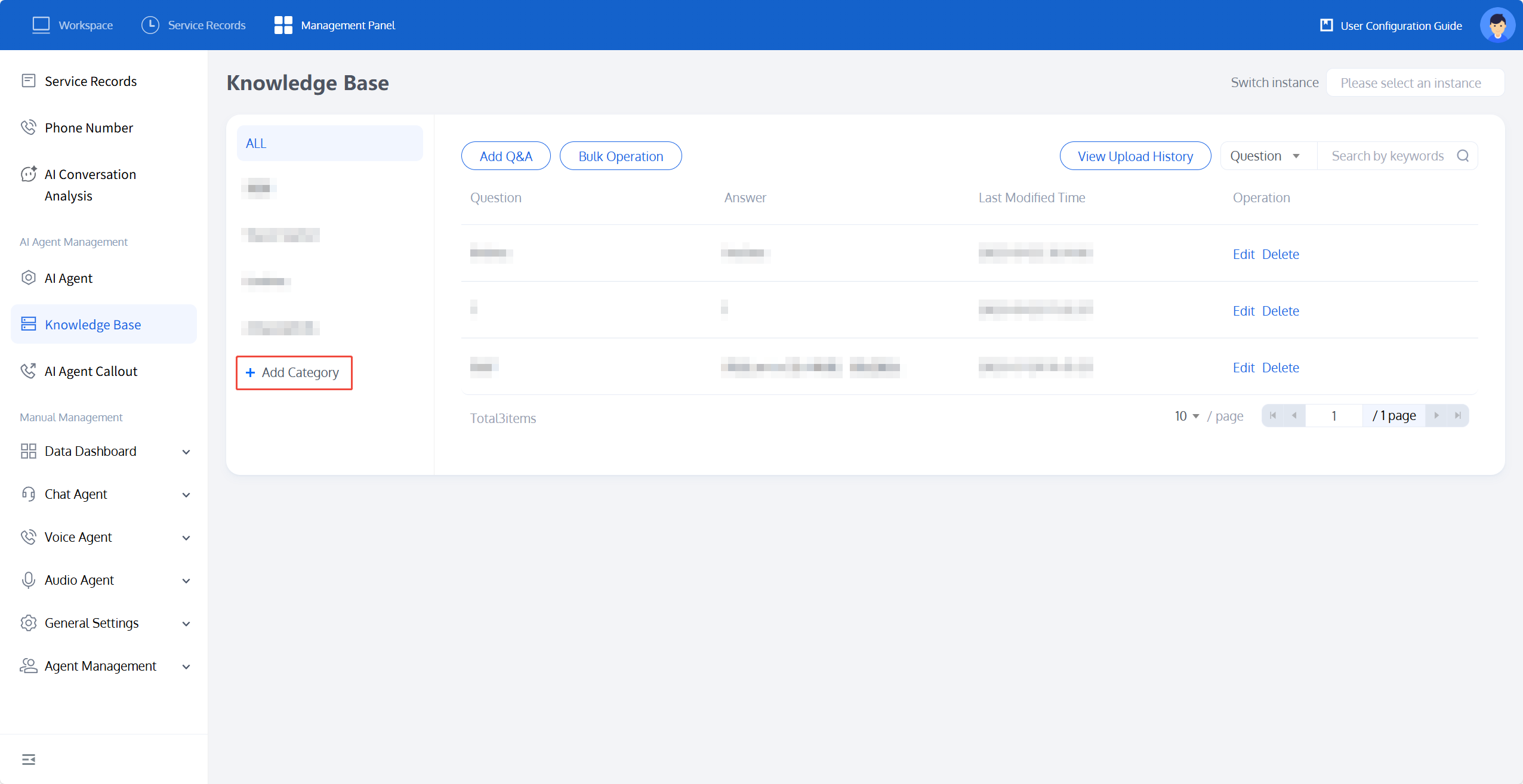
1. Log in to the Tencent Cloud Contact Center (TCCC) console. In the left sidebar, choose Knowledge Base > All > + Add Category. In the pop-up window, enter the category name (for example, "Pre-sales Questions") and click Save.
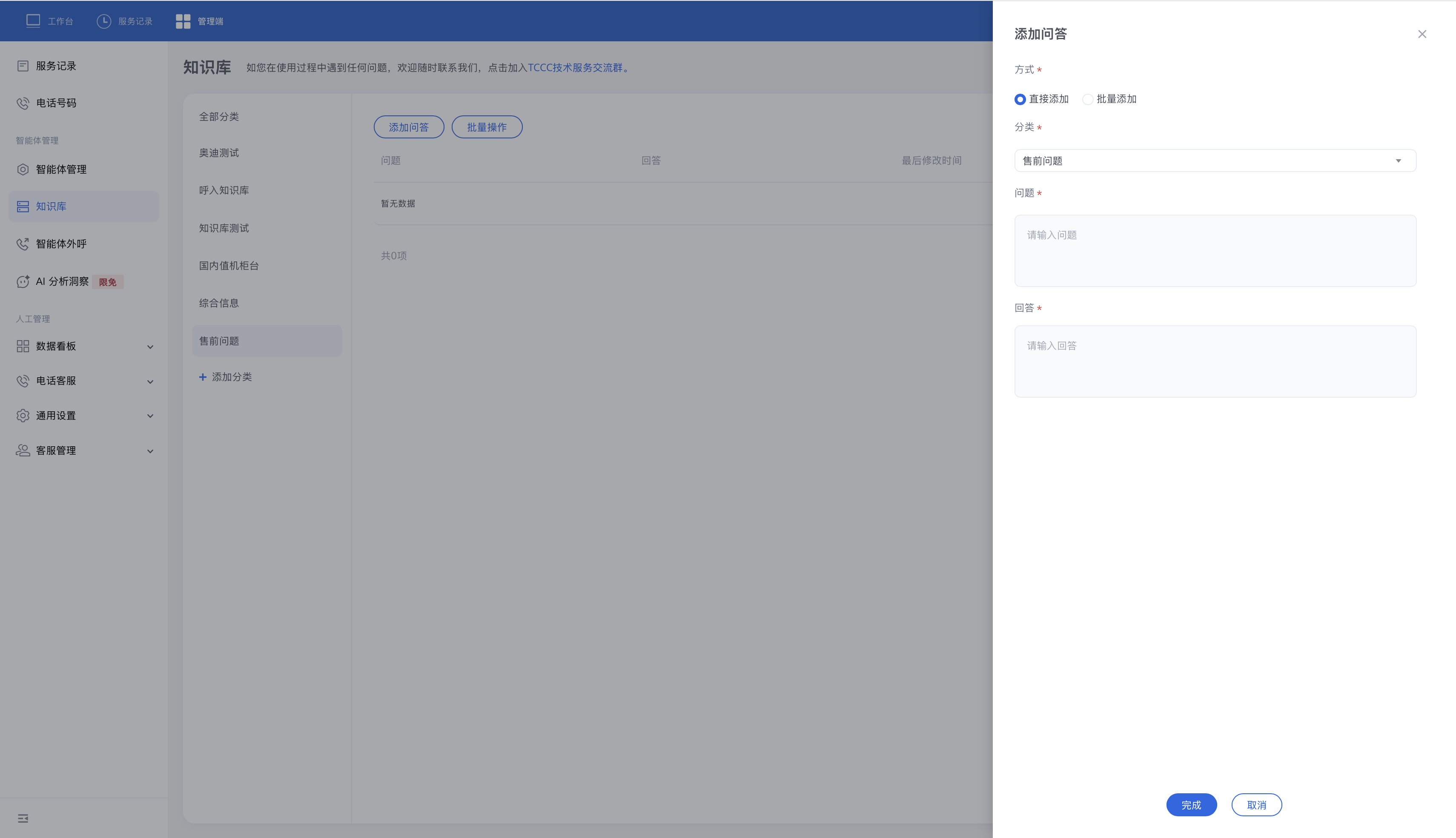
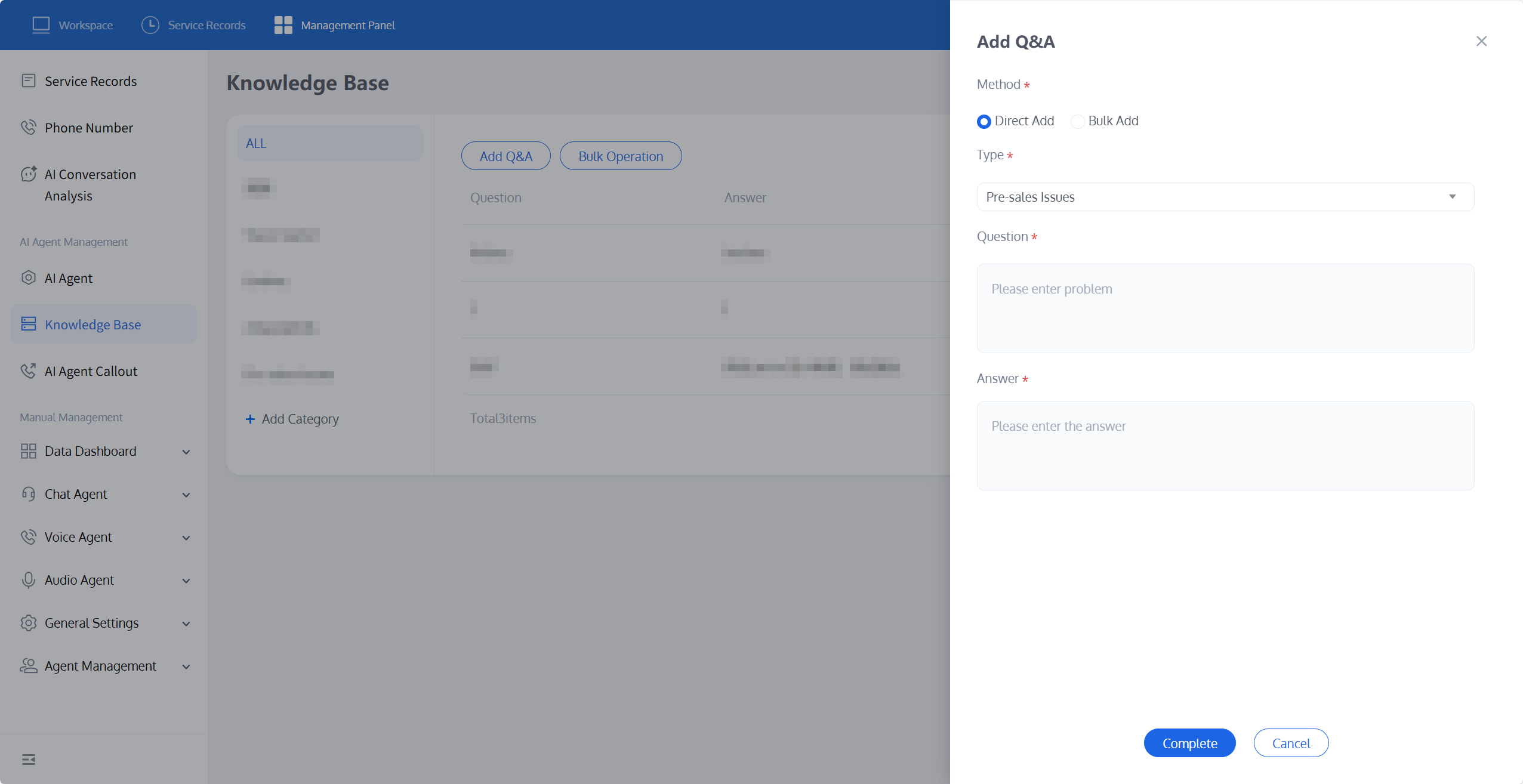
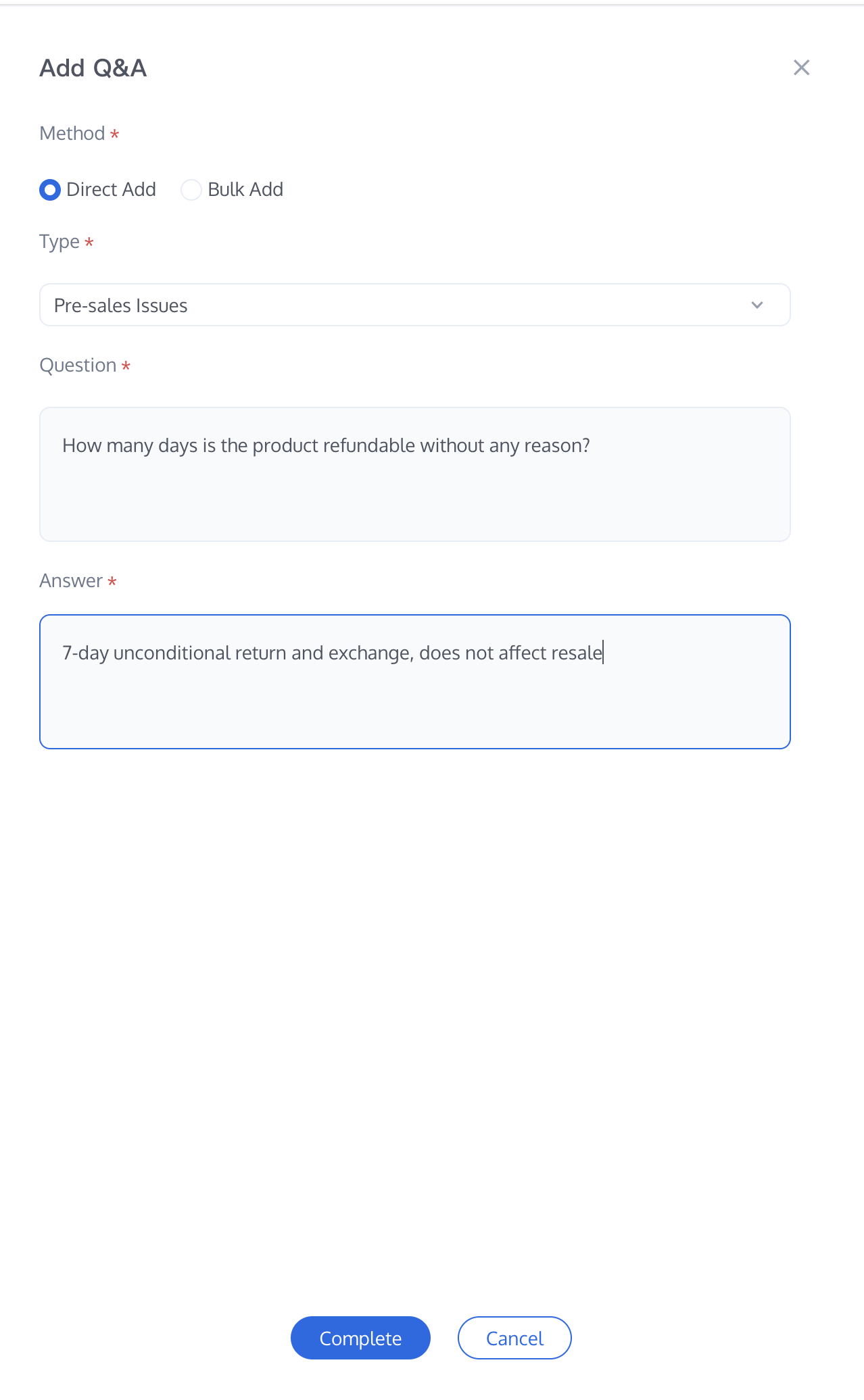
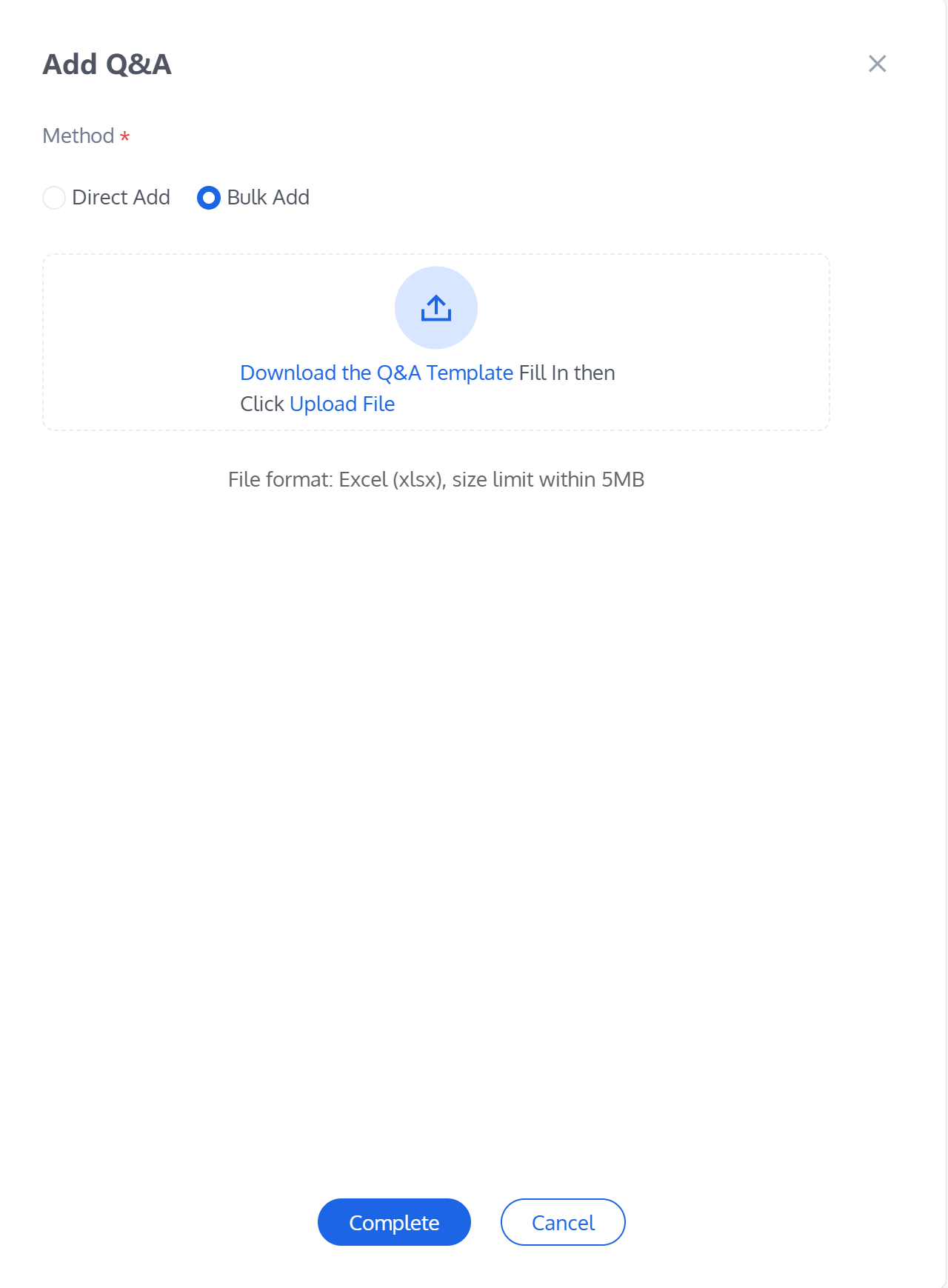
2. After adding a category, click Add Q&A to go to the Q&A Settings page. You can add Q&A pairs in two ways: Direct Add or Bulk Add using a file.
Direct Add
If you select Direct Add, enter the specific question and its corresponding answer (for example, Question: "How many days does the product support no-reason refund?", Answer: "7-day no-reason return and exchange, provided the product is in resalable condition."). After completing this, click the Complete button below to save the changes.
Bulk Add
2.1.1 To add in batches, select Bulk Add and click Download Q&A Template to start the download.
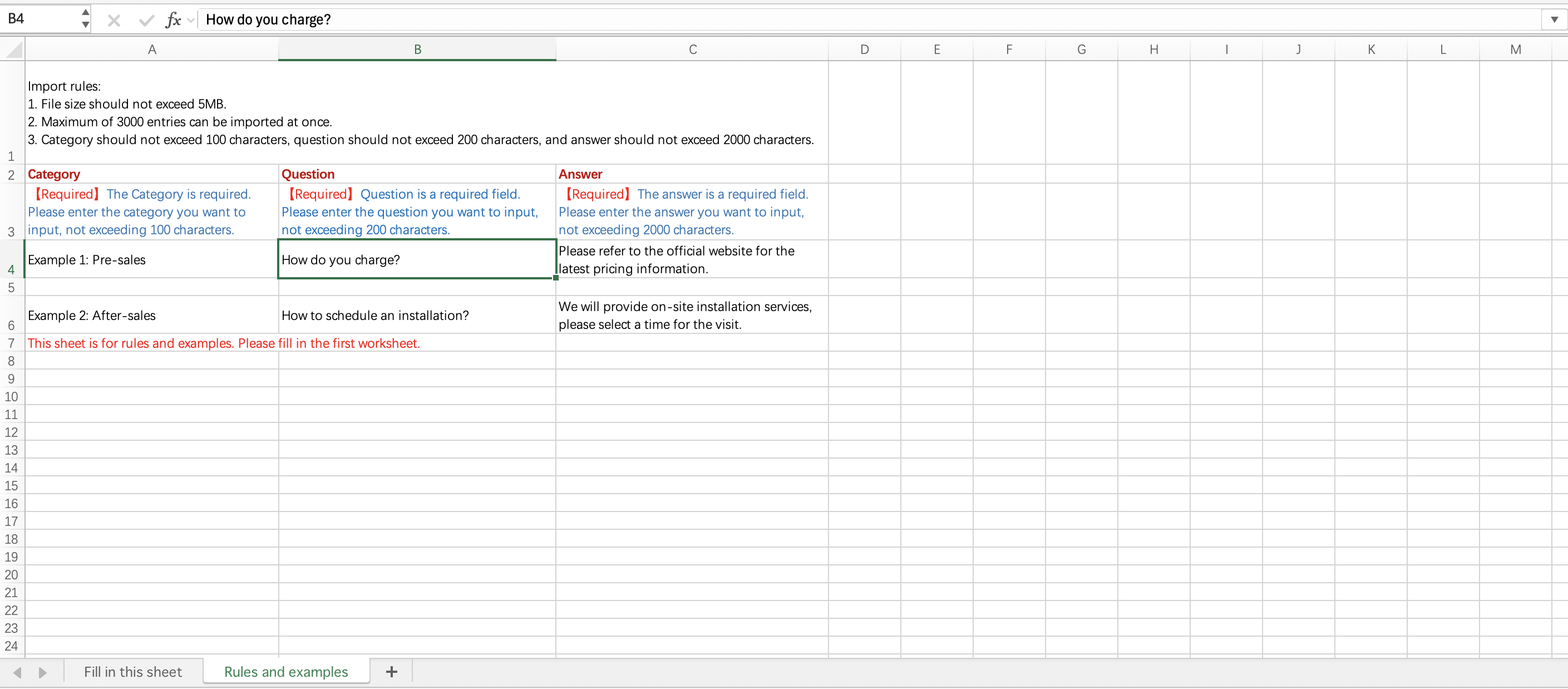
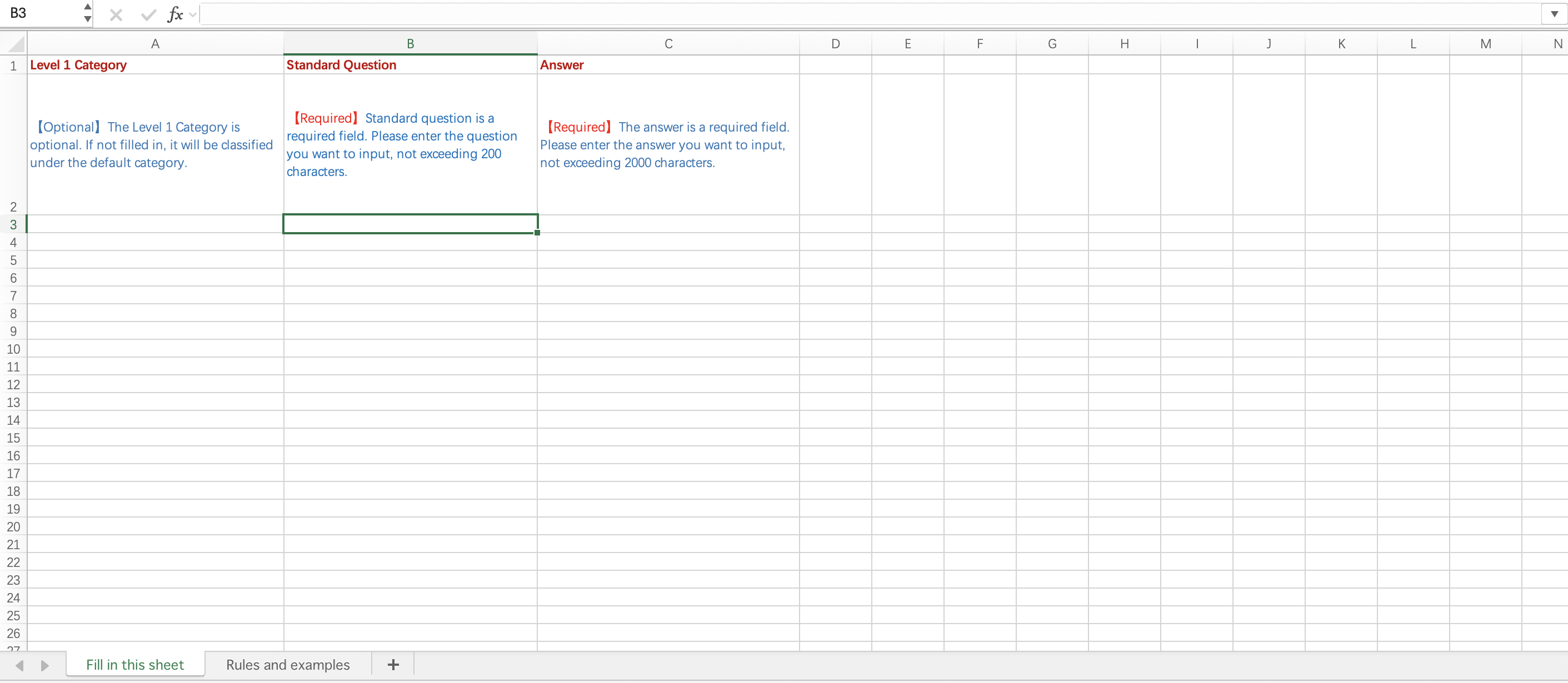
2.1.2 After the download is complete, open the Excel file. The first worksheet is for entering Q&A, and the second worksheet contains rules and examples. Please fill in the template accordingly as instructed.
Worksheet for entering Q&A:
Worksheet containing rules and examples:
2.1.3 After filling in all the information, click File in the upper-left corner, select Save or Save As, choose a storage location (for example, the desktop or a folder), enter a file name, and finally click Save to complete the process.
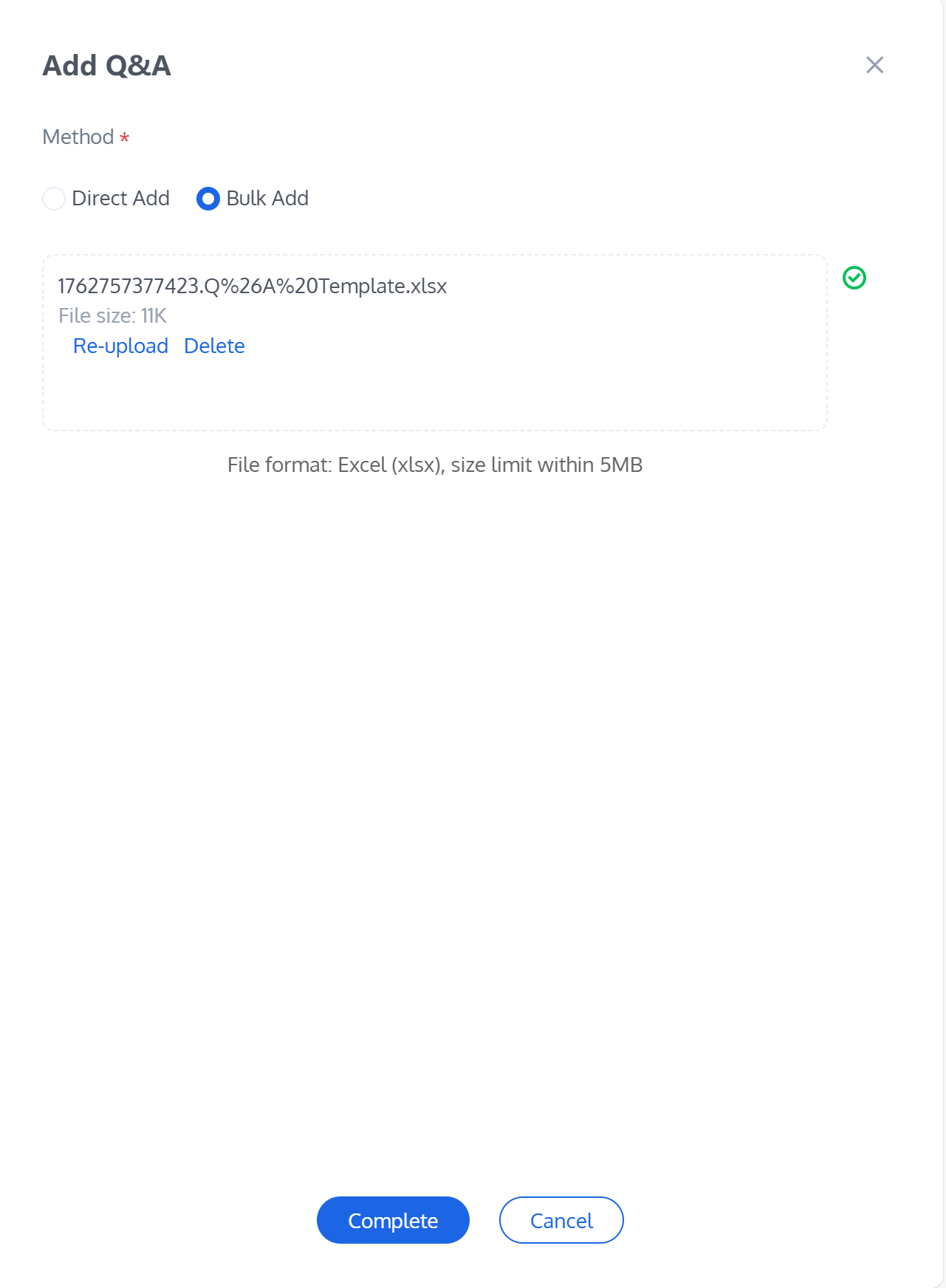
2.1.4 After saving the file, go to the Add Q&A page, click Upload File, and upload your saved Q&A template.
Managing Q&A Entries
When entries exist in the table, the Q&A list supports multiple selection for batch maintenance.
Select the checkbox (or the header checkbox to select the entire page) to enable the action bar.
Export: Download the selected entries (or use Export All to download every entry under the category) as an Excel file. The file format matches the template used for batch import, facilitating offline editing and subsequent re-upload.
Delete: Permanently removes the selected entries.
The number of entries per page in the list can be set to 10, 20, or 30 (10 by default).
Binding a Knowledge Base
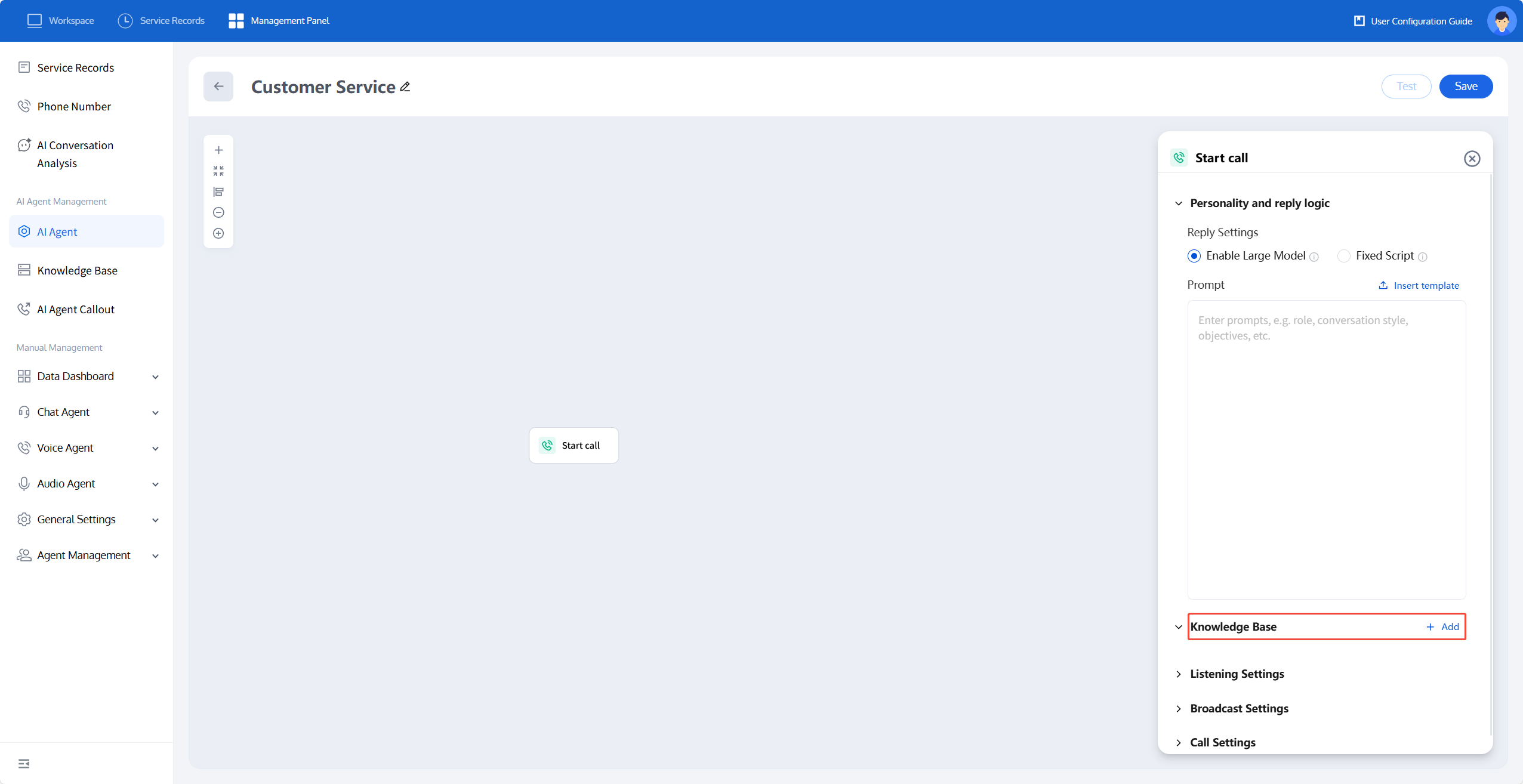
1. After adding the Q&A pairs, choose AI Agent > My AI Agents from the left sidebar. Select the AI Agent to which you want to bind the knowledge base (for example, "Customer Service"), then go to its configuration page and click Start Call.
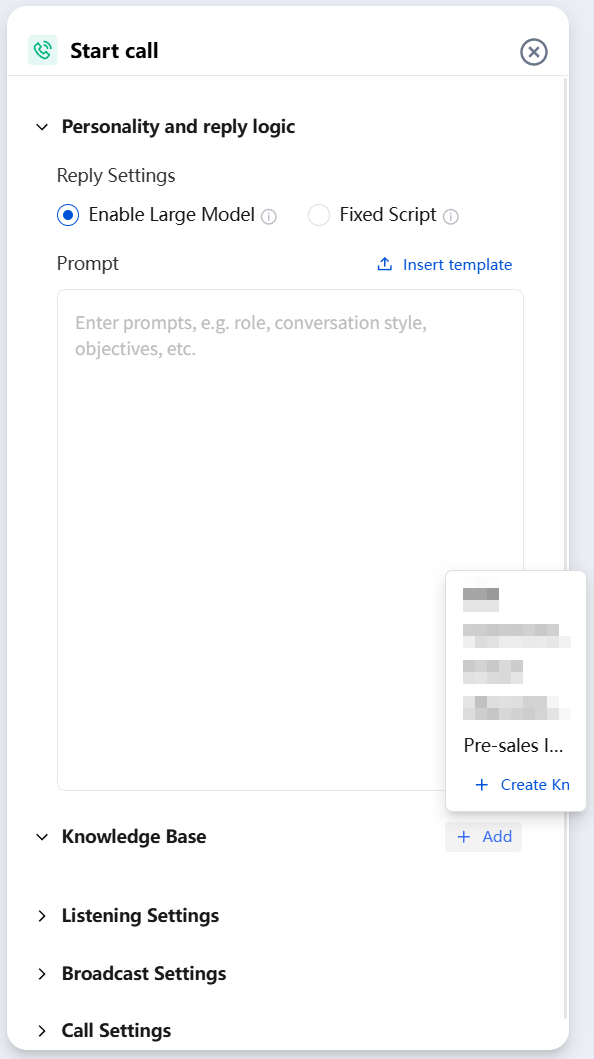
2. Open the Start Call settings panel on the right, and choose Knowledge Base > + Add. You can add multiple knowledge bases. The AI Agent will search across all knowledge bases during each round of user conversation.
3. When a user's question during a call is matched to a Q&A pair, the system automatically replies with the matched answer and then continues the original conversation flow.
4. To remove a knowledge base from an AI Agent, click the trash can icon next to its name in the list.
Verifying in the Test Panel and Service Logs
When you run a test or replay a real call from Service Records, the conversation log displays the matched standard question next to each Q&A-driven reply. This facilitates the identification of false triggers (such as matching an incorrect question or using an outdated answer) and allows you to directly improve your knowledge base content.
Related Guides
Select the corresponding path based on your deployment method.