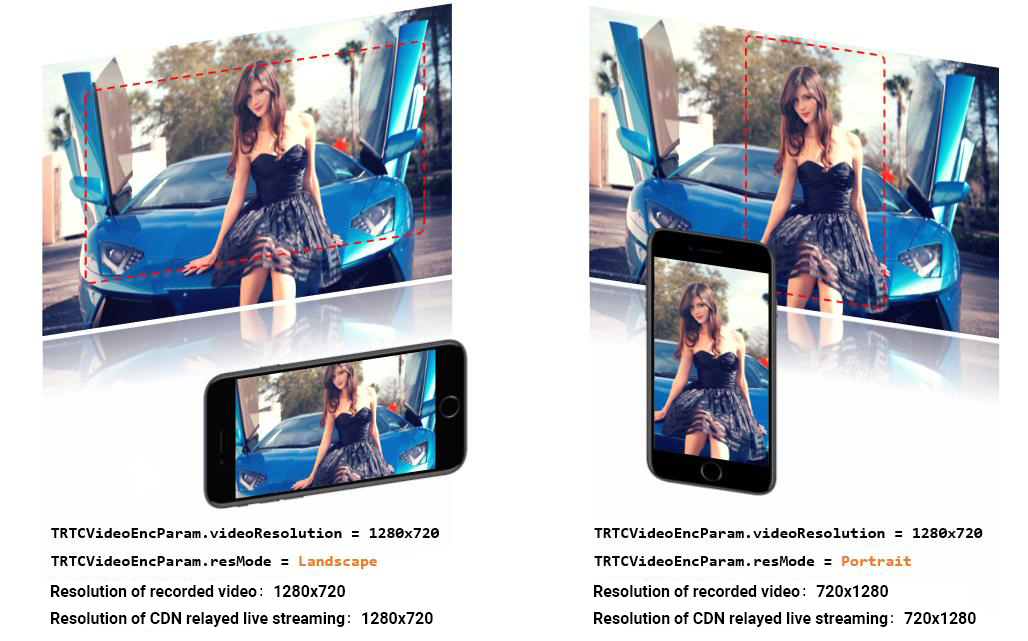
Unlike the ubiquitous vertical screen experience of mobile live streaming, Tencent Real-Time Communication (TRTC) must accommodate both landscape and portrait viewing modes, thereby requiring extensive handling of screen orientation. This article primarily discusses:
The implementation of the portrait mode pattern, for instance: WeChat's video calling is a typical example of the portrait experience pattern.
The execution of the landscape mode pattern, for example: Multi-person audio-video room applications (like Little Fish Easy Connection) typically adopt the landscape mode pattern.
How to customize the control of the rotation direction and fill pattern for both local and remote images.
Supported Platforms
iOS
Android
macOS
Windows
Electron
Flutter
Web
✓
✓
✓
✓
✓
✓
×
Portrait pattern
To realize a WeChat-like video call experience pattern, two tasks must be performed:
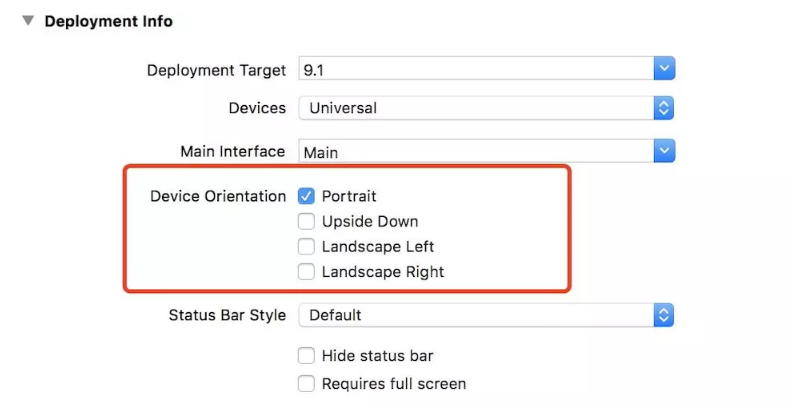
1. Configure the App's UI to display in portrait mode
iOS platform
Android platform
You can directly set this in Xcode's General > Deployment Info > Device Orientation:
By setting the screenOrientation attribute of the activity to portrait, one can specify that this interface is in portrait pattern
Whilst utilizing the TRTCCloud's setVideoEncoderParam setting for video coding parameters, specifying videoResolutionMode as TRTCVideoResolutionMode.portrait will suffice.
Below is the exemplar code:
If you wish for the App to have a landscape orientation experience, the work you need to carry out is similar to that of the portrait pattern. You simply need to adjust the parameters in the first and second steps accordingly.
Specifically in the second step, the value of videoResolutionMode in TRTCVideoEncParam should be: TRTCVideoResolutionMode.landscape.
Tailored Control
The TRTC SDK provides interface functions to manipulate both the local and remote screen's rotation direction and fill pattern:
Establishing the clockwise rotation angle of the encoder output display
Supports rotation in two directions: 0 and 180 degrees clockwise
GSensorMode
Given the various compatibility issues involved in screen rotation, recording, and CDN live streaming, TRTC SDK only provides a simple gravity-sensing adaptive function. You can enable this via the setGravitySensorAdaptiveMode interface of TRTCCloud.
This function supports 90-degree, 180-degree and 270-degree rotation adaptation. That is, when the user's own phone rotates, the orientation of the image seen by others remains unchanged. Furthermore, this adaptation is based on adjustments to the encoder's direction. Therefore, recorded videos, as well as images viewed on mini-programs and H5 end, can maintain the original orientation.
Note:
Another implementation of gravity-sensing adaptation involves encoding the gravity direction of each video frame, and then adaptively adjusting the rendering direction at the end of the remote user. However, this embodiment requires the introduction of additional transcoding resources to solve the problem of keeping the direction of the recorded video consistent with the expected video direction. Therefore, it is not recommended.