Viewing the Node List
Unduh
Mode fokus
Ukuran font
Overview
Viewing node information serves not only as a window into instance status but also as the decision-making cornerstone for all subsequent node management operations, such as configuration changes, failover, and read-only control. It helps Ops personnel efficiently manage instances and quickly locate exceptions.
Daily Health Check and Status Monitoring
Reviewing node information can be integrated into routine Ops to regularly verify the health status of each cluster member (primary node, secondary node). This practice enables timely detection and isolation of abnormal nodes, ensuring overall cluster stability.
Troubleshooting and Performance Analysis
When an application reports slow queries or connection exceptions, you can quickly determine whether issues exist, such as excessive pressure on the primary node, a secondary node's disk nearing capacity, or an unexpected role switch, by reviewing the roles and usage capacity of each node. This enables precise troubleshooting.
Capacity Planning and Cost Optimization
Analyzing the usage capacity trends of each node enables you to make informed decisions, such as scaling up disks, upgrading specifications, or deleting idle nodes, thereby achieving fine-grained resource management.
Feature Description
TencentDB for MongoDB provides comprehensive features for viewing and managing node information. You can clearly view the detailed information of each node within an instance, which serves as a key basis for Ops decisions. The main features include:
Node ID: The unique identifier of a node.
Node Role: Clearly distinguish between primary nodes and secondary nodes.
Running Status: Monitors the health status of nodes in real time.
Usage Capacity: Understand the storage resource usage of nodes.
Directions
1. Log in to the TencentDB for MongoDB console.
2. In the left sidebar, choose MongoDB > Replica Set Instance or Shard Instance. The operations for replica set instances and sharded cluster instances are similar.
3. Above the Instance List on the right, select the region.
4. In the instance list, find the target instance.
5. Click the Instance ID to go to the Instance Details page, and then click the Node Management tab.
6. View the mongod and mongos node information.
Mongod Node
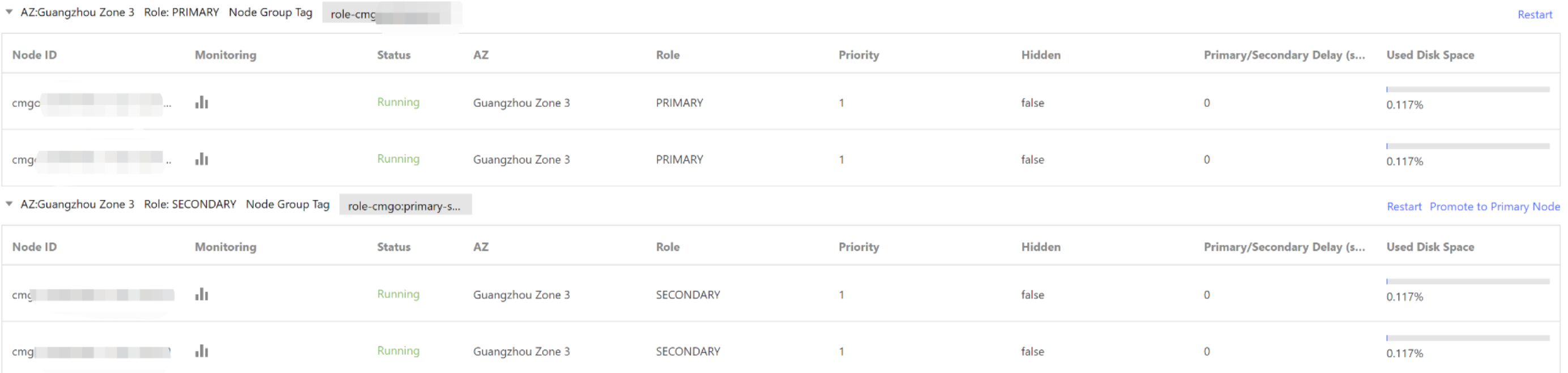
Parameter | Description |
Node ID | Mongod node ID. |
Monitoring | Click  |
Status | Status of the current node. |
AZ | AZ of the current node. |
Role | Role of the current node. PRIMARY SECONDARY READONLY |
Priority | The priority of a node for being elected as the primary node. The greater the value, the higher the priority. |
Hidden | Whether the node is hidden. Default value: |
Primary/Secondary Delay (second) | The delay duration for data synchronization from the primary node to the secondary node, measured in seconds. |
Used Disk Space | The storage usage of the node disk. |
Mongos Node
Parameter | Description |
Node ID | Mongos node ID. |
Monitoring | Click |
Status | Status of the node. |
AZ | AZ of the mongos node. |
Operation |
Related APIs
API Name | Capability Description |
Queries node properties, including the AZ, node name, address, role, status, master-slave delay, priority, voting rights, tags, and so on. |
Bantuan dan Dukungan
Apakah halaman ini membantu?
Anda juga dapat Menghubungi Penjualan atau Mengirimkan Tiket untuk meminta bantuan.
masukan