tencent cloud

Cloud Object Storage

Release Notes and Announcements
Release Notes
Announcements
Product Introduction
Overview
Features
Use Cases
Strengths
Concepts
Regions and Access Endpoints
Specifications and Limits
Service Regions and Service Providers
Billing
Billing Overview
Billing Method
Billable Items
Free Tier
Billing Examples
Viewing and Downloading Bill
Payment Overdue
FAQs
Getting Started
Console
Getting Started with COSBrowser
User Guide
Creating Request
Bucket
Object
Data Management
Batch Operation
Global Acceleration
Monitoring and Alarms
Operations Center
Data Processing
Content Moderation
Smart Toolbox
Data Processing Workflow
Application Integration
User Tools
Tool Overview
Installation and Configuration of Environment
COSBrowser
COSCLI (Beta)
COSCMD
COS Migration
FTP Server
Hadoop
COSDistCp
HDFS TO COS
GooseFS-Lite
Online Tools
Diagnostic Tool
Use Cases
Overview
Access Control and Permission Management
Performance Optimization
Accessing COS with AWS S3 SDK
Data Disaster Recovery and Backup
Domain Name Management Practice
Image Processing
Audio/Video Practices
Workflow
Direct Data Upload
Content Moderation
Data Security
Data Verification
Big Data Practice
COS Cost Optimization Solutions
Using COS in the Third-party Applications
Migration Guide
Migrating Local Data to COS
Migrating Data from Third-Party Cloud Storage Service to COS
Migrating Data from URL to COS
Migrating Data Within COS
Migrating Data Between HDFS and COS
Data Lake Storage
Cloud Native Datalake Storage
Metadata Accelerator
GooseFS
Data Processing
Data Processing Overview
Image Processing
Media Processing
Content Moderation
File Processing Service
File Preview
Troubleshooting
Obtaining RequestId
Slow Upload over Public Network
403 Error for COS Access
Resource Access Error
POST Object Common Exceptions
API Documentation
Introduction
Common Request Headers
Common Response Headers
Error Codes
Request Signature
Action List
Service APIs
Bucket APIs
Object APIs
Batch Operation APIs
Data Processing APIs
Job and Workflow
Content Moderation APIs
Cloud Antivirus API
SDK Documentation
SDK Overview
Preparations
Android SDK
C SDK
C++ SDK
.NET(C#) SDK
Flutter SDK
Go SDK
iOS SDK
Java SDK
JavaScript SDK
Node.js SDK
PHP SDK
Python SDK
React Native SDK
Mini Program SDK
Error Codes
Harmony SDK
Endpoint SDK Quality Optimization
Security and Compliance
Data Disaster Recovery
Data Security
Cloud Access Management
FAQs
Popular Questions
General
Billing
Domain Name Compliance Issues
Bucket Configuration
Domain Names and CDN
Object Operations
Logging and Monitoring
Permission Management
Data Processing
Data Security
Pre-signed URL Issues
SDKs
Tools
APIs
Agreements
Service Level Agreement
Privacy Policy
Data Processing And Security Agreement
Contact Us
Glossary

Obtaining RequestId

PDF
Mode fokus
Ukuran font
Terakhir diperbarui: 2024-03-25 18:01:58

Overview

The COS server will generate an ID (RequestId) for every request sent to COS. This document describes how to obtain RequestId in different scenarios.

Using the Console

1. Log in to the COS console. Click Bucket List on the left sidebar to open the bucket list page.
2. Click the name of the target bucket.
3. Press F12 on the keyboard to open the developer tools of your browser.
4. Select the Network tab.

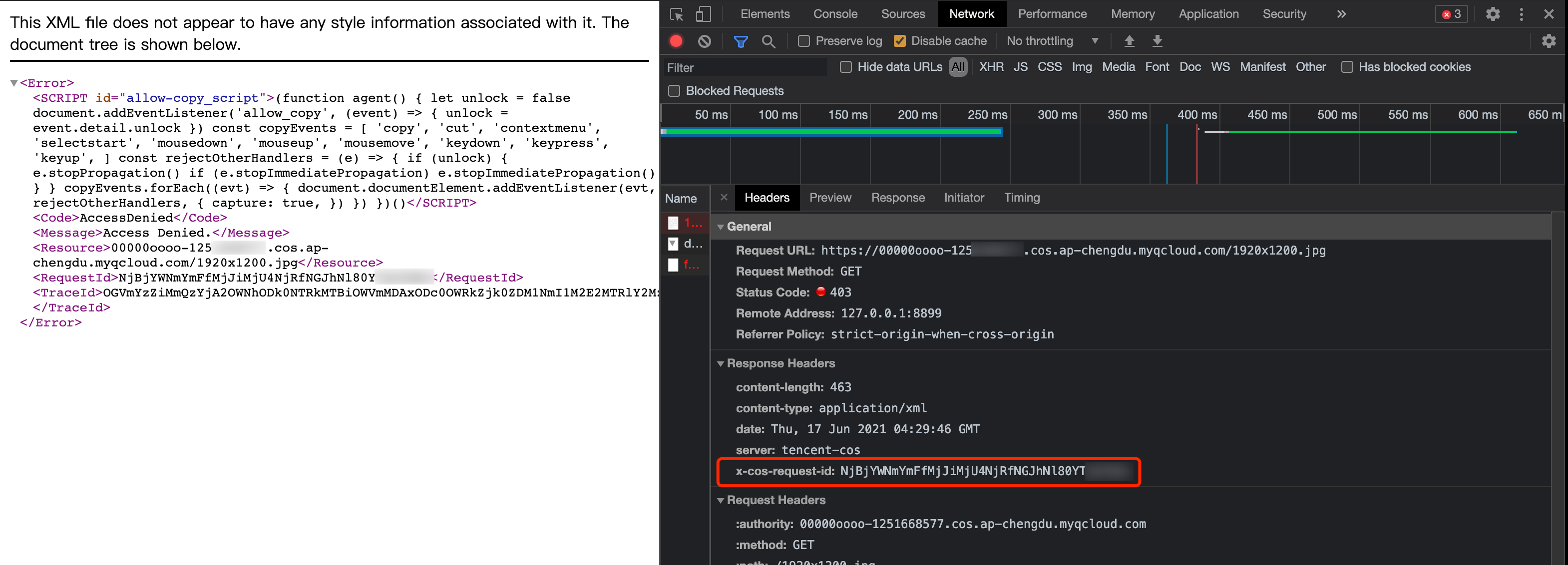
5. Click Download on the right of the target object. Then, in the developer tools, enter the filename in the Filter text box, select the file, and click Headers. You can then find RequestId from Response Headers.

From an Unsuccessful Access

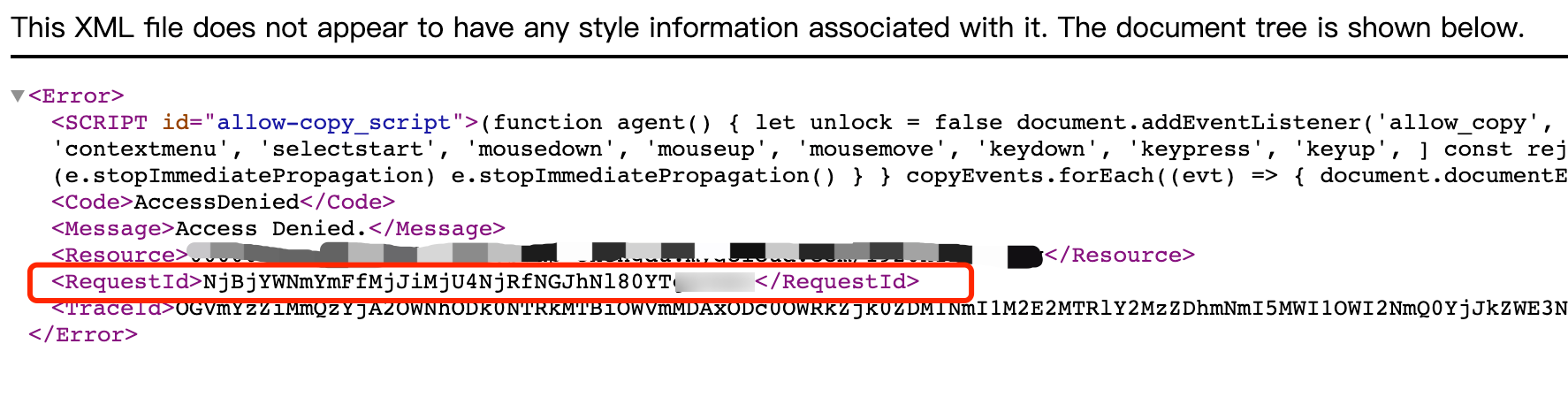
When you fail to access an object, you can obtain the RequestId from the XML file returned.

You can also obtain it as follows:
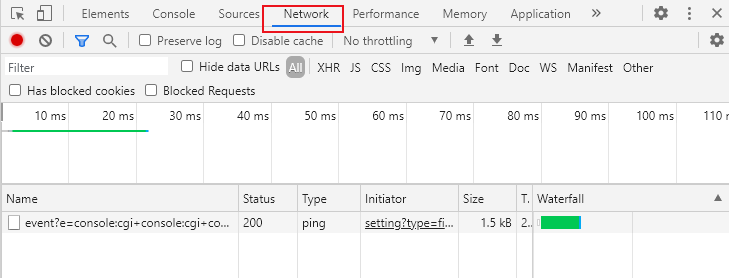
1. Press F12 on the keyboard to open the developer tools of your browser.
2. Select the Network tab and select All. You can then find RequestId from Response Headers.


Using SDKs

As SDKs contain too many APIs, this document only uses object upload as an example for all SDKs to show how to obtain the RequestId of the current operation.

Using the .NET SDK

try
{
string bucket = "examplebucket-1250000000"; // Bucket name in the format of BucketName-APPID
string cosPath = "test.cs"; // Object key
byte[] data = System.Text.Encoding.Default.GetBytes("Hello COS"); // Binary data
PutObjectRequest putObjectRequest = new PutObjectRequest(bucket, cosPath, data);

PutObjectResult result = cosXml.PutObject(putObjectRequest);
string requestId = result.responseHeaders.GetValueOrDefault("x-cos-request-id")[0];
Console.WriteLine(requestId);
}
catch (COSXML.CosException.CosClientException clientEx)
{
// Request failed
Console.WriteLine("CosClientException: " + clientEx);
}
catch (COSXML.CosException.CosServerException serverEx)
{
// Request failed
Console.WriteLine("CosServerException: " + serverEx.GetInfo());
}

Using the Go SDK

package main

import (
"context"
"fmt"
"net/http"
"net/url"
"strings"
"github.com/tencentyun/cos-go-sdk-v5"
)

func main(){
// Replace `examplebucket-1250000000` and `COS_REGION` with the actual information
u, _ := url.Parse("https://examplebucket-1250000000.cos.COS_REGION.myqcloud.com")
b := &cos.BaseURL{BucketURL: u}
c := cos.NewClient(b, &http.Client{
Transport: &cos.AuthorizationTransport{
SecretID: "SECRETID",
SecretKey: "SECRETKEY",
},
})
// An object key is the unique identifier of an object in a bucket
// For example, in the access domain name `examplebucket-1250000000.cos.COS_REGION.myqcloud.com/test.go`, the object key is `test.go`.
name := "test.go"
// 1. Upload the object with a string.
f := strings.NewReader("Hello COS")

response, err := c.Object.Put(context.Background(), name, f, nil)
if err != nil{
// The error message contains the RequestId field.
panic(err)
}
requestId := response.Header.Get("X-Cos-Request-Id")
fmt.Println(requestId)
}

Using the Java SDK

// 1. Initialize the user credentials (secretId, secretKey).
String secretId = "SECRETID";
String secretKey = "SECRETKEY";
COSCredentials cred = new BasicCOSCredentials(secretId, secretKey);
// 2. Set the bucket region. For abbreviations of COS regions, please visit https://www.tencentcloud.com/document/product/436/6224?from_cn_redirect=1.
// `clientConfig` contains the set methods to set region, HTTPS (HTTP by default), timeout, and proxy. For detailed usage, see the source code or the FAQs about the SDK for Java.
Region region = new Region("COS_REGION");
ClientConfig clientConfig = new ClientConfig(region);
// The HTTPS protocol is recommended.
clientConfig.setHttpProtocol(HttpProtocol.https);
// 3. Generate a COS client.
COSClient cosClient = new COSClient(cred, clientConfig);
// Enter the bucket name in the format of `BucketName-APPID`.
String bucketName = "examplebucket-1250000000";

String content = "Hello COS";
String key = "test.java";
PutObjectResult putObjectResult = cosClient.putObject(bucketName, key, content);
String requestId = putObjectResult.getRequestId();
System.out.println(requestId);

Using the Python SDK

# -*- coding=utf-8
from qcloud_cos import CosConfig
from qcloud_cos import CosS3Client
import sys
import logging

# In most cases, set the log level to INFO. If you need to debug, you can set it to DEBUG and the SDK will print information about the communication with the server.
logging.basicConfig(level=logging.INFO, stream=sys.stdout)

# 1. Set user attributes such as secret_id, secret_key, and region. Appid has been removed from CosConfig and thus needs to be specified in Bucket, which is formatted as BucketName-Appid.
secret_id = os.environ['COS_SECRET_ID'] # User `SecretId`. We recommend that you use a sub-account key and follow the principle of least privilege to reduce risks. For more information on how to obtain a sub-account key, visit https://www.tencentcloud.com/document/product/598/37140?from_cn_redirect=1.
secret_key = os.environ['COS_SECRET_KEY'] # User `SecretKey`. We recommend that you use a sub-account key and follow the principle of least privilege to reduce risks. For more information on how to obtain a sub-account key, visit https://www.tencentcloud.com/document/product/598/37140?from_cn_redirect=1.
region = 'ap-beijing' # Replace it with the actual region, which can be viewed in the console at https://console.tencentcloud.com/cos5/bucket.
# For the list of regions supported by COS, see https://www.tencentcloud.com/document/product/436/6224?from_cn_redirect=1.
token = None # Token is required for temporary keys but not permanent keys. For more information about how to generate and use a temporary key, see https://www.tencentcloud.com/document/product/436/14048?from_cn_redirect=1.
scheme = 'https' # Specify whether to use HTTP or HTTPS protocol to access COS. This field is optional and is `https` by default.
config = CosConfig(Region=region, SecretId=secret_id, SecretKey=secret_key, Token=token, Scheme=scheme)
client = CosS3Client(config)

try:
response = client.put_object(
Bucket='examplebucket-1250000000',
Key='exampleobject',
Body=b'abcdefg'
)

# The request is successful. You can view `request-id` in the response
if 'x-cos-request-id' in response:
print(response['x-cos-request-id'])

# The request failed. You can view `request-id` in the exception information
except CosServiceError as e:
print(e.get_request_id())

Using the JavaScript SDK

cos.putObject({
Bucket: 'examplebucket-1250000000', /* Required */
Region: 'COS_REGION', /* Required */
Key: 'test.js', /* Required */
StorageClass: 'STANDARD',
Body: 'Hello COS',
onProgress: function(progressData) {
console.log(JSON.stringify(progressData));
}
}, function(err, data) {
var requestId = (err || data).headers['x-cos-request-id'];
console.log(requestId );
});

Using the Node.js SDK

var COS = require('cos-nodejs-sdk-v5');
var cos = new COS({
SecretId: 'SECRETID',
SecretKey: 'SECRETKEY'
});

cos.putObject({
Bucket: 'examplebucket-1250000000', /* Required */
Region: 'COS_REGION', /* Required */
Key: 'test.nodejs', /* Required */
StorageClass: 'STANDARD',
Body: Buffer.from('Hello COS'),
onProgress: function(progressData) {
console.log(JSON.stringify(progressData));
}
}, function(err, data) {
var requestId = (err || data).headers['x-cos-request-id'];
console.log(requestId );
});

Using the Weixin Mini Program SDK

var COS = require('cos-wx-sdk-v5');
var cos = new COS({
SecretId: 'SECRETID',
SecretKey: 'SECRETKEY'
});

cos.putObject({
Bucket: 'examplebucket-1250000000', /* Required */
Region: 'COS_REGION', /* Required */
Key: 'test.js', /* Required */
StorageClass: 'STANDARD',
Body: 'Hello COS',
onProgress: function(progressData) {
console.log(JSON.stringify(progressData));
}
}, function(err, data) {
var requestId = (err || data).headers['x-cos-request-id'];
console.log(requestId );
});

Using the PHP SDK

$secretId = "SECRETID"; // "SecretId of your Tencent Cloud API key";
$secretKey = "SECRETKEY"; // "SecretKey of your Tencent Cloud API key";
$region = "COS_REGION"; // Set the default bucket region
$cosClient = new Qcloud\\Cos\\Client(
array(
'region' => $region,
'schema' => 'https', // Protocol, which is `http` by default
'credentials'=> array(
'secretId' => $secretId ,
'secretKey' => $secretKey)));
# Upload a file
## putObject (an API that can upload files of up to 5 GB)
### Uploading strings in memory
try {
$bucket = "examplebucket-1250000000"; // Bucket name in the format of BucketName-APPID
$key = "test.php"; // Object key, which is the unique identifier of an object in a bucket
$result = $cosClient->putObject(array(
'Bucket' => $bucket,
'Key' => $key,
'Body' => 'Hello COS'));
$requestId = $result['RequestId'];
print_r($requestId);
} catch (\\Exception $e) {
echo "$e\\n";
}

Using the iOS SDK

QCloudCOSXMLUploadObjectRequest* put = [QCloudCOSXMLUploadObjectRequest new];
/** Path of the local file. Ensure that the URL starts with "file://" in the following format:
1. [NSURL URLWithString:@"file:////var/mobile/Containers/Data/Application/DBPF7490-D5U8-4ABF-A0AF-CC49D6A60AEB/Documents/exampleobject"]
2. [NSURL fileURLWithPath:@"/var/mobile/Containers/Data/Application/DBPF7490-D5U8-4ABF-A0AF-CC49D6A60AEB/Documents/exampleobject"]
*/
NSURL* url = [NSURL fileURLWithPath:@"file URL"];
// Bucket name in the format of BucketName-Appid, which can be viewed in the COS console at https://console.tencentcloud.com/cos5/bucket.
put.bucket = @"examplebucket-1250000000";
// Object key, i.e., the full path of a COS object. If the object is in a directory, the path should be "video/xxx/movie.mp4"
put.object = @"exampleobject";
// Content of the object to be uploaded. You can pass variables of the `NSData*` or `NSURL*` type.
put.body = url;
// Monitor the upload progress
[put setSendProcessBlock:^(int64_t bytesSent,
int64_t totalBytesSent,
int64_t totalBytesExpectedToSend) {
// bytesSent Number of bytes to send in this request (a large file may require multiple requests)
// totalBytesSent Total number of bytes sent so far
// totalBytesExpectedToSend Total number of bytes expected to send, i.e. the size of the file
}];
// Monitor the upload result
[put setFinishBlock:^(QCloudUploadObjectResult *result, NSError *error) {
// Obtain requestId
[result.__originHTTPURLResponse__.allHeaderFields objectForKey:@"x-cos-request-id"]
}];
[put setInitMultipleUploadFinishBlock:^(QCloudInitiateMultipartUploadResult *
multipleUploadInitResult,
QCloudCOSXMLUploadObjectResumeData resumeData) {
// This block will be called back after the Initiate Multipart Upload operation is complete. You can get resumeData and the uploadId here.
NSString* uploadId = multipleUploadInitResult.uploadId;
}];
[[QCloudCOSTransferMangerService defaultCOSTransferManager] UploadObject:put];

Using the Android SDK

// 1. Initialize TransferService. You should use the same TransferService for the same configuration
TransferConfig transferConfig = new TransferConfig.Builder()
.build();
CosXmlServiceConfig cosXmlServiceConfig = new CosXmlServiceConfig.Builder()
.setRegion(COS_REGION)
.builder();
CosXmlService cosXmlService = new CosXmlService(context, cosXmlServiceConfig, credentialProvider);
TransferService transferService = new TransferService(cosXmlService, transferConfig);

// 2. Initialize PutObjectRequest
String bucket = "examplebucket-1250000000"; // Bucket name in the format of BucketName-APPID
String cosPath = "exampleobject"; // Location identifier of the object in the bucket, i.e., the object key
String srcPath = "examplefilepath"; // Absolute path to the local file
PutObjectRequest putObjectRequest = new PutObjectRequest(bucket,
cosPath, srcPath);

// 3. Call the upload method to upload the file
final COSUploadTask uploadTask = transferService.upload(putObjectRequest);
uploadTask.setCosXmlResultListener(new CosXmlResultListener() {
@Override
public void onSuccess(CosXmlRequest request, CosXmlResult result) {
// Upload succeeded. You can get `requestId` here.
String requestId = result.getHeader("x-cos-request-id");
}

@Override
public void onFail(CosXmlRequest request,
CosXmlClientException clientException,
CosXmlServiceException serviceException) {
// `requestId` exists only for `CosXmlServiceException`
if (serviceException != null) {
String requestId = serviceException.getRequestId();
}
}
});

Bantuan dan Dukungan

Apakah halaman ini membantu?

masukan