Conversation Node
Unduh
Mode fokus
Ukuran font
Feature Introduction
Conversation Node is the core unit for AI and user interaction. It plays scripts, listens to user replies, classifies the replies, and determines the next action.
Guide
Go to the created workflow canvas. Then, choose Start Call> +> Chat Node on the canvas in order. Fill in the following configuration items in the pop-up window.
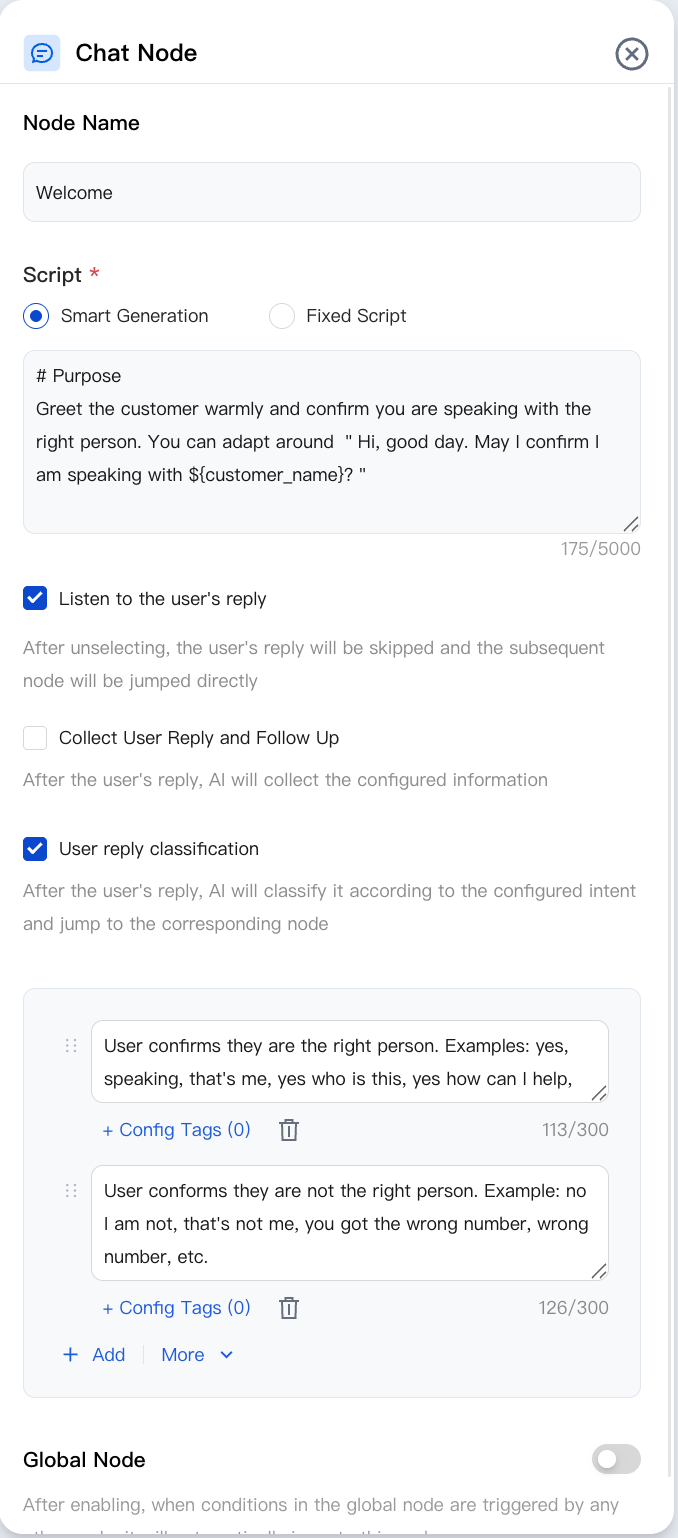
Node Name
Enter a node name, for example, "Conversation Node 2".
Script
AI Agent's Selection of User Reply Mode:
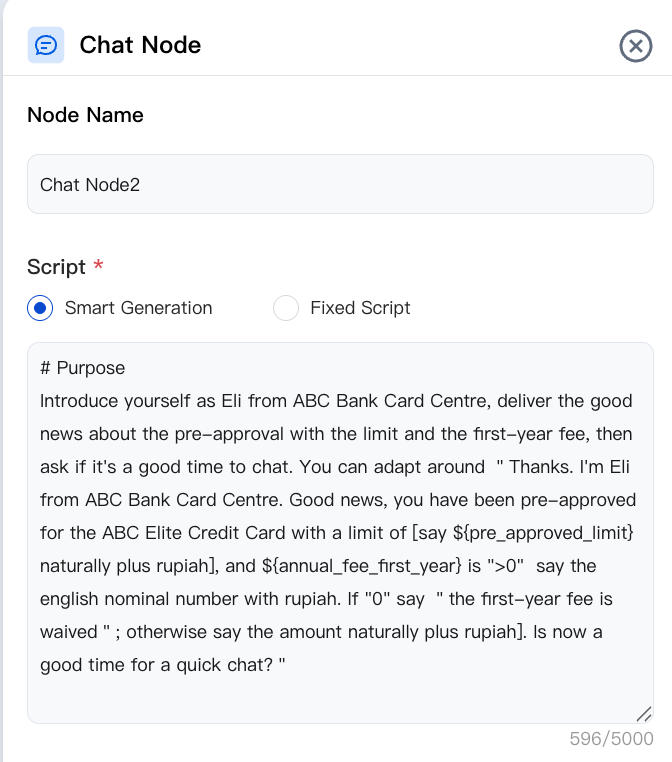
Fixed Script: It uses the static text you entered and is suitable for compliant scripts such as opening remarks and confirmation statements.
Intelligent Generation: The script is dynamically generated at runtime by the large model based on the User Prompt Template, enabling personalized, context-aware replies that fixed scripts cannot achieve (for example: "Hello Ms. Wang, your order 88203 has not been shipped yet due to warehouse restocking.").
Audio File Playback (TTS Alternative)
You can attach pre-recorded WAV/MP3 audio to a node to replace synthesized speech. This is suitable for scenarios such as brand/celebrity voice tones, compliant verbatim broadcasting, and languages not covered by TTS. You must first upload the audio file before you can reference it in the node. After playback, the system still normally listens for replies, classifies them, and collects slots.
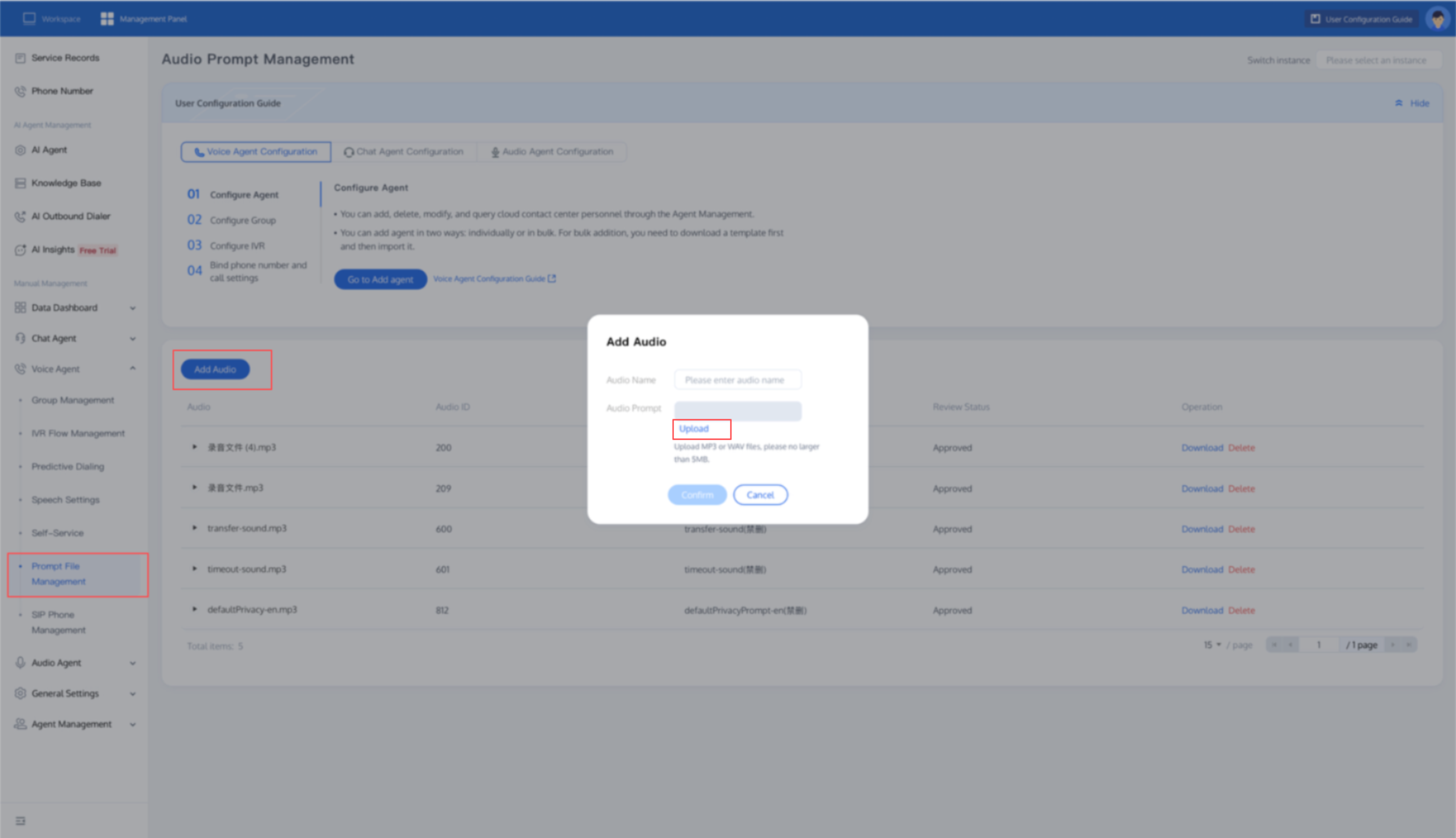
1. Audio File Resource Upload: In the left sidebar of the workspace, choose Phone Customer Service > Audio File Management > Add Audio > Select File. Then, click OK to add the audio file. If the audio file has already been uploaded, you can skip this step.
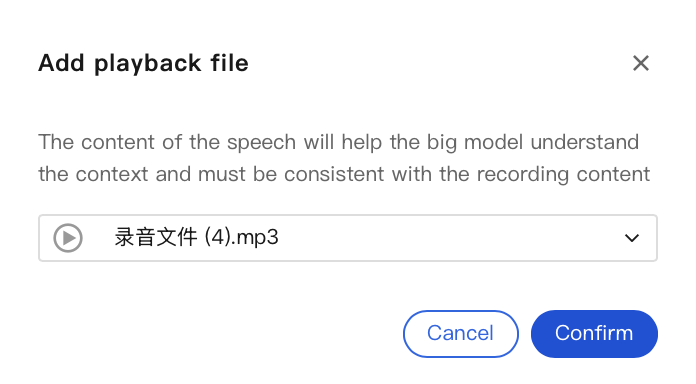
2. Re-enter the Conversation Node. After you click the script text box, the Add Audio button shown in the figure below appears.
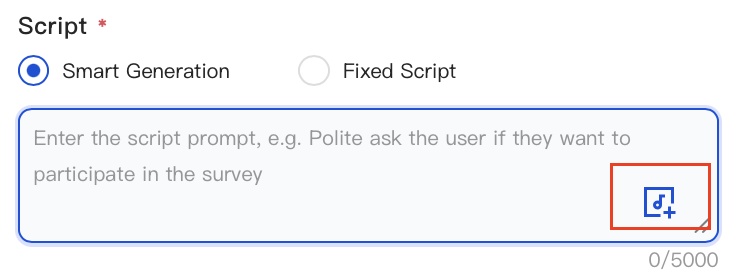
3. After you click the Add Audio button, the following pop-up window appears. You can then select an audio file and click OK.
Script Interruption
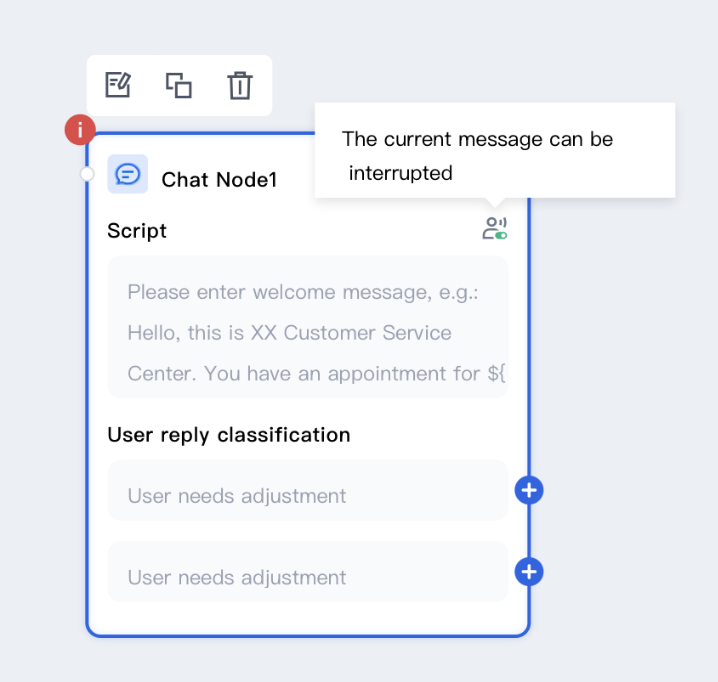
Go to the canvas. Click the icon in the upper-right corner of the created conversation node to set whether the current script can be interrupted by users.
Interruptible: During the AI Agent's broadcast, users can reply and interrupt the broadcast at any time. This is suitable for scenarios requiring rapid response to users (for example, when the AI Agent asks "When are you available to participate in activities?", users can immediately reply with their time).
Not Interruptible: Users can reply only after the AI Agent has fully broadcast the message. This is suitable for scenarios where users need to fully listen to information, such as important notifications or instructions.
Listening for User Response
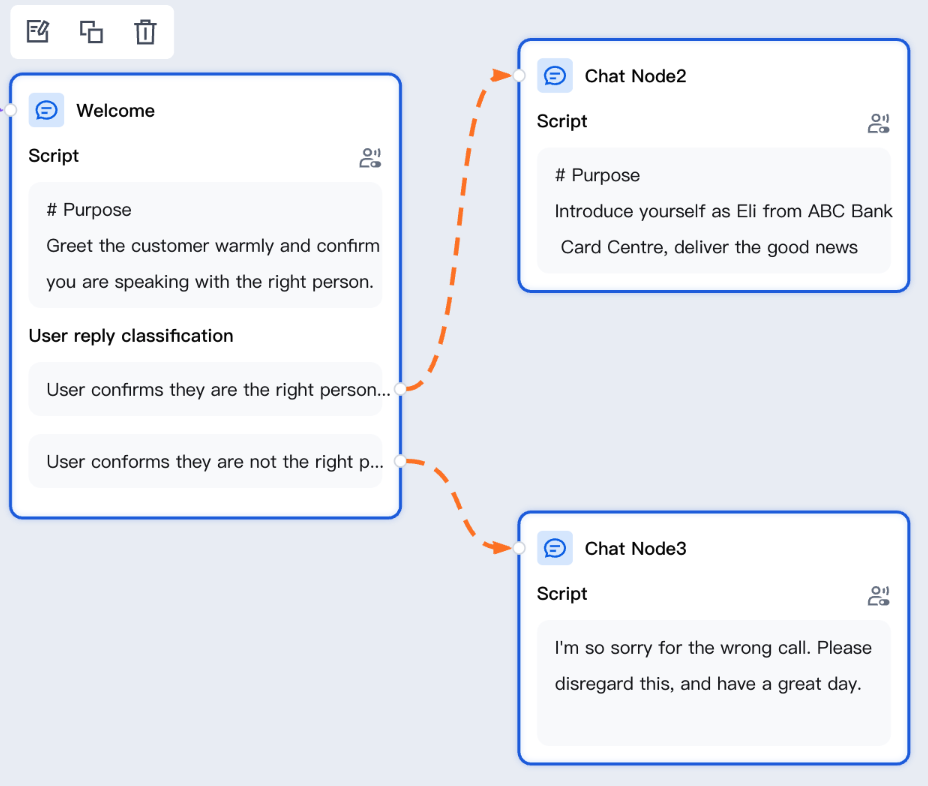
It defines how the system categorizes replies (for example, "Yes" or "No"). Unmatched replies are categorized into the "Other" branch. If you deselect this option, the system skips identifying user replies and directly jumps to the subsequent node.
You can click + next to any classification branch on the canvas to add the next node and its script.
Collecting and Following Up on User Responses
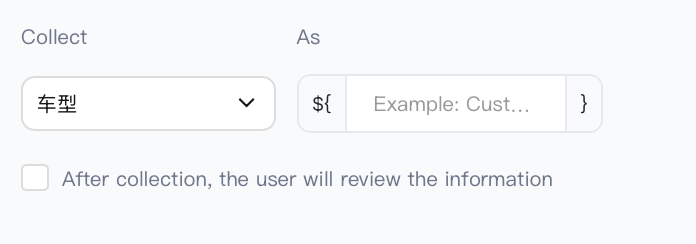
The system extracts specific values (such as phone numbers, order IDs, or names) from user utterances and binds them to named variables. Downstream processes can then reference them using
${slot_name} (for example: "Your order ${order_id} will be processed today."). The system supports extracting multiple slots in a single round and only prompts for missing items. If a user explicitly refuses to answer, the system exits via the "Skipped" branch.User Response Classification
After you enable this option, the selected classification is simultaneously saved as a Tag, written to the call log, and made available as a variable for downstream scripts, API calls, or post-call Tag references.
Node Overview
Node | Purpose |
Core interaction unit plays prompts, listens to user replies, classifies replies, and branches. | |
Exchanges data with external systems during a call (for example, queries orders, writes back results). | |
Explicitly writes or updates variables within a flow (sets default values, derives values, normalizes slots). | |
Branches based on variable values using comparison operators a generalized if/else if/else logic. | |
Branches based on date, time, and time zone (for example, business hours or non-business hours). | |
Collects numeric keypad inputs (0–9, *, #) suitable for menu-based IVR branching, Captcha/PIN entry, or numeric data collection. | |
Transfers the call to an Agent skill group. | |
Transfers the call to another AI Agent (dialog flow or proprietary model), retaining conversation history and variables. | |
Terminates the call with an optional closing message. |
Related Guides
Select the corresponding path based on your deployment method:
First time user? Deploy a functional AI Agent in just five minutes create a conversation flow or integrate an external model.
Want to learn about our conversation flow nodes? Go to Conversation Nodes.
Want to build a knowledge base for your dialogue flow? Go to Build Your Knowledge Base.
How to test your model? Refer to Test Dialogue Workflow.
Configure a voice AI Agent with your own model? Go to Integrate External Model, Edit Conversation Content, Configure Voice Interaction, and Add Call Control.
Want to view application scenarios? Try Voice Notification, Lead Mining, Feedback Collection, or Customer Support.
How to make outbound and inbound calls with an AI Agent? Refer to AI Agent Outbound Calls or AI Agent Inbound Calls.
View data logs? Refer to Call Records, Call Recordings, Latency.
How to create and view post-call tags? Refer to Post-call Tags (Created via Conversation Flow) or Post-call Tags (Created via External LLM).
Bantuan dan Dukungan
Apakah halaman ini membantu?
Anda juga dapat Menghubungi Penjualan atau Mengirimkan Tiket untuk meminta bantuan.
masukan