Google FCM
Unduh
Mode fokus
Ukuran font
This document explains how to complete Google FCM offline push vendor configuration.
Prerequisites
Before you start, make sure you meet the following requirements:
Requirement | Description |
Google account | Used to sign in to the Firebase console. |
Android App package name | The Firebase Android app package name must match the Android project's applicationId. The package name is case-sensitive and cannot be changed after the Firebase app is registered. Google FCM push does not require the app to be published on an app store first. |
Android runtime environment | The target device or emulator must support Android 6.0 (API 23) or later and have Google Play services installed. |
Network access to Google services | Required to access the Firebase console, download configuration files, generate a service account private key, and connect to Google Play services and FCM at runtime. |
Tencent Cloud account and Chat app permissions | Required to add the Google FCM vendor certificate in the console. |
Android project integration permissions | Required to integrate TIMPush and FCM push dependencies during the SDK Integration phase. |
Firebase console configuration
Tip:
You can follow these steps alongside the official Firebase guide Add Firebase to your Android project.
Open the Firebase console
Create a project and register an Android app
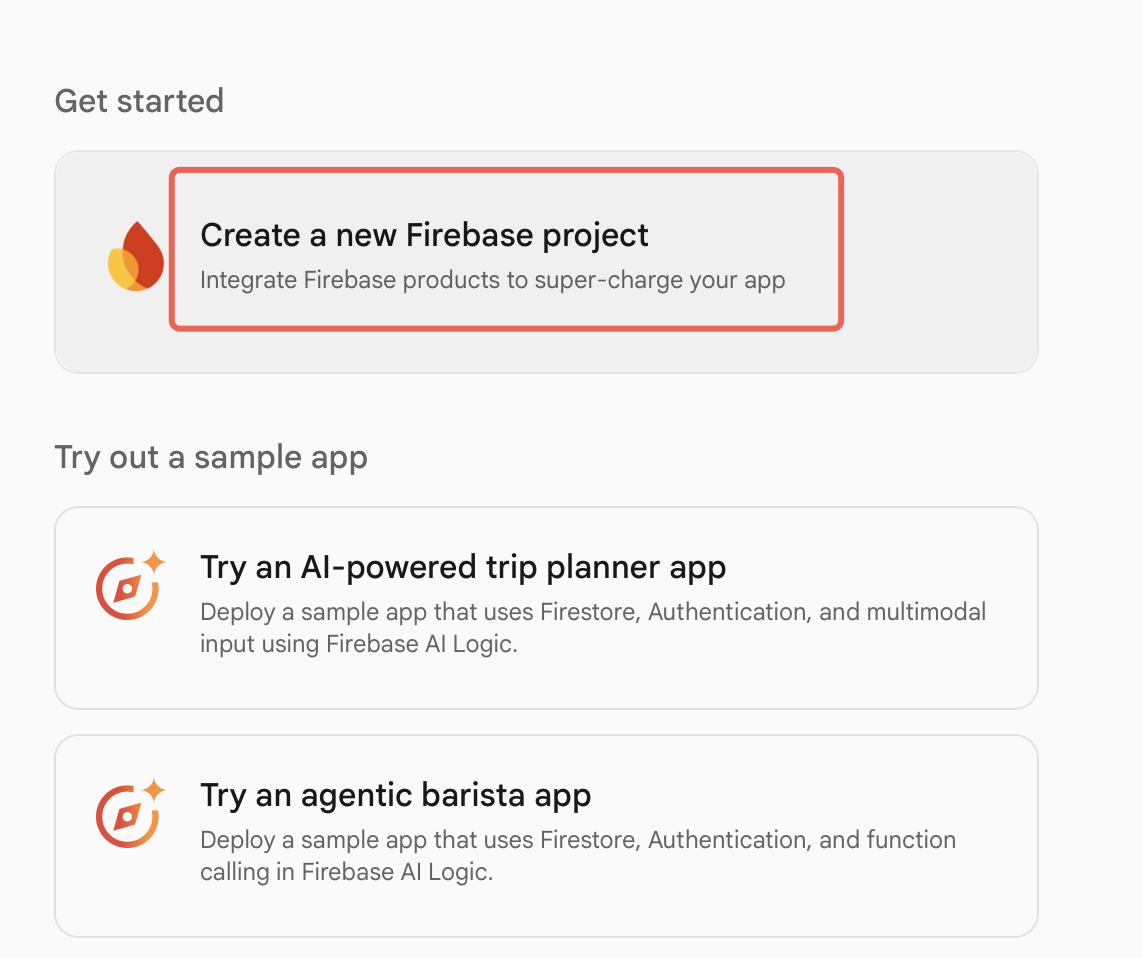
1. Click Create a new Firebase project to add a new project.
Note:
Firebase generates a project ID from the project name. After the project is created, the project ID cannot be changed, so confirm the naming and purpose before creation. When creating a project, enable Google Analytics so you can use FCM message delivery reports later.
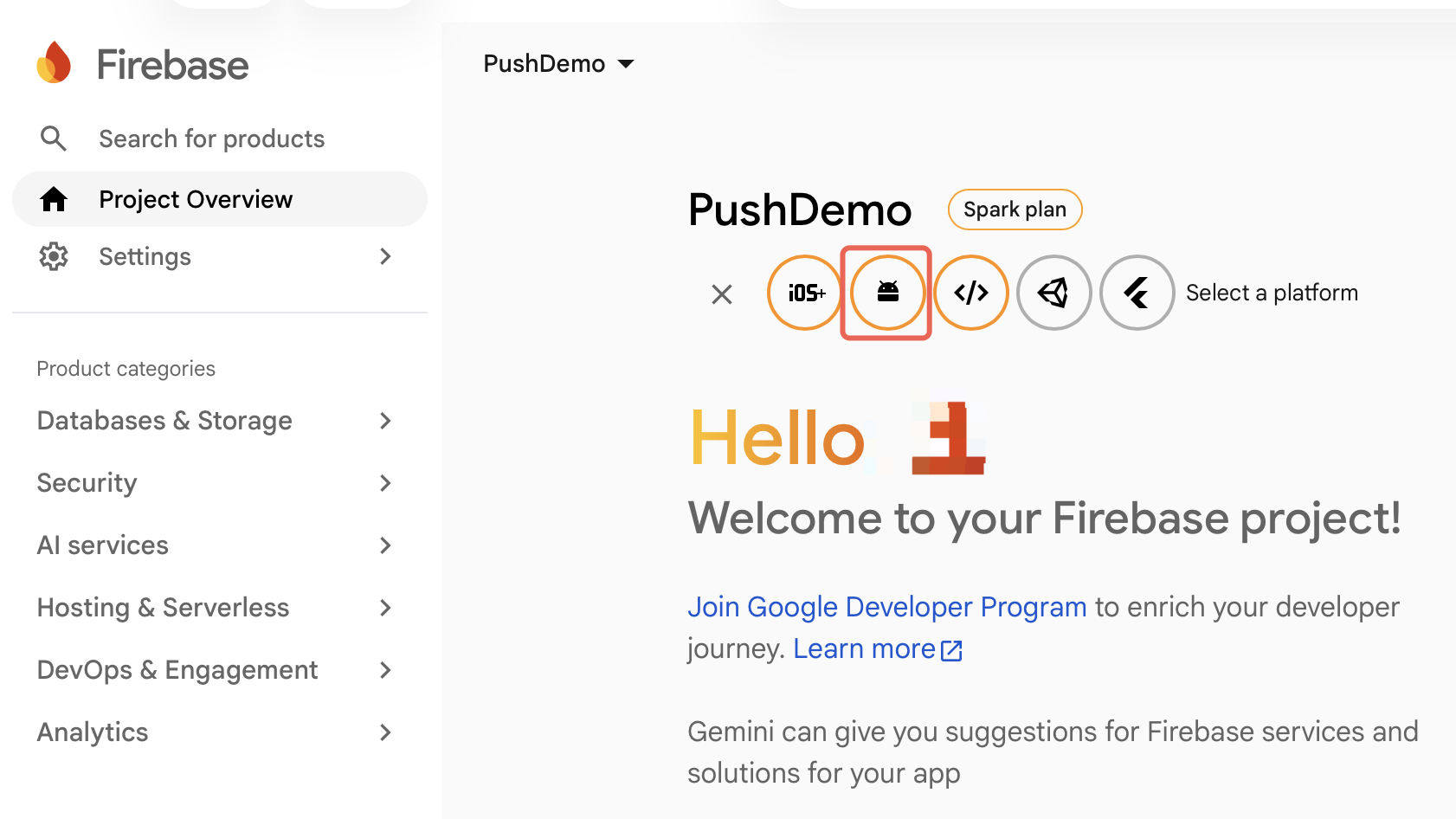
2. Open the Android app registration entry.
3. Enter the app information and register the Android app.
Note:
The Android package name is case-sensitive and cannot be changed after the Firebase Android app is registered. Make sure the package name matches the Android project's
applicationId exactly.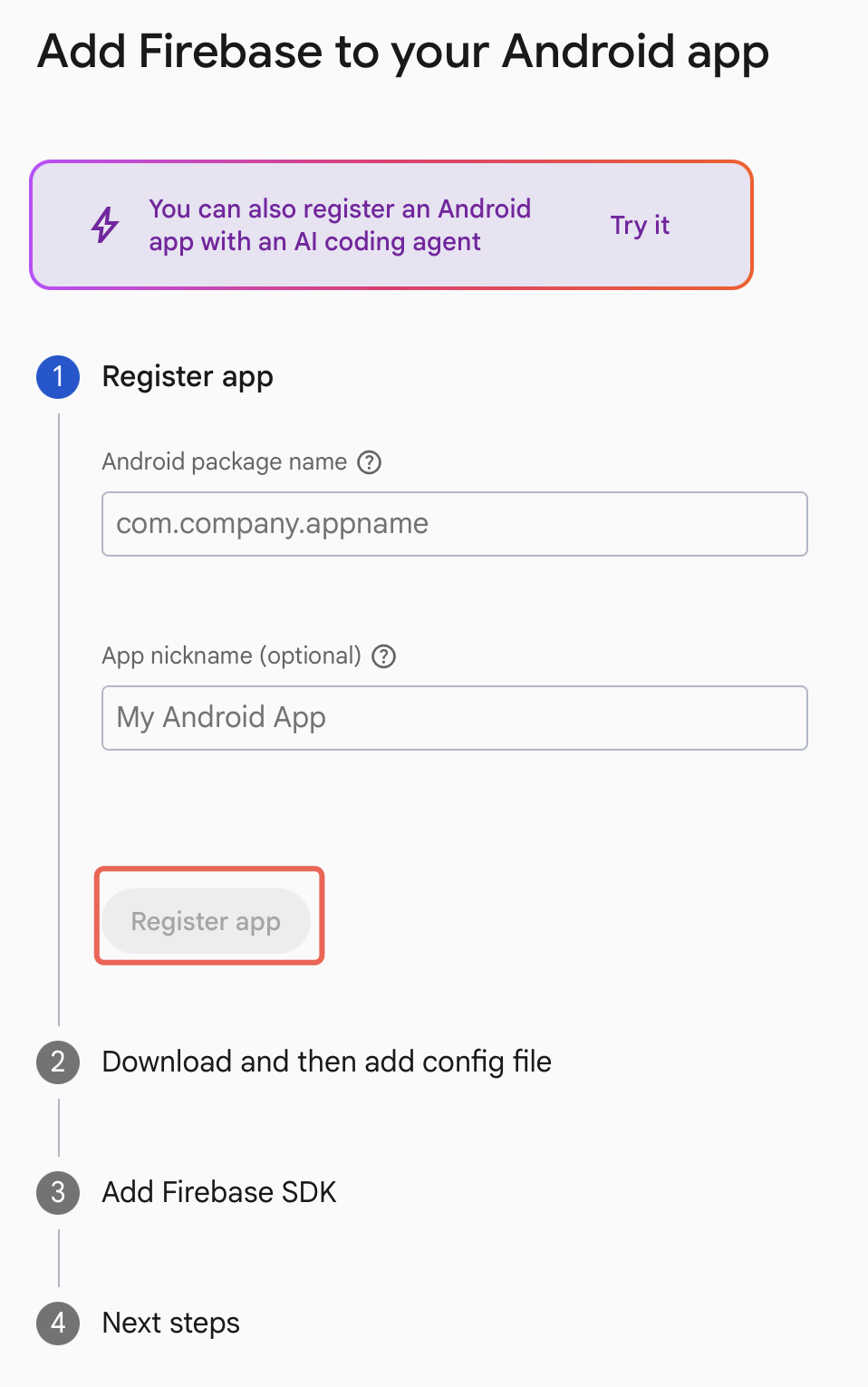
4. Download the
google-services.json configuration file to complete registration.Note:
During later SDK Integration, place
google-services.json in the Android project's module (app-level) root directory, for example app/google-services.json. Do not put it in the project root directory.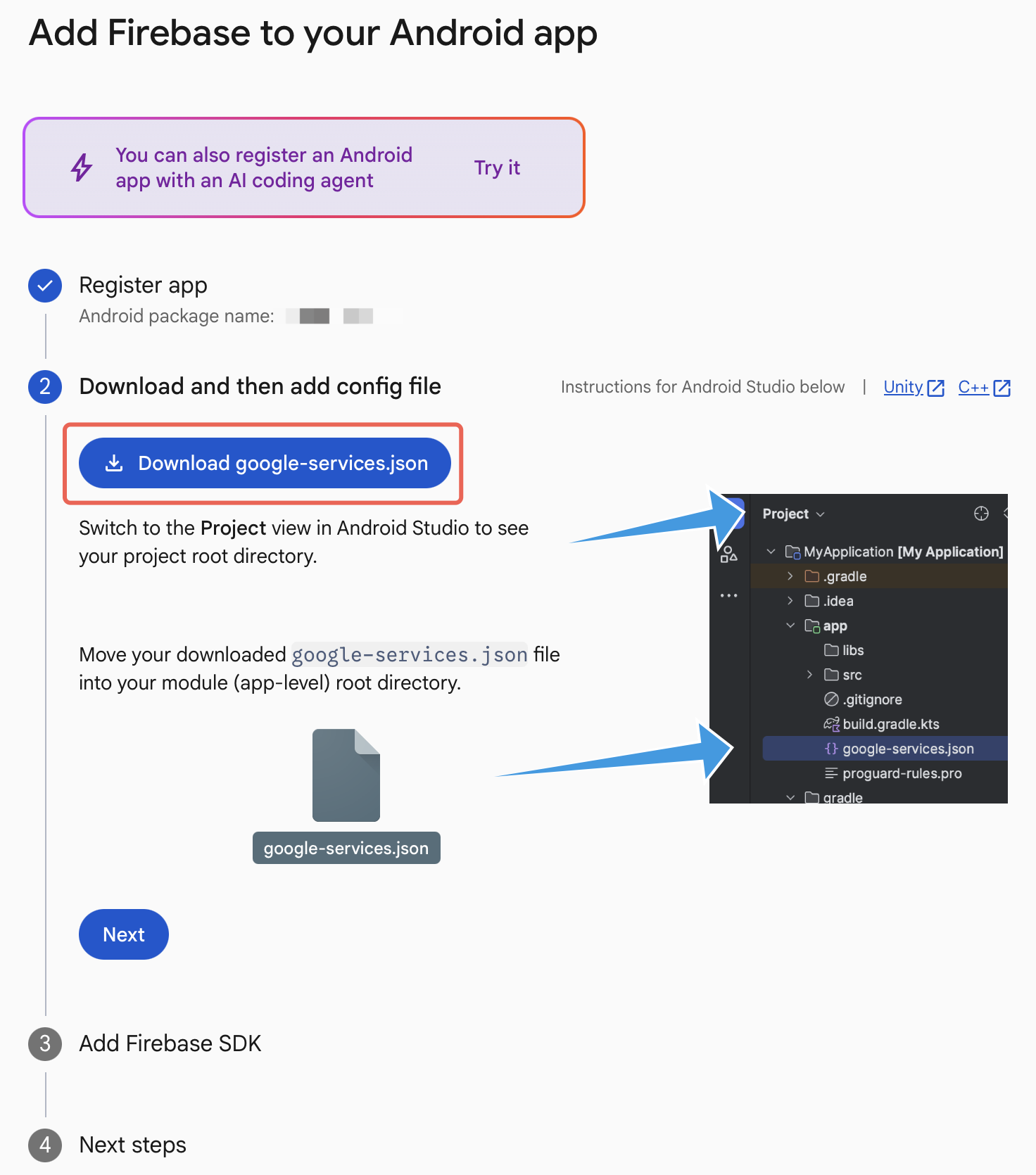
Generate a service account private key
1. Click the app to open Project Overview.
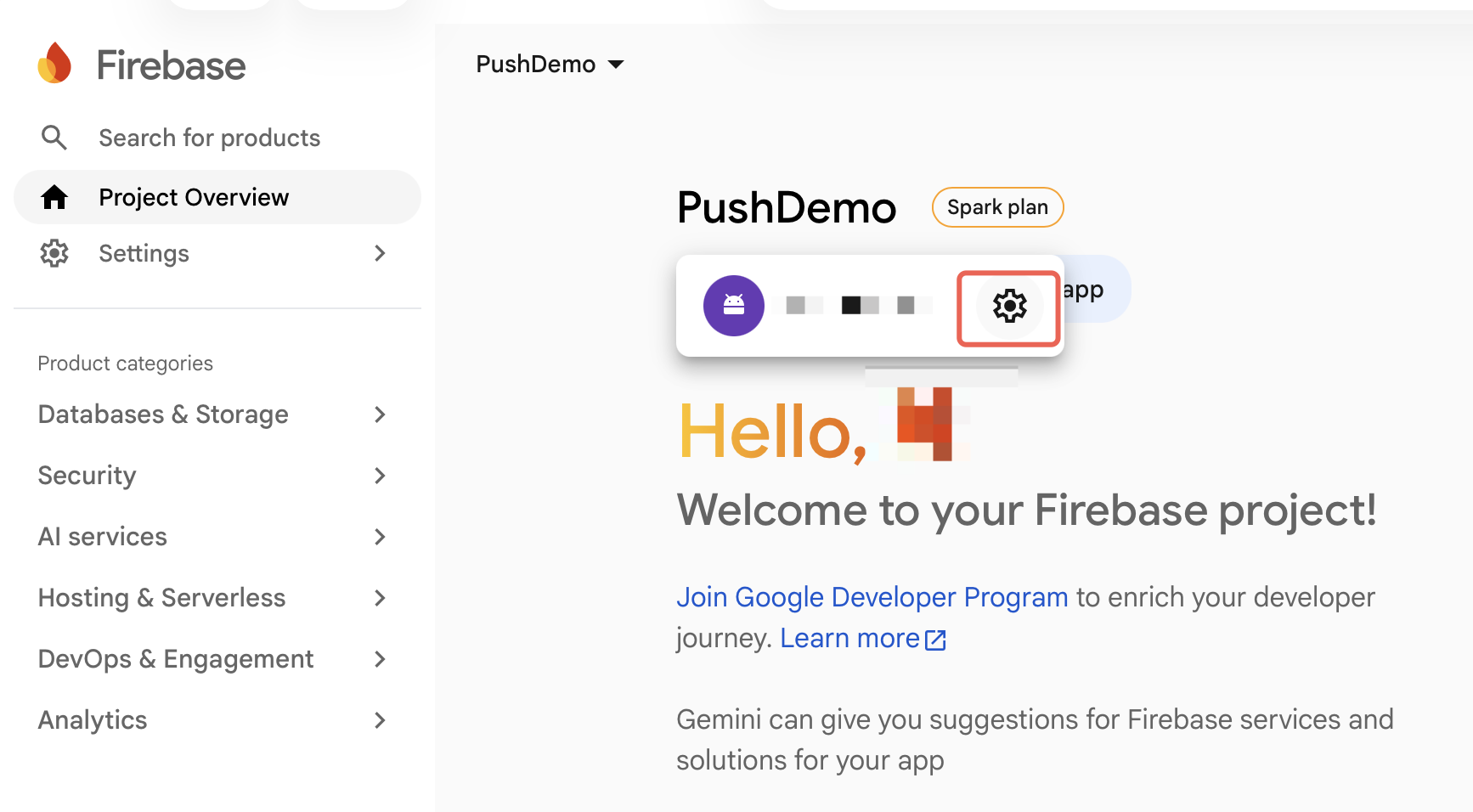
2. In Project Overview, click Service accounts > Generate new private key to generate and download the service account private key JSON file.
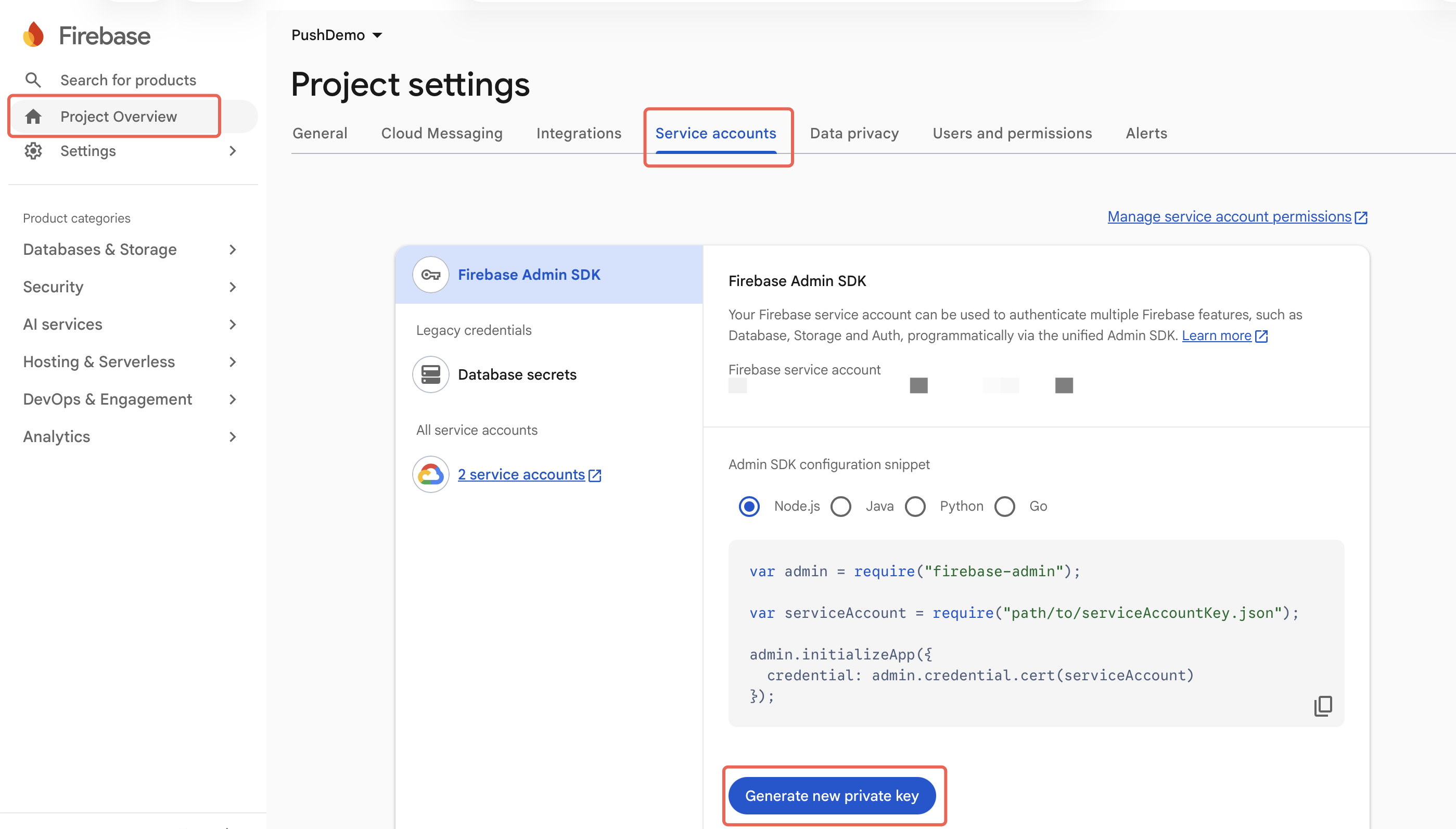
Note:
The service account private key authenticates your server with FCM. Keep it secure. Do not commit the private key to a code repository, client install package, or any public channel.
Confirm FCM API V1 status
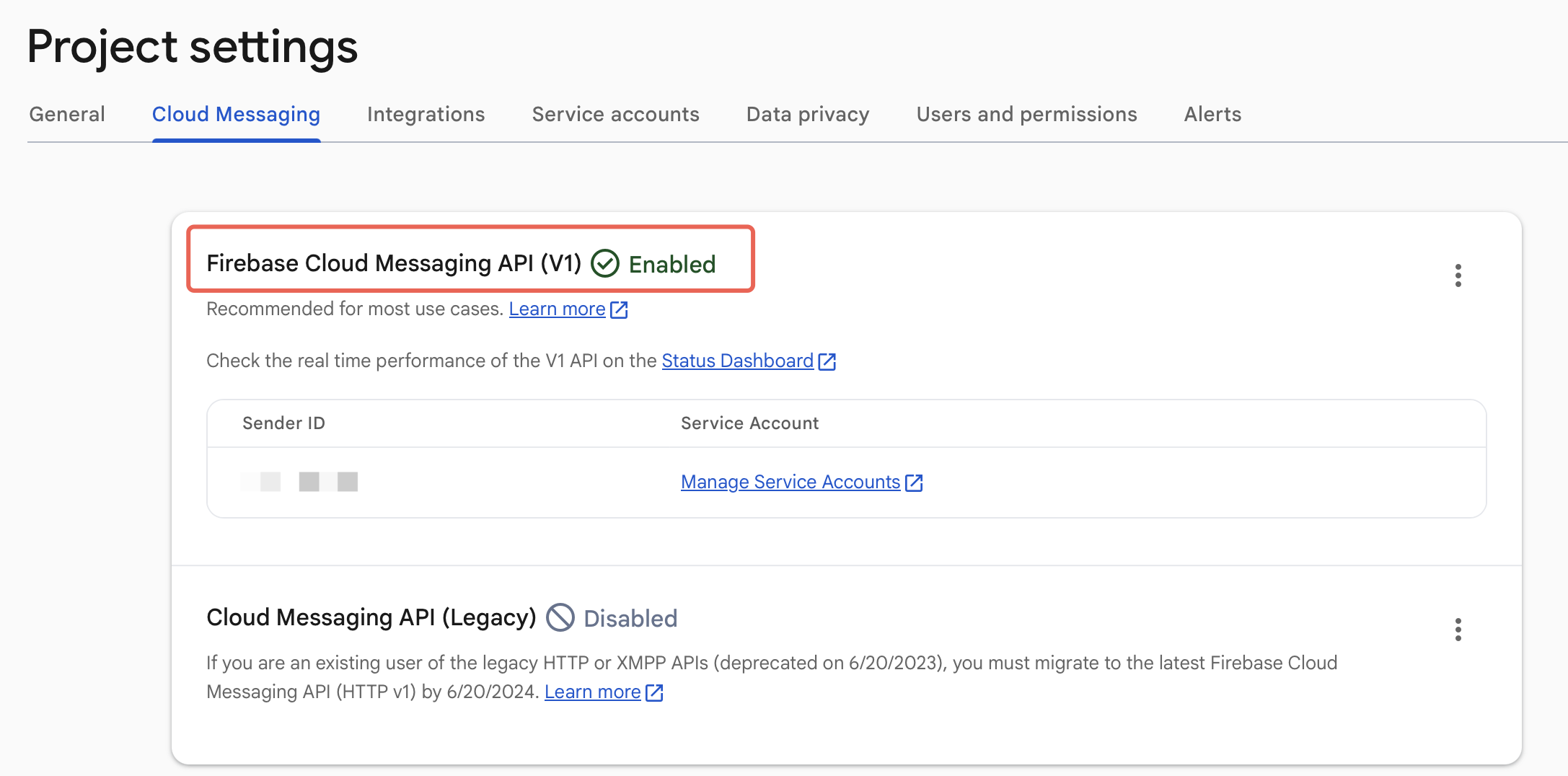
In the Firebase console under Project settings > Cloud Messaging, confirm that Firebase Cloud Messaging API (V1) is enabled. The legacy FCM Server Key (HTTP/XMPP) is deprecated. TIMPush's Google FCM channel should use the HTTP v1 API and a service account private key. Do not mix in legacy Server Key credentials.
Console configuration
Add the Google FCM vendor certificate
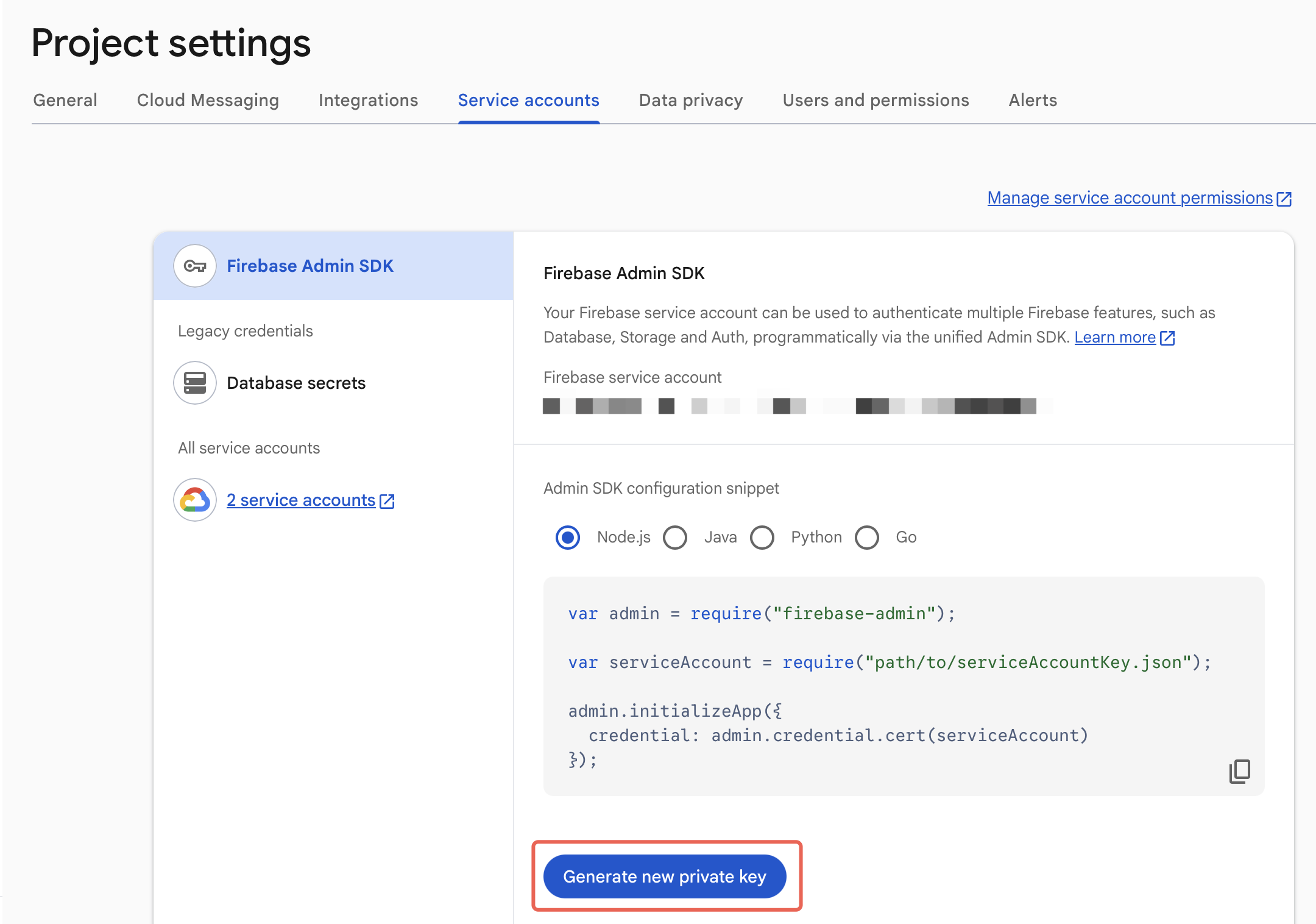
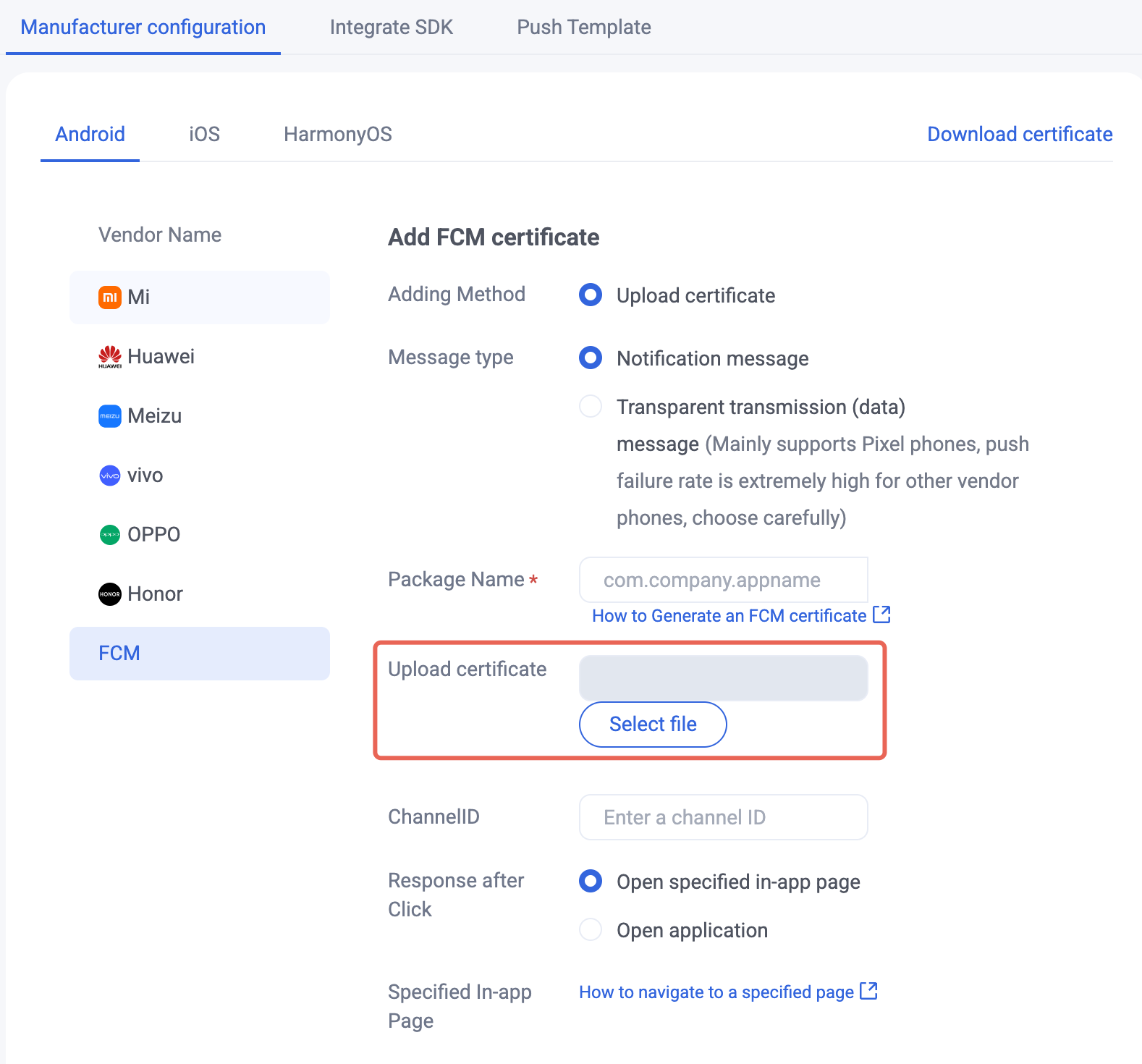
Log in to the Tencent Cloud Console. Under Push > App Push > Push Settings > Manufacturer configuration, add the Google FCM vendor certificate.
Firebase Console | Tencent Cloud Chat Console |
 |  |
Choose the FCM message type
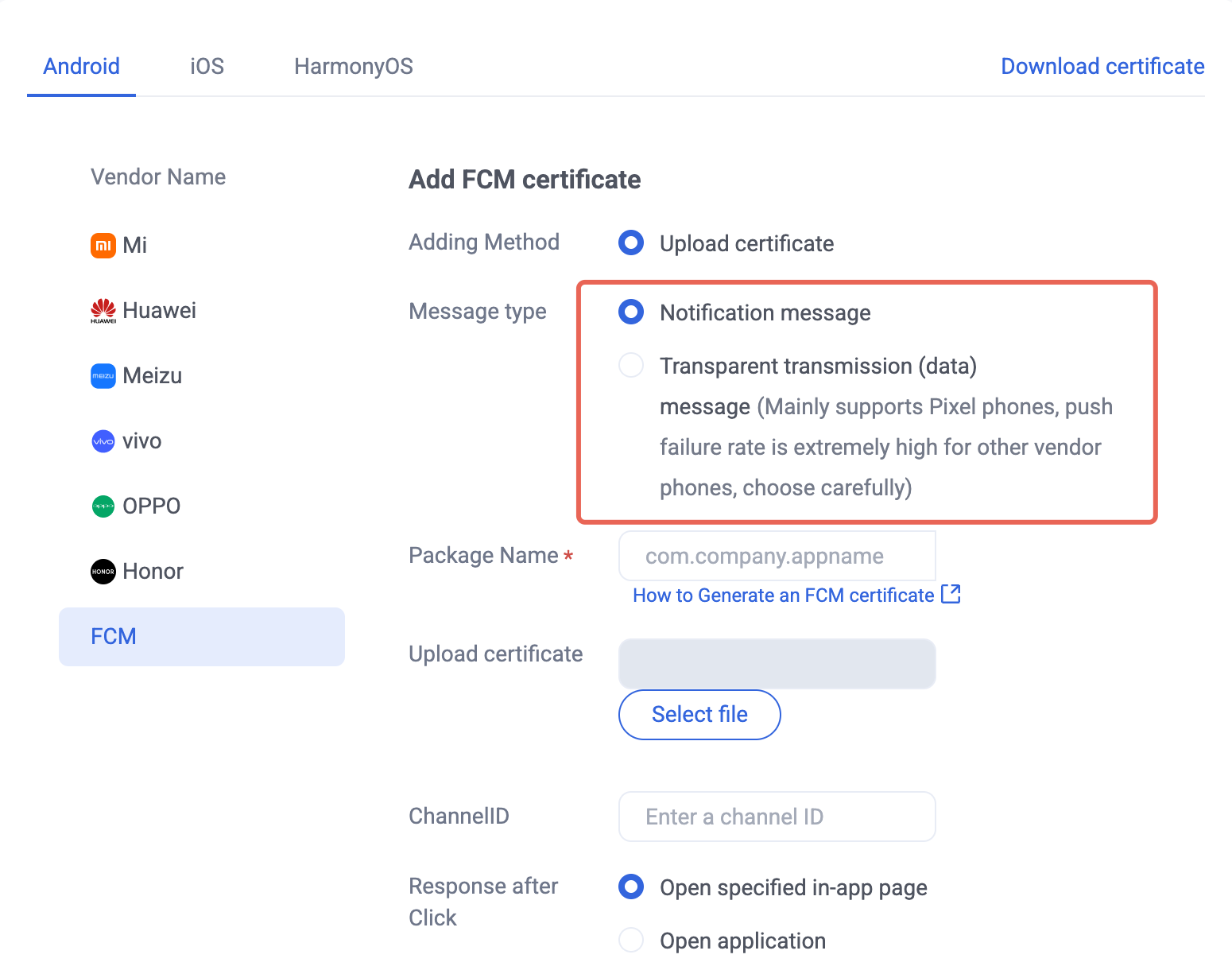
FCM supports notification messages and data messages. The console selects notification messages by default. You can switch the message type based on your business scenario.
Message type | Handling | Recommended usage |
Notification message | When the app is in the background, the FCM SDK can automatically display the notification in the notification shade. | Suitable when you only need basic offline notifications. Recommended for new integrations. |
Data message | Handled by client app code. FCM does not display a notification automatically. | Suitable when you need custom handling of business data, routing, or display logic. Fully test on target devices after integration. |
Notification message + data payload | Shows a notification in the background and also carries business parameters. | Suitable when you need both a visible notification and business parameters after the user taps it. |
In the console, switch types with the Message type option:
Note:
FCM data message support is limited to Pixel phones with TIMPush 7.8 or later. For devices from other vendors, verify support yourself.
Impact of quotas and rate limits on push delivery
Google FCM does not use the private/public/service-communication message classification model of mainland China vendors, but it does apply quotas and rate limits at the project, per-device, and collapsible-message levels. Sending too frequently may cause throttling, delay, failure, or abuse detection.
Limit dimension | Official rule | Configuration tips |
Project-level downstream quota | FCM HTTP v1 API is metered per project per minute by default. The default downstream quota is 600,000 messages per project per minute. Exceeding it may return 429 RESOURCE_EXHAUSTED / QUOTA_EXCEEDED. | Server send pipelines should handle throttling, backoff, and retries to avoid short traffic spikes. |
Per-device send rate | Android per-device limits are 240 messages/minute and 5,000 messages/hour. | Merge or reduce frequency of multiple business reminders for the same user on the business side. |
Collapsible messages | Each device and app can burst 20 collapsible messages, then replenish 1 every 3 minutes. | Do not repeatedly send sync or status-refresh messages at high frequency, or they may be delayed. |
Message type | Notification messages suit basic offline notifications. Data messages allow more flexible custom handling, but the client must fully implement the logic. | Prefer notification messages for new integrations. Evaluate data messages only when you need custom handling. |
If your business needs an FCM notification channel, you can set the Android 8.0+ notification channel ID in the SDK API when sending offline pushes. For API usage, see Configure message classification (optional) in the Android SDK integration documentation. Quotas follow Firebase message throttling and quotas.
Configuration checklist
After finishing this guide, check the following in order:
Checklist item | Expected result |
Package name consistency | The Firebase Android app package name exactly matches the Android project applicationId, including case. |
Android runtime environment | The target device or emulator meets Android 6.0 (API 23) or later and can use Google Play services. |
Firebase project | The project ID is confirmed and does not need to change after creation. If you need message delivery reports, Google Analytics is enabled. |
Configuration file | The latest google-services.json is downloaded and ready to place in the module (app-level) root during SDK Integration, for example app/google-services.json. |
Service account private key | The service account private key JSON file is generated and stored securely, and is not committed to a code repository or public channel. |
FCM API V1 | Firebase Cloud Messaging API (V1) is confirmed enabled in the Firebase console. |
Tencent Cloud vendor certificate | The Google FCM certificate is added in the console with the correct configuration uploaded or entered. |
Message type | Notification or data message is selected for the business need. Version and device limits for data messages are understood. |
Quotas and rate limits | Project-level downstream quota, per-device send rate, and collapsible message limits are evaluated. Throttling and retries are handled in the server send pipeline. |
Legacy credential migration | The deprecated legacy Server Key is not used. HTTP v1 API and a service account private key are in use. |
Bantuan dan Dukungan
Apakah halaman ini membantu?
Anda juga dapat Menghubungi Penjualan atau Mengirimkan Tiket untuk meminta bantuan.
masukan