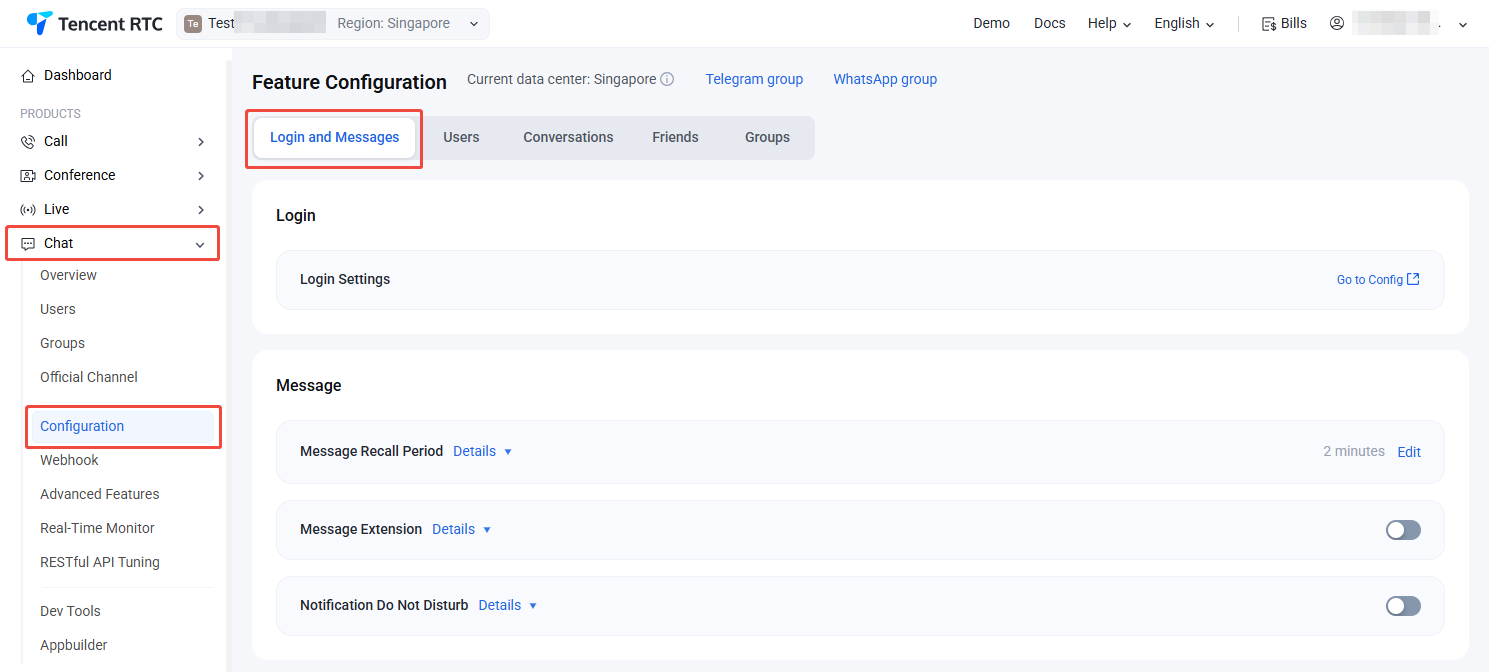
Log in to the Chat Console, select your target application at the top, and go to Chat > Configuration >Login and Messages in the left sidebar. Here, you can configure login and messaging settings to suit your business needs.
Login Settings
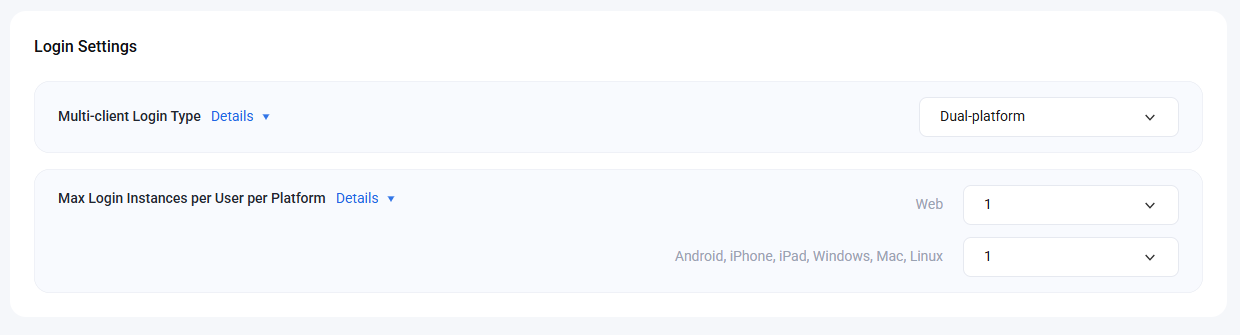
1. On the Login and Messages page, click Go to Config next to Login Settings.
2. In Login Settings, set the Multi-client Login Policy. Specify the maximum number of concurrent online instances for both Web and Other Platforms.
Note:
When using multi-platform login in Pro edition, Pro edition Plus, or Enterprise edition:
Web supports up to 10 concurrent online sessions.
Android, iPhone, iPad, Windows, Mac, and Linux support up to 3 concurrent devices per platform.
3. Changes are saved automatically and take effect immediately.
Message Recall Period
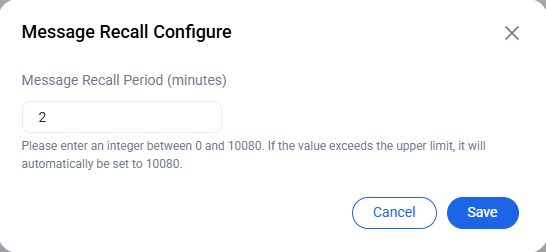
1. On the Login and Messages page, click Edit next to Message Recall Period.
2. In the Message Recall Configure dialog, configure the Message Recall Period.
3. Click Save to apply your changes.
Message Extension Settings
On the Login and Messages page, enable or disable features in the Message Extension Settings section.
Note:
Message Extension allows you to add key/value tags to messages, supporting features such as voting, relay, surveys, and more. For details, see the Feature Documentation.
Available to Pro edition, Pro edition Plus, and Enterprise edition customers. Requires Enhanced Terminal SDK version 6.7.3184 or above. Upgrade your SDK if needed.
Notification Do Not Disturb
On the Login and Messages page, manage the Notification Do Not Disturb feature.
Note:
Chat allows users to enable Global Notification Muting. Requires Terminal SDK version 7.4.4643 or above.
When enabled, the system checks the user's global notification muting status when messages arrive. Disabled by default. If the client enables global notification muting while the backend setting is off, error code 72011 is returned.
Historical Message Storage
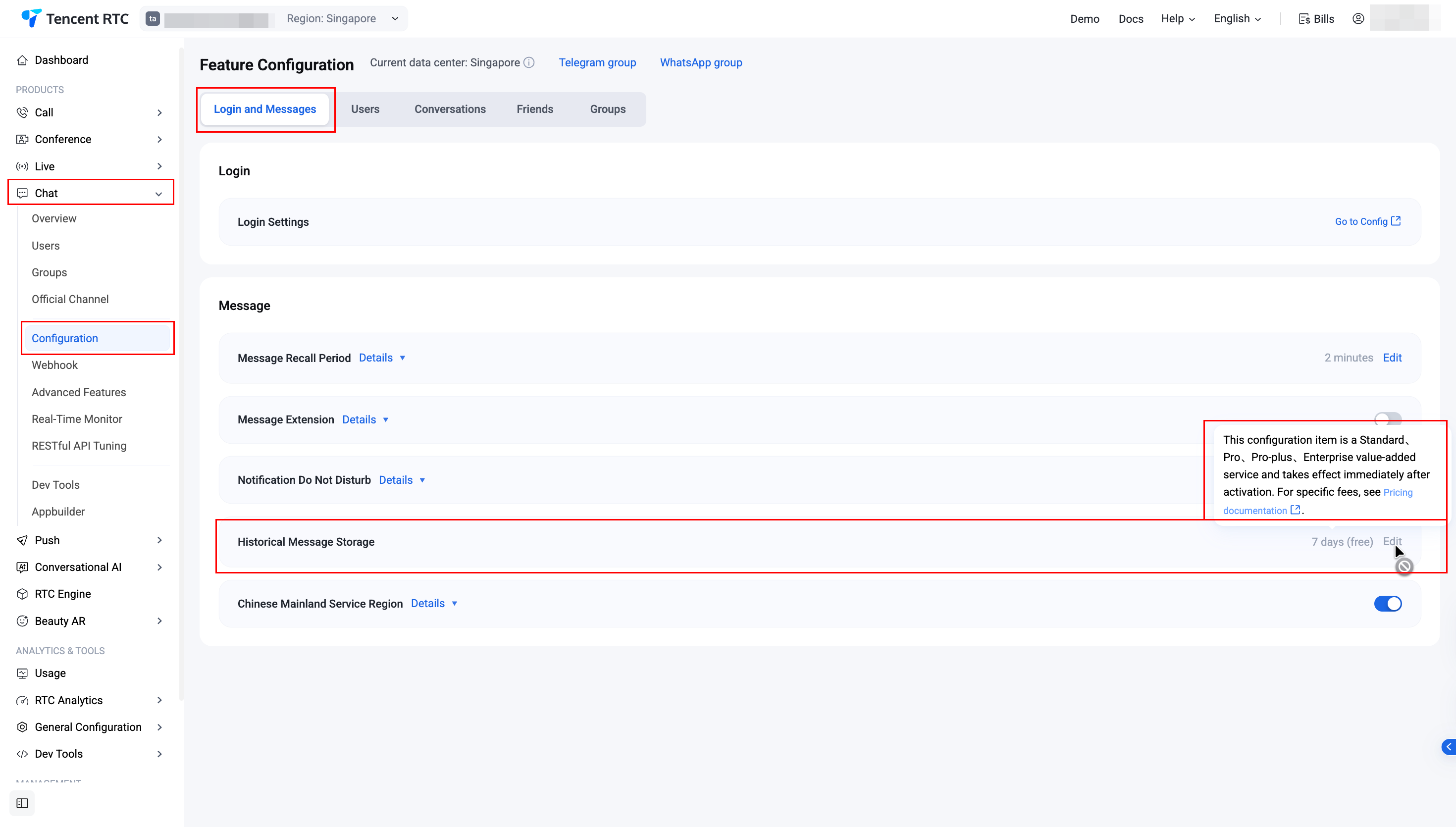
Historical messages are retained for seven days by default. If you require a longer storage period for historical messages, you can enable this as an additional service in the Standard Edition, Pro Edition, Pro Edition Plus, or Enterprise Edition. For comprehensive billing details, see the Pricing. This configuration can only be changed once per calendar month.
1. On the Login and Messages page, click Edit in the upper-right corner of the Historical Message Storage area.
2. In the pop-up dialog box, extend the storage period of historical messages.
3. Click Confirm and the configuration will take effect immediately.
Users
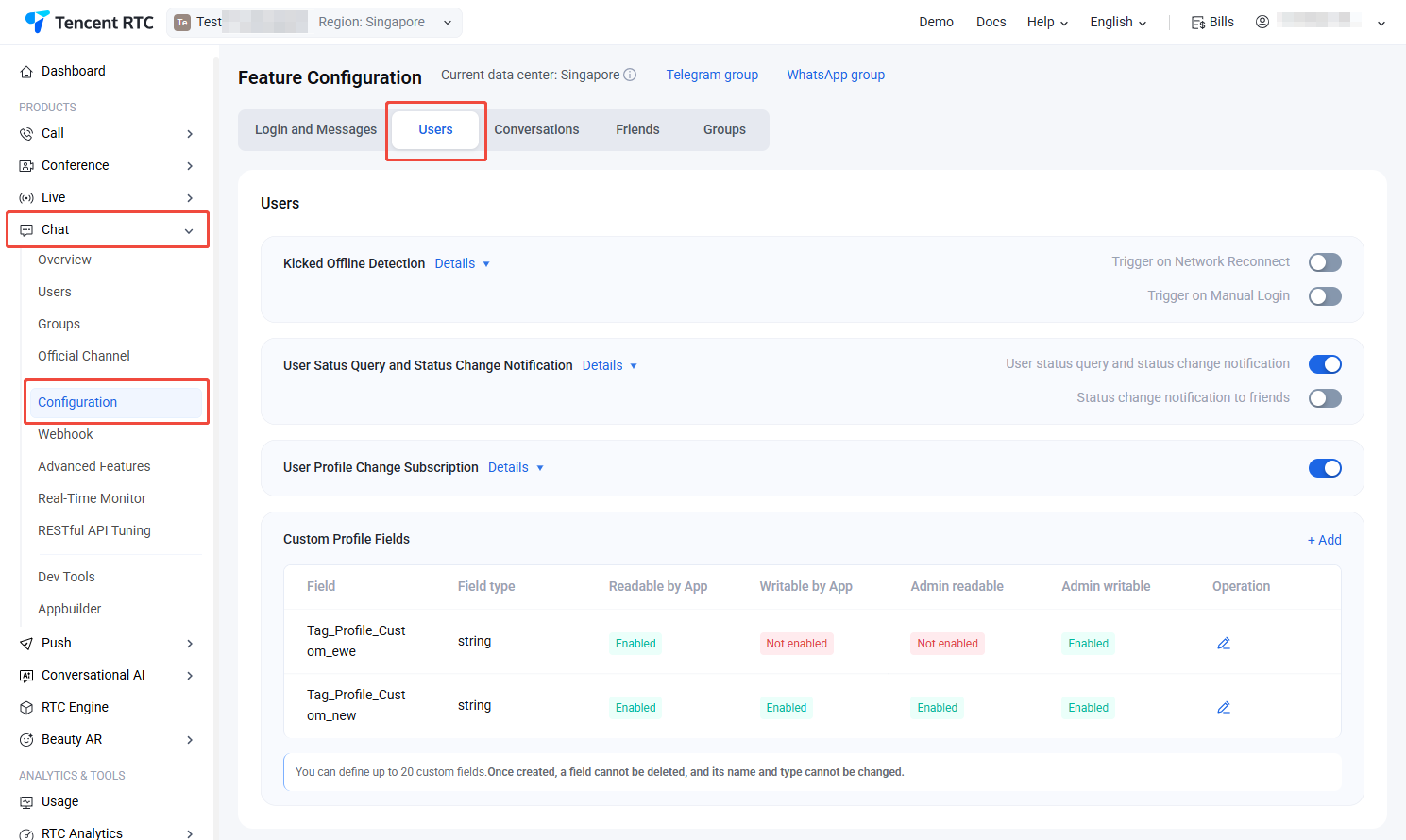
Log in to the Chat Console, select your target application at the top, and go to Chat > Configuration >Users in the left sidebar. Here, you can manage custom user fields as needed.
Kicked Offline Detection
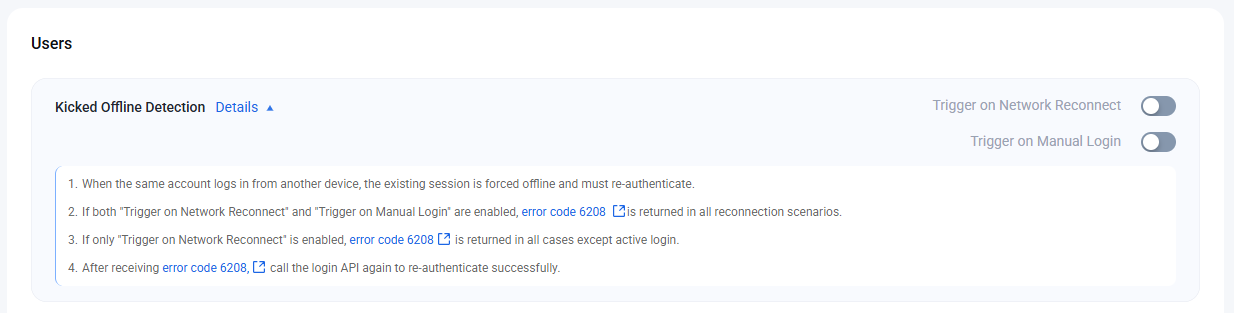
On the Users page, in the Kicked Offline Detection section, enable or disable the kicked offline notification. The controls are split into Network Reconnect and Manual Login:
If both are enabled, you will receive error code 6208 any time you reconnect, regardless of the scenario.
If only Network Reconnect is enabled and Manual Login is disabled, you will receive error code 6208 except for active logins.
Note:
This feature is only effective for Native SDK; Web SDK does not return error code 6208.
User Status Query and Status Change Notification
On the Users page, in the User Status Query and Status Change Notification section, enable user status query and change notifications.
Note:
Disabled by default. When disabled, the client receives error code 72001 when querying, subscribing, or unsubscribing user status. Supported on Terminal SDK version 6.3 and above.
Available only to Pro edition, Pro edition Plus, and Enterprise edition users. Click Upgrade Application to enable.
User Profile Change Subscription
On the Users page, in the User Profile Change Subscription section, enable or disable subscription to user profile changes. For details, see User Profile Change Notification.
Profile changes can include:
Updates to your own profile
Updates to friends' profiles
Updates to subscribed users (non-friends)
Note:
Disabled by default. When disabled, the client receives error code 72012 when subscribing to user profile changes.
Supported only on Terminal SDK version 7.4.4643 and above.
Available only to Pro edition, Pro edition Plus, and Enterprise edition users. Click Upgrade Application to enable.
You can subscribe to up to 200 users. If you exceed the limit, the earliest subscriptions will be removed.
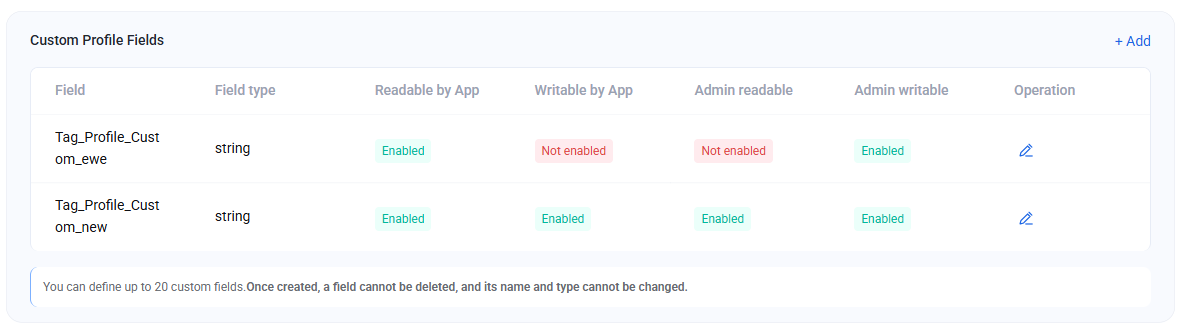
Custom Profile Fields
Note:
You can add up to 20 custom user fields. Fields cannot be deleted, renamed, or have their type changed. Only read/write permissions can be modified. Plan your fields according to your business needs.
1. On the Users page, in the Custom Profile Fields section, click Add on the right.
2. In the custom user field dialog, enter a field name, set the field type, and configure read/write permissions.
Note:
Field names must use English letters and be no longer than 8 characters.
At least one read permission and one write permission must be set.
3. Click Confirm to save your settings.
Conversations
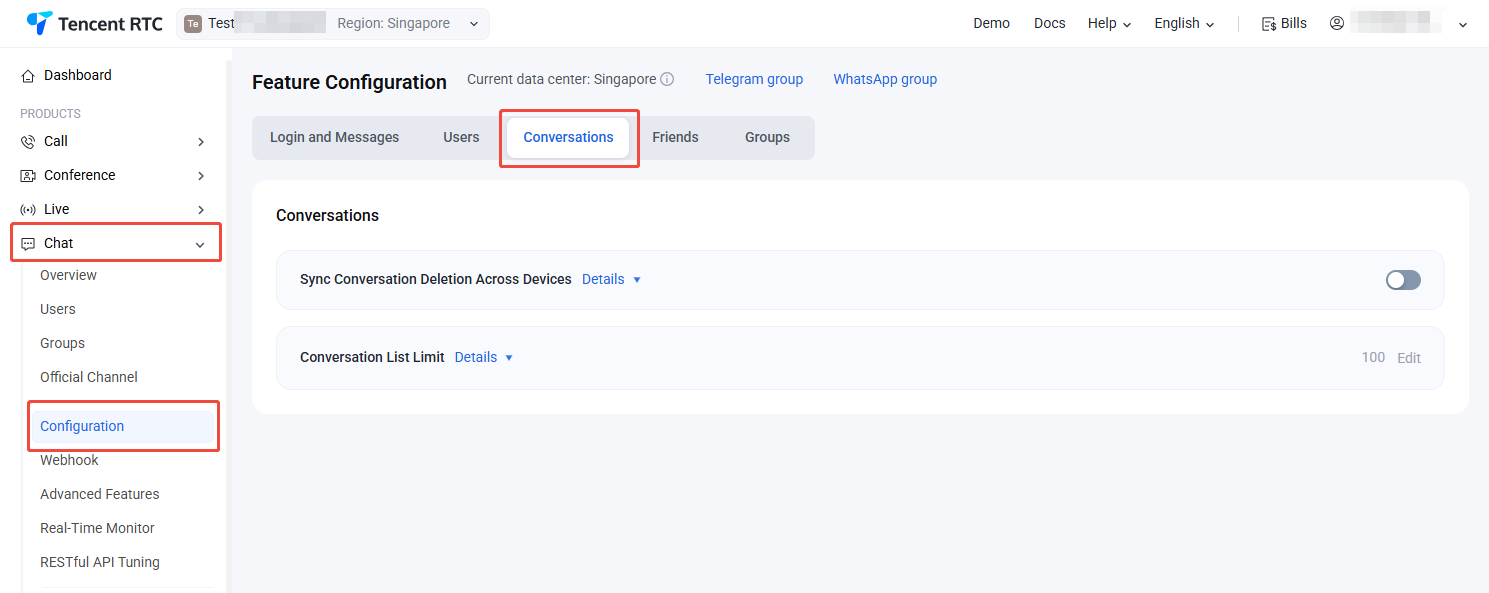
Log in to the Chat Console, select your target application at the top, and go to Chat > Configuration >Conversations in the left sidebar. Here, you can manage conversation settings as needed.
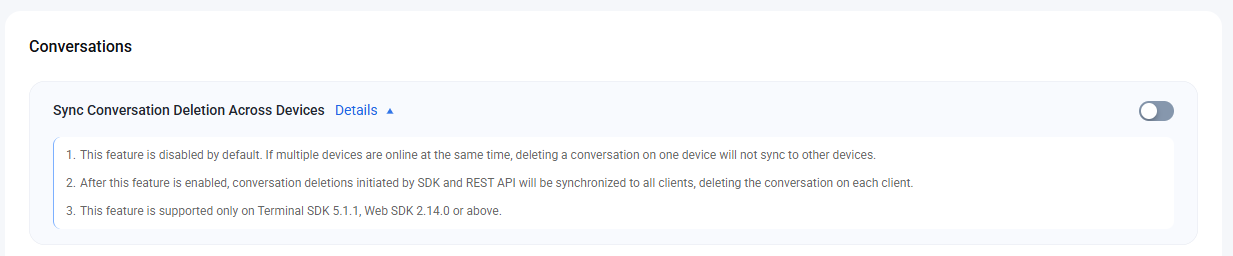
Sync Conversation Deletion Across Devices
On the Conversations page, in the Sync Conversation Deletion Across Devices section, enable or disable this feature:
Enabled: When multiple clients are online at the same time, deleting a conversation will sync the deletion across all devices.
Disabled: Deleting a conversation on one device will not sync to other devices. Disabled by default.
Note:
Supported only on Terminal SDK 5.1.1, Web SDK 2.14.0 and above. Update your SDK if needed.
Conversation List Limit
On the Conversations page, in the Conversation List Limit section, set how many conversations can be fetched from the cloud. By default, up to 100 conversations can be fetched, but you can configure up to 500.
Note:
Supported only on Terminal SDK 5.1.1, Web SDK 2.0 and above. Update your SDK if needed.
Available only to Pro edition, Pro edition Plus, and Enterprise edition users. Click Upgrade Application to enable.
Friends
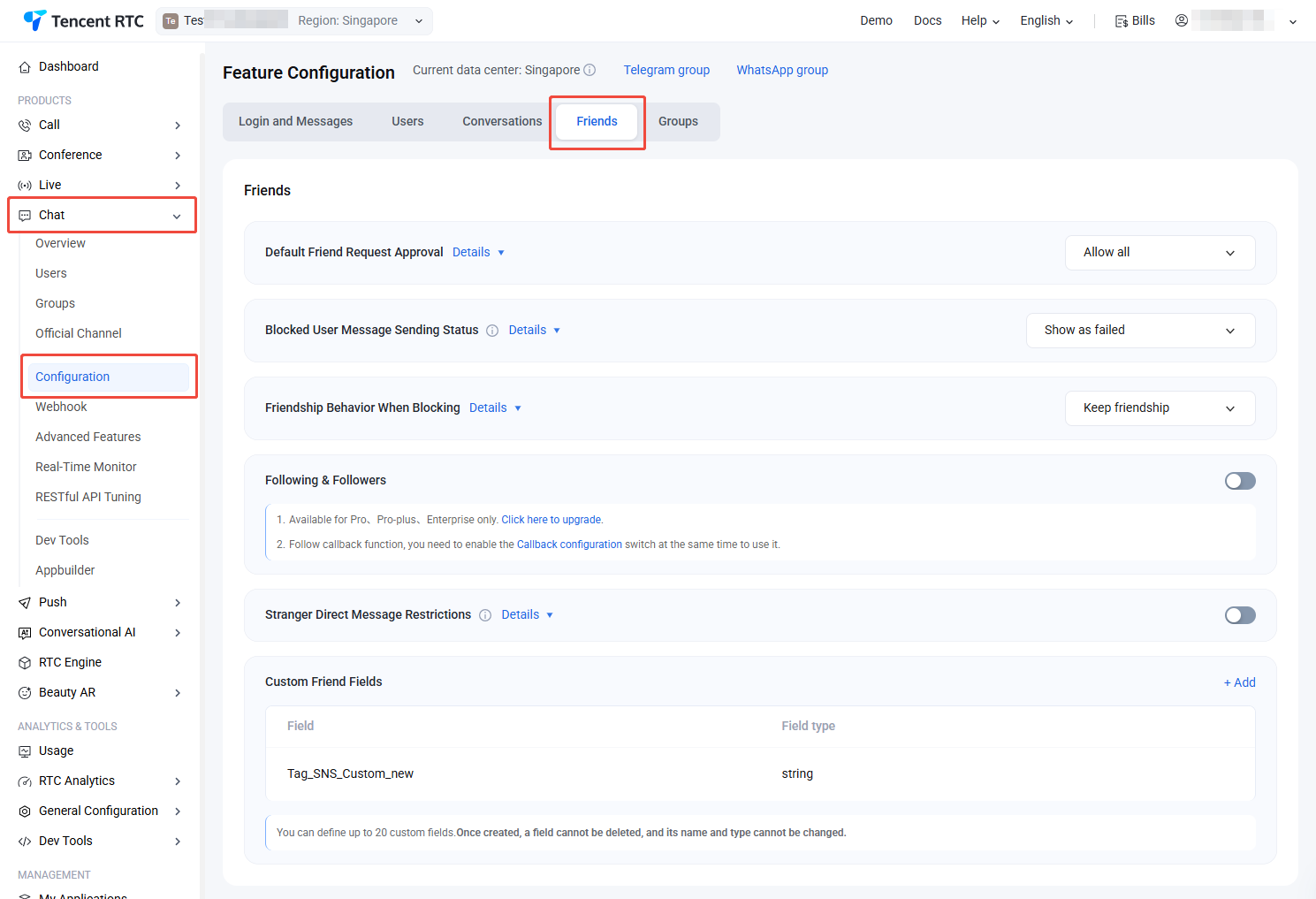
Log in to the Chat Console, select your target application at the top, and go to Chat > Configuration >Friends in the left sidebar. Here, you can manage friend and relationship chain settings.
Default Friend Request Approval
On the Friends page, in the Default Friend Request Approval section, select your preferred verification method. Changes take effect automatically:
Require approval;
Allow all;
Deny all.
Blocked User Message Sending Status
On the Friends page, in the Blocked User Message Sending Status section, select either Shows as sent(message not delivered) or Shows as failed:
Shows as sent(message not delivered): When a blocked user sends a message, it still displays as "sent successfully" (though the recipient will not actually receive it).
Shows as failed: When a blocked user sends a message, a failure message appears, and the SDK receives error code 20007.
Selection is applied automatically.
Friendship Behavior When Blocking
On the Friends page, in the Friendship Behavior When Blocking section, choose how to handle blocked friends: Remove friendship or Keep friendship. Selection is applied automatically.
Following & Followers
On the Friends page, in the Following & Followers section, enable or disable the follow/fan feature.
Note:
Available only to Pro edition, Pro edition Plus, and Enterprise edition users. Click Upgrade Application to enable.
On the Friends page, in the Stranger Direct Message Restrictions section, enable or disable restrictions on stranger direct message:
Enabled: When starting a stranger direct message, the system checks for a friend relationship. Only friends can send direct message. If a stranger sends direct message, the SDK returns error code 20009.
Disabled: No relationship check is performed; users can send direct messages to both friends and strangers. Disabled by default.
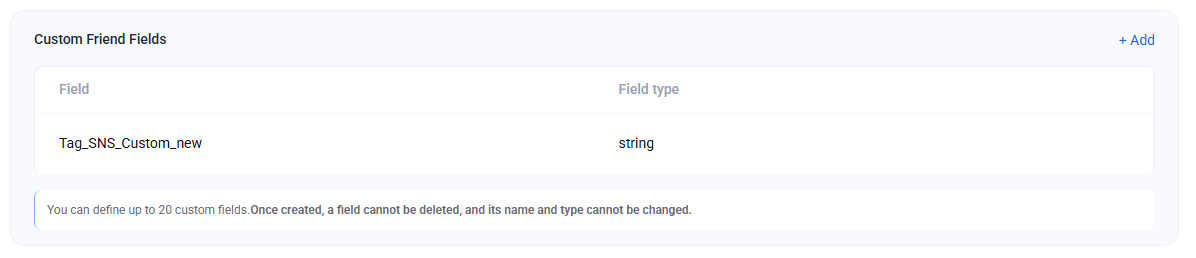
Custom Friend Fields
Note:
You can add up to 20 custom friend fields. Fields cannot be deleted, renamed, or have their type changed. Only read/write permissions can be modified. Plan your fields according to your business needs.
1. Click Add on the right side of the Custom Friend Fields feature card.
2. In the custom friend field dialog, enter a field name and set the field type.
Note:
Field names must use English letters and be no longer than 8 characters.
3. Click Confirm to save your settings.
Groups
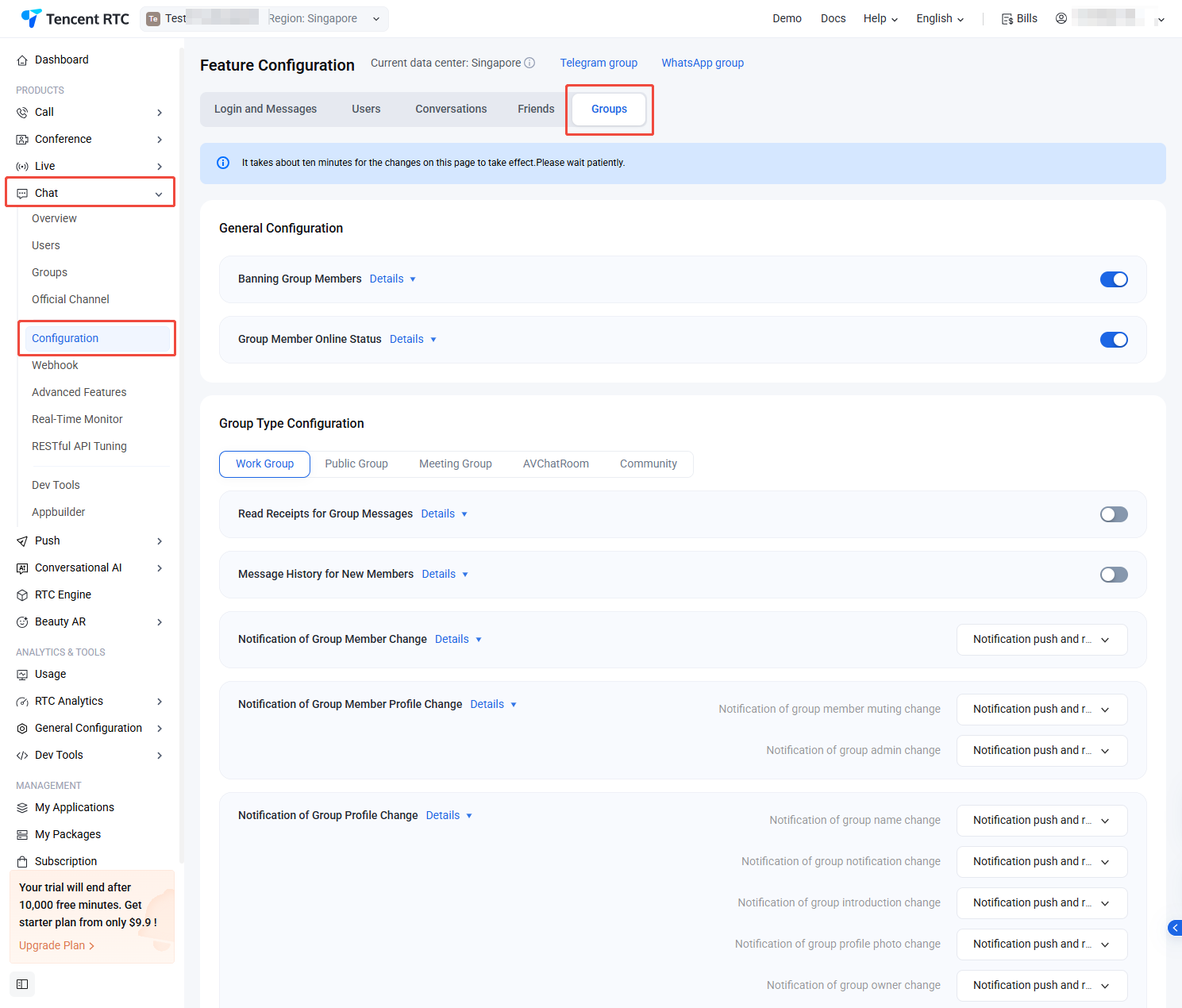
Log in to the Chat Console, select your target application at the top, and go to Chat > Configuration >Groups in the left sidebar. Here, you can manage custom group member fields as needed.
Banning Group Members
On the Groups page, in the Banning Group Members section, enable or disable the restriction on direct messages from strangers.
When enabled, you can ban members in any group type. Banned members will not receive messages and cannot rejoin the group while banned.
Note:
Supported only on Terminal SDK 6.6, Web SDK 2.22 and above. Update your SDK if needed.
Available only to Pro edition, Pro edition Plus, and Enterprise edition users. Click Upgrade Application to enable.
Group Member Online Status
On the Groups page, in the Group Member Online Status section, enable or disable online status tracking for group members.
Note:
Disabled by default. When enabled, you can retrieve online status and counts for group members in Work Groups, Public Groups, and Meeting Groups. See the server REST API Get Group Member Detailed Info.
Available only to Pro edition, Pro edition Plus, and Enterprise edition customers. Supported on Enhanced Terminal SDK 7.3.4358, Web SDK 3.2.0 and above. For Web SDK upgrade, see Documentation.
Group Type Configuration
1. Before configuring group features, select the group type: Work Group, Public Group, Meeting Group, AVChatRoom, or Community.
2. Configure features for the selected group type. The supported features for each group type are as follows:
Group Type
Work Group
Public Group
Meeting Group
AVChatRoom
Community
Message Read Receipt
✓
✓
✓
-
-
New Member Message History
✓
✓
✓
-
✓
Group Member Change Notification
✓
✓
✓
✓
✓
Group Member Profile Change Notification
✓
✓
✓
✓
✓
Group Profile Change Notification
✓
✓
✓
✓
✓
Custom Group Member Field
✓
✓
✓
✓
✓
Custom Group Field
✓
✓
✓
✓
✓
AVChatRoom Online Member List
-
-
-
✓
-
AVChatRoom Broadcast Message
-
-
-
✓
-
Fetch Roaming Messages Before Joining
-
-
-
✓
-
Community Status
-
-
-
-
✓
Community Topics
-
-
-
-
✓
Read Receipts for Group Messages
Read Receipts for Group Messages provides real-time feedback, showing which team members have read or not read sent messages. This feature is particularly valuable in business and office environments, helping teams communicate more efficiently.
In the Read Receipts for Group Messages section, toggle the switch on the right to enable.
Note:
Available only to Pro edition, Pro edition Plus, and Enterprise edition users. Click Upgrade Application to enable.
Chat supports viewing the read/unread status of sent messages. Supported on Terminal SDK 6.1.2155, Web SDK 2.18.0 and above, and suitable for Work Groups, Public Groups, and Meeting Groups with up to 200 members.
Message History for New Members
New members in AVChatRoom can view messages sent prior to joining, enhancing user engagement in live rooms. This helps users catch up on previous discussions and quickly join interactive conversations, improving retention.
In the Message History for New Members section, toggle the switch on the right to enable. When enabled, new members can fetch group historical messages sent before joining; when disabled, only messages sent after joining are available.
Notification of Group Member Change
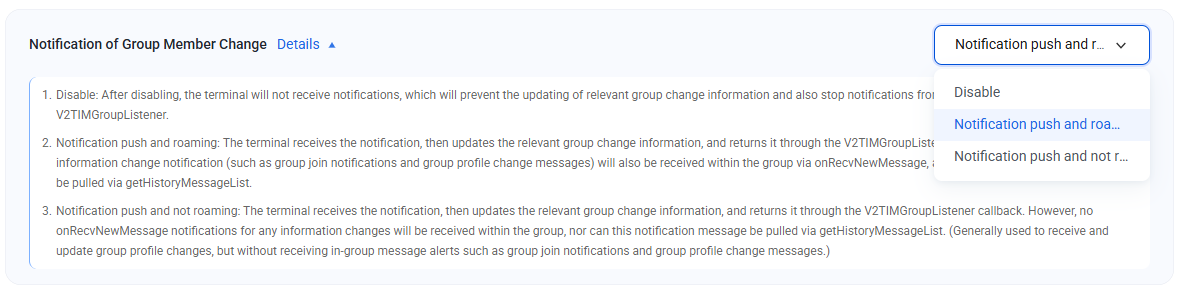
In the Notification of Group Member Change section, select the notification type from the dropdown menu:
Disable: After disabling, the terminal will not receive notifications, which will prevent the updating of relevant group change information and also stop notifications from being returned via V2TIMGroupListener.
Notification push and roaming: The terminal receives the notification, then updates the relevant group change information, and returns it through the V2TIMGroupListener callback. At the same time, each information change notification (such as group join notifications and group profile change messages) will also be received within the group via onRecvNewMessage, and this notification message can also be pulled via getHistoryMessageList.
Notification push and not roaming: The terminal receives the notification, then updates the relevant group change information, and returns it through the V2TIMGroupListener callback. However, no onRecvNewMessage notifications for any information changes will be received within the group, nor can this notification message be pulled via getHistoryMessageList. (Generally used to receive and update group profile changes, but without receiving in-group message alerts such as group join notifications and group profile change messages.)
Changes take effect within ten minutes.
Notification of Group Member Profile Change
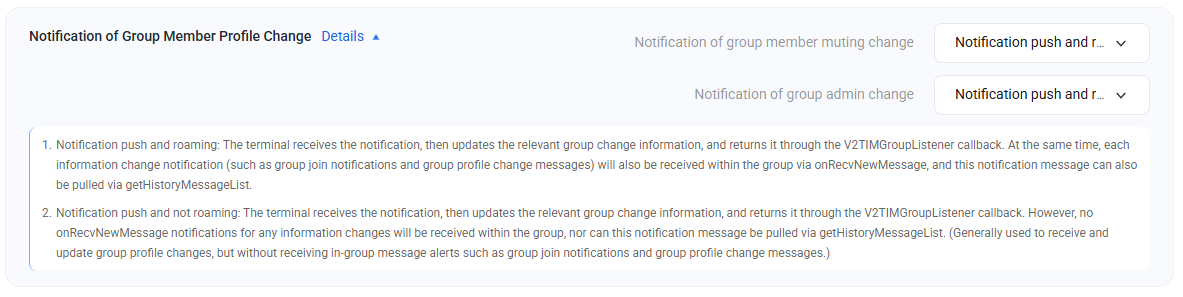
In the Notification of Group Member Profile Change section, select notification types for Notification of group member muting change and Notification of group admin change:
Notification push and roaming: The terminal receives the notification, then updates the relevant group change information, and returns it through the V2TIMGroupListener callback. At the same time, each information change notification (such as group join notifications and group profile change messages) will also be received within the group via onRecvNewMessage, and this notification message can also be pulled via getHistoryMessageList.
Notification push and not roaming: The terminal receives the notification, then updates the relevant group change information, and returns it through the V2TIMGroupListener callback. However, no onRecvNewMessage notifications for any information changes will be received within the group, nor can this notification message be pulled via getHistoryMessageList. (Generally used to receive and update group profile changes, but without receiving in-group message alerts such as group join notifications and group profile change messages.
Changes take effect within ten minutes.
Notification of Group Profile Change
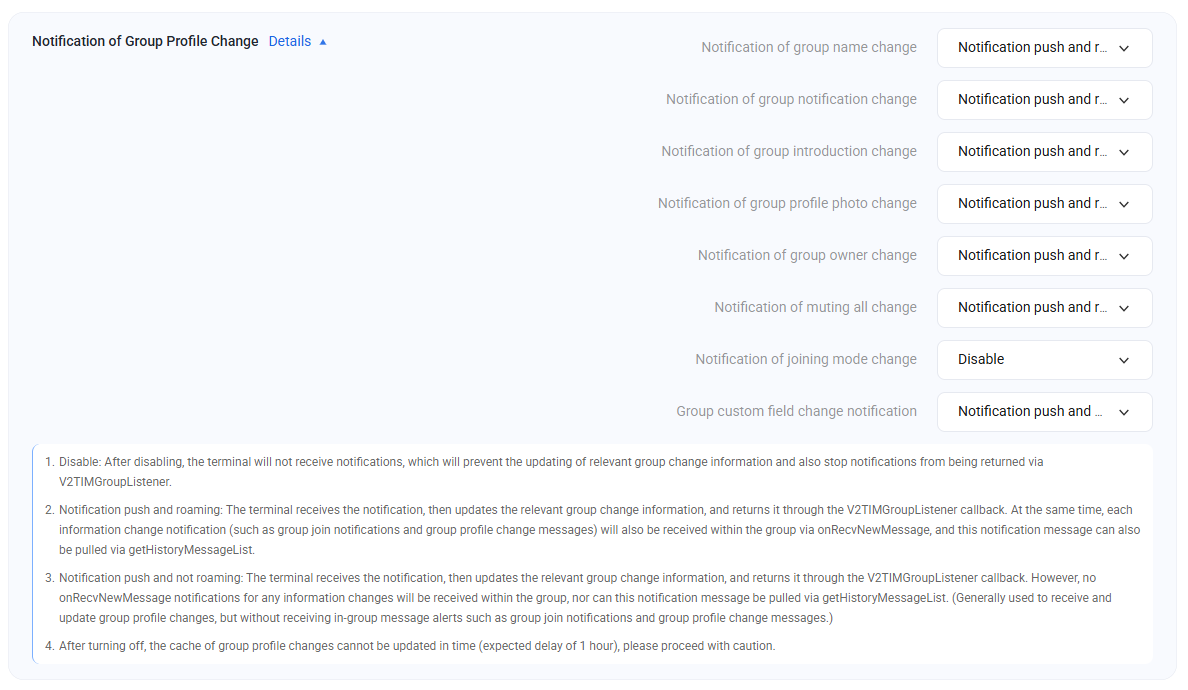
In the Notification of Group Profile Change section, choose the configuration from the dropdown. Supported notifications include: Notification of group name change, Notification of group notification change, Notification of group introduction change, Notification of group profile photo change, Notification of group owner change, Notification of muting all change, Notification of joining mode change, and Group custom field change notification.
Disable: After disabling, the terminal will not receive notifications, which will prevent the updating of relevant group change information and also stop notifications from being returned via V2TIMGroupListener.
Notification push and roaming: The terminal receives the notification, then updates the relevant group change information, and returns it through the V2TIMGroupListener callback. At the same time, each information change notification (such as group join notifications and group profile change messages) will also be received within the group via onRecvNewMessage, and this notification message can also be pulled via getHistoryMessageList.
Notification push and not roaming: The terminal receives the notification, then updates the relevant group change information, and returns it through the V2TIMGroupListener callback. However, no onRecvNewMessage notifications for any information changes will be received within the group, nor can this notification message be pulled via getHistoryMessageList. (Generally used to receive and update group profile changes, but without receiving in-group message alerts such as group join notifications and group profile change messages.)
After turning off, the cache of group profile changes cannot be updated in time (expected delay of 1 hour), please proceed with caution.
Changes take effect within ten minutes.
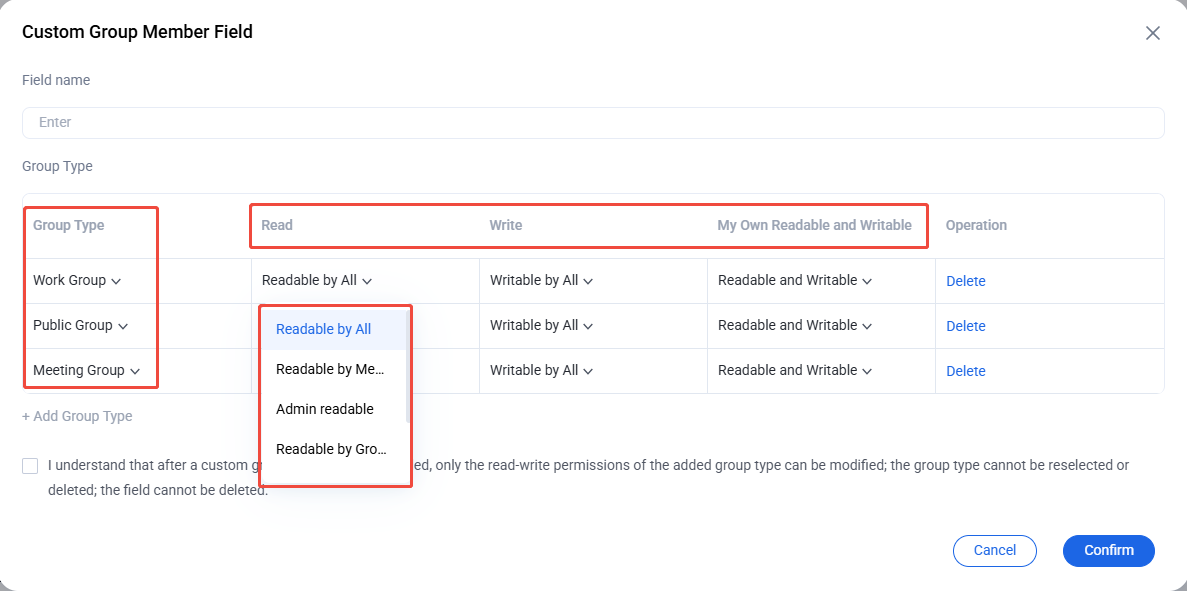
Custom Group Member Field
Note:
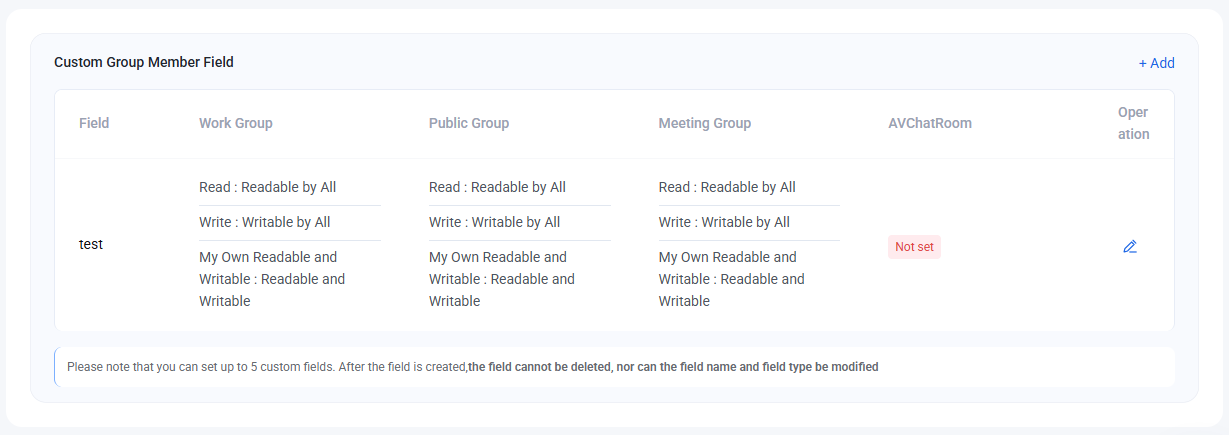
You can add up to 5 custom group member fields. Fields cannot be deleted, renamed, or have their type changed. Only read/write permissions can be modified. Plan fields according to your business needs.
1. In the Custom Group Member Field section, click Add on the right.
2. In the custom group member field dialog, enter the Field Name, select the Group Type, and set the required Read/Write Permissions.
Note:
Field names can include letters, numbers, and underscores (_), must not start with a number, and must be no longer than 16 characters.
Custom group member field names must not duplicate custom group field names.
Click Add Group Type to add a new group type parameter set. Group types cannot be duplicated.
Click Delete to remove a group type parameter set. At least one group type parameter set must remain.
3. Check the acknowledgment: "I understand that after a custom group member field is added, only the read-write permissions of the added group type can be modified; the group type cannot be reselected or deleted; the field cannot be deleted."
4. Click Confirm to save your settings.
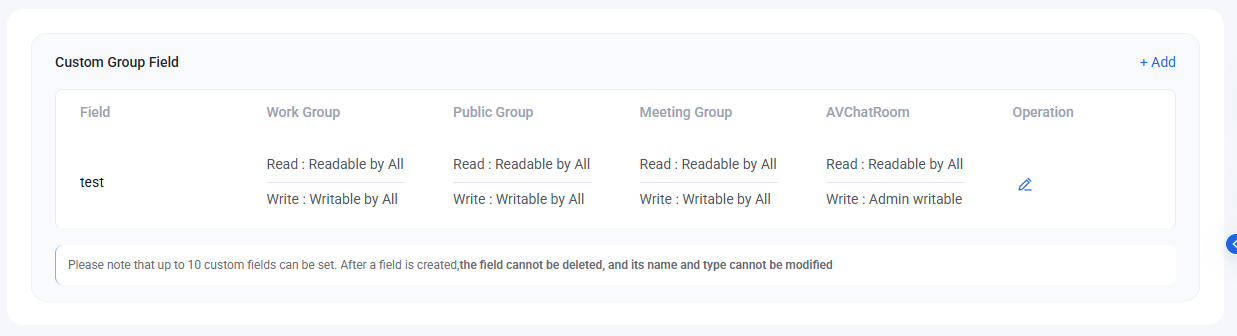
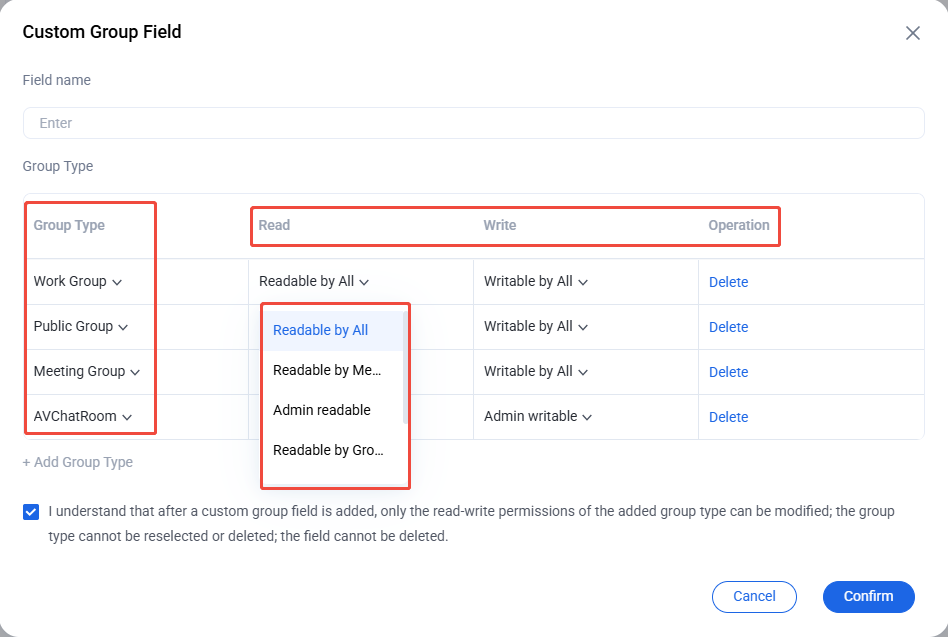
Configuring Custom Group Fields
Note:
You can add up to 10 custom group fields. Fields cannot be deleted, renamed, or have their type changed. Only read/write permissions can be modified. Plan fields according to your business needs.
1. In the Custom Group Field section, click Add on the right.
2. In the custom group field dialog, enter the field name, select the group type, and set read/write permissions.
Note:
Field names can include letters, numbers, and underscores (_), must not start with a number, and must be no longer than 16 characters.
Custom group field names must not duplicate custom group member field names.
Click Add Group Type to add another group type parameter set. Group types cannot be duplicated.
Click Delete to remove a group type parameter set. At least one group type parameter set must remain.
3. Check the acknowledgment: "I understand that after a custom group member field is added, only the read-write permissions of the added group type can be modified; the group type cannot be reselected or deleted; the field cannot be deleted."
4. Click Confirm to save your settings.
List of Online AVChatRoom Members
By default, the List of Online AVChatRoom Members is disabled. When enabled, AVChatRoom retains the latest 1,000 members who have joined and are online. Clients can retrieve this list.
Note:
Supported only on Terminal SDK 6.3 and above. Update your SDK if needed.
Available only to Pro edition, Pro edition Plus, and Enterprise edition users. Click Upgrade Application to enable.
Broadcast Messaging of AVChatRoom
The Broadcast Messaging of AVChatRoom feature is disabled by default. When enabled, you can set the broadcast message rate. The default is 1 message per second, with a maximum of 5 messages per second.
Note:
Supported only on Terminal SDK 6.5 and above. Update your SDK if needed.
Available only to Pro edition, Pro edition Plus, and Enterprise edition users. Click Upgrade Application to enable.
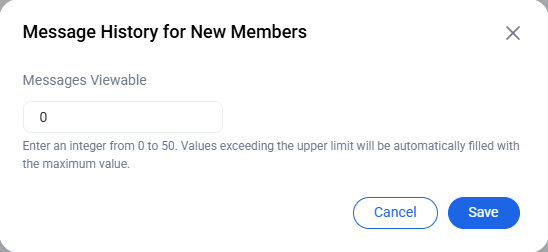
Roaming Messages Before Joining
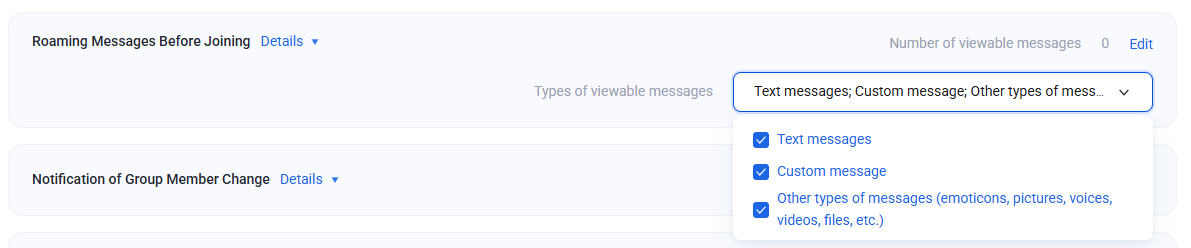
In the Roaming Messages Before Joining section, configure the Number of viewable messages and Types of viewable messages.
Number of viewable messages: click Edit and enter the desired value in the Message History for New Members dialog.
To set the message types, select from the dropdown menu. You can choose Text Messages, Custom Messages, and Other Message Types (emojis, images, audio, video, files, etc.).
Changes take effect in about ten minutes.
Community Status
Community supports up to 100,000 members, allowing users to freely join or leave, with historical messages preserved. The Enable Community switch is off by default. Once enabled, you can create communities and use related features. To use topics, enable the topic switch after enabling community.
Note:
Supported only on Enhanced Terminal SDK 5.8.1668, Web SDK 2.17.0 and above. Update your SDK if needed.
Community features are available only to Pro edition, Pro edition Plus, and Enterprise edition customers. Click Upgrade Application to enable.
RESTful API Tuning
Log in to Chat Console. In the left navigation Chat > RESTful API Tuning, you can perform server API frequency modulation configuration based on actual business needs.
1. Click edit on the right of the server API that needs frequency modulation.
2. Slide the slider to the required frequency size and click save.
3. In the pop-up dialog box to save current configuration, click confirm to save configuration.
Notes:
Server API frequency modulation is a paid service, available only for the Pro-plus Edition and Enterprise Edition. Each frequency modulation item is calculated based on the highest value configured on the current day. Fees are only charged for the part that exceeds the default frequency limit. For billing details, see Billing Description > RESTful API Tuning.