This document introduces the Domain Onboarding module under WAF Connection Management. You can view domain details and perform operations such as creating, editing, and deleting domains.
Operation Step
Add and View Domain
1. Log in to the WAF console, and at the top of the left sidebar, switch the console to the region where the instance is located (Chinese mainland/non-Chinese mainland).
2. In the left sidebar, choose Connection Management > Domain Onboarding.
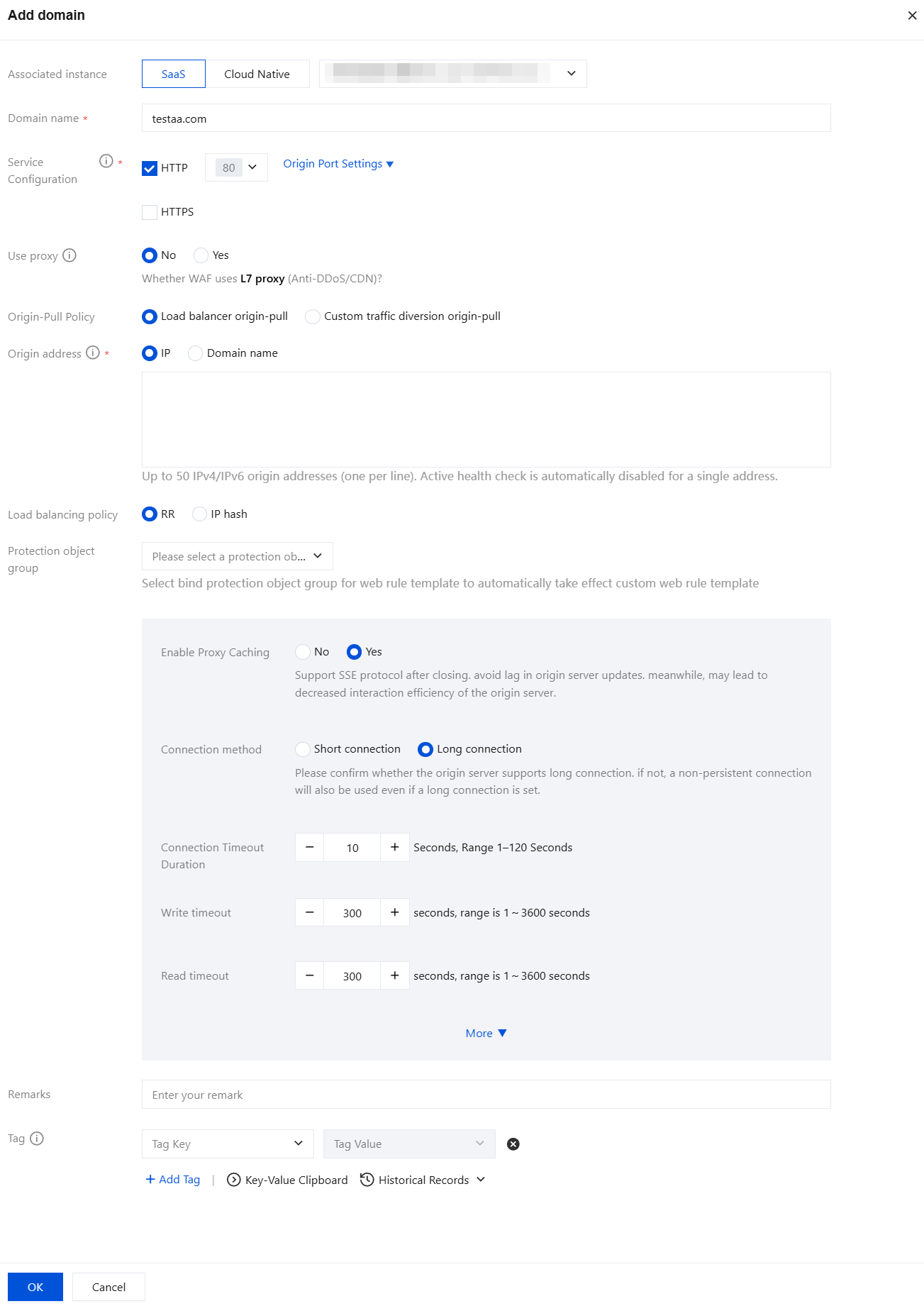
3. On the Domain Onboarding page, click Add Domain.
4. On the Add Domain page, configure the relevant information according to the page prompts, click OK to complete adding the domain.
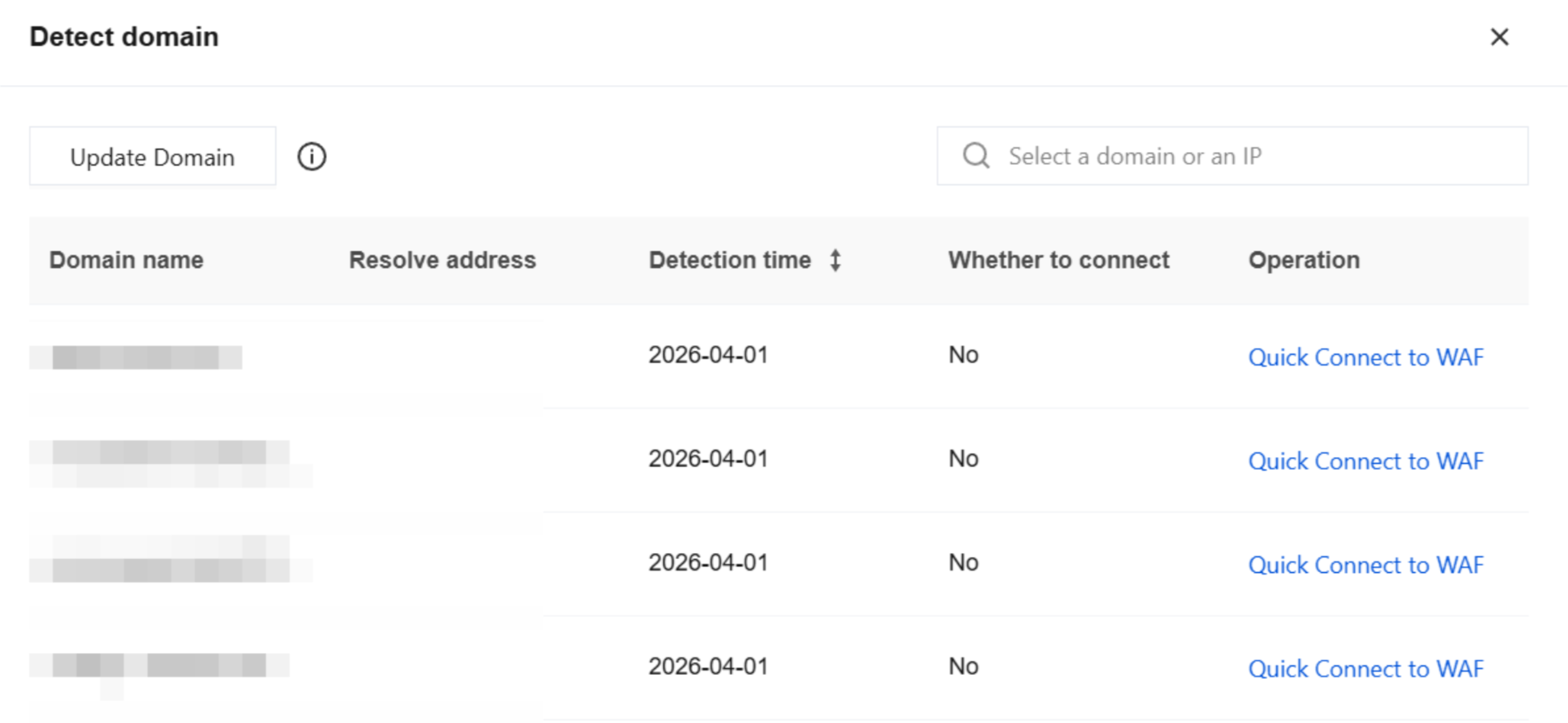
5. On the Domain Onboarding page, click Detect domain to automatically display domain information identified by Tencent Cloud Asset Center, with support for Quick Connect to waf.
6. On the Domain Onboarding page, click a specific domain name in the Protected Domain Name column to go to the Domain Details page, where you can view the basic information and content of the domain.
Enable Protection Switch
1. On the Domain Onboarding page, click the
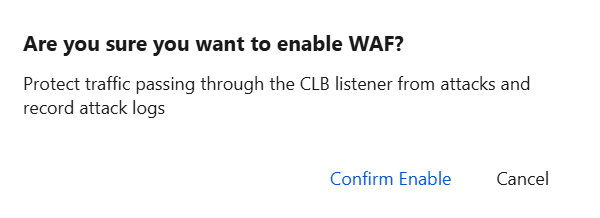
under the WAF switch to open the "Enable" confirmation dialog box.
2. In the confirmation dialog box, click Confirm Enable. After you enable the WAF switch, the system automatically provides WAF protection based on your custom policies and attack settings.
3. On the Domain Onboarding page, click the
under Access Logs to open the "Enable" confirmation dialog box.
4. In the "Enable access logging" dialog box, click OK. After the Access Logs switch is enabled, WAF will log access traffic for this domain.
Edit Domain Name
1. On the Domain Onboarding page, click Edit to go to the Edit Domain page.
2. On the Edit Domain page, you can modify the relevant configuration information. Click OK to save your changes.
Deleting Domain Name
Note:
After you delete a domain, its configuration items in the backend are removed. To avoid service impact, before deleting a domain in SaaS WAF, you must first switch the DNS resolution to the origin server or a business-related record address. For Cloud-native WAF, you must unbind the corresponding listener in the console before deleting the domain.
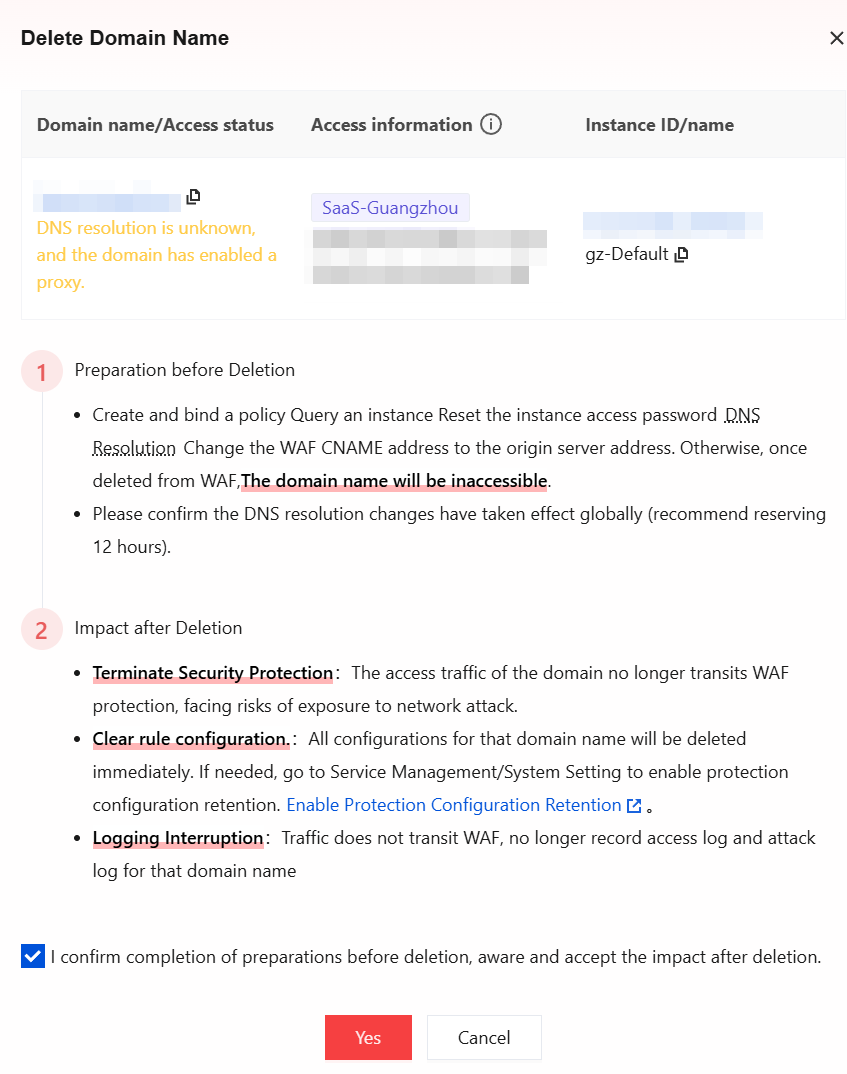
1. On the Domain Onboarding page, click Delete to go to the Delete Domain page.
2. On the Delete Domain page, select the I confirm completion of preparations before deletion, aware and accept the impact after deletion checkbox, and then click Yes to delete the domain.
Batch Operation
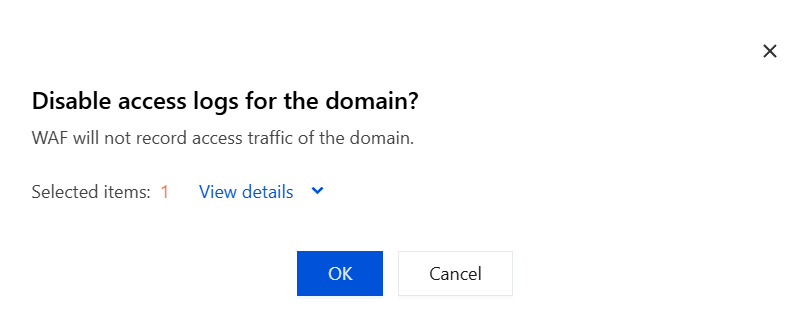
1. On the Domain Connection page, you can select multiple domains and use the one-click batch operation to enable or disable Access Logs, API Security, and BOT Protection. A confirmation dialog box will pop up.
2. In the confirmation dialog box, click OK to enable or disable the switch for the corresponding domain.
Note:
Batch operation supports selecting up to 20 domains each time. After OK is clicked, the result is returned.
Editing Tags
1. On the Domain Onboarding page, click
in the Tag column to edit the Tag.
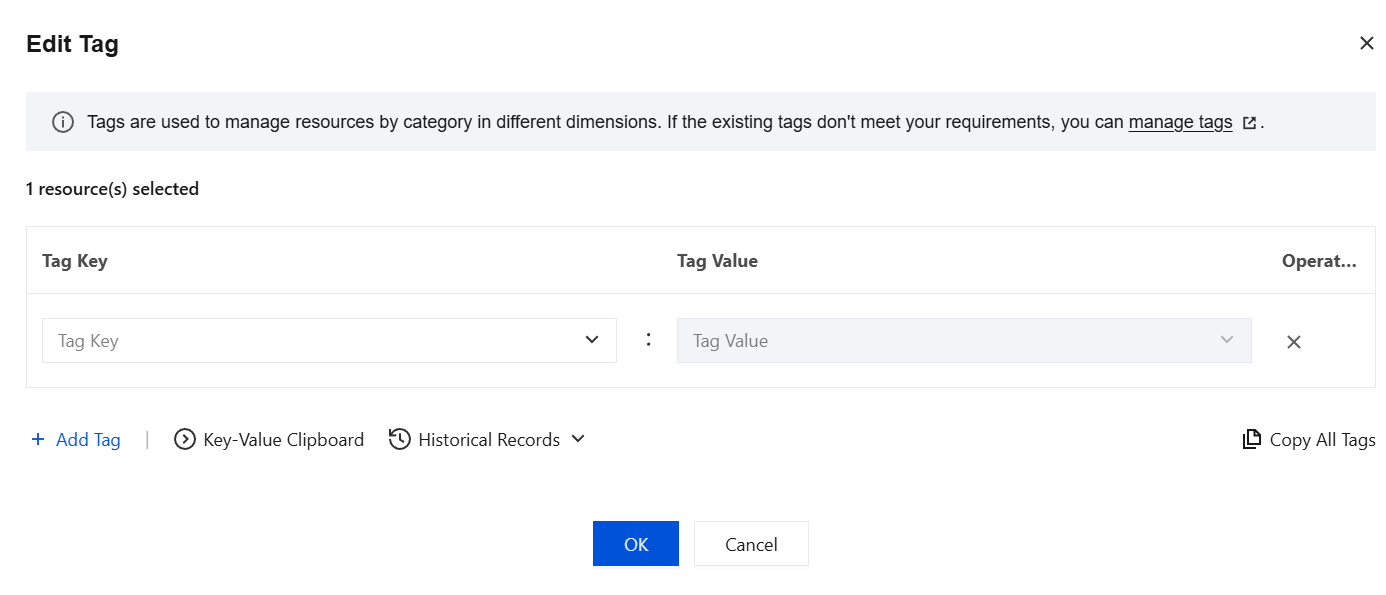
2. Select the Tag key and Tag value, and then click OK.
3. You can also select multiple domains, click More Operations > Edit Tag, and edit the Tags in batch.
4. If the existing Tags do not meet your requirements, you can go to the Tag Console to create new Tags. For details, see Create Tag.
View Domain Name Access Status
Under each domain, users can view the current connection status of the domain and promptly adjust configurations based on status prompts to ensure continuous protection by WAF for business operations. The following provides a detailed explanation of connection statuses.
Access SaaS WAF
DNS Status
Description
Related Documentation
DNS resolution is normal.
The domain name DNS resolves normally to WAF. This connection status will be displayed when the certificate status is normal, expiring soon, or expired. Click "Edit Domain" in the certificate configuration to view the domain certificate status.
WAF is normally protecting the current domain.
DNS resolution is abnormal. Use A records to connect to the WAF IP address.
DNS resolution using A records to connect to the WAF VIP address may cause business interruption.
Delete the A record, add a CNAME record, and point the domain's DNS resolution to the CNAME address provided by WAF. For detailed operations, see the Modify Domain DNS Resolution settings.
DNS resolution is abnormal due to using an incorrect WAF IP address.
DNS resolution using A records and pointed to an incorrect WAF IP address may cause business interruption.
Delete the A record, add a CNAME record, and point the domain's DNS resolution to the CNAME address provided by WAF. For detailed operations, see the Modify Domain DNS Resolution settings.
DNS resolution is unknown, and the domain has enabled proxy.
WAF is enabled with a Layer-7 proxy in front, but the domain name origin-pull address configured for its proxy may not be the WAF CNAME address.
Check whether the domain name origin-pull address configured on the proxy is the WAF CNAME address.
No DNS resolution record exists. Please connect to WAF.
No DNS resolution record exists. You need to add a CNAME record to point DNS resolution to WAF.
Add a CNAME record to point the DNS resolution to WAF. For detailed operations, see the Modify Domain DNS Resolution settings.
DNS is not resolved to WAF. Please connect to WAF.
DNS is not resolved to WAF. You need to modify the CNAME record to point DNS resolution to WAF.
Modify the CNAME record to point the DNS resolution to WAF. For detailed operations, see the Modify Domain DNS Resolution settings.
Access cloud-native WAF
Access Status
Description
Related Documentation
Configuration deployment in progress
After a user completes and saves the domain access configuration in the cloud-native access mode, the system triggers the configuration deployment process. During this process, before the final results from CLB and Stgw are returned, the console displays the "Configuration deployment in progress" status.
Please wait for the configuration deployment results. Auto-refresh of the current status is supported.
Configuration deployment failed
If traffic scheduling fails, the console will display "Configuration deployment failed". Users can hover over the attention icon to view specific reasons.
Users can view detailed failure reasons and re-edit the domain connection.
No traffic access
If the configuration is successfully deployed but the WAF switch is not enabled, traffic is not yet routed to WAF.
Enable the WAF switch.
Traffic has been accessed
Indicates that the domain business traffic has been successfully routed to WAF protection.