This document describes how to match parameters of docker run and the TKE console when you try to migrate a container that has been debugged in the local Docker to the TKE platform. The following section uses the creation of a simple GitLab service as an example.
Parameters of a GitLab Container
You can create a simple GitLab container by running the following docker run command:
docker run \\
-d \\
-p 20180:80 \\
-p 20122:22 \\
--restart always \\
-v /data/gitlab/config:/etc/gitlab \\
-v /data/var/log/gitlab:/var/log/gitlab \\
-v /data/gitlab/data:/var/opt/gitlab \\
--name gitlab \\
gitlab/gitlab-ce:8.16.7-ce.0
-d: indicates that the container runs at the backend. You do not need to specify this parameter in the TKE console because containers always run at the backend on the TKE platform.
-p: specifies port mapping. Two ports are mapped here, that is, container ports 80 and 22, which are mapped to open ports 20180 and 20122 respectively. To take these mappings into effect, you need to add two port mapping rules in the console and specify the corresponding container ports and service ports. As GitLab needs to allow access from the public network, select Via Internet as the access method.
--restart: specifies whether to restart the container when it exits. You do not need to specify this parameter in the TKE console because all containers created on the TKE platform will restart upon exit.
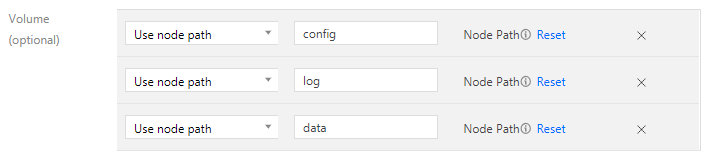
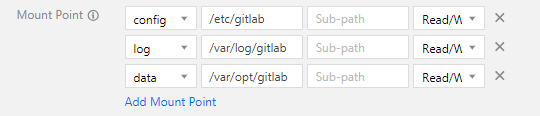
-v: specifies container volumes. In the preceding command, three volumes are specified. Accordingly, you need to add three data volumes in the TKE console and mount them to the container in Containers in the pod.To do this, create three volumes first, as shown in the following figure.
Mount the three volumes to the container in "Containers in the pod", as shown in the following figure.
Note that Use node path is selected as the data volume type. In this case, data generated during the running process of the container will be stored to the node where the container is located. If the container is scheduled to another node, the data will be lost. Alternatively, you can select Use Tencent Cloud CBS. In this case, the container data will be stored to the CBS instance and will not be lost even if the container is scheduled to other nodes.
--name: specifies the container name. This parameter corresponds to the service name in the TKE console. The container name and service name can be the same.
Other Parameters
The following describes other common parameters for executing the docker run command:
-i: specifies the interactive container execution mode. This parameter is not supported because the TKE console only allows containers to run at the backend.
-t: assigns virtual terminals. This parameter is not supported.
-e: specifies environment variables for container running. For example, you can run the following docker run command:
docker run -e FOO='foo' -e BAR='bar' --name=container_name container_image
Running this command adds two environment variables for the container. You can add environment variables for a container in advanced settings when creating a service in the TKE console. The names and values of the variables are as follows:
Variable: FOO, value: foo.
Variable: BAR, value: bar.
Command and Arguments
You can specify the command name and arguments of a container process in docker run. For example:
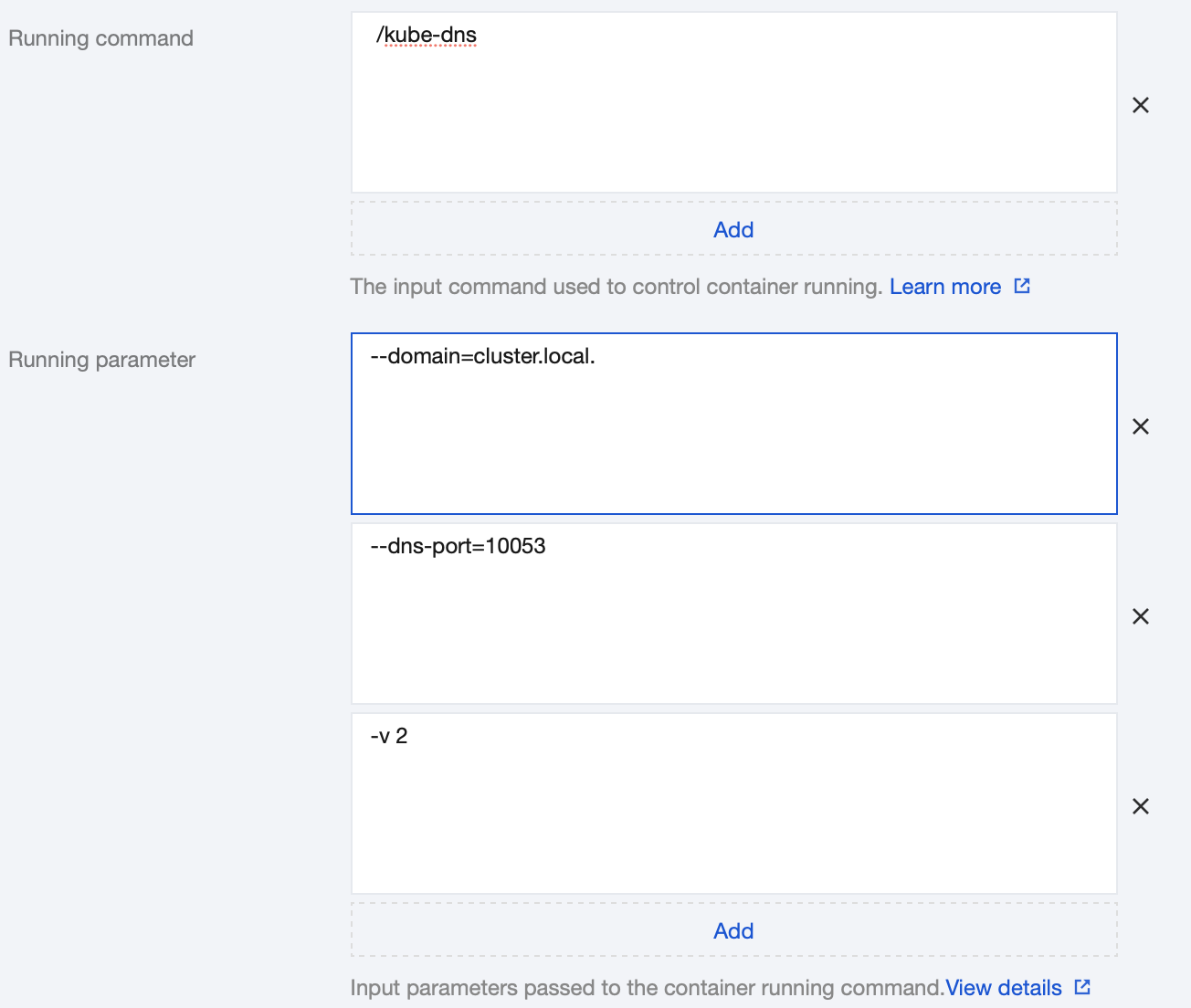
docker run --name=kubedns gcr.io/google_containers/kubedns-amd64:1.7 /kube-dns --domain=cluster.local. --dns-port=10053 -v 2
In this case, the command name of the container process is /kube-dns, and the arguments are --domain=cluster.local., --dns-port=10053, and -v 2. The following figure shows how to set these arguments in the TKE console.