Scheduling Policy Configuration
Baixar
Modo Foco
Tamanho da Fonte
Overview
The scheduling policy configuration is a feature of the native node-specific scheduler (Crane-scheduler), designed to help users flexibly adjust Pod scheduling policies based on business needs and cluster resource status. By configuring scheduling policies, users can optimize cluster resource utilization, enhance application performance, and improve availability.
Version Limits
Only v1.4.1 and above versions of Crane-scheduler are supported.
Scheduling Policy Description
Pre-selection Policy
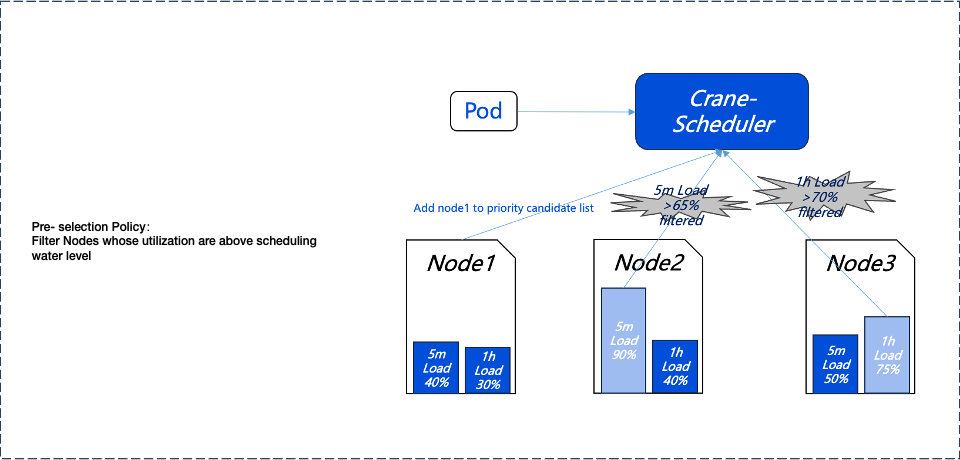
To avoid scheduling Pods to high-load nodes (Nodes), we first use a pre-selection policy to filter out high-load nodes. The pre-selection policy can dynamically configure filtering thresholds and proportions based on the actual load of the Nodes. For specific configuration methods, please refer to the subsequent parameter settings.
As an example, Node2's load over the past 5 minutes and Node3's load over the past hour have both exceeded the preset thresholds, so they will not enter the next phase of the preferential selection process.
Preferential Selection Policy
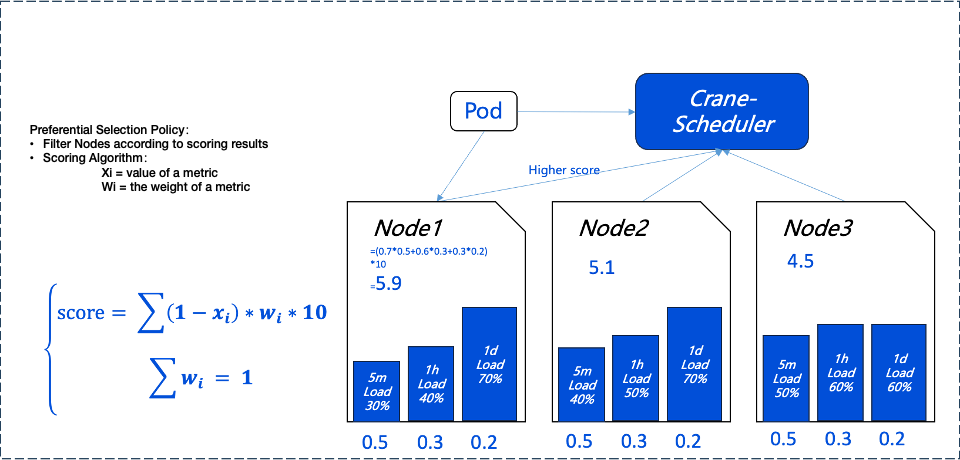
The preferential selection policy aims to select the best nodes from those that meet the pre-selection criteria for Pod scheduling. To achieve balanced distribution of load among nodes in the cluster, Crane-scheduler scores each node based on its real-time load data, with lower-load nodes receiving higher scores. The scoring strategy and its weight coefficients can be dynamically adjusted based on actual needs. For detailed configuration methods, please refer to the subsequent parameter configuration description.
In the diagram below; we can see that Node1, received the highest score due to its low load, so it will be prioritized by the system to run Pods.
Scheduling Hotspots
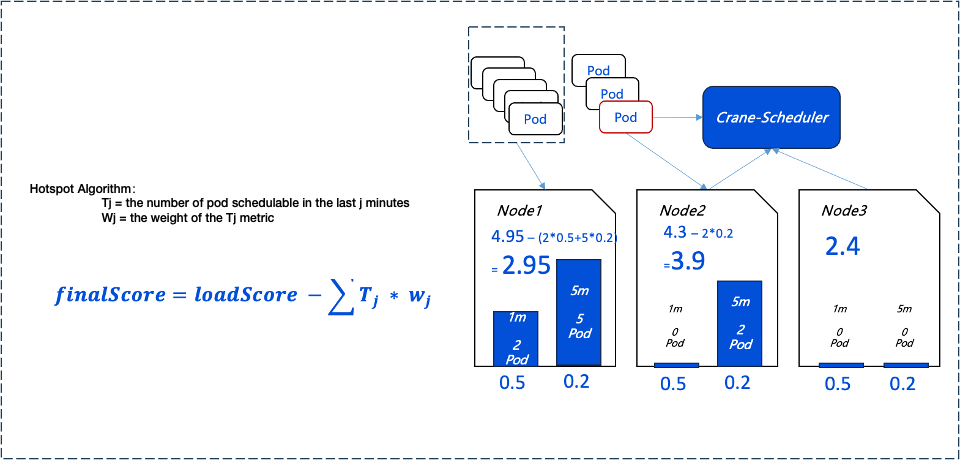
To prevent low-load nodes from becoming new load hotspots due to the continuous scheduling of large numbers of Pods, Crane-scheduler introduces a hotspot scheduling policy. This policy adjusts node scores in the preferential selection phase based on the number of Pods scheduled in the past period.
Node Score Calculation Formula: Node Score = Preferred Selection Policy Scoring - Hotspot Value
The Current Policy Details Are as Follows:
If more than two Pods were scheduled to the node in the past minute, the node's score for preferential selection is decreased by 1.
If more than five Pods were scheduled to the node in the past 5 minutes, the node's score for preferential selection is also decreased by 1.
By implementing this policy, Crane-scheduler ensures that scheduling decisions are more comprehensive, taking into account both the immediate load on nodes and their recent scheduling history, thereby achieving a more balanced cluster load distribution.
Parameter Description
Pre-selection Parameters
Note:
Default values for pre-selection parameters. If you have no special requirements, you can directly use them.
The threshold for the default parameters of pre-selection indicators is the water level control parameter setting of the native node dedicated scheduler. For details, please refer to the Usage Instructions.
Default Parameters for Pre-selection Indicators | Description |
Average CPU utilization threshold in 5 minutes | If the average CPU utilization of the node in the past 5 minutes exceeds the configured threshold, no Pods will be scheduled to the node. |
Maximum CPU utilization threshold in an hour | If the maximum CPU utilization of the node in the past hour exceeds the configured threshold, no Pods will be scheduled to the node. |
Average memory utilization threshold in 5 minutes | If the average memory utilization of the node in the past 5 minutes exceeds the configured threshold, no Pods will be scheduled to the node. |
Maximum memory utilization threshold in an hour | If the maximum memory utilization of the node in the past hour exceeds the configured threshold, no Pods will be scheduled to the node. |
Preferential Selection Parameters
Note:
Default values for preferential selection parameters. If you have no special requirements, you can directly use them.
Preferential Selection Indicators | Default Parameters | Description |
Average CPU utilization weight in 5 minutes | 0.2 | The greater the weight, the bigger impact the average CPU utilization in the past 5 minutes has on the node score. |
Maximum CPU utilization weight in an hour | 0.3 | The greater the weight, the bigger impact the maximum CPU utilization in the past hour has on the node score. |
Maximum CPU utilization weight in a day | 0.5 | The greater the weight, the bigger impact the maximum CPU utilization in the past day has on the node score. |
Average memory utilization weight in 5 minutes | 0.2 | The greater the weight, the bigger impact the average memory utilization in the past 5 minutes has on the node score. |
Maximum memory utilization weight in an hour | 0.3 | The greater the weight, the bigger impact the maximum memory utilization in the past hour has on the node score. |
Maximum memory utilization weight in a day | 0.5 | The greater the weight, the bigger impact the maximum memory utilization in the past day has on the node score. |
Hotspot Parameters
Note:
Default values for hotspot parameters. If you have no special requirements, you can directly use them.
Hotspot Indicators | Default Parameters | Description |
Number of Pods scheduled in the last 5 minutes | 10.0 | The greater the weight, the bigger impact the number of Pods scheduled in the last 5 minutes has on the node score. |
Number of Pods scheduled in the last 1 minute | 20.0 | The greater the weight, the bigger impact the number of Pods scheduled in the last 1 minute has on the node score. |
Operation Steps
Starting to Use
1. Log in to the Tencent Kubernetes Engine Console, and choose Cluster from the left navigation bar.
2. In the cluster list, click on the desired cluster ID to access its detailed page.
3. Select Add-On Management from the menu on the left, click Update Configuration in the CranesScheduler operation column to enter the update component configuration page.
Configuration Scheduling Policy
Note:
1. When configuring the scheduling policy, please ensure you fully understand the business needs and cluster resource status to avoid unnecessary resource waste or performance degradation.
2. It is recommended to validate the effect in the test environment before applying the scheduling policy to the production environment.
Pre-selection Indicator Configuration
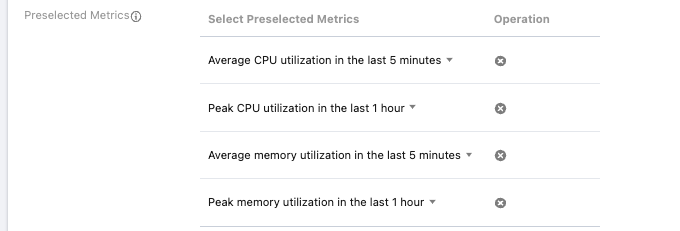
Role of Pre-selection Indicators: Used for preliminary node filtering. A node can only pass pre-selection if the corresponding indicator is below the set scheduling threshold.
Metrics Quantity Limit: Up to four pre-selection indicators can be configured, and indicators must not be duplicated. You can also choose not to configure pre-selection indicators.
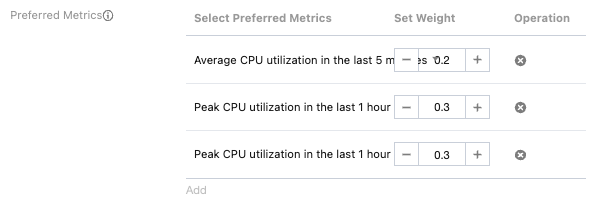
Preferred Metrics Configuration
Role of Preferred Metrics: Used to further filter nodes that have passed pre-selection, displaying default weight parameters and supporting self-defined weight settings.
Scheduling Principles: Pods will be scheduled to nodes with lower resource utilization first.
Indicator Quantity Limit: Up to six preferential selection indicators can be configured, and indicators must not be duplicated. You can also choose not to configure preferential selection indicators.
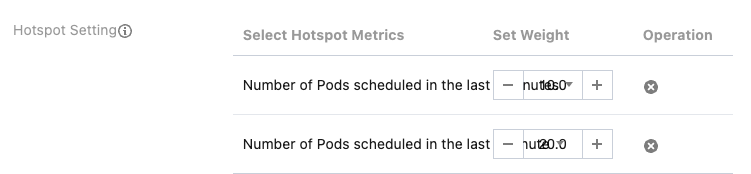
Hotspot Settings
Role of Hotspot Indicators: Considers the recent number of Pods scheduled to the node, to provide a more comprehensive assessment of the node's load status.
Recommended Weight Setting: The weight for the number of Pods scheduled in the last 5 minutes is recommended to be set to 10, and the weight for the number of Pods scheduled in the last 1 minute is recommended to be set to 20.
Indicator Quantity Limit: Up to two hotspot indicators can be configured, and indicators must not be duplicated. You can also choose not to configure hotspot indicators.
Ajuda e Suporte
Esta página foi útil?
Você também pode entrar em contato com a Equipe de vendas ou Enviar um tíquete em caso de ajuda.
comentários