tencent cloud

Cloud Object Storage

Release Notes and Announcements
Release Notes
Announcements
Product Introduction
Overview
Features
Use Cases
Strengths
Concepts
Regions and Access Endpoints
Specifications and Limits
Service Regions and Service Providers
Billing
Billing Overview
Billing Method
Billable Items
Free Tier
Billing Examples
Viewing and Downloading Bill
Payment Overdue
FAQs
Getting Started
Console
Getting Started with COSBrowser
User Guide
Creating Request
Bucket
Object
Data Management
Batch Operation
Global Acceleration
Monitoring and Alarms
Operations Center
Data Processing
Content Moderation
Smart Toolbox
Data Processing Workflow
Application Integration
User Tools
Tool Overview
Installation and Configuration of Environment
COSBrowser
COSCLI (Beta)
COSCMD
COS Migration
FTP Server
Hadoop
COSDistCp
HDFS TO COS
GooseFS-Lite
Online Tools
Diagnostic Tool
Use Cases
Overview
Access Control and Permission Management
Performance Optimization
Accessing COS with AWS S3 SDK
Data Disaster Recovery and Backup
Domain Name Management Practice
Image Processing
Audio/Video Practices
Workflow
Direct Data Upload
Content Moderation
Data Security
Data Verification
Big Data Practice
COS Cost Optimization Solutions
Using COS in the Third-party Applications
Migration Guide
Migrating Local Data to COS
Migrating Data from Third-Party Cloud Storage Service to COS
Migrating Data from URL to COS
Migrating Data Within COS
Migrating Data Between HDFS and COS
Data Lake Storage
Cloud Native Datalake Storage
Metadata Accelerator
GooseFS
Data Processing
Data Processing Overview
Image Processing
Media Processing
Content Moderation
File Processing Service
File Preview
Troubleshooting
Obtaining RequestId
Slow Upload over Public Network
403 Error for COS Access
Resource Access Error
POST Object Common Exceptions
API Documentation
Introduction
Common Request Headers
Common Response Headers
Error Codes
Request Signature
Action List
Service APIs
Bucket APIs
Object APIs
Batch Operation APIs
Data Processing APIs
Job and Workflow
Content Moderation APIs
Cloud Antivirus API
SDK Documentation
SDK Overview
Preparations
Android SDK
C SDK
C++ SDK
.NET(C#) SDK
Flutter SDK
Go SDK
iOS SDK
Java SDK
JavaScript SDK
Node.js SDK
PHP SDK
Python SDK
React Native SDK
Mini Program SDK
Error Codes
Harmony SDK
Endpoint SDK Quality Optimization
Security and Compliance
Data Disaster Recovery
Data Security
Cloud Access Management
FAQs
Popular Questions
General
Billing
Domain Name Compliance Issues
Bucket Configuration
Domain Names and CDN
Object Operations
Logging and Monitoring
Permission Management
Data Processing
Data Security
Pre-signed URL Issues
SDKs
Tools
APIs
Agreements
Service Level Agreement
Privacy Policy
Data Processing And Security Agreement
Contact Us
Glossary

Getting Started with COSBrowser

PDF
Modo Foco
Tamanho da Fonte
Última atualização: 2024-01-06 14:48:14
COSBrowser is a visual interface tool launched by Tencent Cloud COS to make it easier and simpler for you to view, transfer, manage, and interact with COS resources. Currently, it is available for desktop and mobile clients. For more information, see COSBrowser Overview.
This document describes how to use COSBrowser to quickly create a bucket and upload, download, and share an object.

Prerequisites

1. You have activated COS under your Tencent Cloud account.
Note:
If you don't have a Tencent Cloud account, sign up as instructed in About Account.
If you haven't activated COS, go to the COS console and activate it as prompted.
2. If this is your first time using COS, we recommend you understand the following concepts first:
Bucket: a carrier of objects, which can be considered as a "container" for storing objects. Each bucket can store an unlimited number of objects.
Object: the basic unit of COS storage. It can be data in any format, such as images, documents, audio and video, and others.
Region: a physical location where data centers are hosted on Tencent Cloud. COS data is stored in the buckets in these regions.

Step 1. Download and install COSBrowser

1. Taking COSBrowser for Windows as an example, you can download it here.
2. After download, double-click the installation package for installation as prompted.
Note:
System requirements of COSBrowser for Windows: Windows 7 32/64-bit or later or Windows Server 2008 R2 64-bit or later
You can download COSBrowser for other operating systems in COSBrowser Overview.

Step 2. Log in to COSBrowser

COSBrowser for Windows supports multiple login methods, including login via an API key, Tencent Cloud account, and shared link. Below takes a Tencent Cloud account as an example.

Step 3. Create a bucket

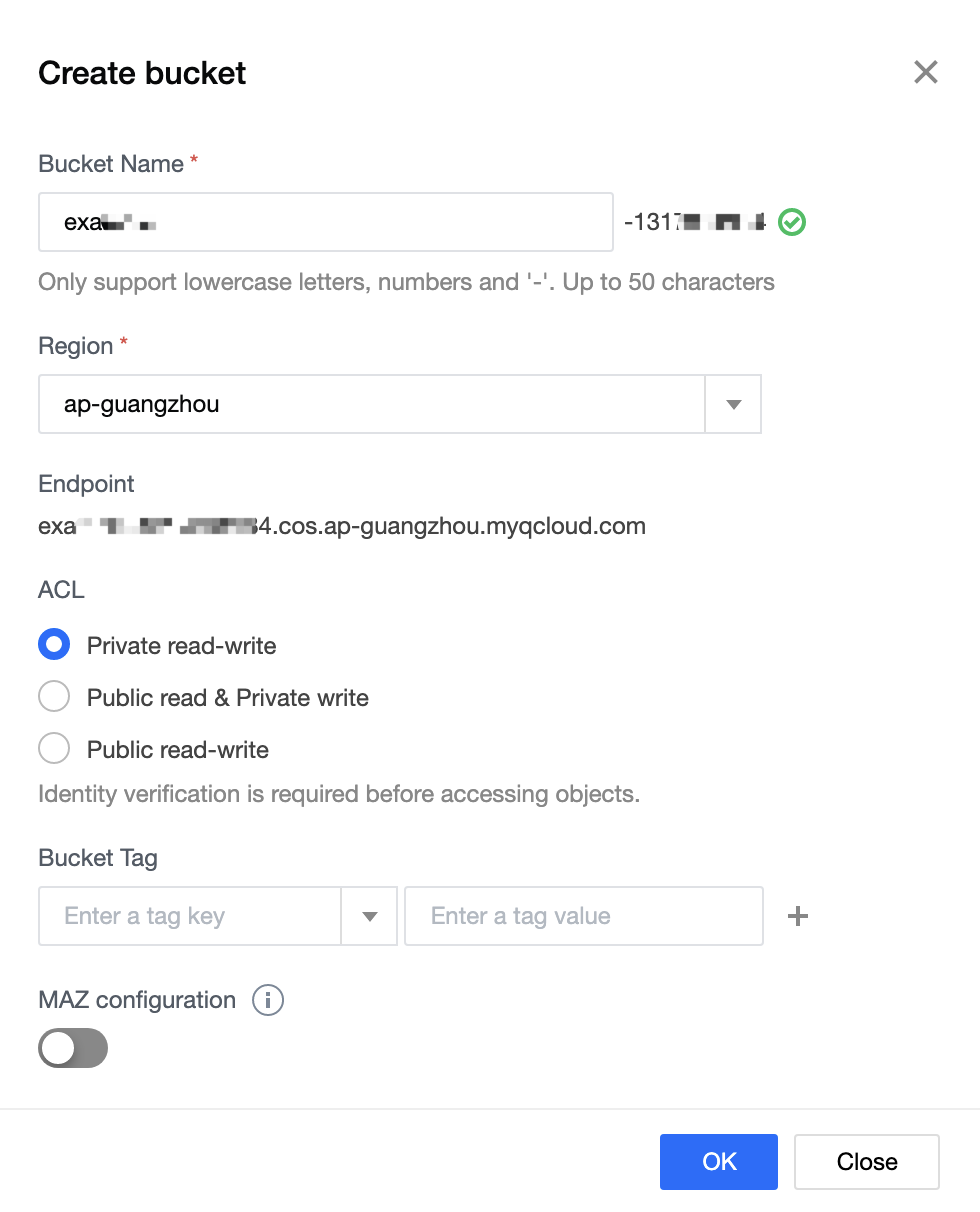
1. After you logged in, click Create bucket in the upper-left corner of the COSBrowser page.
2. Enter your bucket information in the pop-up window.

Bucket Name: a user-defined bucket name, for example, examplebucket
Region: Region where the bucket resides. Select the region closest to you. For example, if you are in Shenzhen, you can select the Guangzhou region, i.e., ap-guangzhou.
ACL: access permission for the bucket. For example, you can select Private (read-write).
Bucket Tag and MAZ configuration are optional. They are left blank in this example.
3. Click OK. In the bucket list, you can view the created bucket.

Step 4. Upload an object

1. Click the newly created bucket to enter the bucket management page.
2. Click Upload > Select Files and select a local file to upload to the bucket, for example, exampleobject.txt.
3. Click Upload.

Step 5. Download an object

Right-click the target file and click Download.

Step 6. Share an object

COSBrowser allows you to share a file via a URL or QR code. Below takes a URL as an example.
1. Select the target file and click

on the right to quickly generate a sharing URL.
Note:
As the file inherits the private read/write permission of the bucket, the generated sharing URL is temporary and only valid for 2 hours.
2. Send the generated URL to the recipient. Then, the recipient can access the file online or download it.
Note:
By default, if the shared file can be directly opened in the browser, then accessing the temporary URL will directly preview the file online rather than downloading it.

More

In addition to the above capabilities, COSBrowser has many more to offer, such as modifying bucket access permissions, file preview, etc. For more information, please see COSBrowser for Desktop.

Troubleshooting

If you have any questions, see COSBrowser or contact us for assistance.

References

To learn more about iOS- or Android-powered COSBrowser, see the following documents:

Ajuda e Suporte

Esta página foi útil?

comentários