A security group acts as a virtual firewall for TencentDB for MongoDB instances, effectively blocking unauthorized access and network attacks. It ensures that core data can be accessed only by authorized business components, reducing the risk of data leakage.
Feature Description
A security group provides a refined virtual firewall based on a private network for MongoDB instances, supporting batch management and service linkage. It serves as the most critical network security defense line for databases in cloud environments. For more information about security groups, see Security Group Overview.
Features and Limitations
Description
Network ingress control
Configure MongoDB instance inbound rules to precisely specify which source IP addresses can access the MongoDB instance.
Logical grouping and batch management
Add multiple MongoDB instances that require the same access rules (primary instances, read-only instances, and DR instances) to the same security group.
Feature limitations
A cloud database does not initiate outbound connections on its own, so outbound rules do not take effect on it.
Security groups currently take effect only on traffic that accesses MongoDB through a VPC. They cannot control public network access or support the basic network.
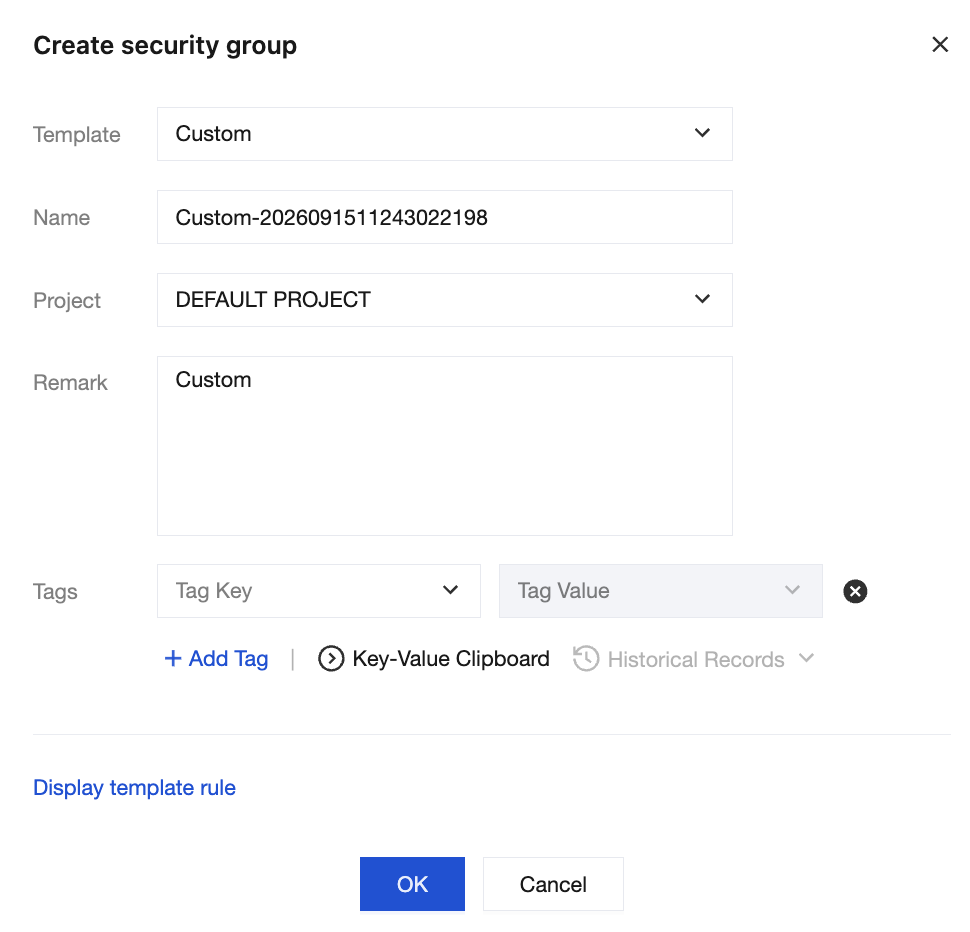
2. Select Security Group on the left sidebar, select a region above the instance list on the right, and click Create.
3. In the pop-up window, set the following configuration items, confirm that everything is correct, and click OK.
Template: Select Custom from the drop-down list.
Name: Enter a name for the security group.
Project: Select a project for easier management. By default, Default Project is selected.
Remark: A short description of the security group for easier management.
Tags: Add a tag to the security group.
4. In the Reminder dialog box, click Add rules now and perform the following steps.
Step 2. Set inbound rules in the security group
1. On the Security group rules page, select the Inbound rules tab and click Add rule.
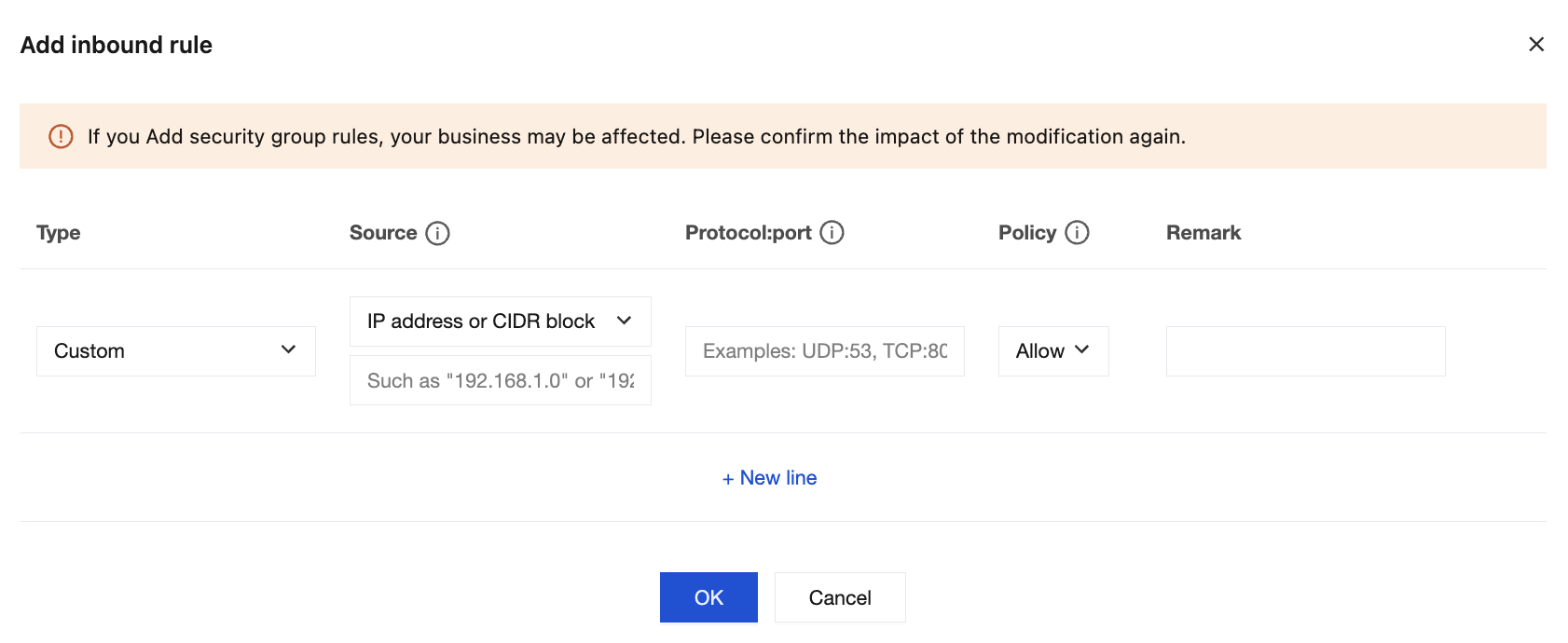
2. In the Add inbound rules pop-up window, set the rules.
Type: Select Custom.
Source: Set the source of inbound traffic for database access. The supported formats are subject to the on-screen instructions. For detailed operations, see Adding Inbound Rules to Security Groups.
Protocol:port: Enter the protocol type and port for client access to TencentDB for MongoDB, for example, TCP:27017.
Policy: Allow or Reject. Allow is selected by default.
Allow: Permits access requests to the corresponding port.
Reject: Directly discards the packets without returning any response.
Remark: Briefly describe the rule.
3. Click OK to complete the addition of the inbound rule to the security group.
Step 3. Bind the security group to an instance
Note:
Currently, security groups can be configured only for TencentDB for MongoDB instances in VPC.
2. In the MongoDB drop-down list on the left sidebar, select Replica Set Instance or Shard Instance. The directions for replica set instances and sharded cluster instances are similar.
3. Select a region at the top of the instance list.
4. In the instance list, find the target instance.
5. In the Operation column of the target instance, select More > Security Group.
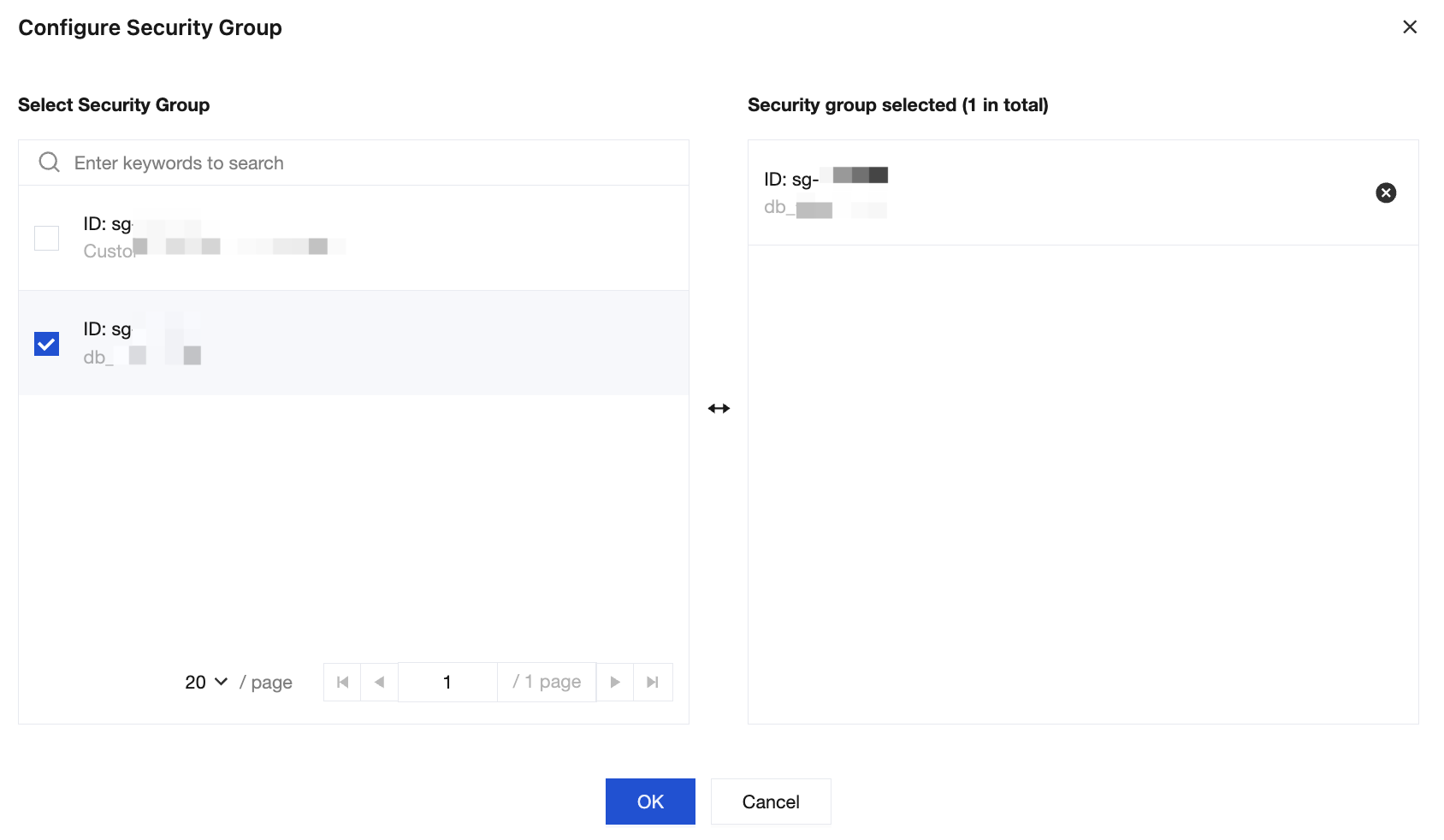
You can also click the target instance name, select the Data Security tab, and click Configure Security Group.
6. In the Configure Security Group pop-up window, select the target security group and click OK.
2. In the MongoDB drop-down list on the left sidebar, select Replica Set Instance or Shard Instance. The directions for replica set instances and sharded cluster instances are similar.
3. At the top of the Instance List page on the right, select the desired region.
4. In the instance list, find the target instance.
5. Click the target instance ID, select the Data Security tab, and view all security groups of the instance.
6. Click Edit. You can click or
in the
column to adjust the filtering priorities of security groups.
2. In the MongoDB drop-down list on the left sidebar, select Replica Set Instance or Shard Instance. The directions for replica set instances and sharded cluster instances are similar.
3. At the top of the Instance List page on the right, select the desired region.
4. In the instance list, find the target instance.
5. Click the target instance ID, select the Data Security tab, and view all security groups of the instance.
6. In the security group list, click the target security group ID or name to enter the Security Group page.
7. Find the security group rule to be modified and click Edit in the Operation column to edit it.
Importing a security group rule
1. On the Security Group page, click the ID/name of a security group.
2. On the Inbound Rule or Outbound Rule tab, click Import Rule.
3. In the pop-up window, select an edited inbound/outbound rule template file and click Import.
Description
As existing rules will be overwritten after importing, we recommend that you export the existing rules before importing new ones.
If there are no existing rules in the security group, download a template and edit it before importing it.