Modifying the Instance Configuration
Download
Modo Foco
Tamanho da Fonte
When the compute or storage resources of your TDSQL Boundless instance cannot meet your business requirements, you can adjust the instance configuration via the console. The supported configuration items include:
Node Specification: Adjust the CPU and memory configuration of each node to match changes in business compute requirements.
Node Disk: Adjust the disk type or capacity of each node to meet storage performance or capacity requirements.
Prerequisites
The TDSQL Boundless instance has been created and its status is Running.
Use Limits
Node specifications (CPU, memory) and node disks (disk type, capacity) cannot be adjusted simultaneously. You must perform these operations separately.
When a disk is scaled down, the adjusted disk capacity must not be less than the currently used data volume.
After you adjust the configuration, the kernel version remains unchanged, and the number of replicas remains unchanged.
Note:
When you adjust the node specification, the nodes undergo a rolling restart, during which brief connection interruptions may occur. We recommend performing this operation during off-peak business hours and ensuring that your application is configured with an automatic reconnection mechanism.
Steps
Modifying Specifications
1. Log in to the TDSQL Boundless console. The system provides three entry points to go to the Adjust Instance Configuration page.
Entry Point 1: In the Instance list, locate the target instance. Then, in the Operation column, click Adjust Configurations > Adjust Specifications.
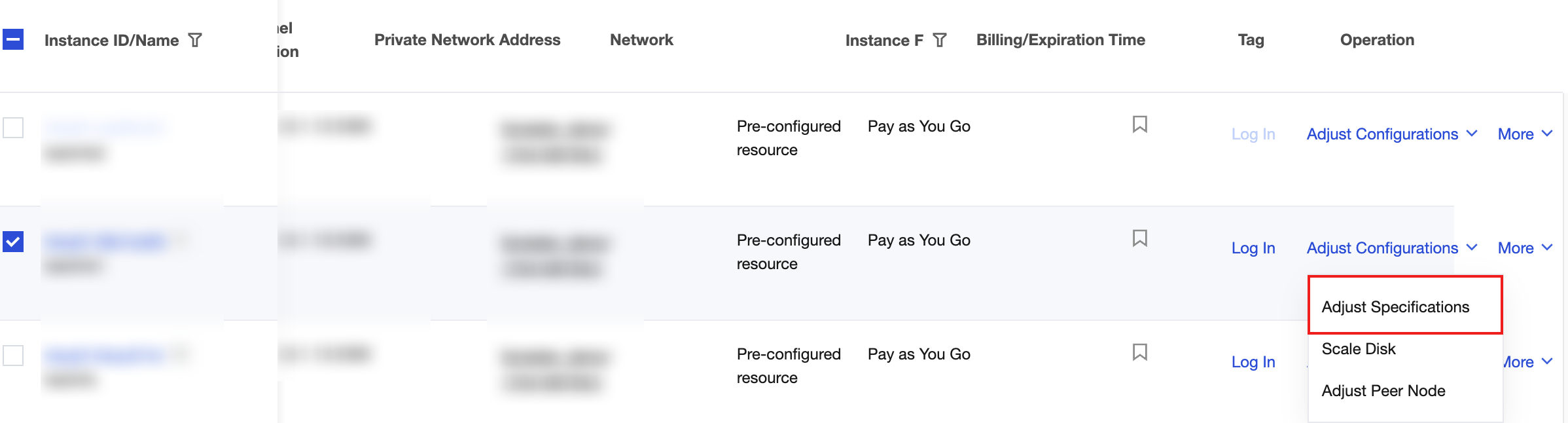
Entry Point 2: In the Instance List, locate the target instance and click its Instance ID. On the Instance Details page, click Adjust Configurations > Adjust Specifications in the upper-right corner.

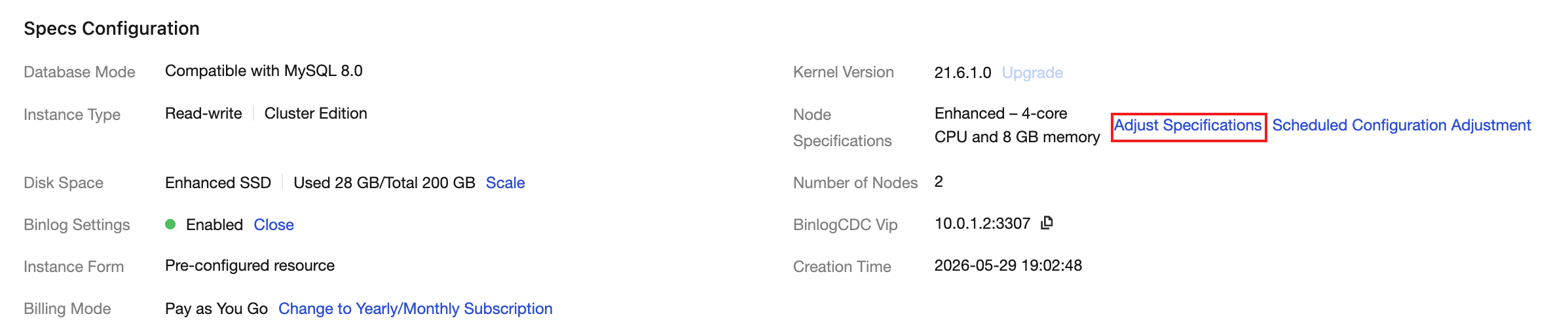
Entry Point 3: Go to the Instance Details page. In the Specs Configuration area, locate the Node Specifications row and click Adjust Specifications on the right.
2. On the Adjust Instance Configuration page, select New Configuration of Hybrid Node. Then, from the dropdown list, select the target specification (CPU, memory), for example, changing from "1-core, 2 GB" to "2-core, 4 GB".
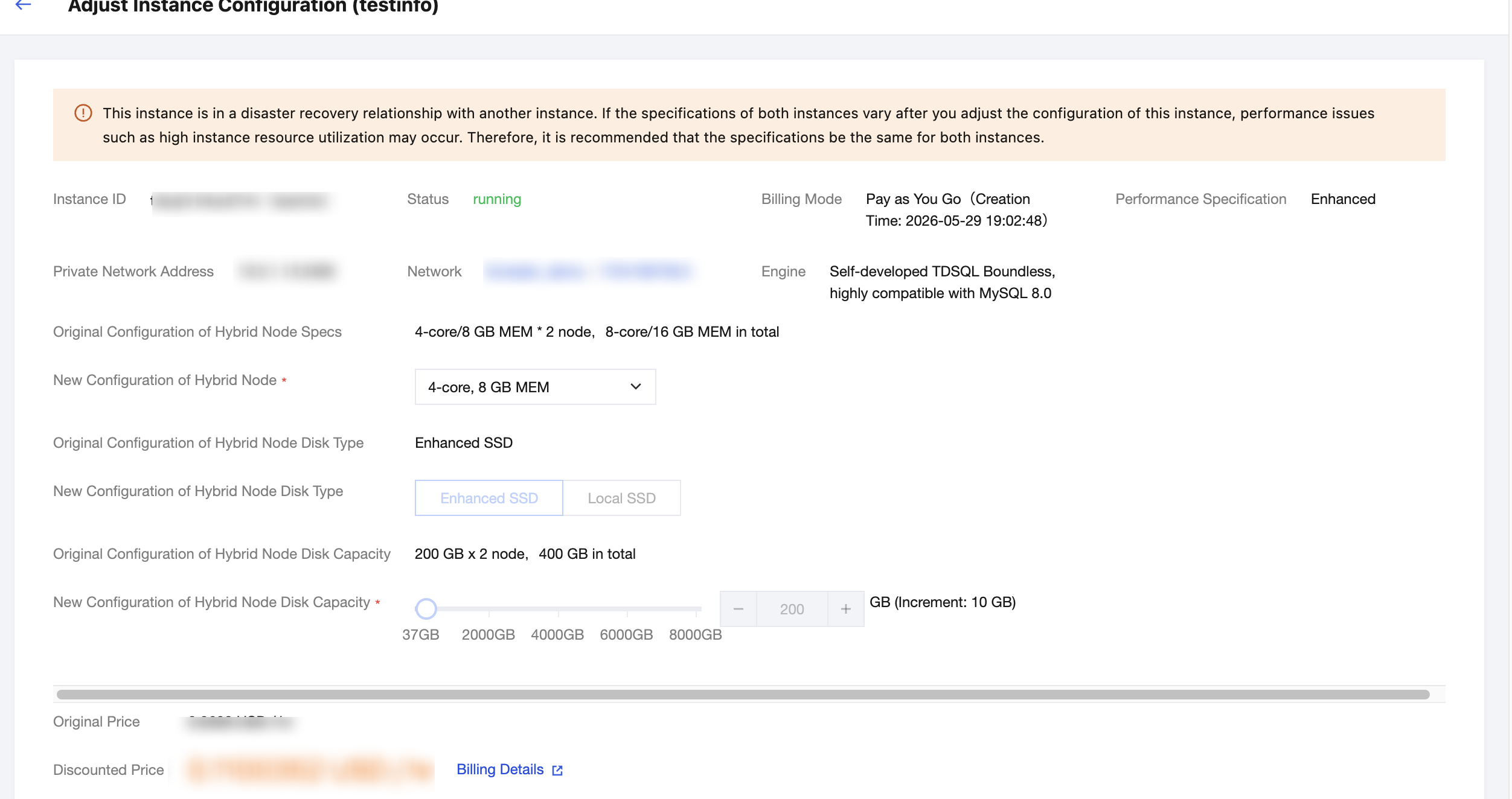
3. Confirm the post-adjustment configuration and billing information, then click Adjust Configurations.
4. You are returned to the instance list, and the instance status changes to modifying. After the adjustment is complete, the status returns to running, indicating a successful adjustment.
Disk Scaling
1. Log in to the TDSQL Boundless console. The system provides three entry points to go to the Adjust Instance Configuration page.
Entry Point 1: In the Instance list, locate the target instance. Then, in the Operation column, click Adjust Configurations > Scale Disk.
Entry Point 2: In the Instance list, locate the target instance and click its Instance ID. On the Instance Details page, click Adjust Configurations > Scale Disk in the upper-right corner.
Entry Point 3: Go to the Instance Details page. In the Specs Configuration area, locate the Disk Space row and click Scale on the right.
2. On the Adjust Instance Configuration page, adjust the following parameters as needed:
Parameter | Description |
New Configuration of Hybrid Node Disk Type | Select the target disk type. Supported types include General Purpose SSD CBS, Local SSD, and Enhanced SSD. |
New Configuration of Hybrid Node Disk Capacity | Drag the slider or enter a value to set the disk capacity. When a disk is scaled down, the adjusted disk capacity must not be less than the currently used data volume. |
3. Confirm the post-adjustment configuration and billing information, then click Adjust Configurations.
4. You are returned to the instance list, and the instance status changes to modifying. After the adjustment is complete, the status returns to running, indicating a successful adjustment.
FAQs
How Long Does It Take to Adjust the Configuration?
The time required for configuration adjustment depends on the scaling mode and data volume. If the target specifications can be met locally on the physical machine where the original node resides, the scaling is typically completed within minutes. If the physical machine has insufficient resources or disk scaling down is involved, new nodes need to be created and data sync must be awaited. The time required increases with the growth of the data volume. It is recommended that you perform this operation during off-peak hours.
Does Adjusting the Configuration Affect Business Operations?
When specifications are adjusted, the nodes undergo a rolling restart. During this process, brief connection interruptions (approximately 30 seconds) may occur. We recommend configuring your application with an automatic reconnection mechanism. Disk scaling operations do not affect normal read and write operations.
What Happens If the Configuration Adjustment Fails?
The system automatically rolls back to the original configuration. If the rollback fails, the instance enters an abnormal state. In this case, contact technical support for assistance.
Why Can't Node Specification and Disk Be Adjusted Simultaneously?
Adjusting specifications (CPU, memory) and scaling disks are resource changes in different dimensions. To ensure the stability of the adjustment process, the system requires that these operations be performed separately.
How to Verify Whether the Configuration Adjustment Takes Effect
You can go to the Specs Configuration area on the Instance Details page to view the adjusted Node Specifications and Disk Space information, confirming that the configuration has been updated.
Ajuda e Suporte
Esta página foi útil?
Você também pode entrar em contato com a Equipe de vendas ou Enviar um tíquete em caso de ajuda.
comentários