Preview
Baixar
Modo Foco
Tamanho da Fonte
CodeBuddy IDE supports automatic rendering of code changes via a browser kernel, allowing you to instantly view the running effect of the current project code without switching tools or manually starting services, achieving real-time debugging and preview.
Features
Instant Rendering: Automatically render running effects after code modification, no manual refresh needed.
Zero Configuration: No need to manually start services or switch tools.
Visual Optimization: Support selecting components to perform UI optimization via natural language.
Real-time Preview
There are two ways to open the local project preview:
Method 1: Automatic Call
After CraftAgent completes code generation or modification, the Agent automatically calls the tool to open Preview.
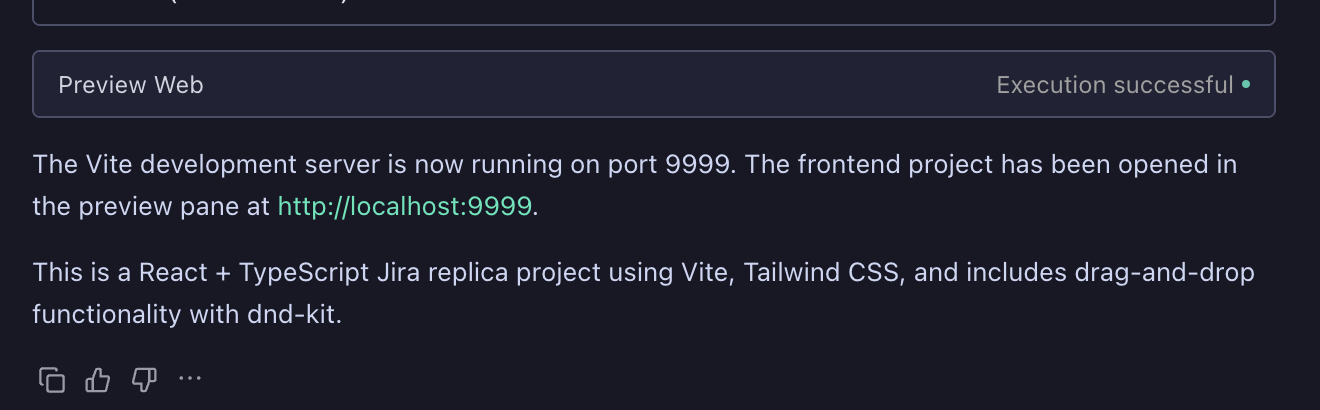
Method 2: Manual Trigger
Manually click the Preview tool in the top right corner of the Chat panel to preview.
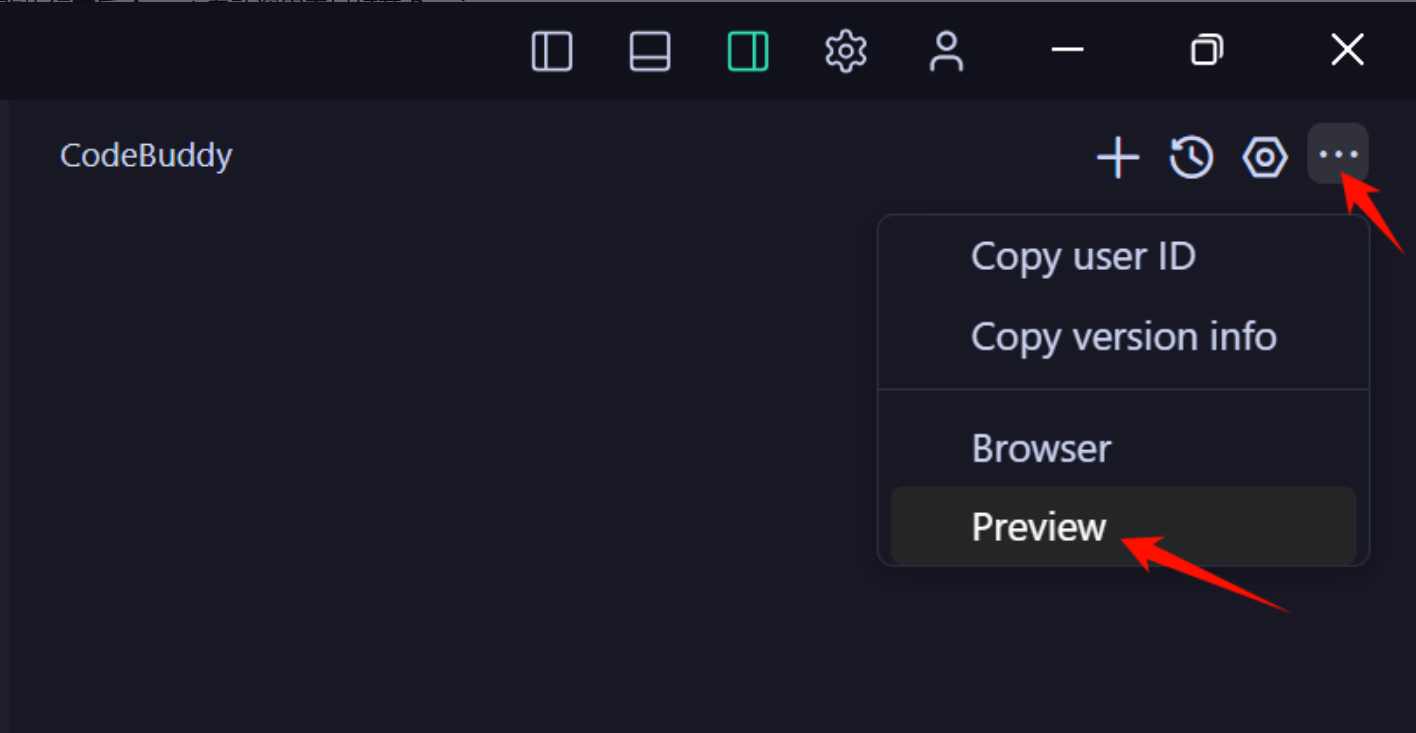
Or manually input a Prompt to trigger the Agent to open Preview and view the running effect in real-time.
Example Prompt:
Please open preview so I can see the current page effect
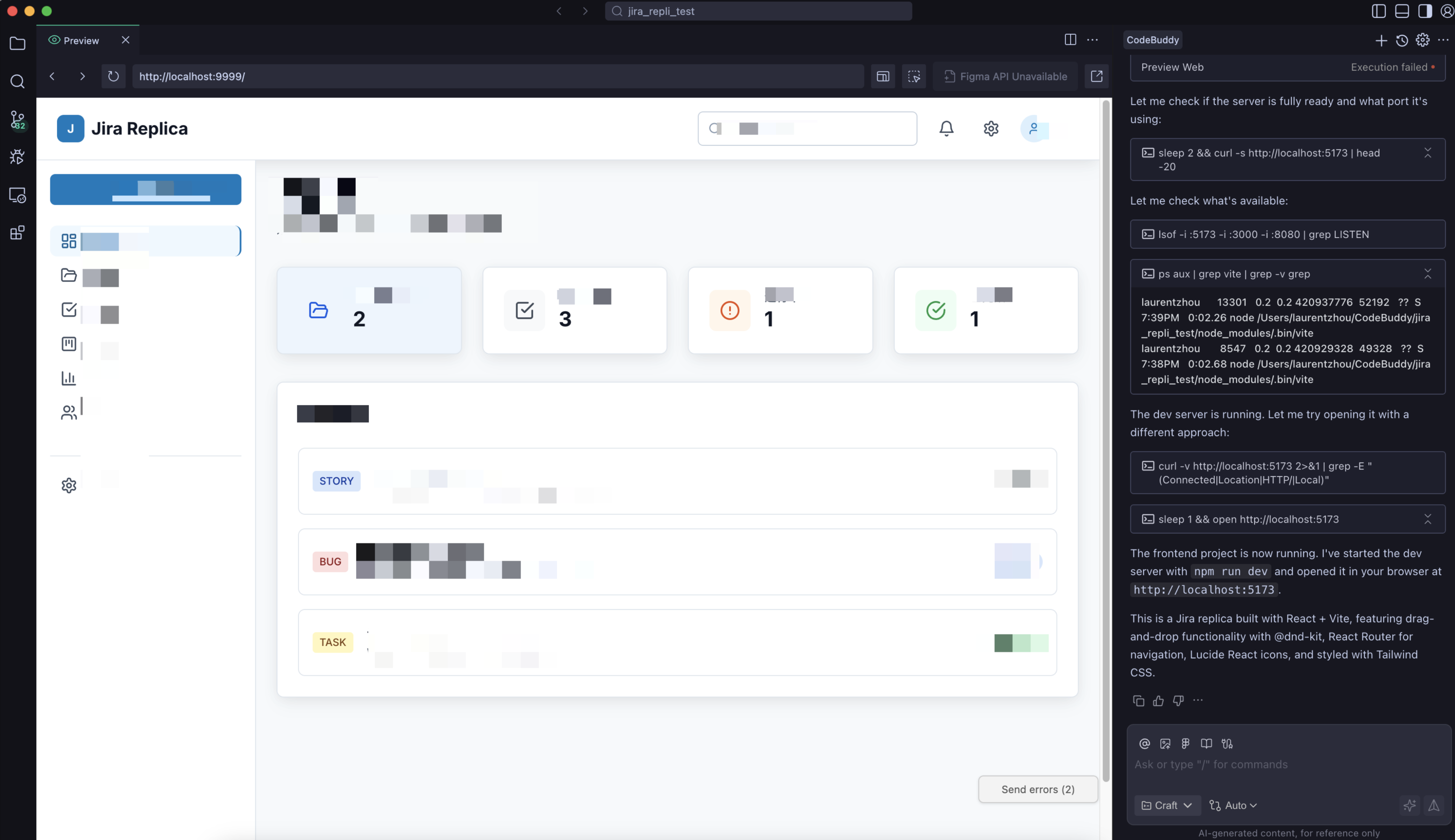
Preview Effect
The preview effect is shown below:
AI Visual Optimization
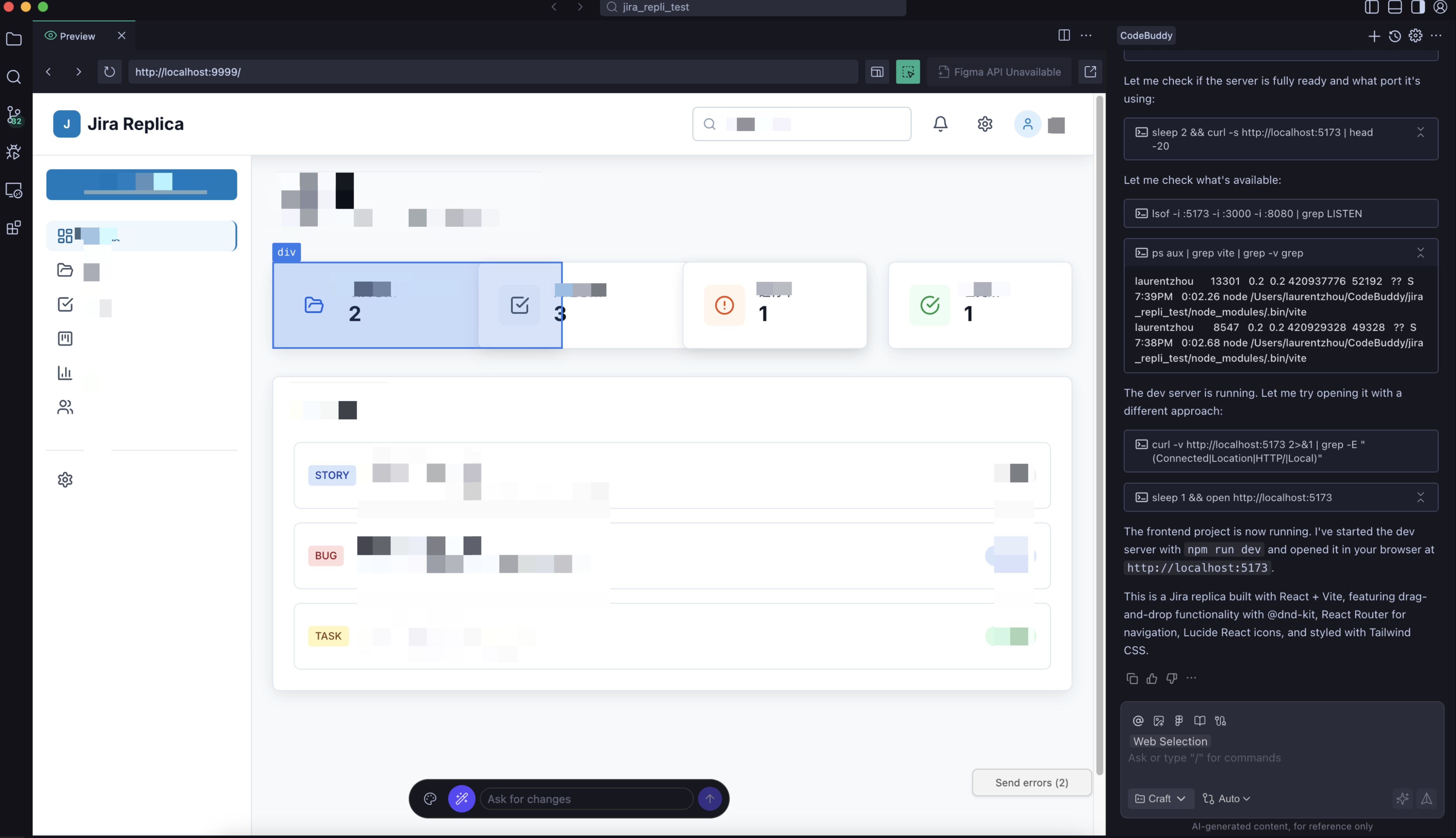
In the preview page, you can select specific components and optimize the UI via Natural Language or DOM Editor.
Method 1: Natural Language Optimization
1. Click the AI Visual Optimization button.
2. Select the component to utilize, and enter modification suggestions in the input box below.
Please change this button to a blue background
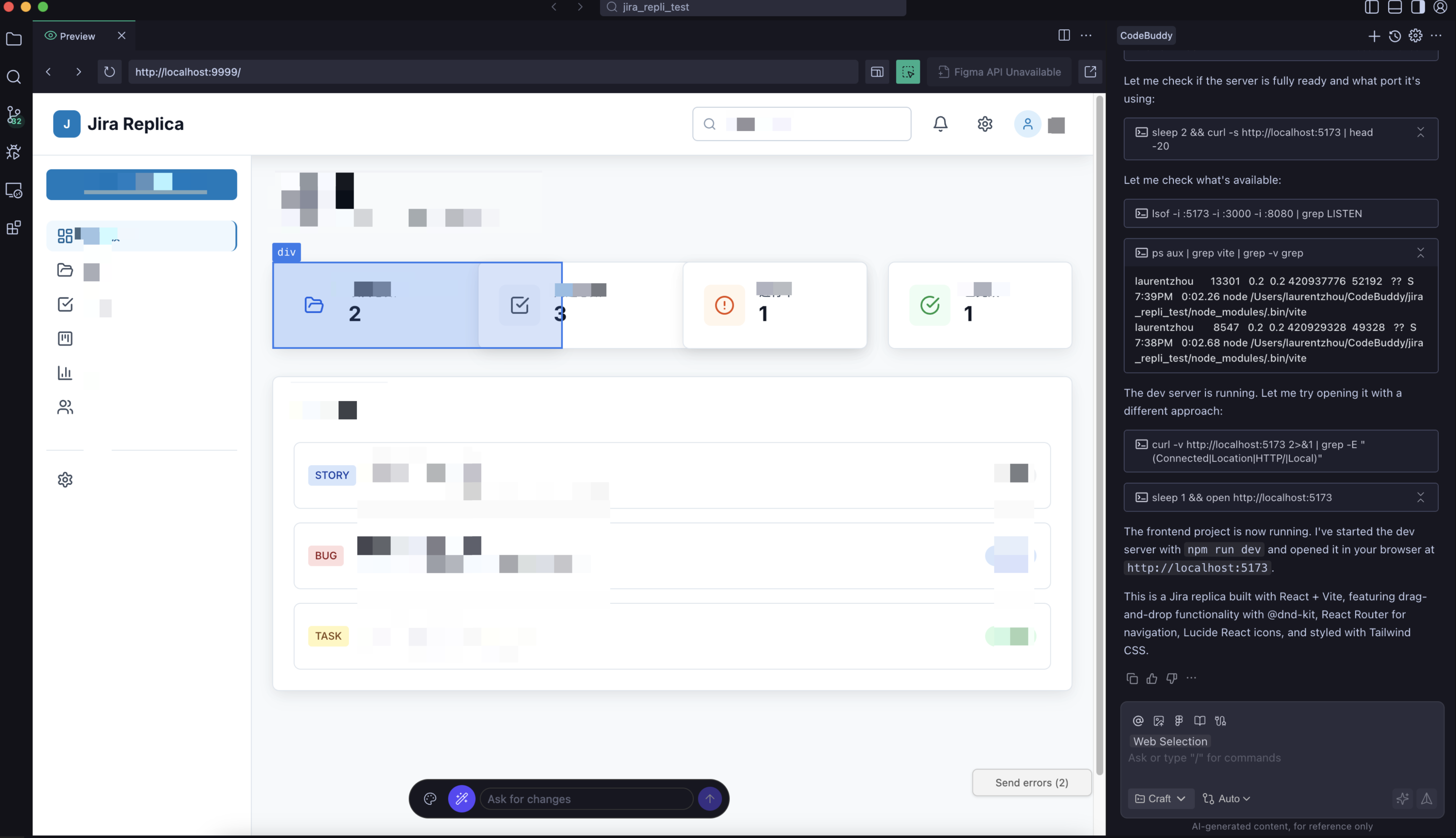
3. View functionality effect. If not satisfied, you can continue to optimize the style.
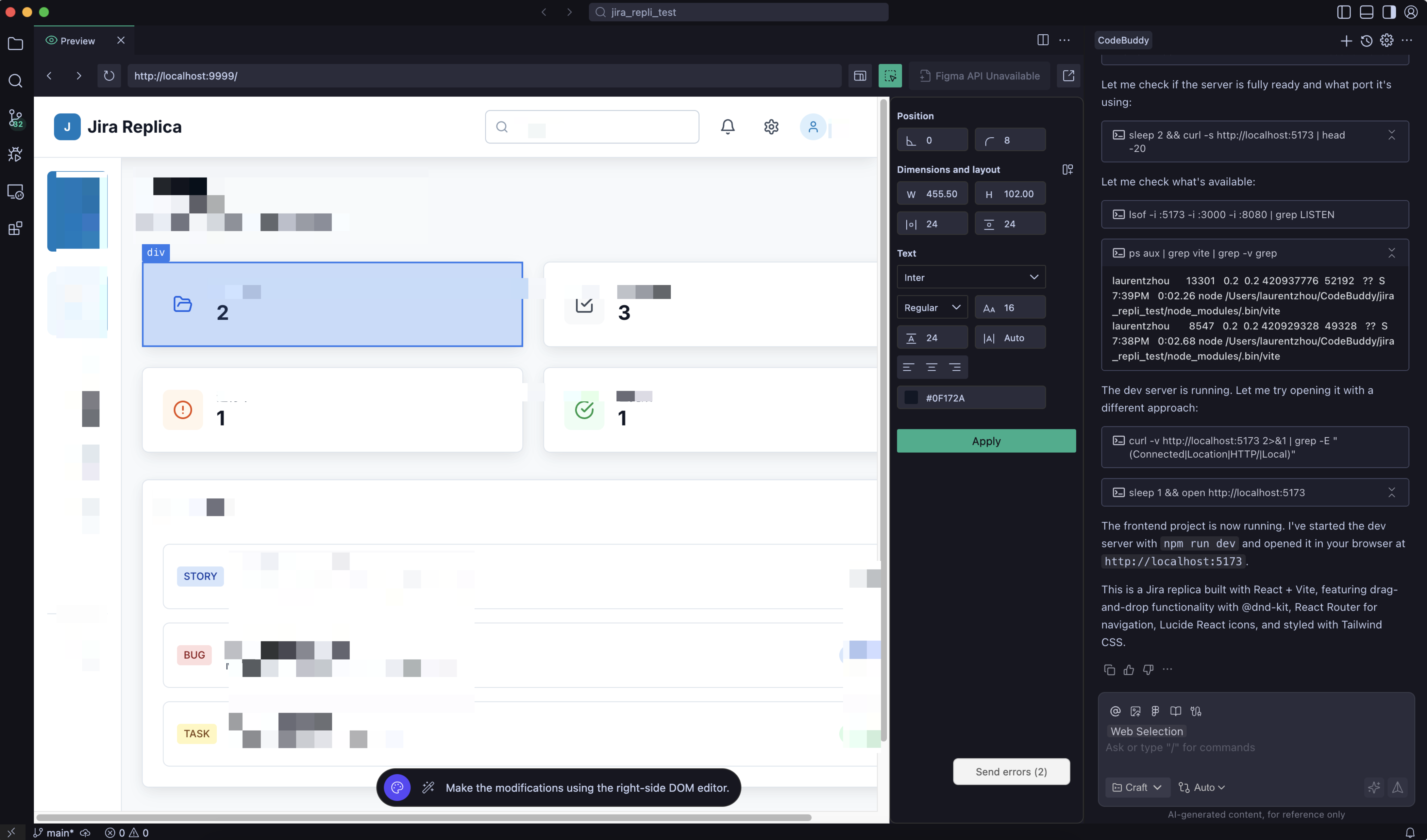
Method 2: DOM Editor
You can also use the DOM Editor to directly modify component styles.
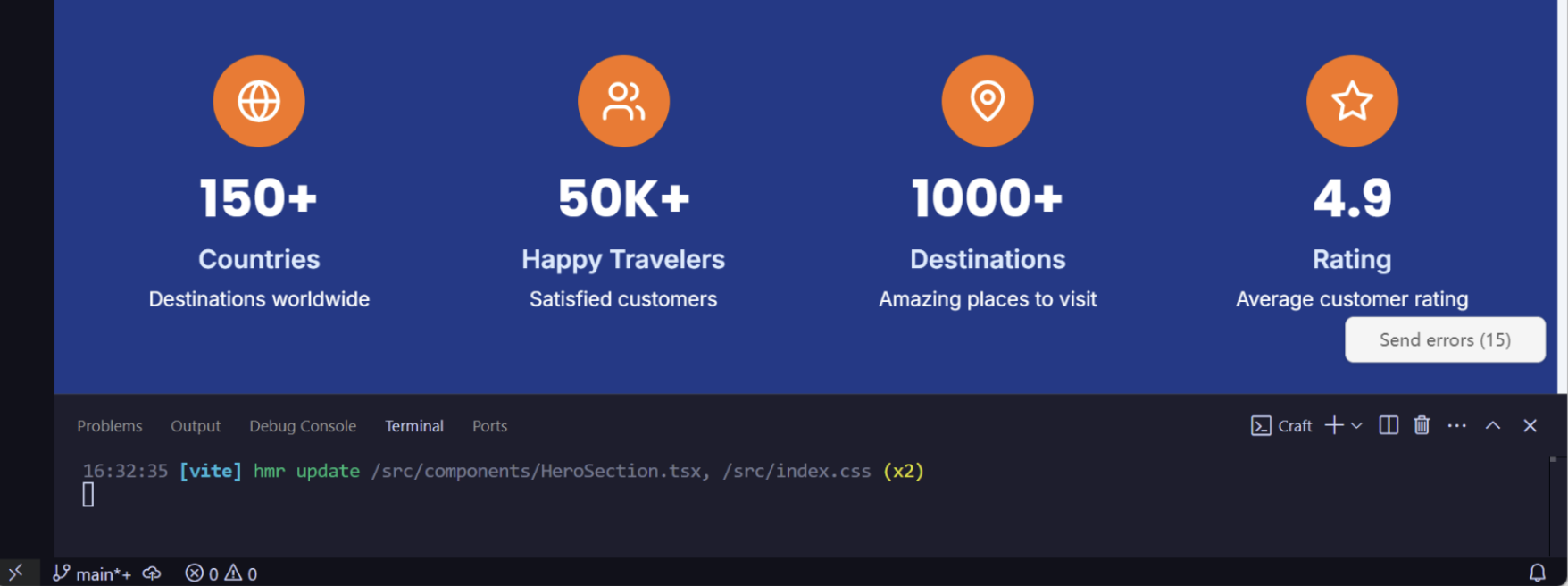
Fix Errors
Click "send errors" to send errors to the conversation, and AI will automatically fix them.
FAQ
What if the preview page is blank?
When the preview page shows blank or fails to load normally, it may be caused by the following reasons:
Syntax errors in code: Check if there are error messages in the console.
Dependencies not correctly installed: Confirm
node_modules is installed, try running npm install again.Port occupied or service not started: Check if the development server is running normally.
Solution:
1. Describe the problem phenomenon in the conversation, e.g., "Preview page is blank, please help me troubleshoot".
2. If the preview window shows error messages, click Send Errors to send the error to AI for analysis.
3. Try to manually re-trigger preview: Click the Preview button in the top right corner of the Chat panel, or input "Please reopen preview".
Ajuda e Suporte
Esta página foi útil?
Você também pode entrar em contato com a Equipe de vendas ou Enviar um tíquete em caso de ajuda.
comentários