tencent cloud

Cloud Application Rendering

Release Notes
Product Introduction
Overview
Basic Concepts
Strengths
Use Cases
Purchase Guide
Billing Overview
Billing
Purchase Process
Overdue Payment
Refunds
Auto-Renewal Rules
Getting Started
Basic Technical Concepts
User Guides
Technical Integration
Integration Demo
Console Guide
Application Management
Project Management
Stream Push Service
Concurrency Management
Multiplayer Interaction
Session Status
Practical Tutorial
How to Implement Cloud-Native Recording
How to Implement Application Upload and Version Update via CAR-CLI
How to Implement Concurrency Sharing
How to Implement Mobile Chinese Input
How ‍to ‍Push ‍‍Cloud ‍Video Streams to CSS
How to Implement Multi-Person Interaction
How to Implement Live Room Interaction ‍with On-Screen Comments
Configuring and Using Cloud Browser
SDK Documentation
JavaScript SDK
SDK for Android
SDK for iOS
API Documentation
History
Introduction
API Category
Making API Requests
User APIs
Application Management APIs
Project Management APIs
Concurrency Management APIs
Stream Push Service APIs
Data Types
Error Codes
FAQs
CAR Basics
CAR Integration
Cloud Application
Service Level Agreement
CAR Policy
Privacy Policy
Data Processing And Security Agreement
Contact Us

Application Update and Version Management

PDF
Modo Foco
Tamanho da Fonte
Última atualização: 2024-01-26 12:00:38
CAR offers version management capabilities. Under the same application ID, you can maintain up to five versions and perform operations such as new version upload and release as well as version rollback.

Application version Update

Note:
During application update, make sure that the application startup path is the same as that of the original application package; otherwise, you need to modify the startup parameter configuration. The URL must be a URL that can be accessed and trigger download directly. Download URLs of cloud disks or other URLs requiring verification are not supported.
1. Go to the CAR console.
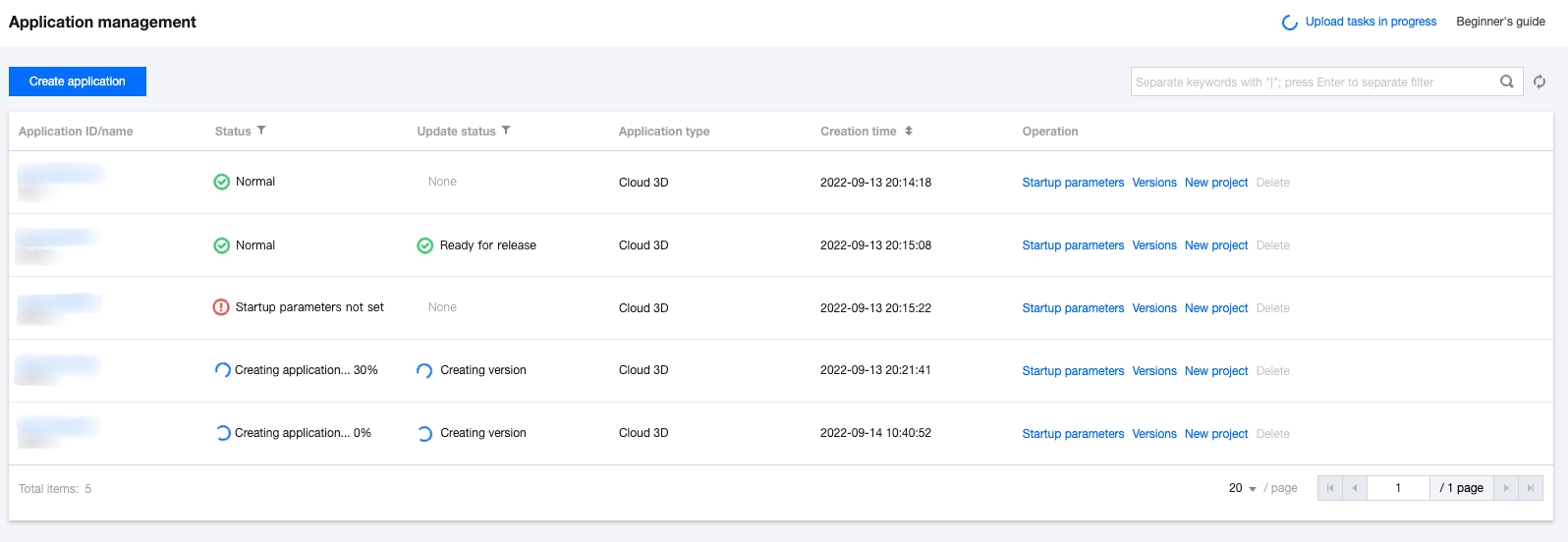
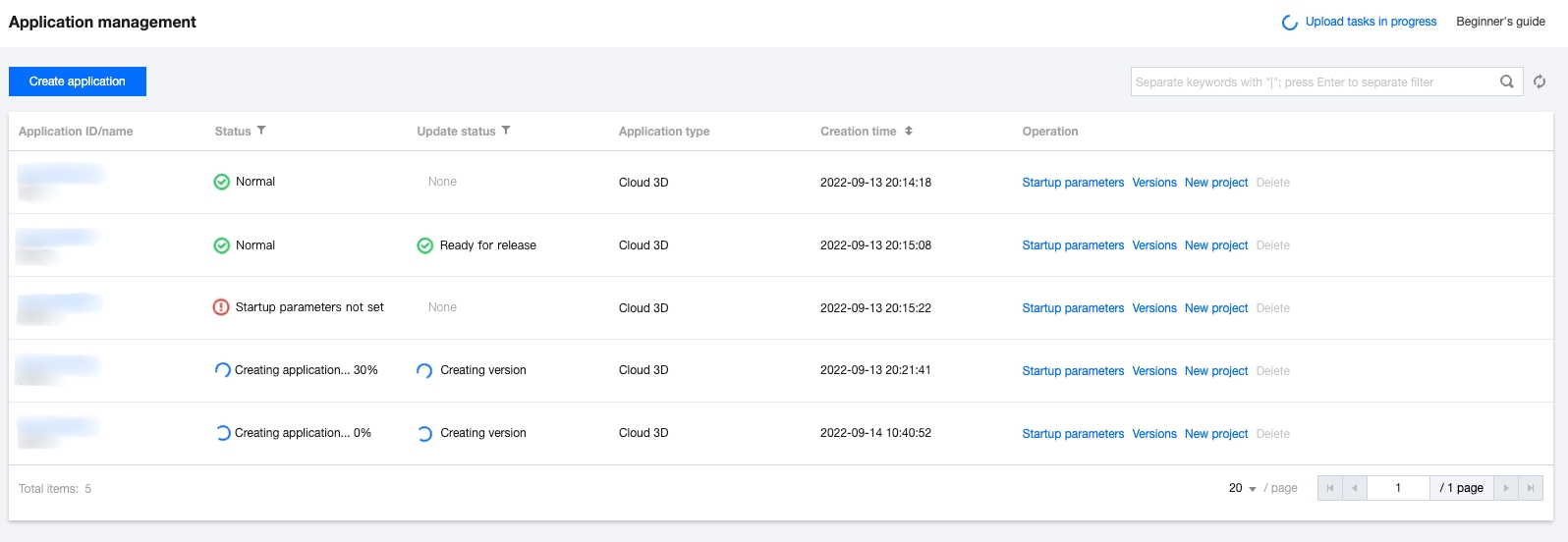
2. Click Application management on the left sidebar and click Versions on the Application management page.


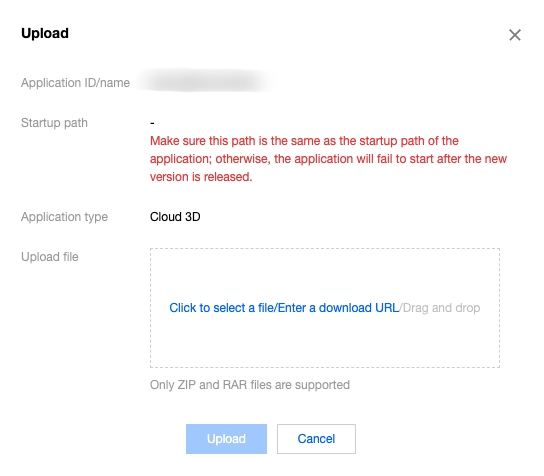
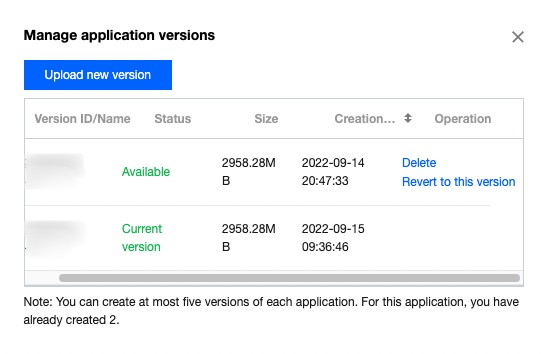
3. In the Manage application versions pop-up window, click Upload new version.


4. Select an upload method. You can select a file, drag a file, or enter a URL to upload a file.


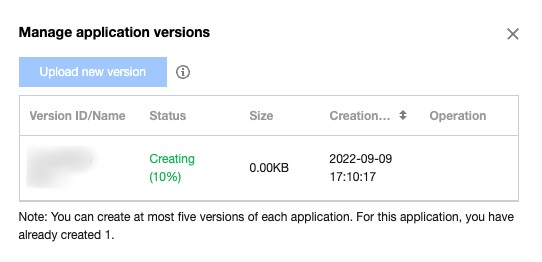
5. After submission, the application version will be created immediately. You can view the upload progress in Manage application versions.


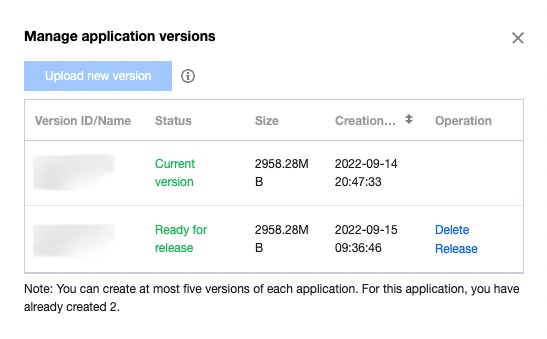
6. After the creation, you can test the new version in the business environment based on the version ID. After the test is completed, click Release.

Application version Rollback

Note:
During version rollback, make sure that the startup paths of different versions are the same; otherwise, the application will be unavailable during version switch as the startup parameter configuration doesn't match the version startup path.
1. Go to the CAR console.
2. Click Application management on the left sidebar and click Versions on the Application management page.


3. In the Manage application versions pop-up window, select an earlier version and click Revert to this version.


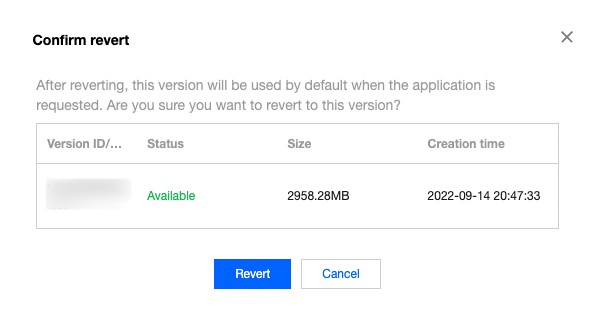
4. In the Confirm revert pop-up window, confirm that everything is correct and click Revert.


Ajuda e Suporte

Esta página foi útil?

comentários