This document describes how to obtain user login records for a Lighthouse instance.
Operation Steps
Linux instances
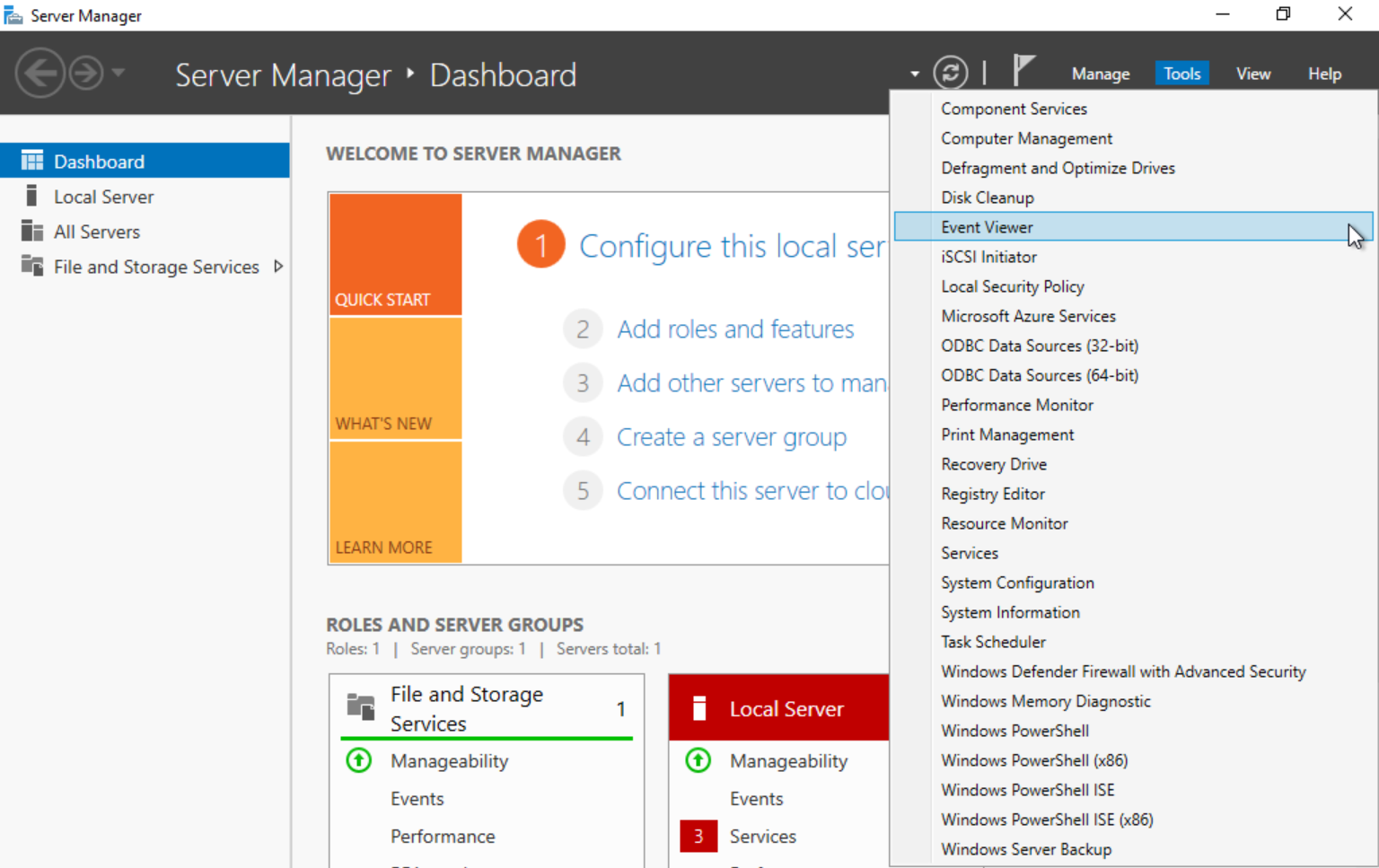
Windows instances
Note:
This document uses the system image CentOS 7.6 as the example for the Linux instance operating system. Procedures may vary for different OS versions. Please perform the operations based on your actual scenario.
2. Refer to the following information to view user login information as needed.
Note:
User login information is typically recorded in files such as /var/run/utmp, /var/log/wtmp, /var/log/btmp, and /var/log/lastlog.
Run the who command to view information about currently logged-in users via /var/run/utmp. The returned result is shown in the following figure:
Run the w command to view the usernames of currently logged-in users and display the tasks they are currently executing via /var/run/utmp. The returned result is shown in the following figure:
Run the users command to view the usernames of currently logged-in users via /var/run/utmp. The returned result is shown in the following figure:
Run the last command to view information about users who are currently logged in or have previously logged in to the system via /var/log/wtmp. The returned result is shown in the following figure:
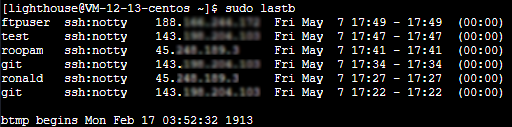
Run the sudo lastb command to view information about all users who failed to log in to the system via /var/log/btmp. The returned result is shown in the following figure:
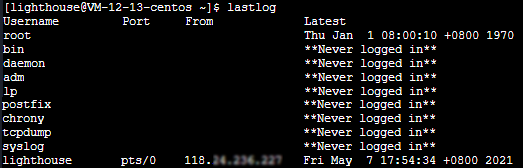
Run the lastlog command to view information about a user's last login via /var/log/lastlog. The returned result is shown in the following figure:
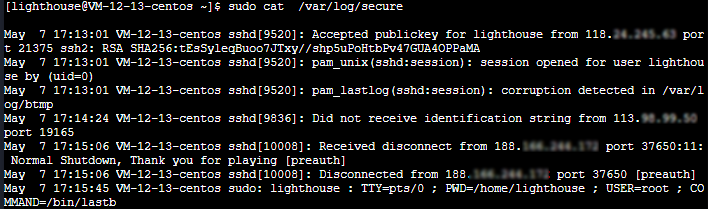
Run the sudo cat /var/log/secure command to view login information. The returned result is shown in the following figure:
Note:
This document uses the system image Windows Server 2012 R2 Chinese Edition for the Windows instance operating system as an example. Procedures may vary for different operating system editions. Please perform operations based on your actual situation.