tencent cloud

Tencent Real-Time Communication

소식 및 공지 사항
제품 업데이트
Tencent Cloud 오디오/비디오 단말 SDK 재생 업그레이드 및 권한 부여 인증 추가
TRTC 월간 구독 패키지 출시 관련 안내
제품 소개
제품 개요
기본 개념
제품 기능
제품 장점
응용 시나리오
성능 데이터
구매 가이드
Billing Overview
무료 시간 안내
Monthly subscription
Pay-as-you-go
TRTC Overdue and Suspension Policy
과금 FAQ
Refund Instructions
신규 사용자 가이드
Demo 체험
Call
개요(TUICallKit)
Activate the Service
Run Demo
빠른 통합(TUICallKit)
오프라인 푸시
Conversational Chat
온클라우드 녹화(TUICallKit)
AI Noise Reduction
UI 사용자 정의
Calls integration to Chat
Additional Features
No UI Integration
Server APIs
Client APIs
Solution
ErrorCode
릴리스 노트
FAQs
라이브 스트리밍
Billing of Video Live Component
Overview
Activating the Service (TUILiveKit)
Demo 실행
No UI Integration
UI Customization
Live Broadcast Monitoring
Video Live Streaming
Voice Chat Room
Advanced Features
Client APIs
Server APIs
Error Codes
Release Notes
FAQs
RTC Engine
Activate Service
SDK 다운로드
API 코드 예시
Usage Guidelines
API 클라이언트 API
고급 기능
RTC RESTFUL API
History
Introduction
API Category
Room Management APIs
Stream mixing and relay APIs
On-cloud recording APIs
Data Monitoring APIs
Pull stream Relay Related interface
Web Record APIs
AI Service APIs
Cloud Slicing APIs
Cloud Moderation APIs
Making API Requests
Call Quality Monitoring APIs
Usage Statistics APIs
Data Types
Appendix
Error Codes
콘솔 가이드
애플리케이션 관리
사용량 통계
모니터링 대시보드
개발 보조
Solution
Real-Time Chorus
FAQs
과금 개요
기능 관련
UserSig 관련
방화벽 제한 처리
설치 패키지 용량 축소 관련 질문
Andriod 및 iOS 관련
Web 관련
Flutter 관련
Electron 관련
TRTCCalling Web 관련
멀티미디어 품질 관련
기타 질문
Protocols and Policies
컴플라이언스 인증
보안 백서
정보 보안에 관한 참고 사항
Service Level Agreement
Apple Privacy Policy: PrivacyInfo.xcprivacy
TRTC 정책
개인 정보 보호 정책
데이터 처리 및 보안 계약
용어집

OBS Studio Integration

PDF
포커스 모드
폰트 크기
마지막 업데이트 시간: 2026-02-24 17:04:22

Feature Introduction

Push Media Stream Into Room is a technology that pushes RTMP streams into live broadcast rooms. You can use tools such as OBS or FFMPEG to push pre-recorded videos, real-time generated visuals, or other online video streams (such as surveillance footage, in-game screens, meeting scenes, etc.) into the live broadcast room, simulating the effect of real-time live streaming.
Notes:
The related fees are as follows:
Feature unlock: The Push Media Stream Into Room feature requires subscribing to the Live monthly package Standard or Pro
Edition to unlock (the trial version also allows for experiencing this feature).
Usage fees:
Using the streaming feature will perform transcoding operations, incurring transcoding fees. For details, see On-Cloud MixTranscoding Billing Instructions.
Audio duration fees will be charged for streaming chatbots in the room (note: fees for chatbots in the room generated by the input online media stream feature will be waived until August 15, 2024, and will be charged starting from August 16, 2024).
Note: Audio and video call fees will occur when the audience in the room subscribes to the audio and video content streamed into the room. For details, see Audio and Video Duration Billing Instructions.

Use Cases

Robot streaming is designed for diverse live streaming needs. You can implement the following use cases:
Scenario Type
Description
24/7 uninterrupted live stream
With robot streaming, you can achieve 24-hour uninterrupted live stream, which is suitable for scenarios such as news broadcasting, music radio stations, and monitoring footage.
Content replay
Re-push popular live stream content or recorded videos to attract more audience viewing.
Virtual Streamer
Combine avatar technology and use robot streaming to realize virtual streamer live streaming.
Corporate live streaming
Used for corporate meetings, product launch events, training, and other scenarios to stream recorded videos to internal or external platforms.
Game live streaming
Push the game video stream into the live streaming room. Combine it with commentary or background music to enhance the live broadcast effects.
Education live streaming
Push the recorded course video to the education platform to implement online teaching.
E-commerce live broadcast
Show product information and promotion activities through robot streaming to enhance the sales conversion rate.
More scenarios
Any real-time interaction play mode based on media stream can be implemented through RTMP streaming. More play modes are waiting for you to explore.

User Guide

Following will use REST API and OBS tool as examples to guide you through the quick start of robot streaming feature.

Robot Push Streaming

Notes:
You need to implement robot push streaming by following the steps of create live streaming room > create robot > use OBS to push RTMP stream to the live streaming room > robot becomes a speaker.

Step 1: Create a Live Streaming Room

You can create a live streaming room via REST API Create a live streaming room.
If the room owner ID does not exist, you will need to use the REST API Import Multiple Accounts. (It is advisable to set the Host ID as the robot's ID.)

Step 2: Create a Robot

When there is no one in the live streaming room within a period of time, it will be automatically dissolved. To ensure your room is not dissolved, you need to create a robot inside the room.
You can create a robot via REST API create a robot.If the robot ID does not exist, you will need to use the REST API Import Multiple Accounts.

Step 3: Use OBS to Push RTMP Stream to the Live Streaming Room

Here will guide you to use OBS tool to push RTMP stream to the live streaming room. You can refer to the document RTMP stream push to the live streaming room.
Notes:
Room ID during stream pushing is set to the room ID you set when creating the live streaming room in Step 1.
userId during stream pushing is set to the robot userId you created in Step 2.
When creating a bot, if the bot's userId does not exist, you must first user REST API Import Multiple Accounts to import account.

Step 4: Robot Takes the Mic

Online live streaming audiences will automatically pull the audio and video stream of the speaker on the mic. To ensure that the audiences in your room receive the audio and video stream pushed via RTMP, you need to put the robot in the speaking state.
You can let the robot take the mic via REST API take the mic.
Notes:
If you want to customize the size and position of the audio and video stream visual that the audience views in the live streaming room, you can achieve it by using the REST API to custom layout API.

Robot Stop Streaming

Notes:
You need to implement robot stop streaming by following the steps of robot becomes a listener > delete robot > dismiss live streaming room > stop RTMP streaming.

Step 1: Robot Becomes a Listener

You can let the robot become a listener via REST API become a listener.

Step 2: Deleting a Robot

You can delete a robot via REST API delete a robot.

Step 3: Dismissing a Live Streaming Room

When you want to dismiss a live streaming room in advance, you can dismiss the live streaming room via REST API dismiss a live streaming room.

Step 4: Stop RTMP Streaming to the Live Streaming Room

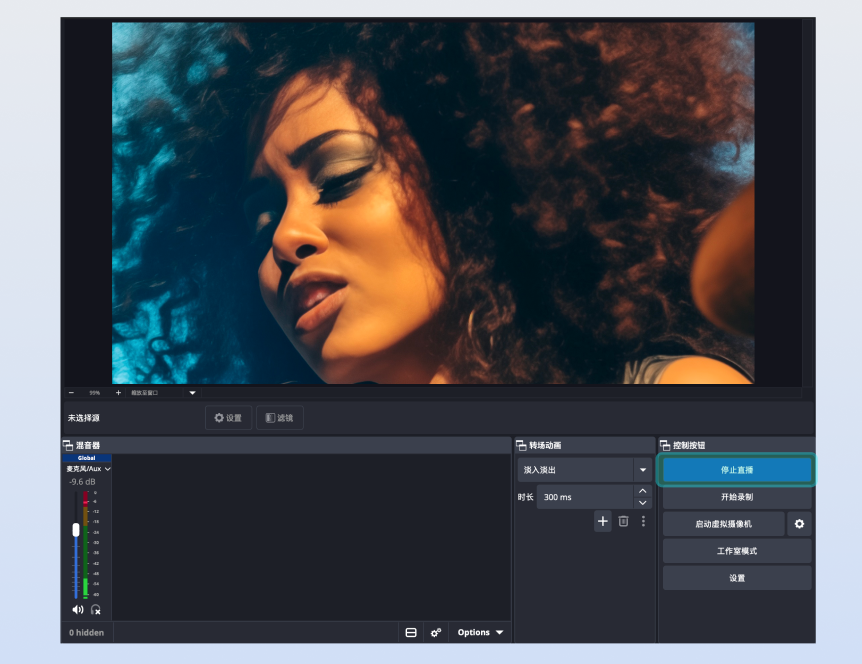
Click the stop live streaming button to stop streaming to the live streaming room.


Practice Instructions

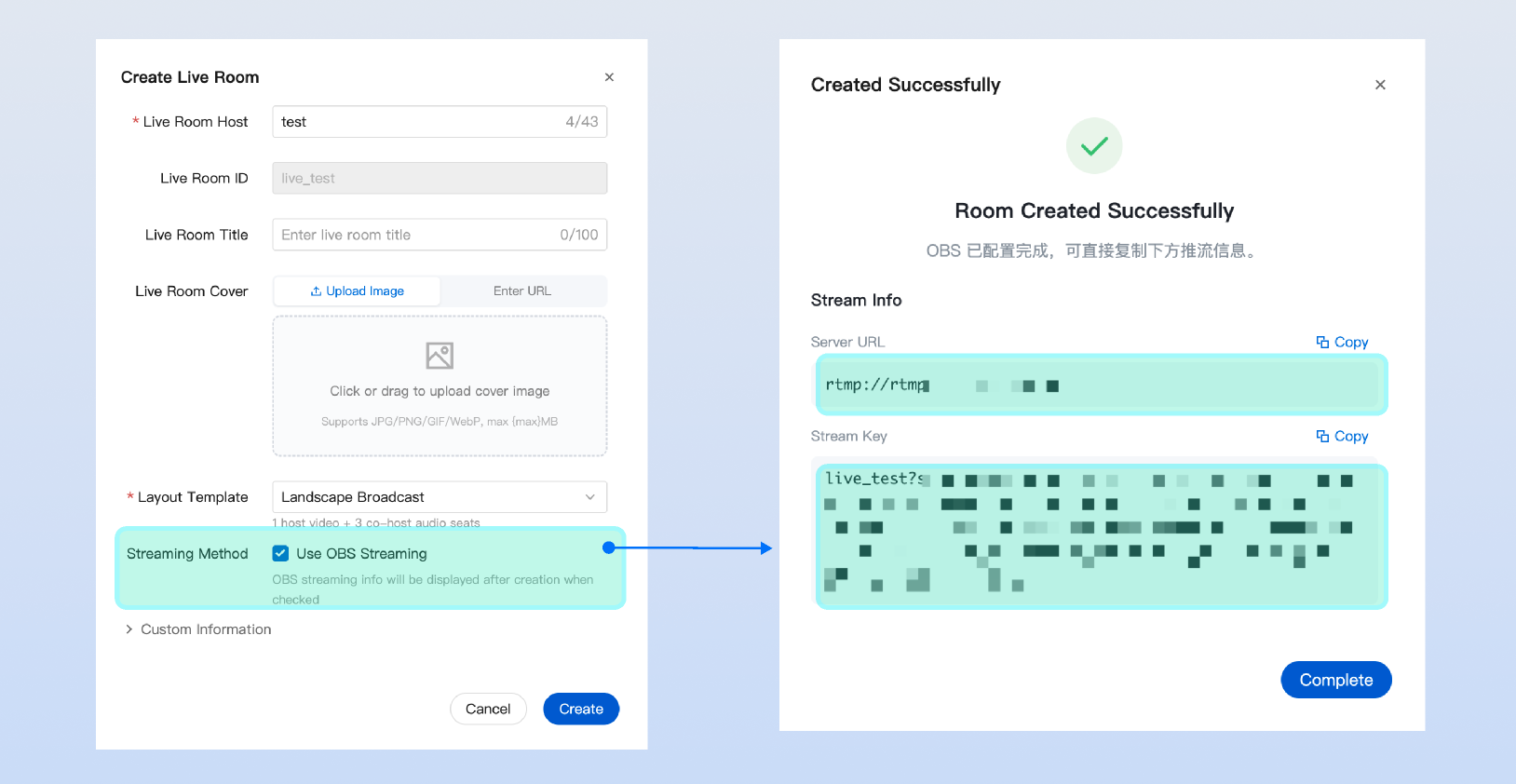
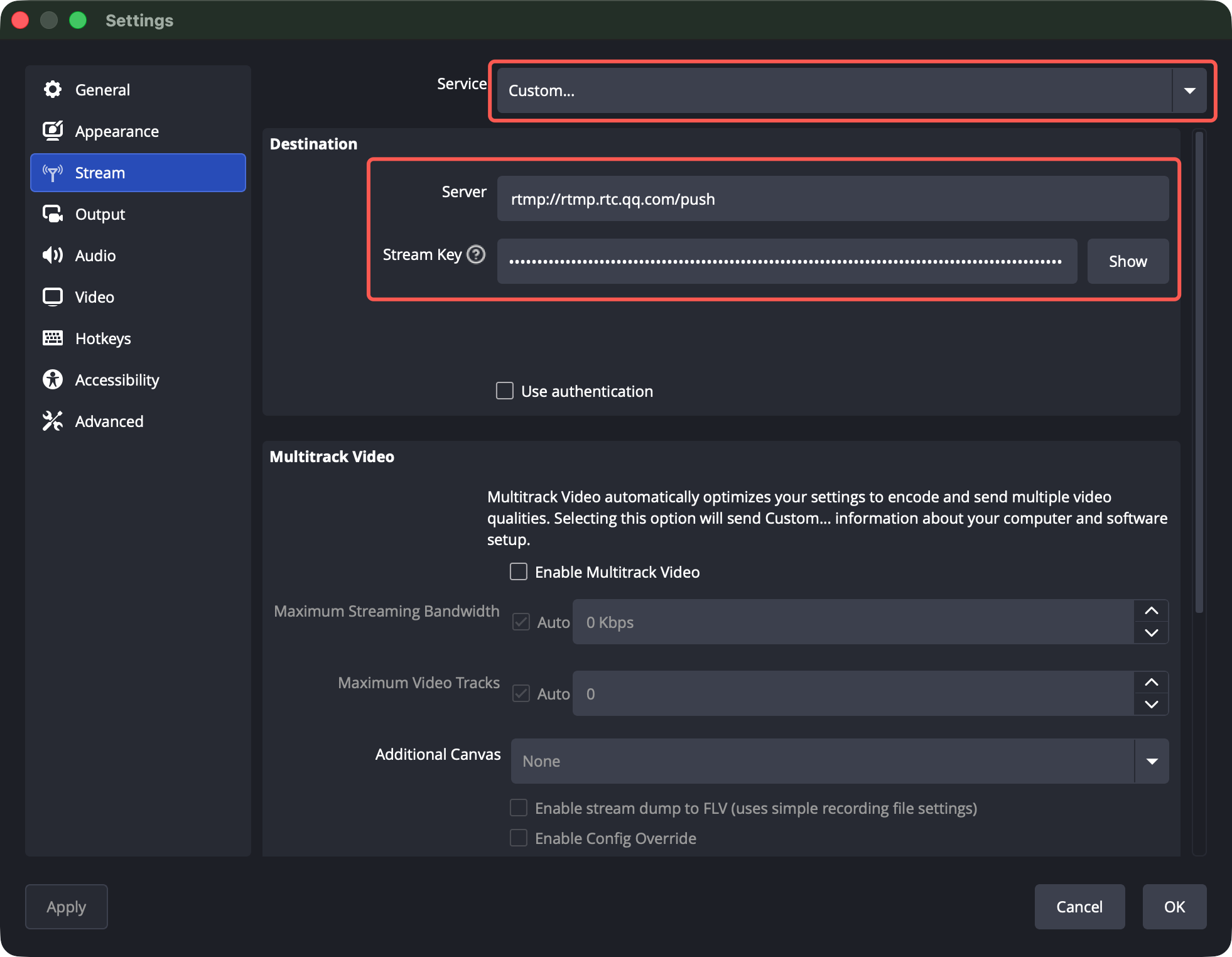
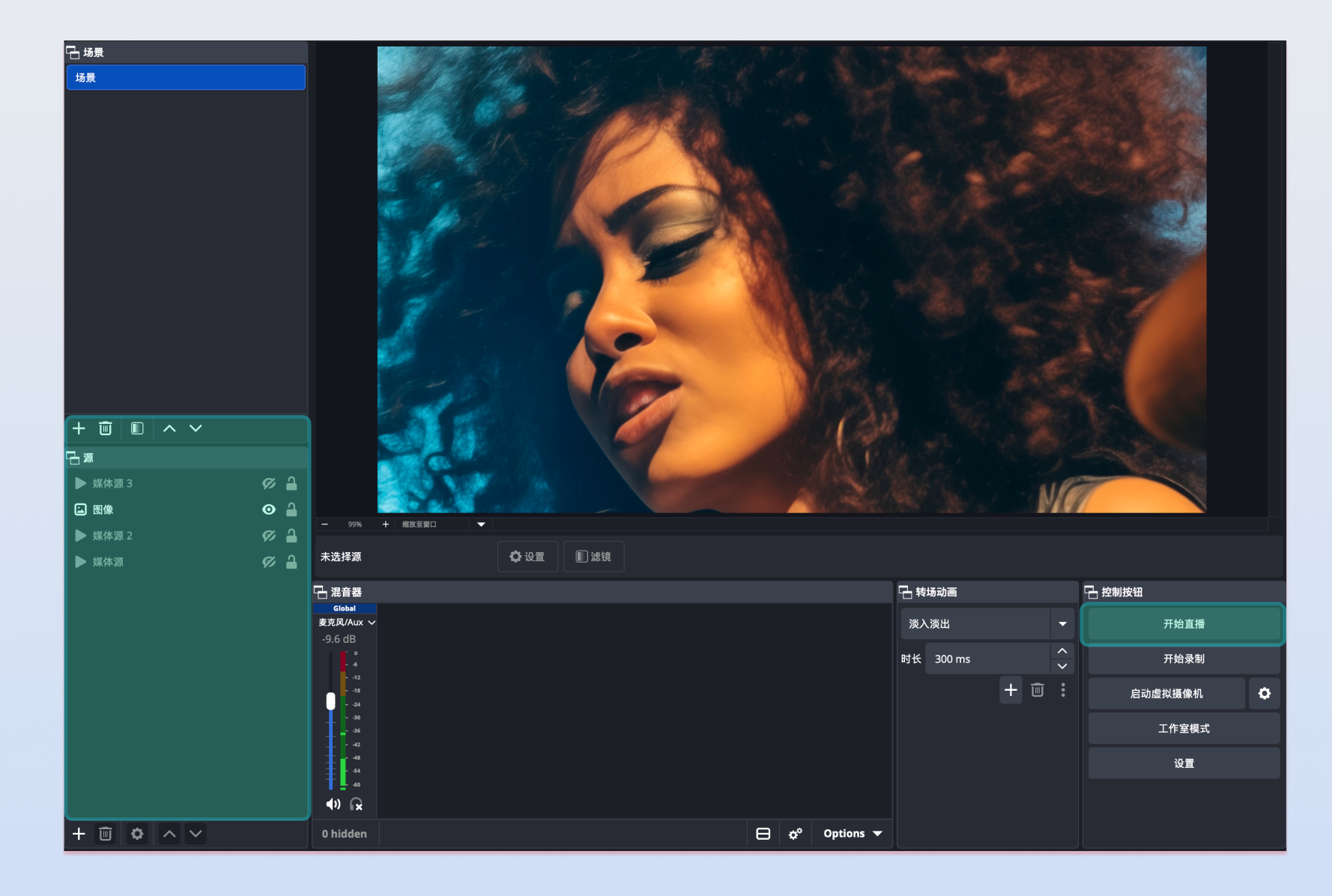
The process of using OBS to input media stream into a room is as follow:


FAQs

What to do if push fails?

Common reasons: No package purchased or expired; Signature error or expired; Pushed B frames (phenomenon on the dashboard is "streaming ends after one second"), baseline encoding can be set.
Other reasons: If it is an embedded hardware device pushing the stream, the URL may be truncated; if H.265 is pushed, change to H.264; if set chunk on the terminal is too large, change to 1360.

What to do if there is lagging or mosaic screen effect?

Observe the Tencent Cloud Real-Time Communication console dashboard to check if the streaming frame rate is stable. If it is stable, it is likely an issue on the playback side; check the playback side. If the frame rate is unstable, consider the following points:
Check if the local CPU and memory of the push client are under high load. If OBS is used for streaming, monitor the status bar at the bottom of the software for information such as frame loss, network, CPU, and frame rate.
Check if the local network bandwidth is sufficient. ping the streaming domain name to observe the RTT; use the network diagnostic tool to detect the streaming domain name and check the bandwidth, which should ideally reach 10M.
The pushing end can try reducing the bitrate and frame rate to decrease the client load. For reference, see the settings of OBS in the text. The recommended bitrate for 720p is 1500 Kbps.

What to do if the delay is high?

If the pulling end uses the anchor role, the delay is usually lower than that of the audience role. If it is not the anchor role, you can try comparing to see if there is any improvement.
The local encoding and network impact of the streaming end are relatively large. You can try testing on different platforms. If OBS is used, you can try streaming on Windows systems; ping the streaming domain to observe the RTT.

What to do if the RTMP streaming is interrupted?

If you resume RTMP streaming within 2 minutes after the interruption, the audience in the same room will pull the audio and video stream again. If it exceeds 2 minutes, the mixed stream viewed by the audience will be interrupted. You need to call the resume mcu API to restore the mixed stream.

How to set the layout for streaming?

You can use the REST API for setting room stream mixing layout to implement this feature. When LayoutMode is set to 0, it defaults to a nine-grid layout. When LayoutMode is set to 1000, it is a custom layout. You can set the video size and position for the audience end by setting these two fields: VideoEncode and LayoutInfo.

What to do if you can't see the corresponding robot room in the online live stream list?

Answer: When you use the REST API to create a live streaming room, set the IsPublicVisible field to true.

Listening to OBS Stream Interruptions?

OBS enters the TRTC room during streaming and triggers the TRTC room entry callback event.
OBS leaves the TRTC room when the stream is interrupted, triggering the TRTC room exit callback event.
You can monitor OBS streaming and stream interruption events by listening to the server-side room callback.
Field
Value
Description
EVENT_TYPE_ENTER_ROOM
103
Entering room
EVENT_TYPE_EXIT_ROOM
104
Leaving room
Note:
Recommend using a unified format for the robot's userId. The business side should determine whether it is the corresponding robot after receiving the room entry/exit callback before processing the relevant logic.


도움말 및 지원

문제 해결에 도움이 되었나요?

피드백