Expanding Partitions and File Systems (Linux)
다운로드
포커스 모드
폰트 크기
Scenarios
After completing Expanding Cloud Disks, you need to expand partitions and file systems as needed before the instance can recognize the new capacity. You may refer to this document for Linux system operations.
Prerequisites
The instance status is running.
CBS status is in use.
System disk utilization has not reached 100%.
Note:
To ensure the expanding operation proceeds smoothly, log in to the instance and execute the
df -h command to confirm that the utilization of the root partition has not reached 100%.The kernel of Linux CVM is at least version 3.6.0. You can use the
uname -a command to view the kernel version.Note:
If the kernel version is below 3.6.0, you can refer to Offline Expansion of Partitions and File Systems for Low Kernel Version Systems (Linux) for instructions.
The CBS capacity has been expanded, and the disk has been mounted to the CVM. For details, see Expanding Cloud Disks.
Preparations
Scaling out the file system improperly may affect existing data. Therefore, it is strongly recommended that you manually create a snapshot to back up data before the operation.
Example environment
Resource | Description |
Operating system | TencentOS Server 4 for x86_64 |
Cloud disk | /dev/vda: system disk, which has been expanded from 50 GiB to 60 GiB via the console./dev/vdb: data disk. It was not partitioned during initialization and had an XFS file system created. The disk has been expanded from 70 GiB to 100 GiB via the console. (For related initialization steps, see: Initializing CBS (Linux))/dev/vdc: data disk. During initialization, a GPT partition /dev/vdc1 was created and an EXT4 file system was set up. The disk has been expanded from 100 GiB to 150 GiB via the console. (For related initialization steps, see: Initializing CBS (Linux)). |
Operation Steps
Step 1: Check whether the CBS is partitioned
1. Log in to the CVM. For details, see Logging in to Linux Instances Using Standard Login Method (Recommended).
2. Run the following command to query the partition information for the CBS to be expanded.
sudo fdisk -l
The returned results contain similar information as shown in the figure below:
As shown in the figure:
If there are no devices with the same name prefix such as
/dev/vdx1 or /dev/vdx2 under Disk /dev/vdx, it indicates that the CBS is a raw Device without partitions.If Disk
/dev/vdx has devices with the same name prefix such as /dev/vdx1 or /dev/vdx2, it indicates that the cloud disk has partitions.Note: System disks all have partitions such as
/dev/vda1.Step 2: If partitions exist, confirm the partition table format (This step is not required when there are no partitions)
In the returned results of Step 1
sudo fdisk -l, check the Disklabel type field to determine the format of the partition table.If the value of
Disklabel type is dos, it indicates that the partition table is in MBR format.If the value of
Disklabel type is gpt, it indicates that the partition table is in GPT format.Note:
The display may vary slightly across different operating systems. If the Disklabel type field is not displayed, you can determine the partition table format by checking the System field. A System value of Linux indicates MBR format, while a value of GPT indicates GPT format.
Step 3: Check the file system type
Run the following command to query the file system type of the raw devices or partitions to be expened in Step 1.
sudo file -s raw device name (e.g. /dev/vdb) or partition name (e.g. /dev/vda1)
The returned results contain similar information as shown in the figure below:

Among them:
XFS filesystem indicates that the filesystem is XFS.ext4 filesystem indicates that the filesystem is EXT4.ext3 filesystem indicates that the filesystem is EXT3.
In summary, after Step 1 to Step 3 are completed, the following information can be obtained in this example:
/dev/vda system disk contains an MBR partition /dev/vda1 with the file system being XFS./dev/vdb data disk has no partitions, with the file system being XFS./dev/vdc data disk has a partition /dev/vdc1, with the file system being EXT4.Step 4: Based on the information obtained from Step 1 to Step 3, determine the subsequent operations
Partition and file system format | Subsequent Operation |
A raw device without partitions and without a filesystem | |
A raw device without partitions but with a filesystem | |
Has partitions with the GPT partition format and a filesystem | |
Has partitions with the MBR partition format and a capacity ≤ 2 TiB after scaling out is performed, with a filesystem | |
Has partitions with the MBR partition format and a capacity > 2 TiB after scaling out is performed, with a filesystem | Please note that the maximum disk capacity supported by MBR-formatted partitions is 2 TiB. If your disk partition uses MBR format and needs to expand to over 2 TiB, you must first convert the partition table format to GPT. |
Step 5: Expand the partition
1. Please refer to Step 4: Determine next steps based on information obtained from Steps 1 to 3 to confirm whether the CBS needs to perform partition scaling.
2. Run the command based on the actual situation to install the gdisk tool.
If the partition type is MBR, there is no need to install this tool. Proceed directly to the next step to install the growpart tool.
If the partition type is GPT, then based on the CVM operating system type, run the following command to install the tool.
sudo yum install gdisk -y
sudo apt-get install gdisk -y
3. Based on the CVM operating system type, execute the following command to install the growpart tool.
sudo yum install -y cloud-utils-growpart
sudo apt-get install -y cloud-guest-utils
4. Run the following command to expand the partition using the growpart tool.
Note: This example demonstrates scaling out the system disk partition
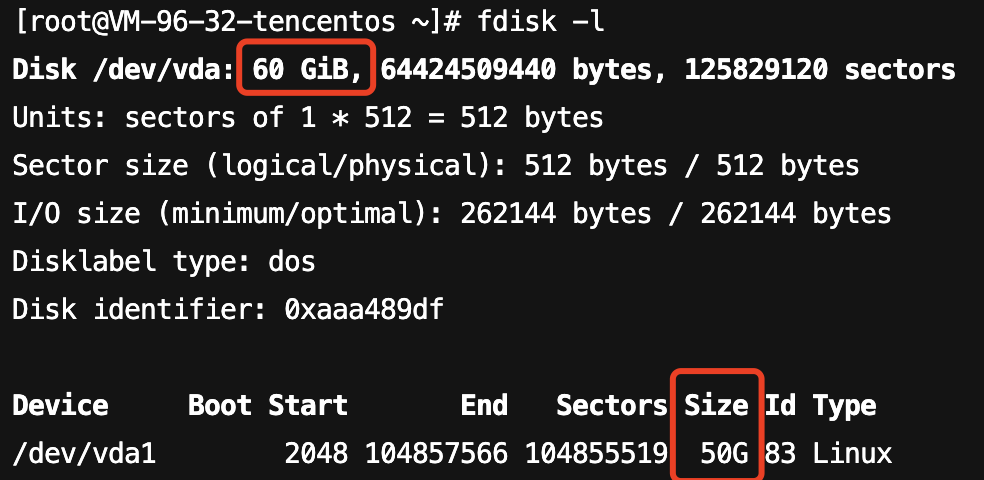
/dev/vda1. In the command, /dev/vda and 1 must be separated by a space. Modify the command as needed.sudo LC_ALL=en_US.UTF-8 growpart /dev/vda 1
Before the partition is expanded (the system disk has been expanded to 60 GiB, but the partition remains only 50 GiB):
If the returned result is as shown in the figure below, it indicates that the partition capacity is expanded successfully.

The procedure for scaling out the data disk partition
/dev/vdc1 is the same and will not be repeated here.Note:
Please note that if the returned result is as shown in the figure below, it indicates that the partition capacity expansion has failed. In this case, you need to reboot the machine according to the prompt message, and then re-execute the above command to check whether the expansion was successful.
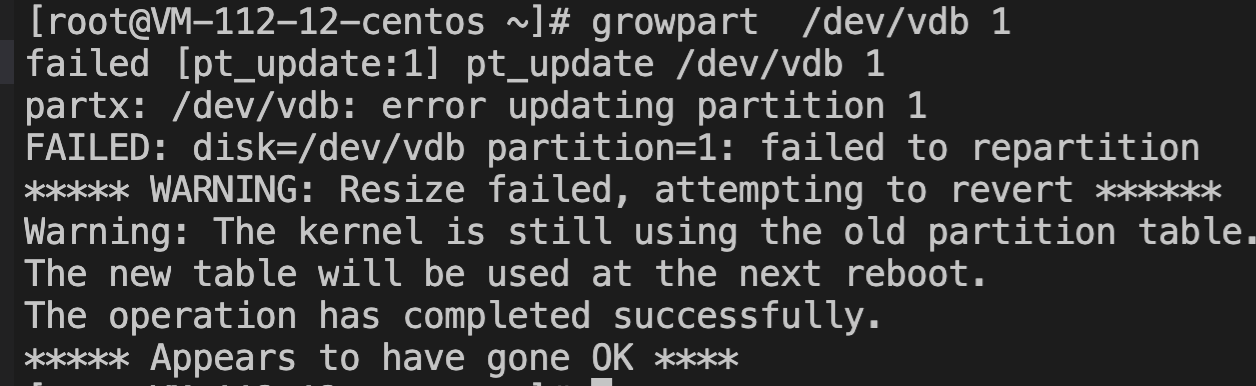
If the operation still fails, it may be caused by partition misalignment. Run
fdisk -l /dev/vdb to check whether the partition is aligned to the 2048-sector boundary. As shown in the figure below, if the first partition starts at the 34th sector (not aligned to 2048), you must follow Expanding GPT Partitions and File Systems (>2TB) to re-expand the partition.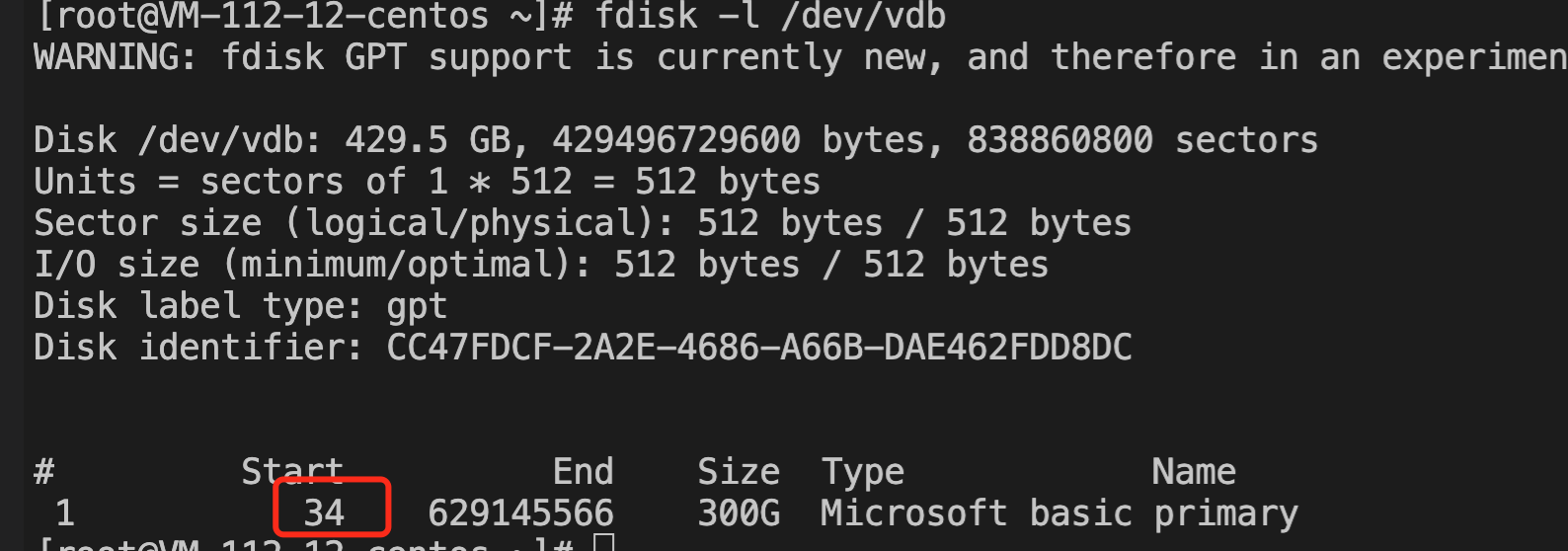
Step 6: Expand the file system
1. Based on the file system type obtained in Step 3: Check the File System Type, execute the corresponding command to expand the file system:
Note:
The EXT file system has the following capacity limits:
The EXT3 file system supports a maximum of 16 TB, with a maximum file size of 2 TB.
The EXT4 file system supports a maximum of 1 EB, with a maximum individual file size of 16 TB.
Run the following command to expand the ext file system.
resize2fs raw device name (e.g., /dev/vdb) or partition name (e.g., /dev/vdb1)
In this example, the data disk partition
/dev/vdc1 uses the EXT4 file system. Therefore, execute resize2fs /dev/vdc1. During execution, you may need to run e2fsck commands as prompted by the system. The execution result is shown in the following figure:
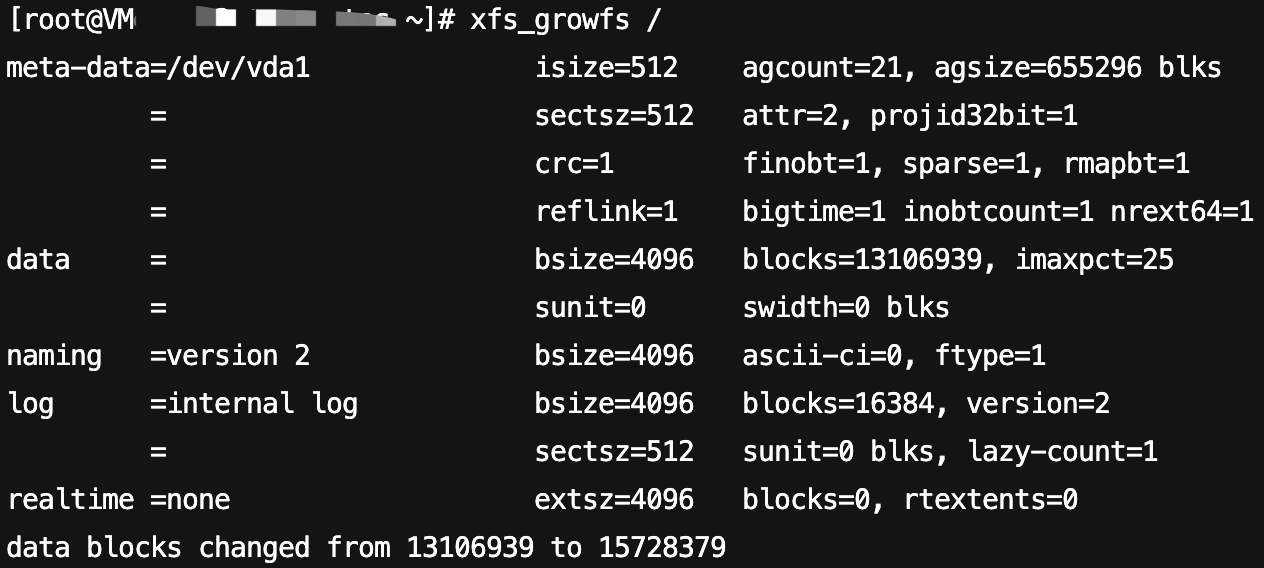
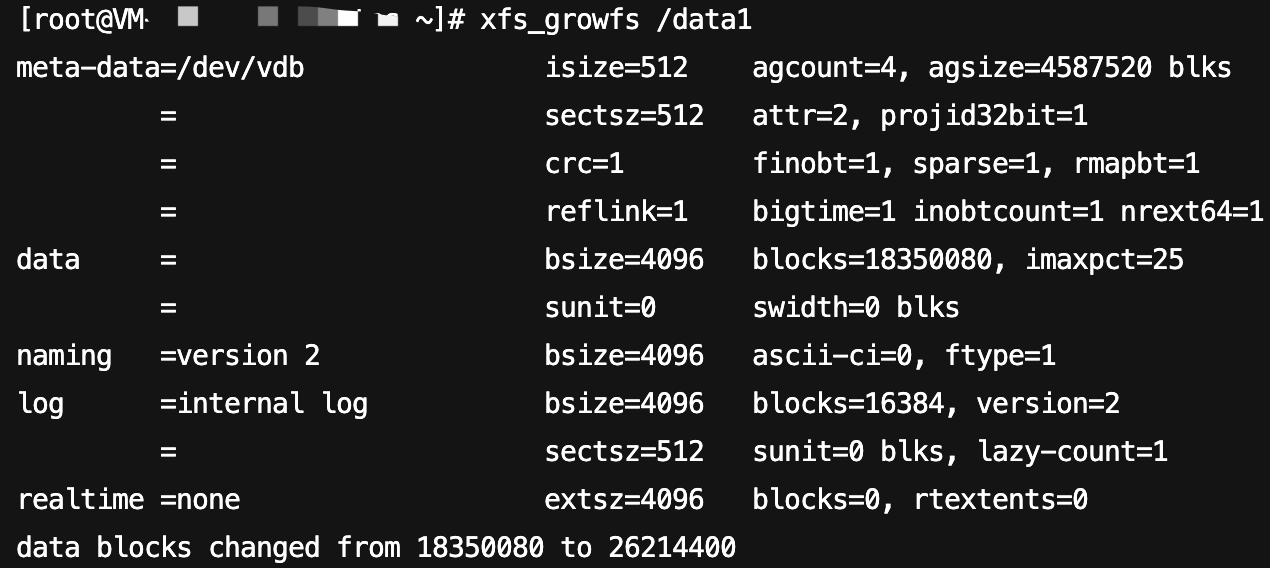
Run the following command to expand the xfs file system. The mount point of the file system can be viewed using the command
df -TH.xfs_growfs <mount_point>
In this example,
/dev/vda1 is mounted to /, and /dev/vdb is mounted to /data1. Run the following command:xfs_growfs /xfs_growfs /data1
The following figure shows the returned result:
2. Run the following command to view the expansion result.
df -TH
The returned result of this example is shown in the following figure. Both the system disk (
/dev/vda1) and data disks (/dev/vdb and /dev/vdc1) have been expanded.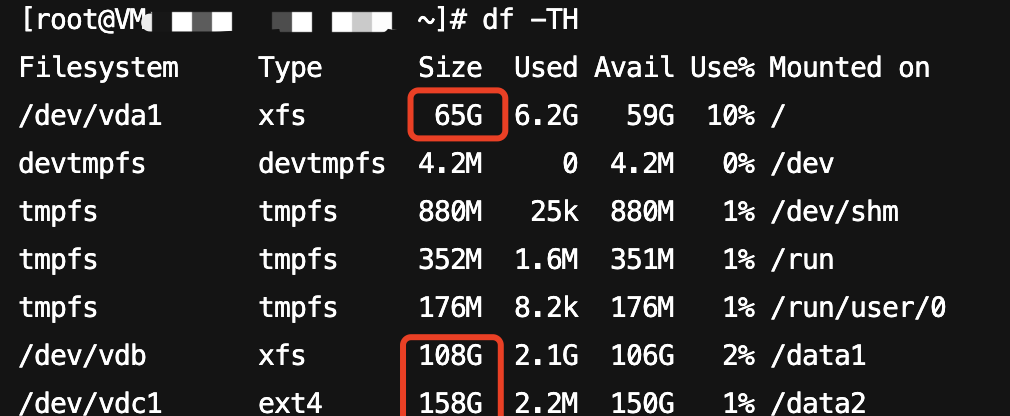
3. After the expansion is successful, check the data integrity and observe whether the business in the CVM is running normally.
If any abnormality occurs, you can roll back to snapshots for data recovery. For details, see Rolling Back Data from Snapshots.
피드백