Backing Up Databases
다운로드
포커스 모드
폰트 크기
To prevent data loss or corruption, you can back up your database using automatic or manual backup methods.
Backup Overview
Backup Method
Both the TDSQL Boundless Basic Edition and Cluster Edition support two backup methods: automatic backup and manual backup. The supported backup types vary across different instances due to differences in node storage types.
Backup Type
TDSQL Boundless instances support the following two backup types in the console:
Physical Backup: A full copy of physical data (supported for both manual and automatic backup), suitable for complete data protection and recovery scenarios.
Snapshot Backup: This backup is performed by creating snapshots of cloud disks at the storage layer (supported for both automatic and manual backup) and is suitable for fast backup and recovery in cloud disk storage scenarios.
Instance Type | Storage Type | Supported Backup Type | Supported Mode |
Cluster Edition | Local Disk | Physical backup | Automatic backup, manual backup |
| Cloud disk | Physical backup | Automatic backup, manual backup |
| | Snapshot backup | Automatic backup, manual backup |
Basic Edition | Cloud disk | Physical backup | Automatic backup, manual backup |
| | Snapshot backup | Automatic backup, manual backup |
Note:
TDSQL Boundless instances also support logical backup, which exports database objects and data in the form of SQL statements, facilitating logical migration, structure viewing, and small-scale data backup storage. However, this feature only supports users manually connecting to the database via the command line to perform the export. It does not support automatic or manual backup of logical backups through the console.
Advantages of Physical Backup | Disadvantages of Logical Backup |
Backup is fast. It supports streaming backup and compression. The backup success rate is high. Recovery is simple and efficient. Operations coupled with backups, such as adding disaster recovery instances, become faster. The average time to complete a physical backup is about one-eighth that of a logical backup. The import speed of physical backups is about ten times faster than that of logical backups. | During recovery, SQL execution and index building are required, resulting in a long recovery time. Backup is slow, and this is particularly noticeable when the data volume is large. The backup process exerts pressure on the instance, which may affect online business access. Precision of floating-point numbers may be lost during export. Backup may fail due to various issues (such as erroneous views). Operations coupled with backups, such as adding disaster recovery, become slower. |
TDSQL Boundless Basic Edition (Cloud Disk Storage) and Cluster Edition (Cloud Disk Storage) support snapshot backup:
Advantages of Snapshot Backup | Disadvantages of Snapshot Backup |
Backup is fast and exerts minimal pressure on the database. It occupies a relatively small volume. | Only cloud disk storage is supported. |
Backup Objects
Note:
It is recommended to perform backups during off-peak business hours.
DDL operations are prohibited during backup to prevent backup failure caused by table locking. If a DDL task is already running, automatic/manual backup tasks will be delayed and will not be initiated until the DDL operation is completed.
During backup, splitting and scheduling of replication groups are not supported. This means that instance specification change operations can be initiated normally during backup, but replication Group rebalancing will not be performed.
Backup files generated by automatic backup cannot be manually deleted. Their lifecycle can be controlled based on the retention period (7 days by default) configured in the data backup settings.
Backup settings cannot be modified for standby instances in disaster recovery scenarios.
Data Backup: Data files support both automatic and manual backup. Depending on the storage type, snapshot backup and physical backup are also supported. Generated data backups cannot be downloaded.
Log Backup: Log files occupy instance backup space. Log backups cannot be downloaded.
Automatically Backing Up Instance Data
Setting Automatic Backup
1. Log in to the TDSQL Boundless console. In the Instance List, click the Instance ID to go to the Instance Details page.
2. Go to the Backup and Restoration >Backup Settings tab, configure the following information, and click .
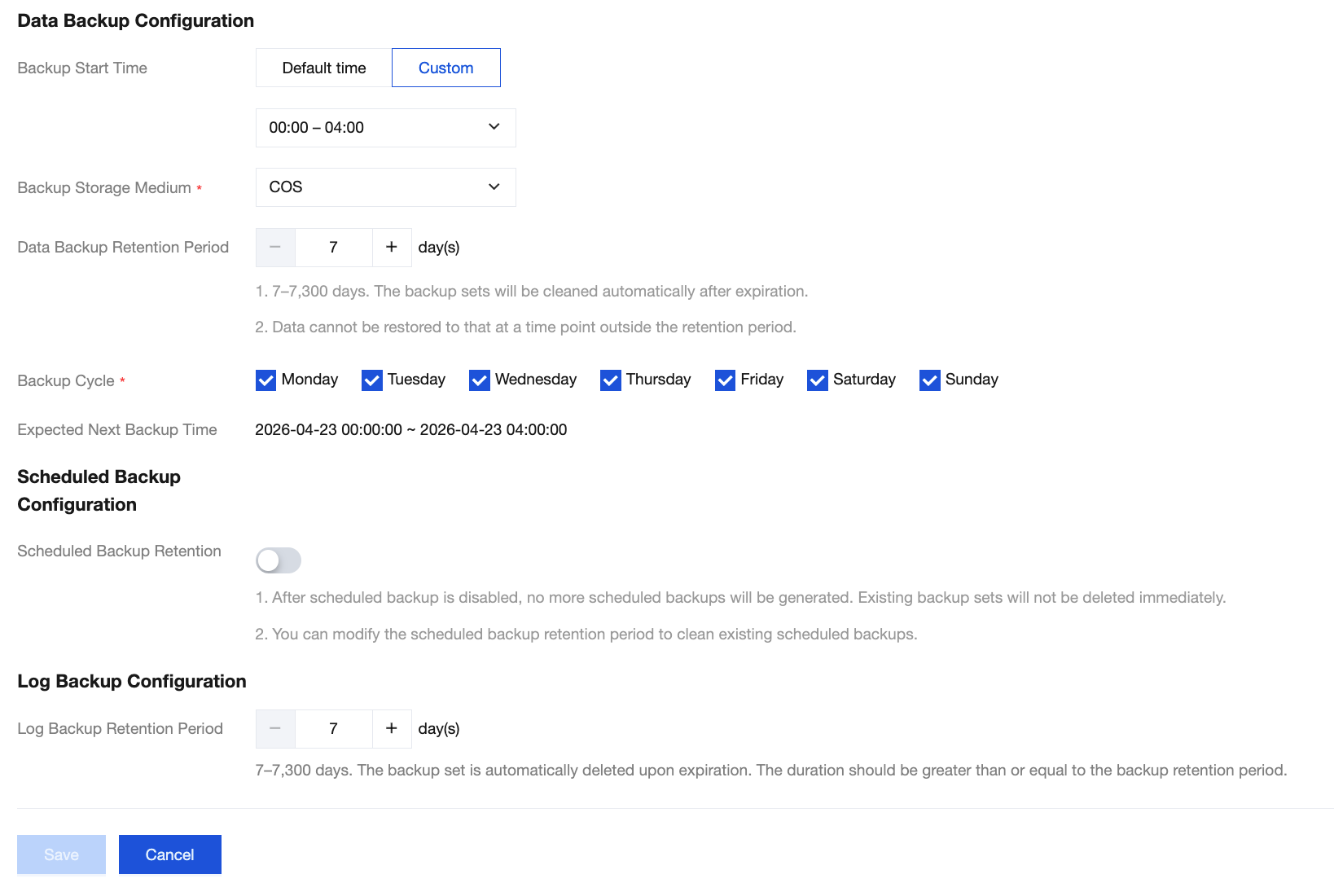
Configuring Automatic Backup
Parameter | Description |
Backup Start Time | The time window for data backup. The system schedules and initiates automatic backups within the selected time range. Default Time: The backup start time range automatically assigned by the system (00:00 - 08:00). Custom: You can customize the backup start time range (for example, 00:00 - 08:00). It is recommended to set it during off-peak hours. Note: The backup start time is merely the time when a backup task enters the scheduling queue. For example, if you enable backup for the period 00:00 - 08:00, the system will initiate the backup task at a specific time point within that range. The exact initiation time depends on the backend backup policy and the status of the backup system. To prevent the backup task from impacting instance performance, the backup task may be delayed due to queueing. The time consumed by a backup task is proportional to the data volume. |
Backup Storage Medium | Storage medium for backup sets. COS: During physical backup, the backup storage medium is displayed as COS. SNAPSHOT: During snapshot backup, the backup storage medium is displayed as SNAPSHOT. |
Data Backup Retention Period | The retention period for data backup files is 7 days by default. Backup sets are automatically deleted upon expiration. Note: The data backup retention period cannot be modified at this time. |
Backup Cycle | Set on a weekly basis: Monday through Sunday are selected by default. You can customize the backup time. To ensure your data security, set the backup frequency to at least twice a week. |
Log Backup Retention Period | The retention period for log backup is 7 days by default. Backup sets are automatically deleted upon expiration. Note: The log backup retention period cannot be modified at this time. |
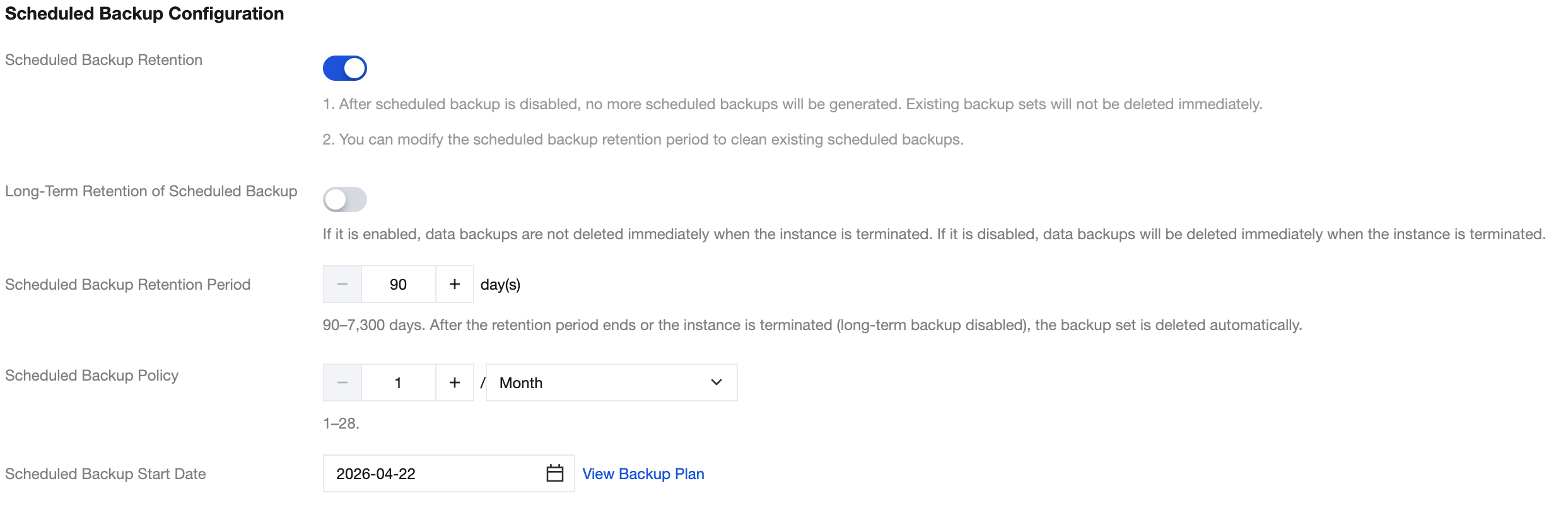
Enabling Scheduled Backup
Note:
The retention period for periodic backups must be greater than that set for regular backups.
Parameter | Description |
Scheduled Backup Retention | Enable: Enable the Scheduled Backup Retention feature. Specifically, the periodic backup long-term retention policy allows backup sets to be retained after instance deletion and automatically deletes them upon expiration to ensure data security. Disable (default): Indicates that the user has no requirement to retain instance data backup sets for the long term. |
Long-Term Retention of Scheduled Backup | Decoupling full backup sets from the strong binding with instance lifecycles. Enable: Indicates that data backup sets are not immediately deleted upon instance deletion. Backup sets can be retained after instance deletion and are automatically deleted upon expiration. Disable (default): Indicates that data backup sets are immediately deleted upon instance deletion. After you disable this feature, no new periodic data backup sets will be generated. Existing periodic data backup sets are retained according to the original policy and are automatically deleted upon expiration. |
Scheduled Backup Retention Period | Data backup files can be retained for 90 days - 7300 days (20 years), with 90 days as the default. Backup sets are automatically deleted upon exceeding the retention period. |
Scheduled Backup Policy | Supports setting the number of retained backups on a monthly, quarterly, or yearly basis. |
Scheduled Backup Start Date | The time when scheduled backup retention starts. |
Viewing a Backup Plan
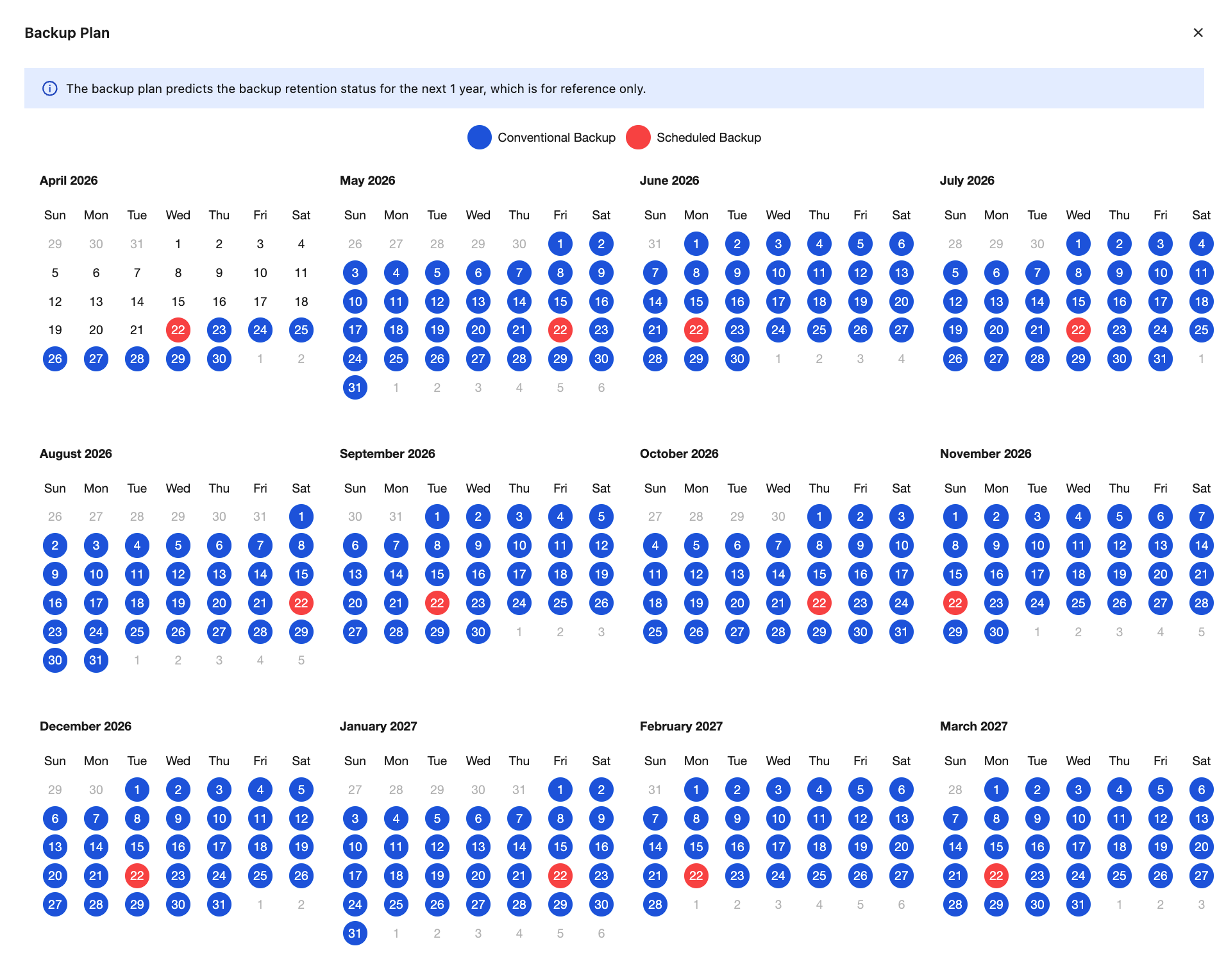
After you select a periodic backup retention policy in the backup settings, you can click View Backup Plan to preview it.
Blue dates indicate the dates for regular backups.
Red dates indicate the dates for periodic backups.
You can hide the corresponding date color markings by clicking Regular Backup or Periodic Backup to facilitate preview.
The backup plan preview currently shows the backup retention status for the next year and is for reference only.
Example: The backup cycle is Monday, Wednesday, Friday, and Sunday, with one periodic backup retained each month. The start time is set to April 14, 2026, showing the future periodic backup retention status.
Manually Backing Up Instance Data
Note:
Manual backups also consume backup space. Use backup space appropriately.
Manual backup sets are not automatically deleted by the system. You must delete them manually when they are no longer needed.
1. Log in to the TDSQL Boundless console. In the Instance List, click the Instance ID to go to the Instance Management page.
2. Go to the Backup and Restoration > Data Backup List tab and click .

3. In the pop-up window, set a backup name as needed and click OK.
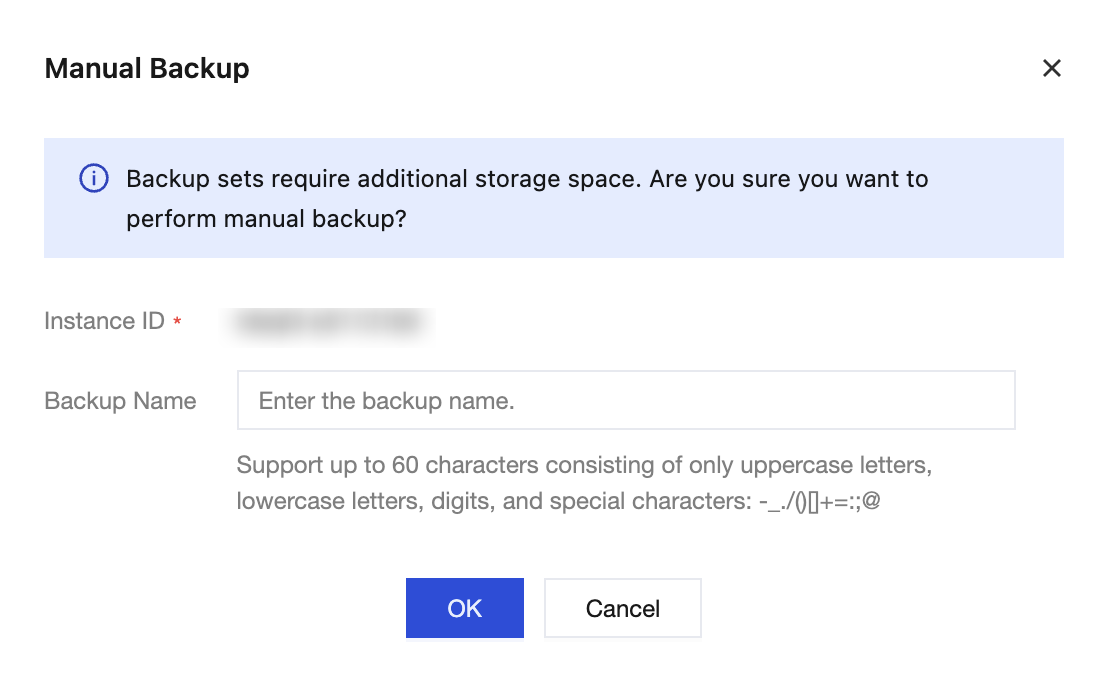
4. After the operation succeeds, you can view the manual backup set in the Data Backup List.
FAQs
피드백